Search External Files
pendingby ttt
Browse external files and search for file or folder paths in Obsidian.
Search External Files for Obsidian
Browse external files and search for file or folder paths in Obsidian.
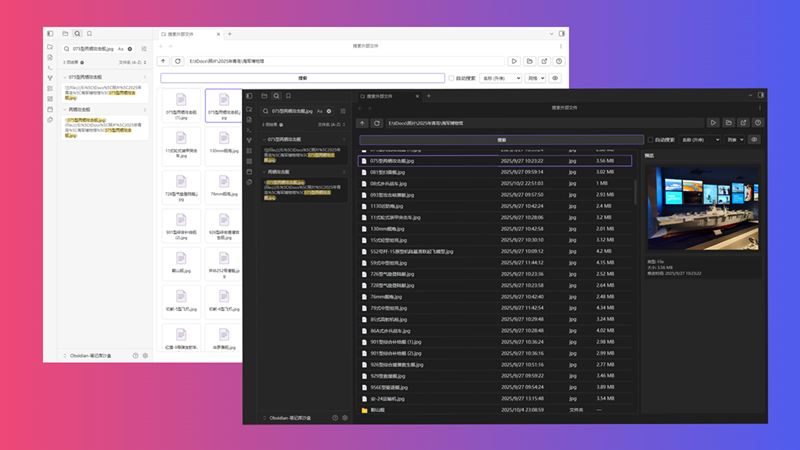
A large number of files are stored on the PC, and they usually have their own categories. A common example is photos. During an outdoor activity, we may take a large number of photos, which are too numerous to fit in Obsidian's vault. Too many files will only interfere with the search.
External links are a great solution, but when you want to move or delete a file without knowing if it is being used in Vault, manually opening Obsidian for search is too cumbersome.
This plugin adds an external file browser to Obsidian. Select a file, click the button (or automatically) to search for the file in Obsidian, and quickly display the search results for the external file.
Features
This plugin allows you to browse the local file system within Obsidian and quickly search for selected files or folder paths.
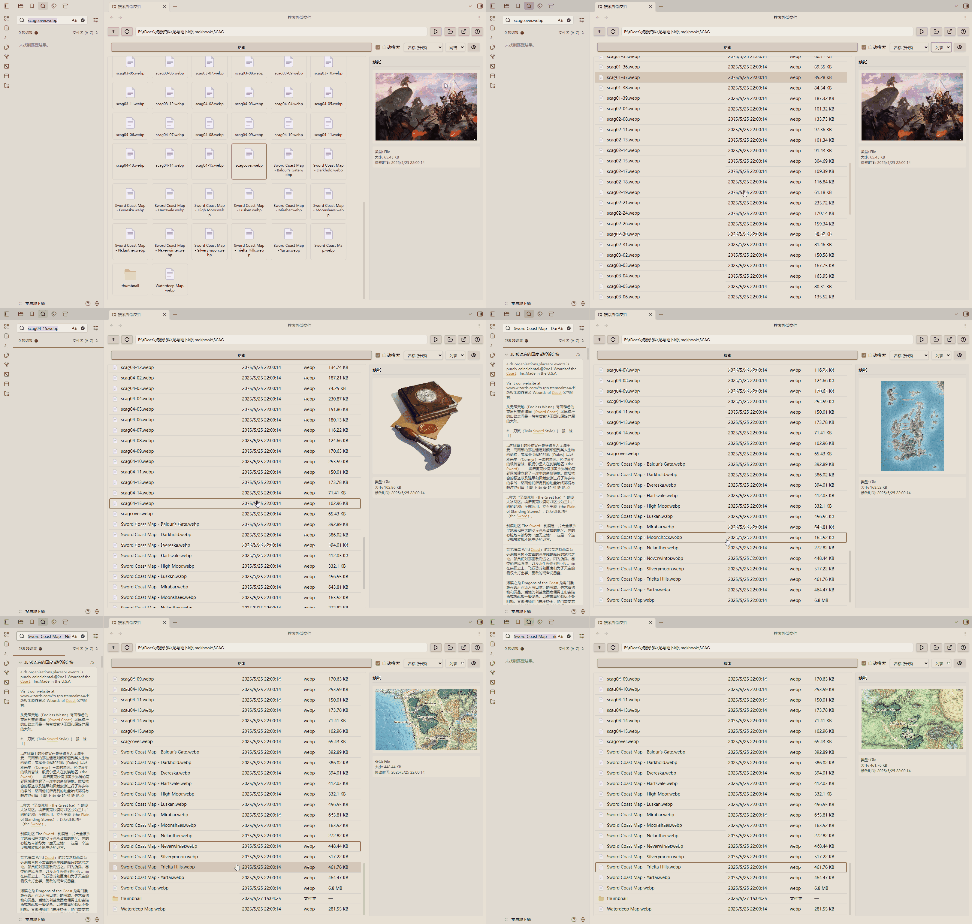
This plugin is read-only and will never modify any files in your vault! All runtime data is temporary and will not affect your notes.
Usage
- Open the plugin: Click the folder-search icon in the left ribbon, or use the command.
- File navigation: Use the top navigation buttons (Up, Refresh) and the path bar to jump to directories.
- Select items: Click on a file or folder to select it. After selection, you can open the preview sidebar (click the "Preview" button) to view image preview and information.
- Search:
- Double-click a file (or select it and click the "Search" button) to search for its filename.
- select a folder and click the "Search" button to search for its path.
- Auto search: Check "Auto Search" to automatically trigger a search whenever you click on a file or folder.
Notes
I am not a professional programmer, and this plugin relies on AI assistance during production, which may have unknown issues.
For plugin developers
Search results and similarity scores are powered by semantic analysis of your plugin's README. If your plugin isn't appearing for searches you'd expect, try updating your README to clearly describe your plugin's purpose, features, and use cases.