Review Tracker
pendingby Vladyslav Voloshyn
Track interval-based review of notes.
Overview
Human memory is selective in nature: information that is rarely used or insufficiently reinforced tends to be partially forgotten over time. This is related to incomplete consolidation, interference between pieces of knowledge, and mechanisms for selecting relevant information. Under normal conditions, this property of memory is adaptive, as it reduces the influence of competing or less relevant memories. However, in learning, research, and long-term projects, it creates a problem: important knowledge gradually fades without systematic review. That is why repetition becomes necessary.
Review Tracker is an Obsidian plugin designed to organize note review using predefined time intervals. Its main function is to help users see which notes should be reviewed, when they should return to them, and which review intervals have already been completed.
Important Clarification
Review Tracker is not a flashcard system and does not guarantee memorization. It does not test knowledge in a question-and-answer format; rather, it simply helps users see which of their own notes should be reviewed at certain intervals.
Its main purpose is to make note review more organized by showing which notes should be revisited after a few days, weeks, or other defined periods of time.
Installation
Via Community Plugins
Once the plugin becomes available in the official Obsidian Community Plugins catalog:
- Open Settings → Community plugins → Browse
- Search for Review Tracker
- Click Install
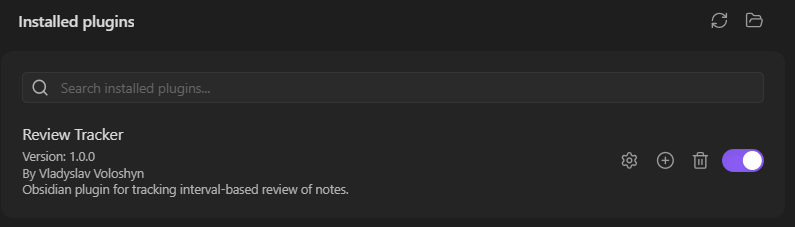
- Enable the plugin in the Installed plugins list
Manual Installation
If the plugin has not yet been added to the Community Plugins catalog:
- Go to the latest GitHub Release
- Download
main.js,manifest.json, andstyles.css - Create the following folder inside your vault:
/.obsidian/plugins/review-tracker/
- Copy
main.js,manifest.json, andstyles.cssinto this folder - Restart Obsidian
- Open Settings → Community plugins
- Find Review Tracker in the list of installed plugins
- Enable it
How to Start Using Review Tracker
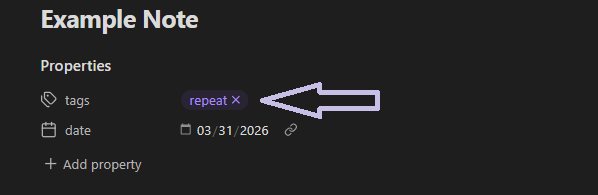
To make Review Tracker detect a note, the note must contain two things in its Properties:
- a tag used for review
- a starting date from which the review intervals are counted
Step 1. Create a note
Create a new note, for example:
Example Note
Step 2. Open Properties
At the top of the note, open the Properties section.
If the note does not have any properties yet:
- click the + button
- choose tags
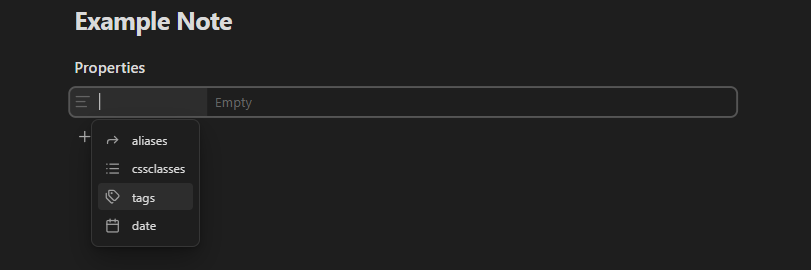
- add the tag used for review, for example:
repeat
Then click + again and create a date property, for example:
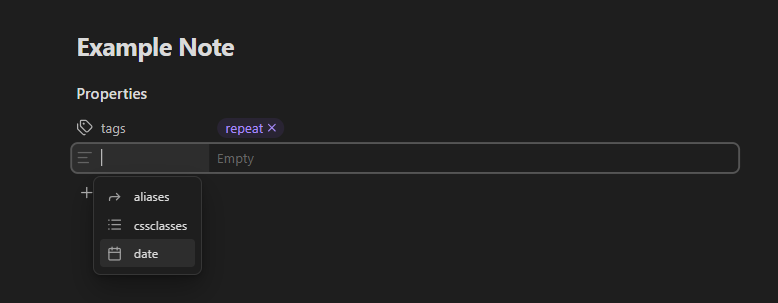
date
After that, enter the starting date of the note.
Step 3. Example of required properties
A simple example:
- tags:
repeat - date:
2026-03-31
Source mode:
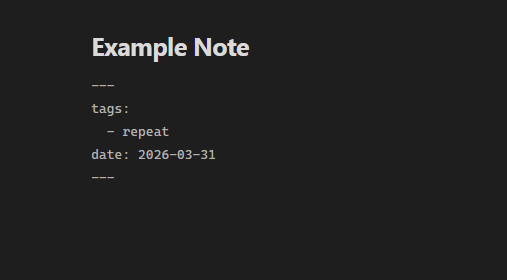
Reading mode:
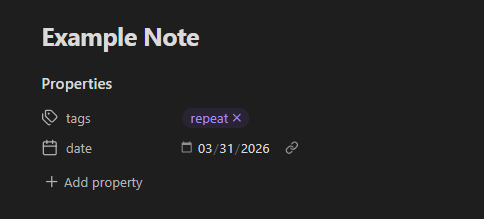
This means:
- the tag tells the plugin that this note should be included in the review system
- the date becomes the zero day, which is the starting point for all intervals
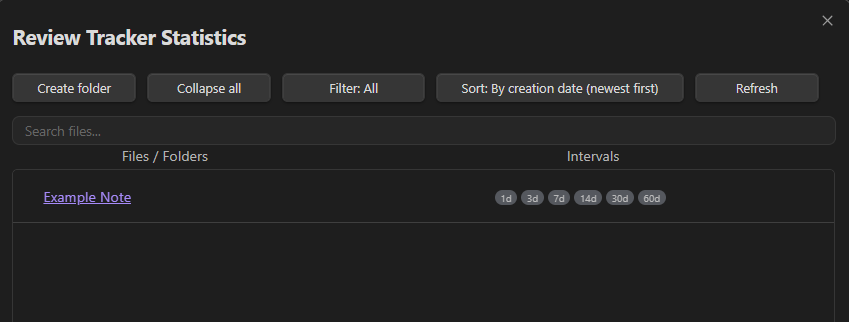
If everything has been set up correctly, the note will appear in Review Tracker Statistics.
This means that the note contains:
- the correct review tag
- a valid date in Properties
How the Main Review Tracker Window Works
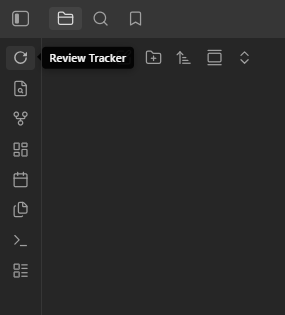
When the plugin is enabled, a Review Tracker button appears in the left sidebar of Obsidian.
After clicking it, a separate plugin window opens, usually on the right side.
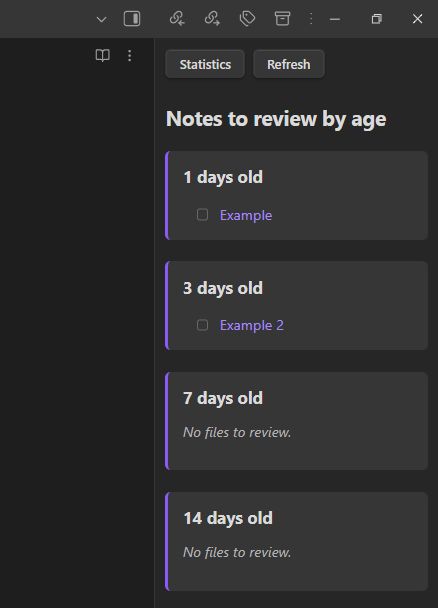
This window shows the notes that need to be reviewed today.
How to Read the List
Notes are grouped into sections based on review intervals:
- 1 day old — this section shows notes for which the first review interval has been reached, meaning they should be reviewed 1 day after the starting date
- 3 days old — this section shows notes for which the 3-day review interval has been reached
Statistics Button
The Statistics button opens a separate statistics window where you can see all notes, their intervals, review progress, hints, missed intervals, and other details.
Settings
Review Tracker includes a settings panel that allows users to control how notes are selected for review and how review intervals are displayed.
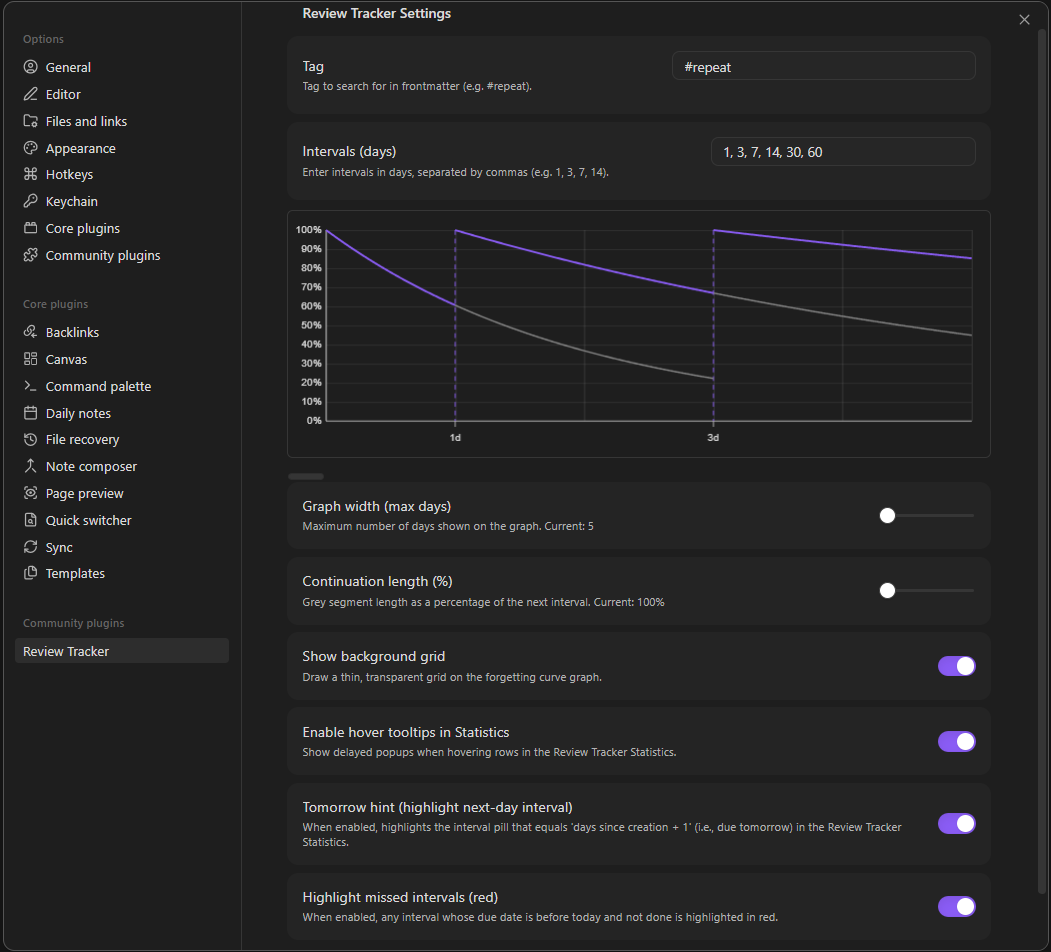
The screenshot below shows the main fields available in the plugin settings:
Tag
The Tag field defines which tag the plugin uses to identify notes for review.
For example, if this field is set to #repeat, the plugin will work with notes whose properties / frontmatter contains this tag. This makes it possible to separate ordinary notes from the notes you want to include in your review workflow.
In other words, the tag works as a marker that tells the plugin which notes should be tracked for interval-based review.
Intervals (days)
The Intervals (days) field allows users to define review intervals in days.
For example, if the field contains:
1, 3, 7, 14, 30, 60
this means that the note is scheduled for review:
- 1 day after the starting date,
- 3 days after the starting date,
- 7 days after the starting date,
- 14 days after the starting date,
- 30 days after the starting date,
- 60 days after the starting date.
The starting point is the zero day, meaning the initial date from which all intervals are counted.
So these intervals do not mean “repeat every 3 days.” Instead, they represent fixed checkpoints in time: on day 1, day 3, day 7, day 14, and so on from the starting date.
Forgetting curve graph
The graph in the settings displays a simplified forgetting curve together with the selected review intervals.
Its purpose is not to provide an exact scientific model of memory. Instead, it serves as a visual illustration showing how the chosen intervals are distributed and how retention may approximately decline between reviews.
In other words, the graph should be understood as an illustrative visual aid, not as a precise prediction of how memory works.
Graph width (max days)
The Graph width (max days) setting controls how many days are shown on the graph at once. It affects only the scale of the graph and makes it easier to view either shorter or longer interval ranges.
Continuation length (%)
The Continuation length (%) setting adjusts the length of the grey continuation segment on the graph. This is a visual parameter that helps show how the curve extends beyond the main review point.
Show background grid
The Show background grid option enables a background grid on the graph, which can make it easier to read visually.
Enable hover tooltips in Statistics
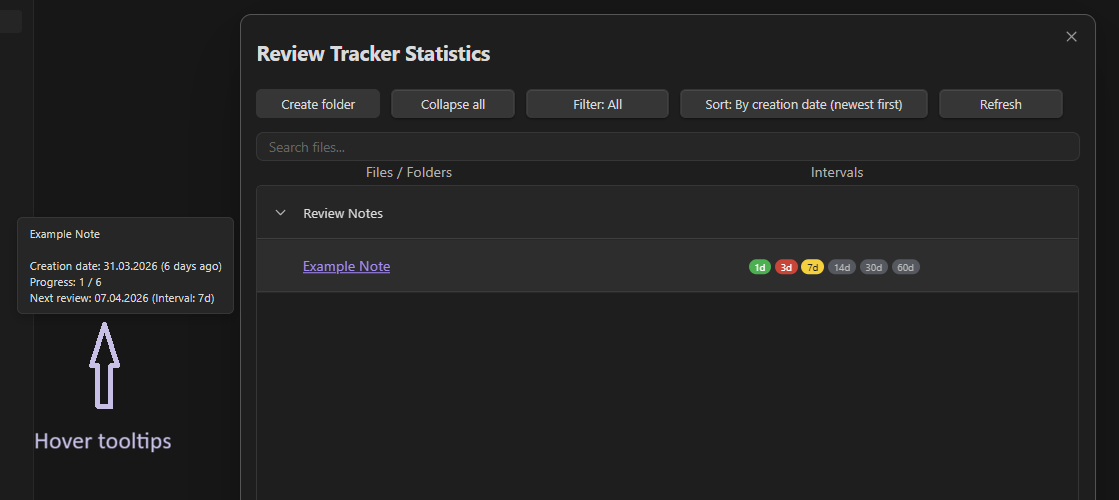
The Enable hover tooltips in Statistics option shows tooltips when the user hovers over rows in the statistics modal. This helps display additional information more conveniently.
Tomorrow hint
The Tomorrow hint option highlights the interval that will become due tomorrow. This can be useful for seeing which reviews are coming next.
Overall, these settings are intended to make the review process more flexible, more understandable, and easier to adapt to different note-taking and learning workflows.
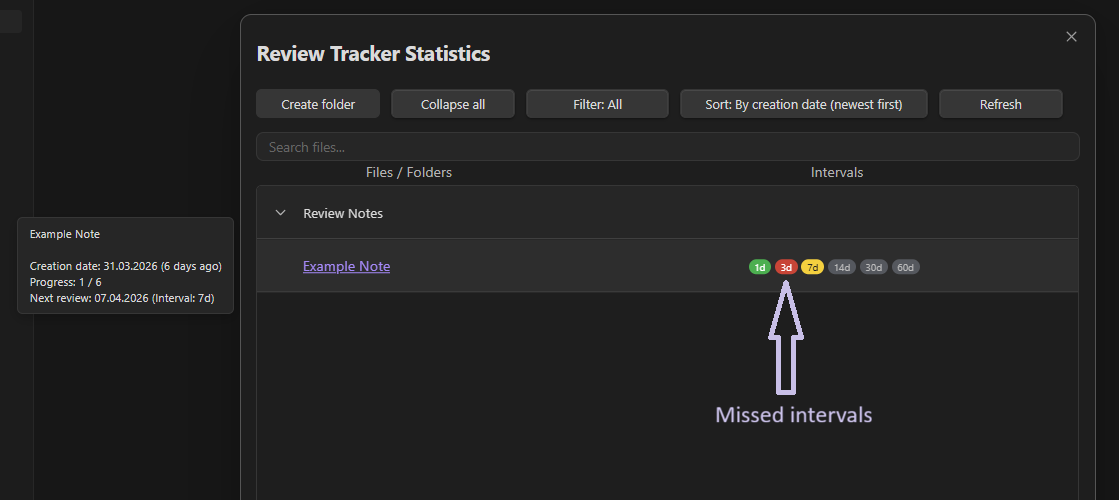
Highlight missed intervals (red)
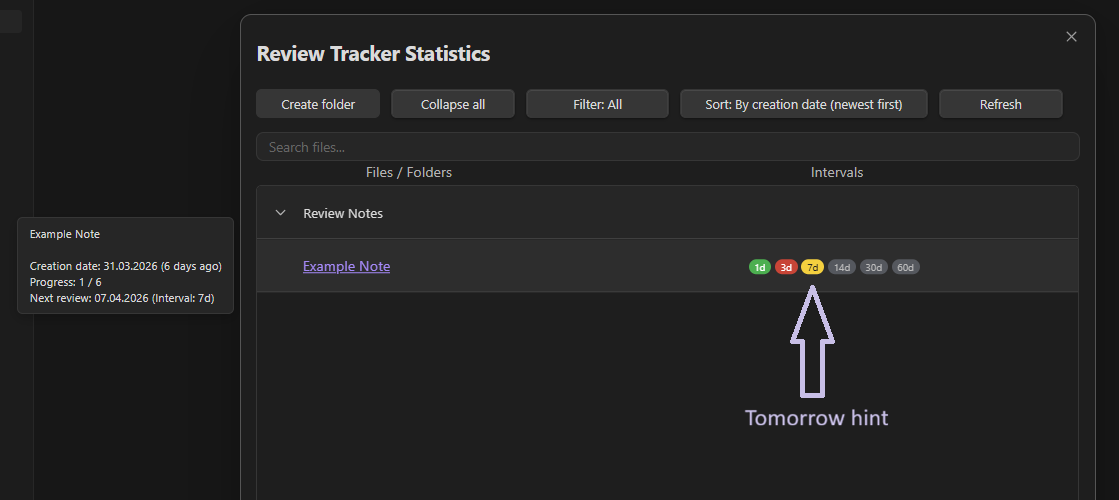
The Highlight missed intervals (red) option marks overdue review intervals in red.
When this option is enabled, any interval whose scheduled review date is earlier than today and has not been marked as completed will be highlighted in red. This makes it easier to notice missed reviews and quickly identify notes that need attention.
This feature is intended to improve visibility in the review workflow by clearly separating overdue intervals from completed or upcoming ones.
Recommendation for Use
For better retention of information, it is recommended not to rely solely on rereading a note. A much more effective approach is active recall before reviewing it again.
Therefore, it is advisable to formulate several key questions at the beginning of each note and try to answer them independently before opening or rereading the full text. This approach helps not only to check what has already been retained in memory, but also to make the review process more conscious and effective.
For plugin developers
Search results and similarity scores are powered by semantic analysis of your plugin's README. If your plugin isn't appearing for searches you'd expect, try updating your README to clearly describe your plugin's purpose, features, and use cases.