Diff Apply
pendingby Lihua Zheng
Compare and merge selected text with clipboard content in a floating window.
Diff Apply (Obsidian Plugin)
Why do you need it?
When revising and merging long-form text (e.g., translation proofreading, comparing AI-polished versions, merging multiple draft versions), the usual workflow is often: scroll back and forth → visually hunt for differences → copy and paste sentence by sentence. This is not only inefficient, but also very prone to missing edits, making incorrect changes, or pasting into the wrong place.
Traditional diff tools are mostly designed for code comparison, and don’t fully fit text scenarios where differences are scattered and edits are flexible.
This project focuses on text diff merging. It provides an intuitive dual-pane floating window for reviewing differences + editing instantly, turning tedious side-by-side checking and copy-pasting into convenient click/keyboard actions—so you can spend your attention on the content decisions that matter.
Core Features
1. Dual-pane floating window
-
Left: Review (Diff review area) Displays the diff between the original text (the current selection) and the final text (initially read from the clipboard) in real time, and supports direct interaction with diff fragments.
-
Right: FINAL (Final text editor) You can edit the final text directly. The cursor position stays highlight-synced with the diff on the left, helping you accurately locate corresponding fragments.
2. Visual diff presentation
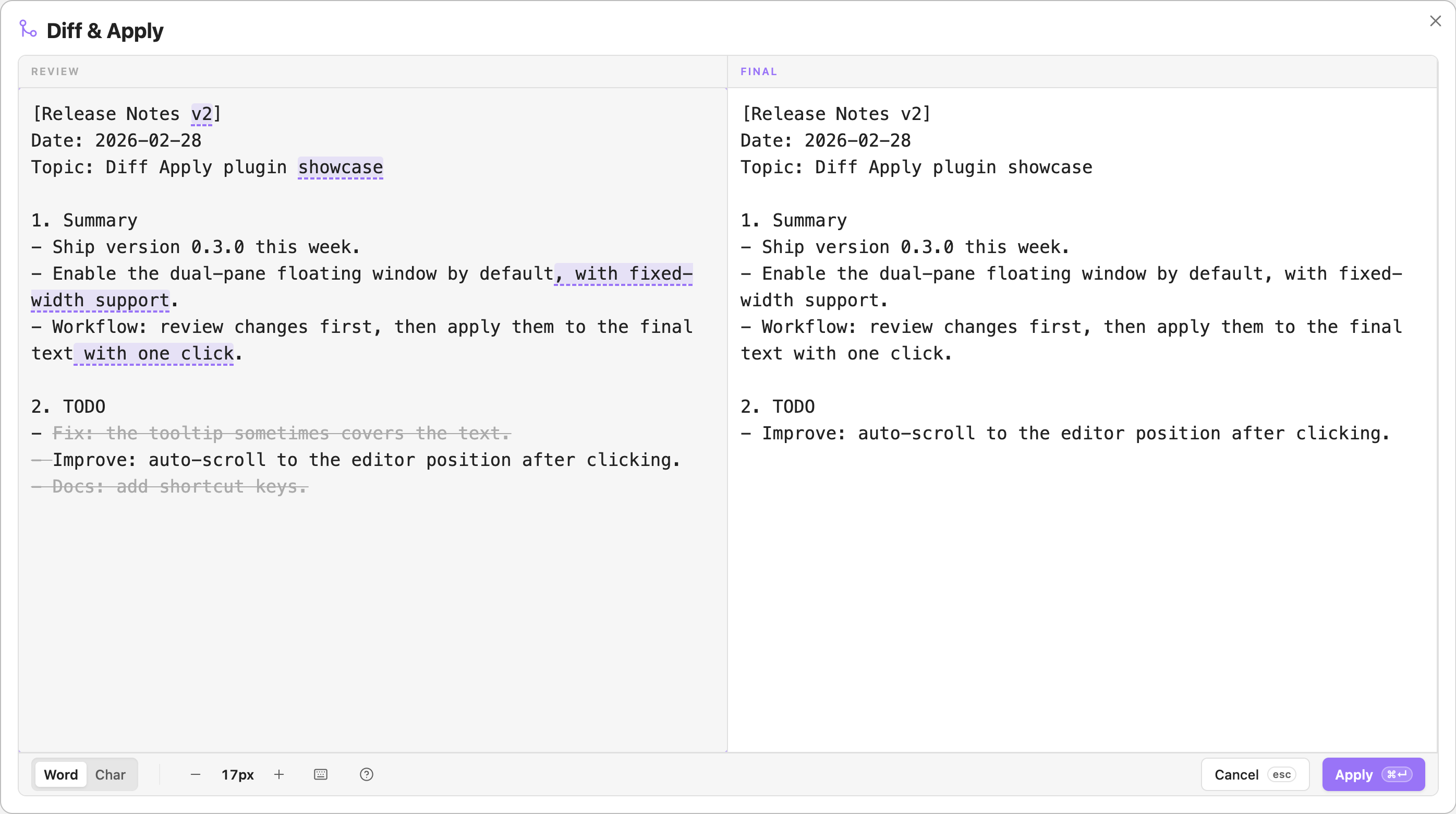
Instead of messy code-style diff markers, the Review pane uses only two basic styles to express three diff semantics—add / delete / replace—balancing information density and readability:
- Highlighted background: content that is added / replaced in the final text relative to the original
- Gray background + strikethrough: content that is deleted in the final text relative to the original
3. “What you see is what you get” interaction rules
Interaction principle: selection is used to “hint what will happen”; execution is used to “perform the action.” The Review pane is not only for display—it’s also an operation area. Both mouse and keyboard are supported, and they trigger the same interactive feedback.
| Diff Type | Visual Style | Hover / Keyboard Selected | Click / Keyboard Execute |
|---|---|---|---|
| Replace (both sides differ) | Highlighted background | Shows a tooltip with the corresponding original content; the right pane highlights the matching position | Injects the original fragment into the right editor with one click, overwriting the current final text |
| Add (exists in final, not in original) | Highlighted background | Turns into gray background + strikethrough (hinting it will be removed after the action) | Deletes the added fragment from the right editor with one click |
| Delete (exists in original, not in final) | Gray strikethrough | Turns into normal text (hinting it will be added after the action) | Inserts the missing fragment at the corresponding position in the right editor with one click |
4. Operation modes and helper features
- Multiple modes: supports hover-based mouse operations and a pure keyboard mode (toggle via
Mod+Shift+Kor the keyboard icon in the bottom bar; use↑/↓to move between markers andEnterto apply). - Smart jump: if a diff marker is off-screen, the first click jumps to it; the second click performs the merge action.
- Fine-tuning: the bottom toolbar lets you switch diff granularity (
Word/Char) and font size (10–24px) in real time. - Undo/redo: the right editor fully supports undo/redo (
Mod+Z/Mod+Shift+Z/Mod+Y).
Workflow
- Select the original: select the source text (ORIGINAL) to review in Obsidian.
- Open the panel: run the command
Review & Apply Selectionto open the diff panel. - Load the final version: the FINAL text on the right is initially read from the system clipboard automatically.
- Review and operate: view differences on the left; click diff fragments for quick replace/delete actions, or freely edit on the right.
- Apply or cancel: replace the original selection with the final result from the right pane, or exit without applying.
Install and enable
-
Create the plugin directory in your vault:
.obsidian/plugins/diff-apply/ -
Put the release files into that directory:
main.jsmanifest.jsonstyles.css
-
Restart Obsidian, then enable Diff Apply under Settings → Community plugins
For plugin developers
Search results and similarity scores are powered by semantic analysis of your plugin's README. If your plugin isn't appearing for searches you'd expect, try updating your README to clearly describe your plugin's purpose, features, and use cases.