Floating Explorer
pendingby zwmjohn-cool
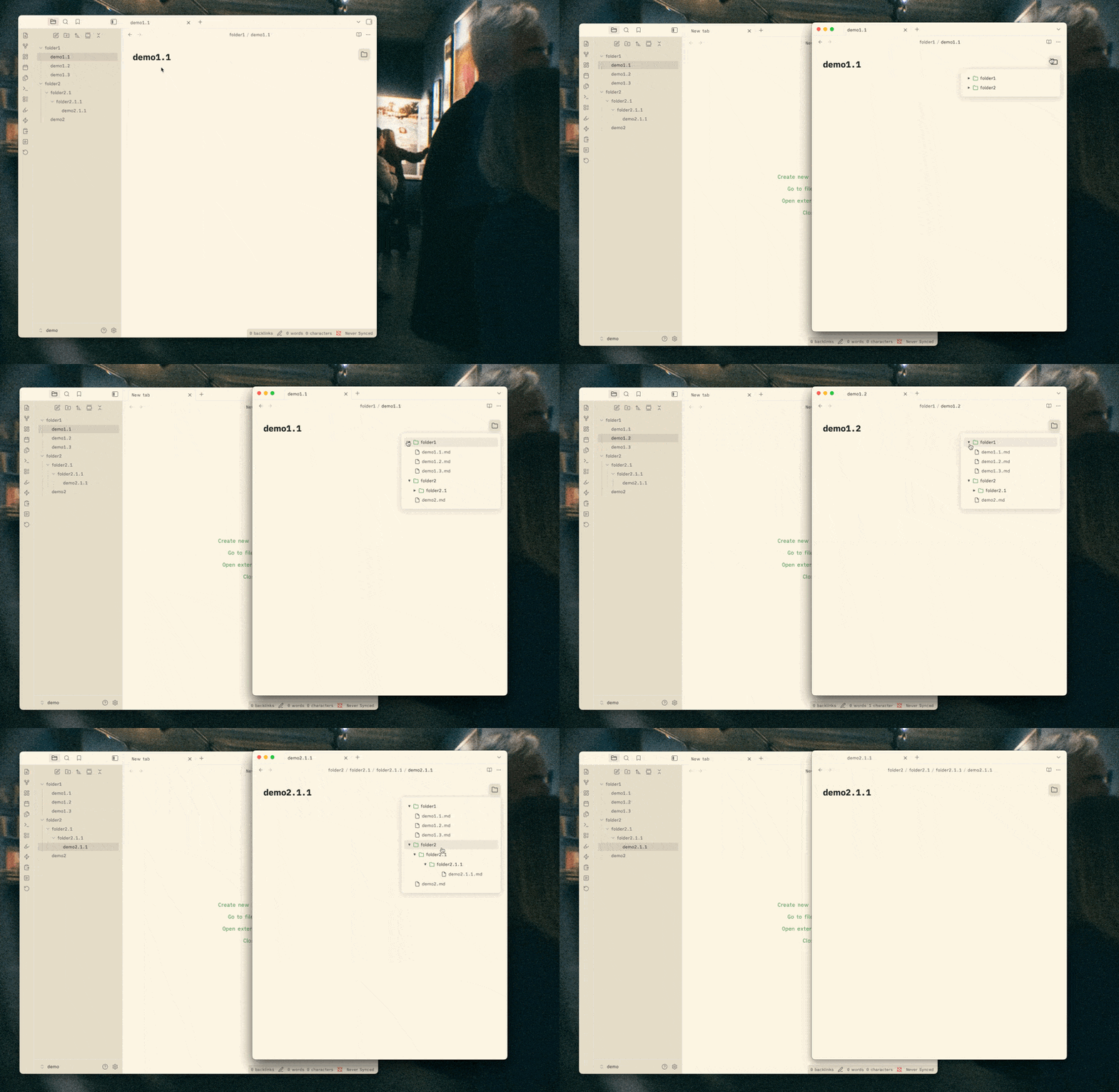
A floating folder explorer icon in the top-right corner of each page.
Floating Explorer - Obsidian Plugin
English
Overview
An Obsidian plugin that displays a floating folder browser icon in the top-right corner of each page.
Features
- Floating folder icon: Appears in the top-right corner of each page
- Hover to browse: Display complete folder structure on hover
- Tree-style browser: Collapsible/expandable folder tree
- Active file highlighting: Currently opened file is highlighted in the explorer
- Focus mode: Right-click on any folder to focus on that folder only
- Per-pane state: Each editor pane maintains its own explorer state
- Context menu: Right-click to create/delete files and folders
- Open in new tab: Right-click on files to open them in a new tab
- Multilingual support: Auto-detects system language (36+ languages supported)
- Theme integration: Seamlessly integrates with Obsidian theme styles
Demo
Installation
Quick Installation (Recommended)
Simply copy these three files to your Obsidian vault's plugin directory:
main.js(pre-compiled, ready to use)manifest.jsonstyles.css
Steps:
-
Copy the plugin folder to:
<your-vault>/.obsidian/plugins/obsidian-floating-explorer/ -
In Obsidian:
- Open Settings → Community Plugins
- Disable Safe Mode (if not already disabled)
- Refresh the plugin list
- Find "Floating Explorer" and enable it
Build from Source (For Development)
Only needed if you want to modify the TypeScript source code (main.ts):
npm install
npm run build
This compiles main.ts into main.js.
Usage
- After enabling the plugin, you'll see a floating folder icon (📁) in the top-right corner of each page
- Hover over the icon to display the complete folder structure
- Click the arrow (▶/▼) before a folder name to expand/collapse it
- Left-click a file name to open it in the current tab
- Right-click a file to see context menu options:
- Open in New Tab: Opens the file in a new tab (keeps current tab open)
- New File: Create a new file in the same folder
- New Folder: Create a new folder
- Delete File: Delete the selected file
- The panel will automatically hide when the mouse moves away
- Right-click on any folder to enter Focus Mode for that folder
- Click the back arrow (←) at the top to exit Focus Mode
Context Menu Options
File Context Menu
- Open in New Tab: Open the file in a new tab without closing the current one
- New File: Create a new file in the parent folder
- New Folder: Create a new folder in the parent folder
- Delete File: Delete the selected file (with confirmation)
Folder Context Menu
- New File: Create a new file in this folder
- New Folder: Create a new subfolder
- Delete Folder: Delete the folder (with confirmation)
- Focus Mode: Focus on this folder only
- Unfocus: Exit focus mode (appears when in focus mode)
Development
# Install dependencies
npm install

# Development mode (auto-rebuild)
npm run dev

# Production build
npm run build
Tech Stack
- TypeScript
- Obsidian API
- esbuild
Changelog
v1.3.0
- Added "Open in New Tab" context menu option for files
- Improved multilingual support with translations for 36+ languages
- Updated README with bilingual support
v1.2.1
- Added context menu support for files and folders
- Improved file/folder management
v1.0.0
- Initial release with floating explorer functionality
License
MIT
Feedback
If you have any issues or suggestions, feel free to submit an issue.
中文
概述
一个 Obsidian 插件,在每个页面的右上角显示一个浮动文件夹浏览器图标。
功能特性
- 浮动文件夹图标:在每个页面的右上角显示
- 悬停浏览:鼠标悬停时显示完整的文件夹结构
- 树状浏览器:可折叠/展开的文件夹树
- 活动文件高亮:当前打开的文件在浏览器中高亮显示
- 聚焦模式:右键点击任意文件夹以仅聚焦该文件夹
- 独立窗格状态:每个编辑器窗格维护自己的浏览器状态
- 右键菜单:右键点击创建/删除文件和文件夹
- 在新标签页打开:右键点击文件可在新标签页中打开
- 多语言支持:自动检测系统语言(支持 36+ 种语言)
- 主题集成:无缝集成 Obsidian 主题样式
演示
安装
快速安装(推荐)
只需将以下三个文件复制到你的 Obsidian vault 插件目录:
main.js(预编译,可直接使用)manifest.jsonstyles.css
步骤:
-
将插件文件夹复制到:
<你的-vault>/.obsidian/plugins/obsidian-floating-explorer/ -
在 Obsidian 中:
- 打开 设置 → 第三方插件
- 关闭安全模式(如果尚未关闭)
- 刷新插件列表
- 找到 "Floating Explorer" 并启用
从源码构建(仅用于开发)
仅当你想修改 TypeScript 源代码(main.ts)时需要:
npm install
npm run build
这会将 main.ts 编译为 main.js。
使用方法
- 启用插件后,你会在每个页面的右上角看到一个浮动文件夹图标(📁)
- 将鼠标悬停在图标上以显示完整的文件夹结构
- 点击文件夹名称前的箭头(▶/▼)以展开/折叠文件夹
- 左键点击文件名在当前标签页中打开
- 右键点击文件查看上下文菜单选项:
- 在新标签页打开:在新标签页中打开文件(保留当前标签页)
- 新建文件:在同一文件夹中创建新文件
- 新建文件夹:创建新文件夹
- 删除文件:删除选定的文件
- 当鼠标移开时,面板会自动隐藏
- 右键点击任意文件夹以进入该文件夹的聚焦模式
- 点击顶部的返回箭头(←)退出聚焦模式
右键菜单选项
文件右键菜单
- 在新标签页打开:在新标签页中打开文件,不关闭当前标签页
- 新建文件:在父文件夹中创建新文件
- 新建文件夹:在父文件夹中创建新文件夹
- 删除文件:删除选定的文件(需确认)
文件夹右键菜单
- 新建文件:在此文件夹中创建新文件
- 新建文件夹:创建新子文件夹
- 删除文件夹:删除文件夹(需确认)
- 聚焦模式:仅聚焦此文件夹
- 取消聚焦:退出聚焦模式(在聚焦模式时显示)
开发
# 安装依赖
npm install

# 开发模式(自动重新构建)
npm run dev

# 生产构建
npm run build
技术栈
- TypeScript
- Obsidian API
- esbuild
更新日志
v1.3.0
- 新增文件的"在新标签页打开"右键菜单选项
- 改进多语言支持,翻译支持 36+ 种语言
- 更新 README 支持中英双语
v1.2.1
- 新增文件和文件夹的右键菜单支持
- 改进文件/文件夹管理
v1.0.0
- 初始版本,浮动浏览器功能
许可证
MIT
反馈
如果你有任何问题或建议,欢迎提交 issue。
For plugin developers
Search results and similarity scores are powered by semantic analysis of your plugin's README. If your plugin isn't appearing for searches you'd expect, try updating your README to clearly describe your plugin's purpose, features, and use cases.