by MrVersano
Turn your notes into a minimal task manager, with an Inbox, Today and Upcoming lists, and projects that are ordinary notes.
Plainlist
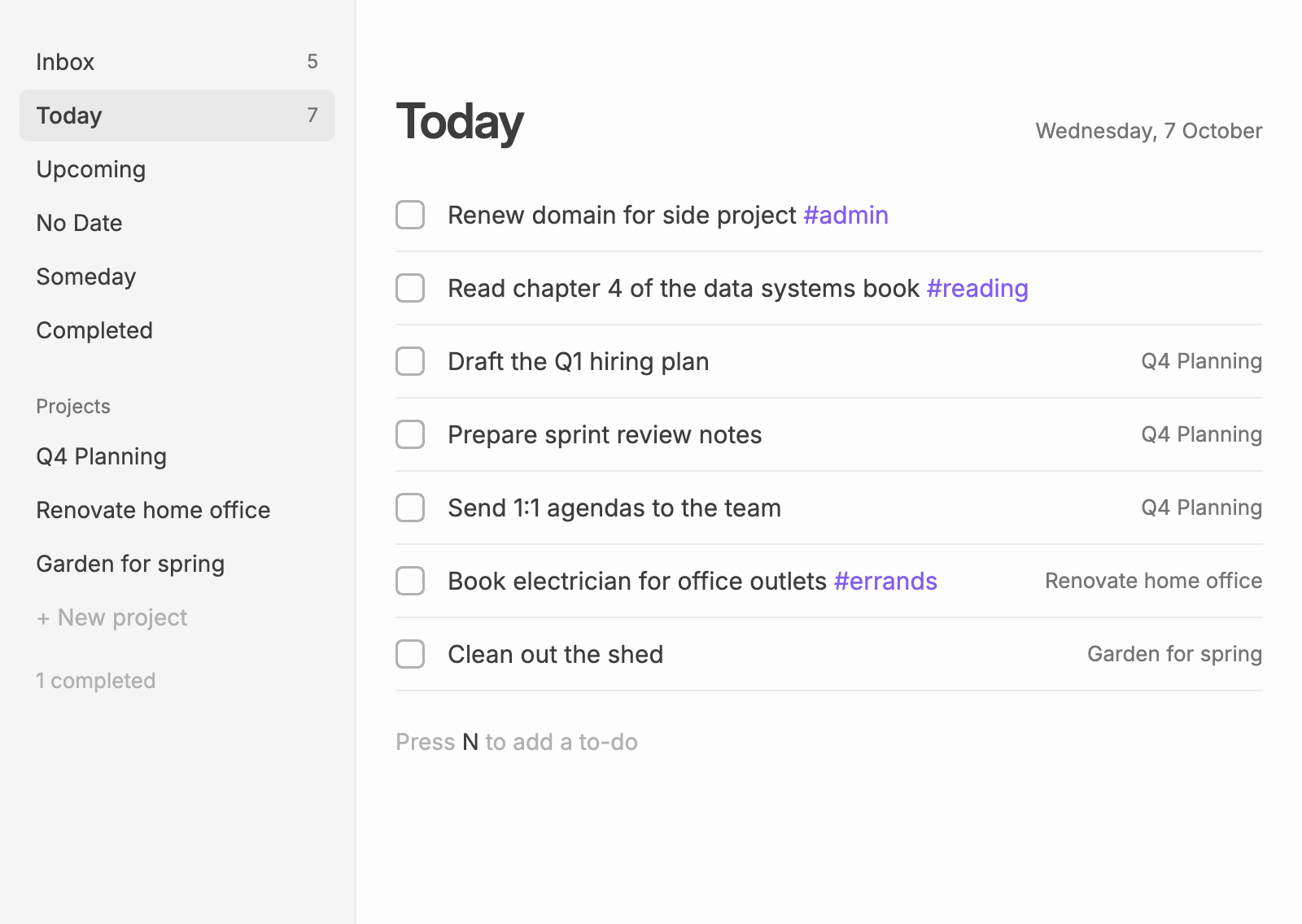
Plainlist turns your notes into a clean, minimal task manager in Obsidian. A task file holds your Inbox and a list of projects, and each project is an ordinary note: any checkbox in it is a to-do. Everything you do in the view is written back as plain Markdown, and anything you type into the notes by hand shows up in the view straight away.
Features
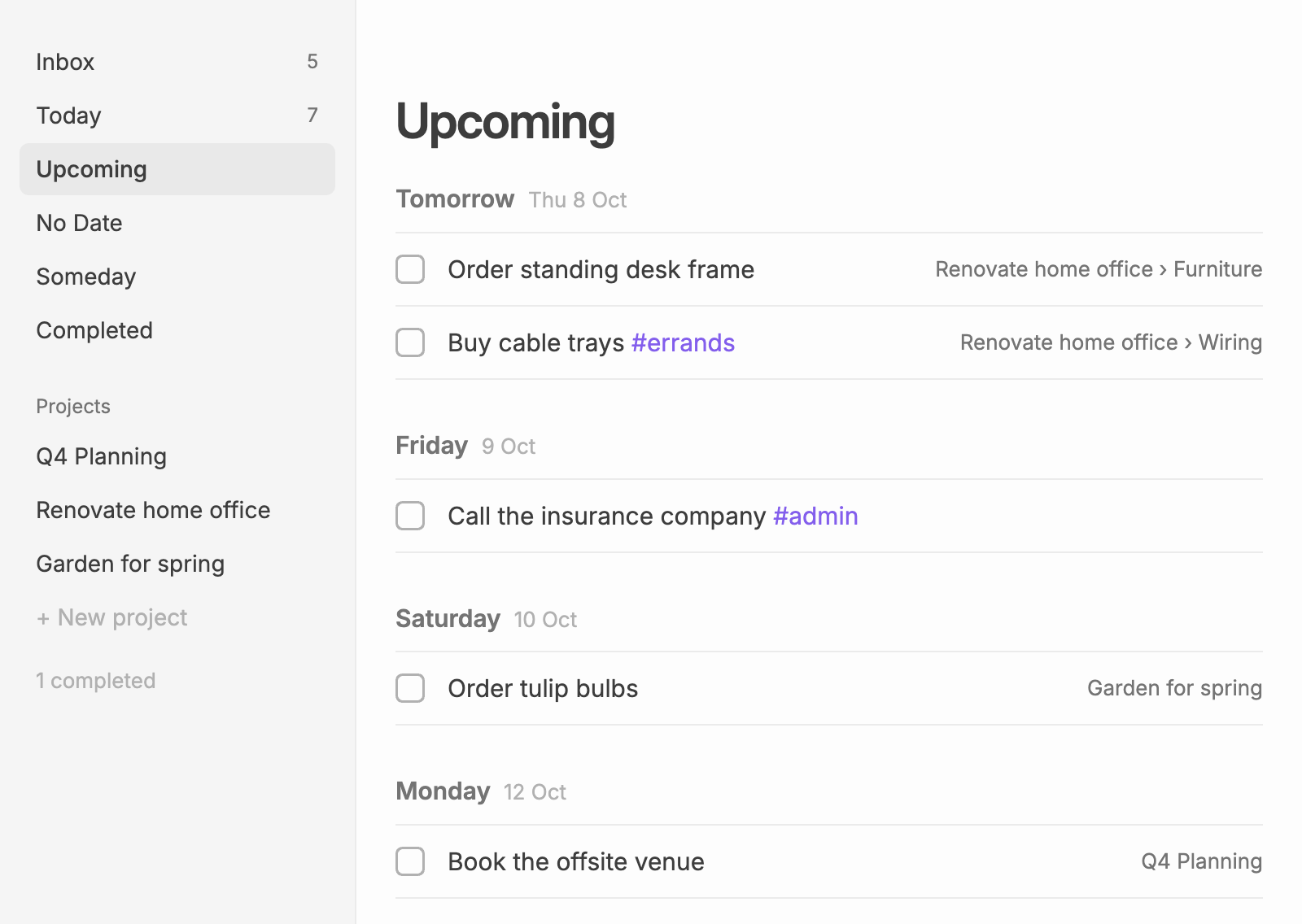
- Lists: Inbox, Today, Upcoming, No Date, Someday and Completed, plus one list per project. Open to-dos from past days move to today. Today can be grouped by project.
- Projects are notes: create a new project note, turn an existing note into a project, or have notes with a tag such as
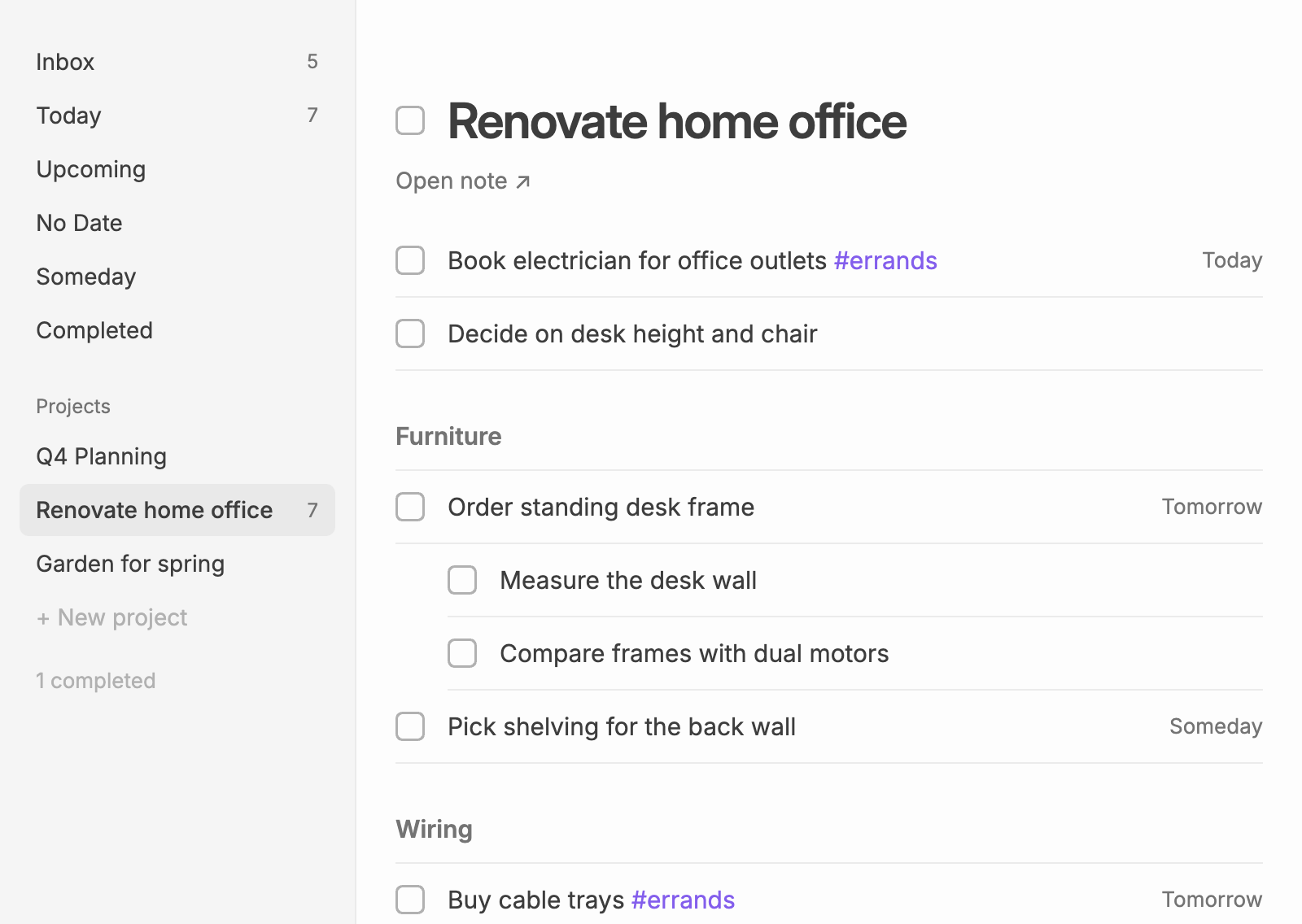
#projectadded automatically. Its checkboxes, nested ones included, become the project's to-dos, grouped by the note's headings. A ring in the sidebar shows how much of each project is done.- Sections: add sections to a project and drag them to reorder them; each is a heading in the note.
- Areas: group projects in the sidebar under foldable areas such as Work and Home, and drag areas to reorder them.
- Board: show a project as columns, such as To do, Doing and Done, or one per heading. Drag cards between columns or press
⌘←/⌘→; moving a card into Done completes it.
- To-dos: a title, a description, a date and a project, with
#tags,[[links]]and[web links](https://…). Click a to-do to edit it in place.- Links from URLs: add a to-do that is just a web address and it shows the page's title as a link.
- Repeating: "every 2 weeks", "every last sunday", or "every month when done" to count from the day you complete it.
- Sub-tasks: indent a checkbox under another, or press
Tab/Shift+Tab. - Reorder: drag to-dos, or press
Alt+↑/Alt+↓. Today keeps any order you like. - Several at once:
Mod-click orShift-click to select to-dos, then complete, schedule, move or delete them together. - Paste a list: paste
- [ ] Tasklines and each one becomes a to-do. - Swipe: on touch screens, swipe right to complete a to-do, or left to schedule it.
- Undo: press
Mod+Zto undo your last changes, one at a time.
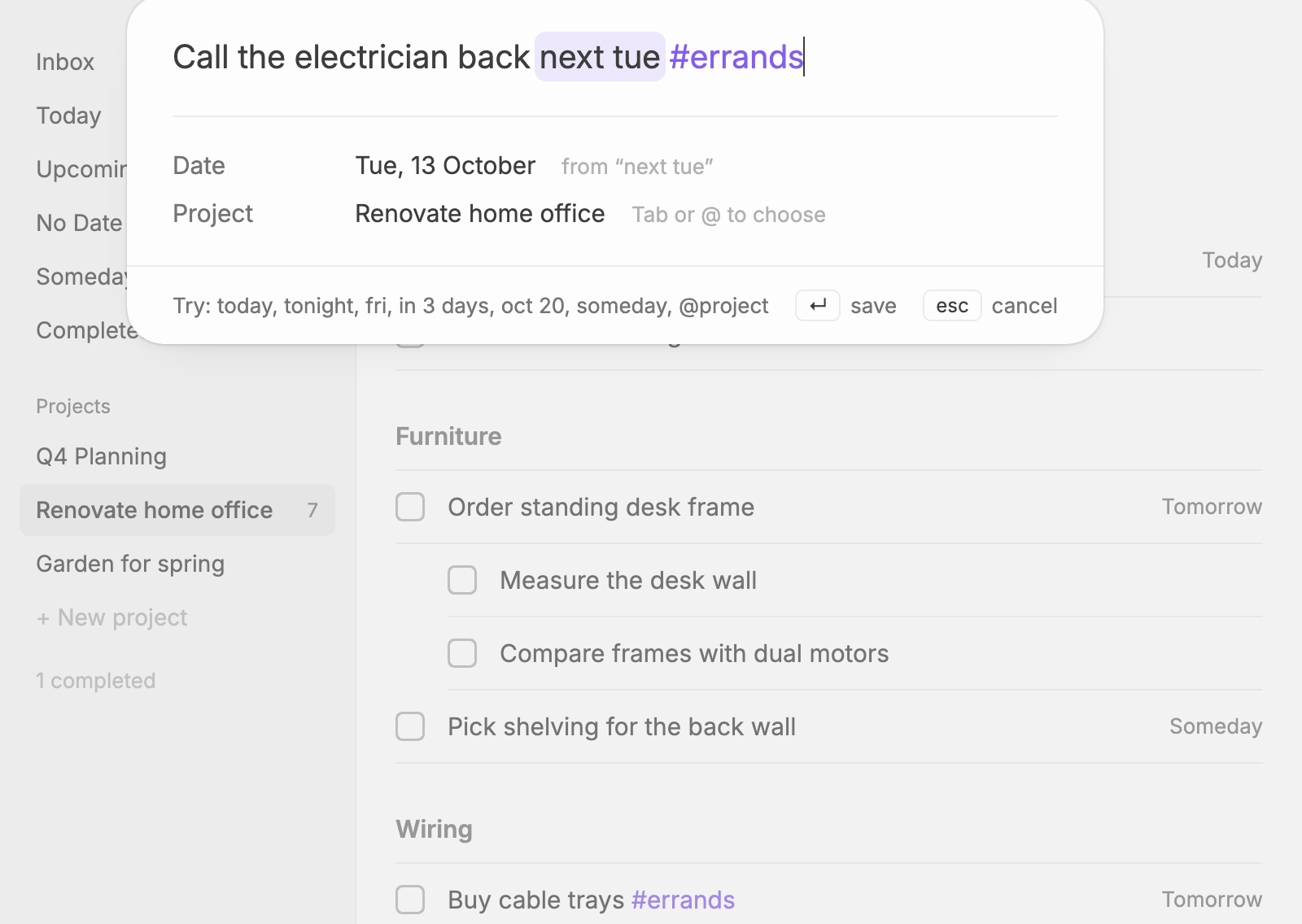
- Quick capture: a small palette that understands dates as you type ("fri", "next tue", "in 3 days", "someday"), repeat rules ("every mon") and
@project. - System-wide quick entry: on desktop, a global shortcut opens the palette from any app.
- Add from other apps:
obsidian://plainlist-addlinks, with x-callback-url, for Shortcuts, Drafts, Alfred and Raycast. - Search and navigation: fuzzy-find any to-do, and jump to any list with a command or hotkey.
- Lists in notes: a
plainlistcode block shows Today's list inside any note, or a daily note's own day. - Keyboard shortcuts: move, open, complete, indent and reorder to-dos without the mouse.
- Plain Markdown: to-dos are ordinary checkboxes with
[date:: …],[repeat:: …]and[col:: …]fields. Plainlist only changes the lines it owns.
| Upcoming | Project |
|---|---|
 |  |
Quick capture recognises dates as you type and takes them out of the title:
Installing
In Obsidian, open Settings → Community plugins → Browse, search for Plainlist, then install and enable it. Plainlist needs Obsidian 1.13 or later, and works on desktop and mobile.
Run Plainlist: Open from the command palette (or click the ribbon icon) to get started. See Getting started for installing by hand and the hotkeys worth setting.
Network use
Plainlist works offline and sends nothing about your notes anywhere. The one exception: when you add a to-do whose title is only a web address, it requests that page to read its title. If the site blocks the request, it asks once more as a link-preview crawler (facebookexternalhit). Turn this off with Fetch titles for links in settings.
Documentation
For plugin developers
Search results and similarity scores are powered by semantic analysis of your plugin's README. If your plugin isn't appearing for searches you'd expect, try updating your README to clearly describe your plugin's purpose, features, and use cases.