Prettier
approvedby goodbyenjn
Format your notes with Prettier and custom formatting options.
obsidian-plugin-prettier


This is an Obsidian plugin that uses Prettier to format notes.
The main inspiration comes from https://github.com/hipstersmoothie/obsidian-plugin-prettier. Since that repository is not actively maintained and does not declare an open source license, I have re-implemented its features and added some new features.
Features
-
Multi language support, currently available in Simplified Chinese and English.
-
Supports Markdown and MDX formats.
-
Format the entire content or only the selected content.
-
Format embedded code blocks. Currently supports js(x), ts(x), css, scss, less, html, json, and yaml.
-
Supports remapping the language of the code block to another.
-
Optionally add trailing spaces that are removed after formatting. This ensures correct rendering in live preview mode.
Example:
-
-␣[ ]
Formatted:
-␣ -␣[ ]␣ -
Supports enabling or disabling formatting for the current file separately in frontmatter. Enabled by default when not set.
Example:
--- prettier: false --- -
Supports enabling or disabling fast mode formatting for the current file separately in frontmatter. Disabled by default when not set.
Example:
---
prettier-fast-mode: false
---
Commands and Menus
-
Format all content
ID:
format-contentHotkey:
None(default) -
Format selected content
ID:
format-selectionHotkey:
None(default)Only available when some content is selected.
Settings
-
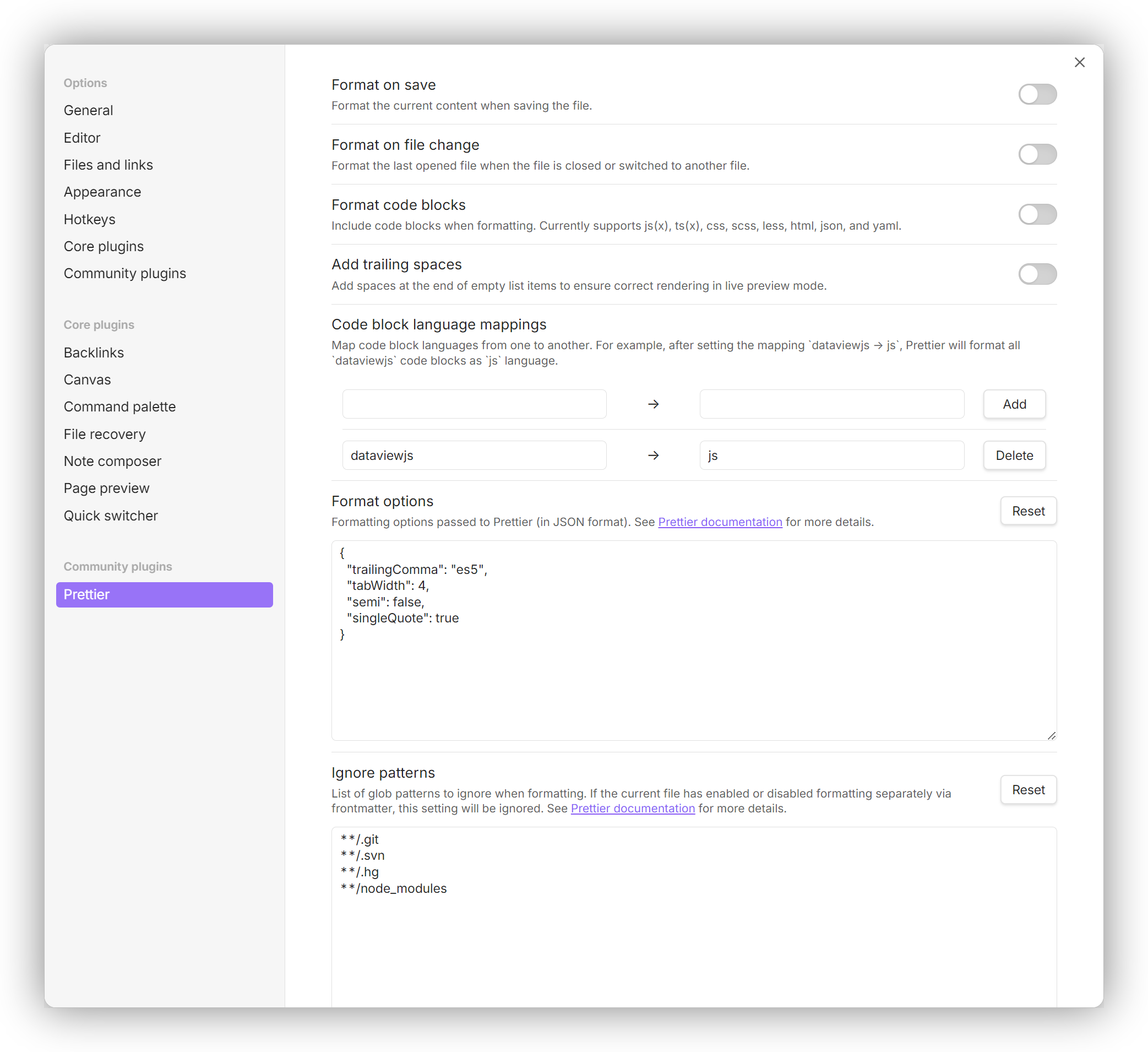
Format on save
Default:
falseFormat the current content when saving the file.
-
Format on file change
Default:
falseFormat the last opened file when the file is closed or switched to another file.
-
Format code blocks
Default:
falseInclude code blocks when formatting. Currently supports js(x), ts(x), css, scss, less, html, json, and yaml.
-
Add trailing spaces
Default:
falseAdd spaces at the end of empty list items to ensure correct rendering in live preview mode.
-
Code block language mappings
Default:
NoneMap code block languages from one to another. For example, after setting the mapping
dataviewjs → js, Prettier will format alldataviewjscode blocks asjslanguage. -
Format options
Default:
{
    "trailingComma": "es5",
    "tabWidth": 4,
    "semi": false,
    "singleQuote": true
}
Formatting options passed to Prettier (in JSON format).
-
Ignore patterns
Default:
**/.git
**/.svn
**/.hg
**/node_modules
File patterns to ignore (relative to the vault directory).
Change Log
See CHANGELOG.md.
Development
-
Install dependencies:
pnpm install -
Build the plugin:
pnpm buildThe built files will be located in the
distdirectory. -
Copy the built files to your Obsidian vault's plugins directory (e.g.,
/path/to/Vault/.obsidian/plugins/prettier-dev). -
Load the plugin in Obsidian.
-
You can also use the following command to watch for file changes and automatically rebuild:
pnpm dev
Optional: Link plugin directory for easier development
To avoid manually copying files each time, you can create a symbolic link from your Obsidian vault's plugin directory to the dist directory in this repository.
On Linux/macOS:
ln -s /path/to/Vault/.obsidian/plugins/prettier-dev dist
On Windows (using Command Prompt as Administrator):
mklink /D "dist" "C:\path\to\Vault\.obsidian\plugins\prettier-dev"
On Windows (using PowerShell as Administrator):
New-Item -ItemType SymbolicLink -Path "dist" -Target "C:\path\to\Vault\.obsidian\plugins\prettier-dev"
With this setup and the Hot Reload plugin installed in Obsidian, the plugin will automatically reload when files are changed and rebuilt.
License
MIT
For plugin developers
Search results and similarity scores are powered by semantic analysis of your plugin's README. If your plugin isn't appearing for searches you'd expect, try updating your README to clearly describe your plugin's purpose, features, and use cases.