by Prince Lundgren
Todo lists on plain Markdown notes, with sections, item notes and drag and drop.
PrinceLists
Todo lists for Obsidian, kept as plain Markdown notes.
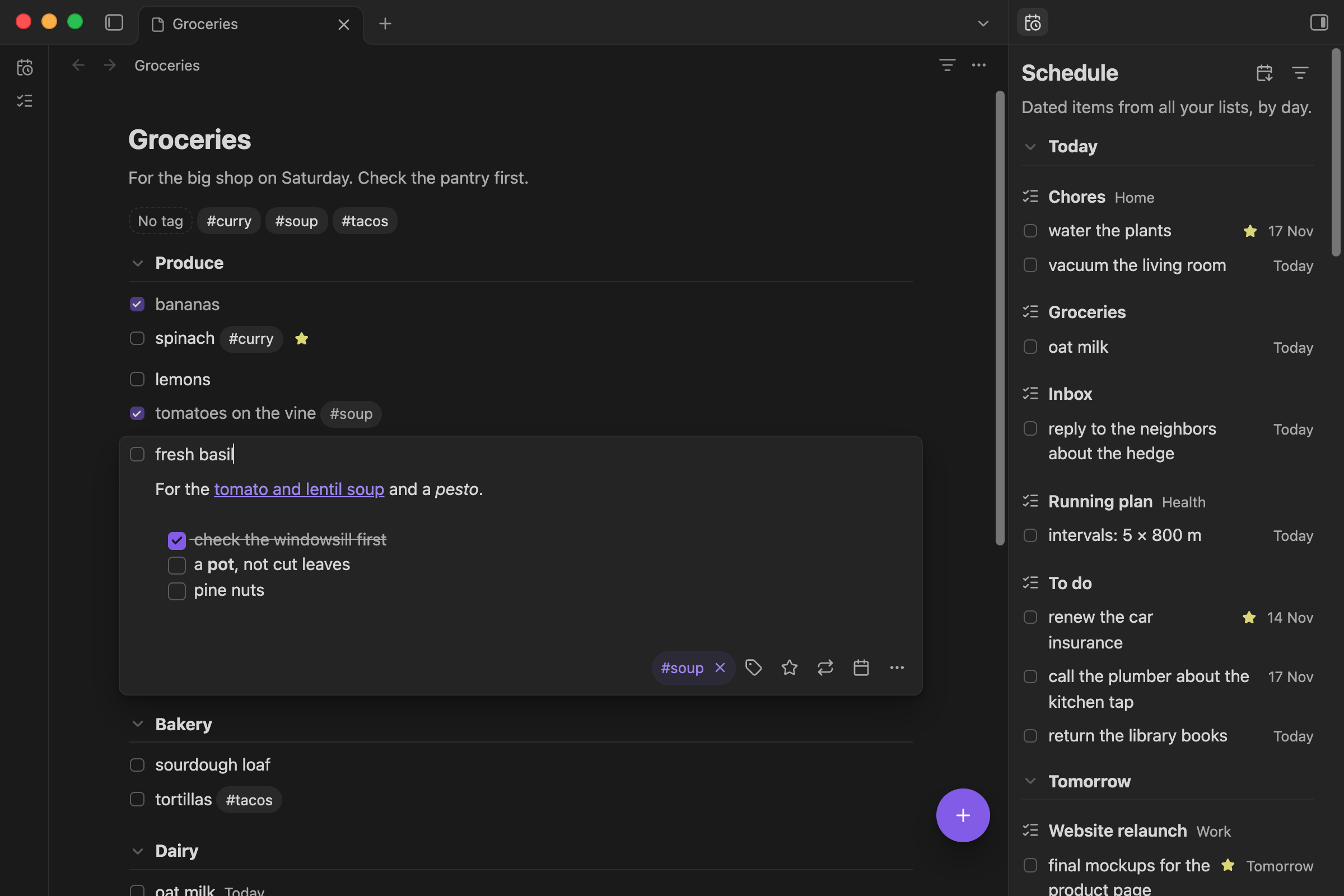
PrinceLists turns a note into a todo list, and the Schedule shows what's coming up across all your lists.
A quick tour
Lists
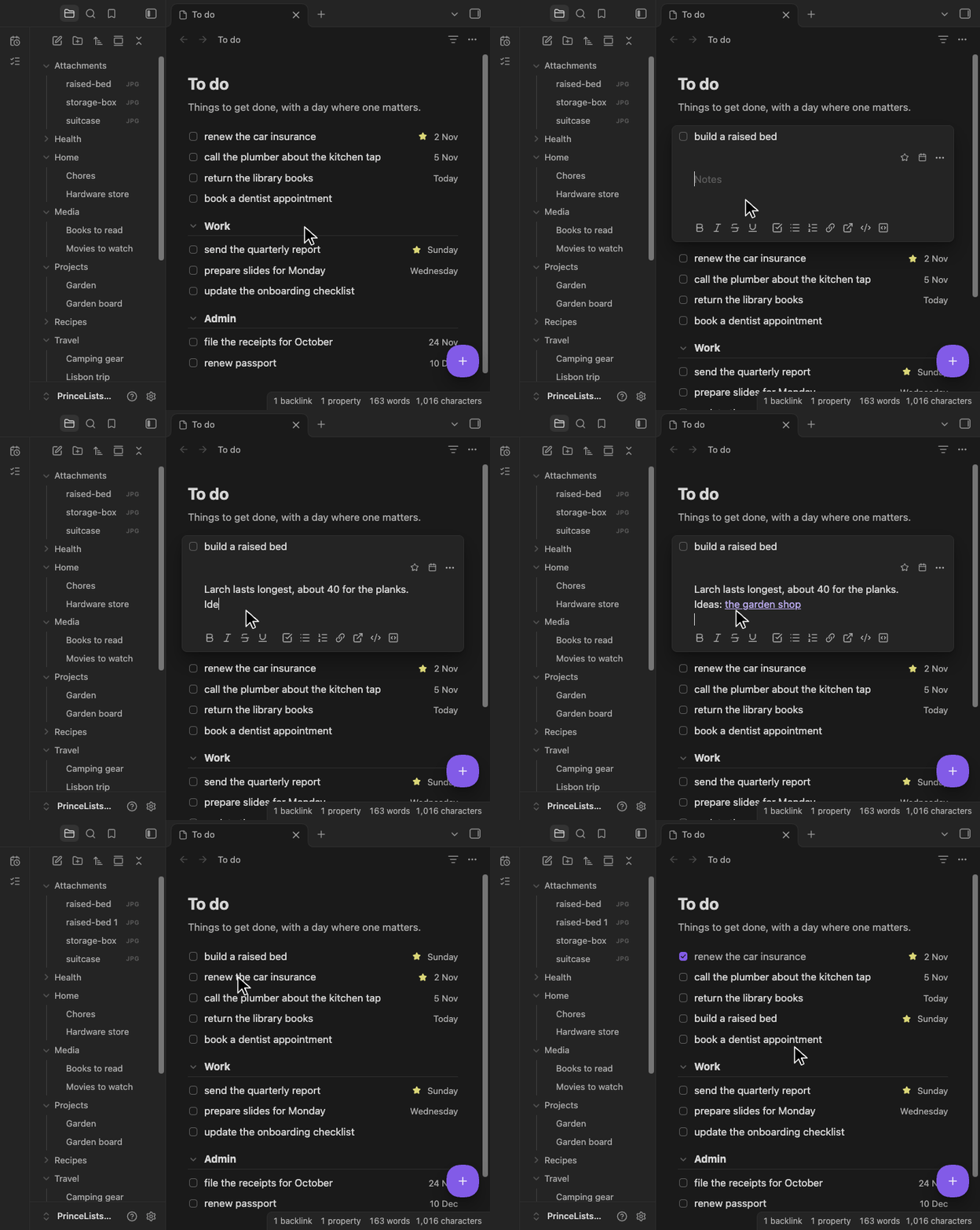
Tick, drag and add items right where they go.
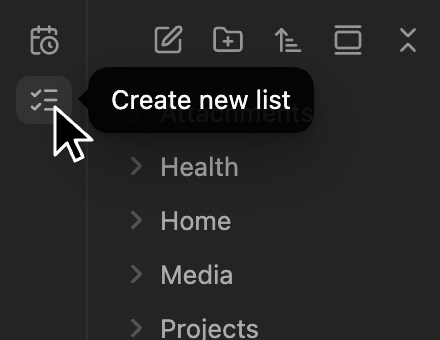
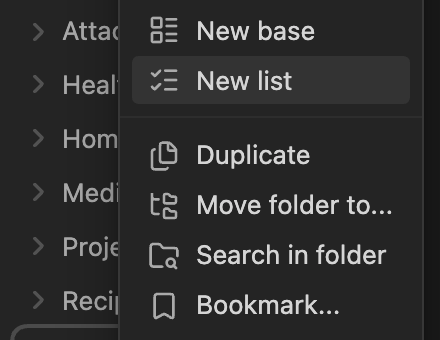
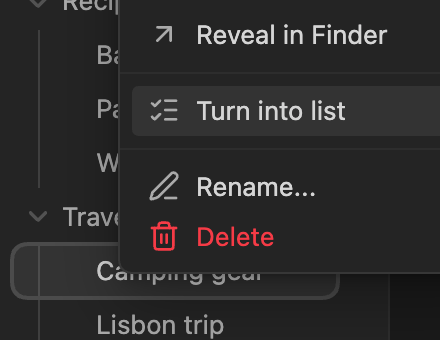
Make a list
From the ribbon, a folder, or a note you already have.
| Click the list icon in the ribbon | Right-click a folder in the sidebar | Right-click a note to turn it into a list |
|---|---|---|
 |  |  |
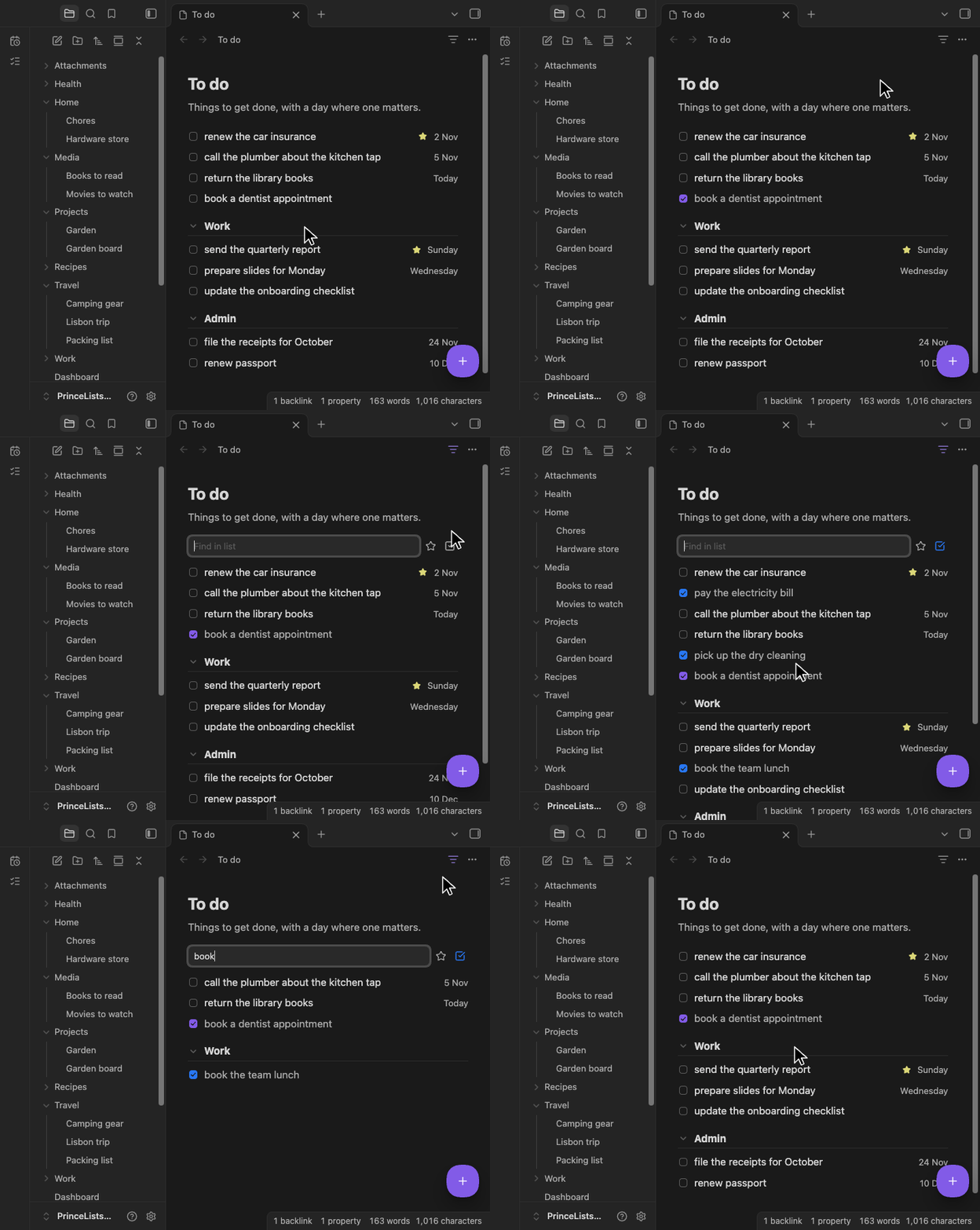
Find
Filter a list by text, and bring back ticked items.
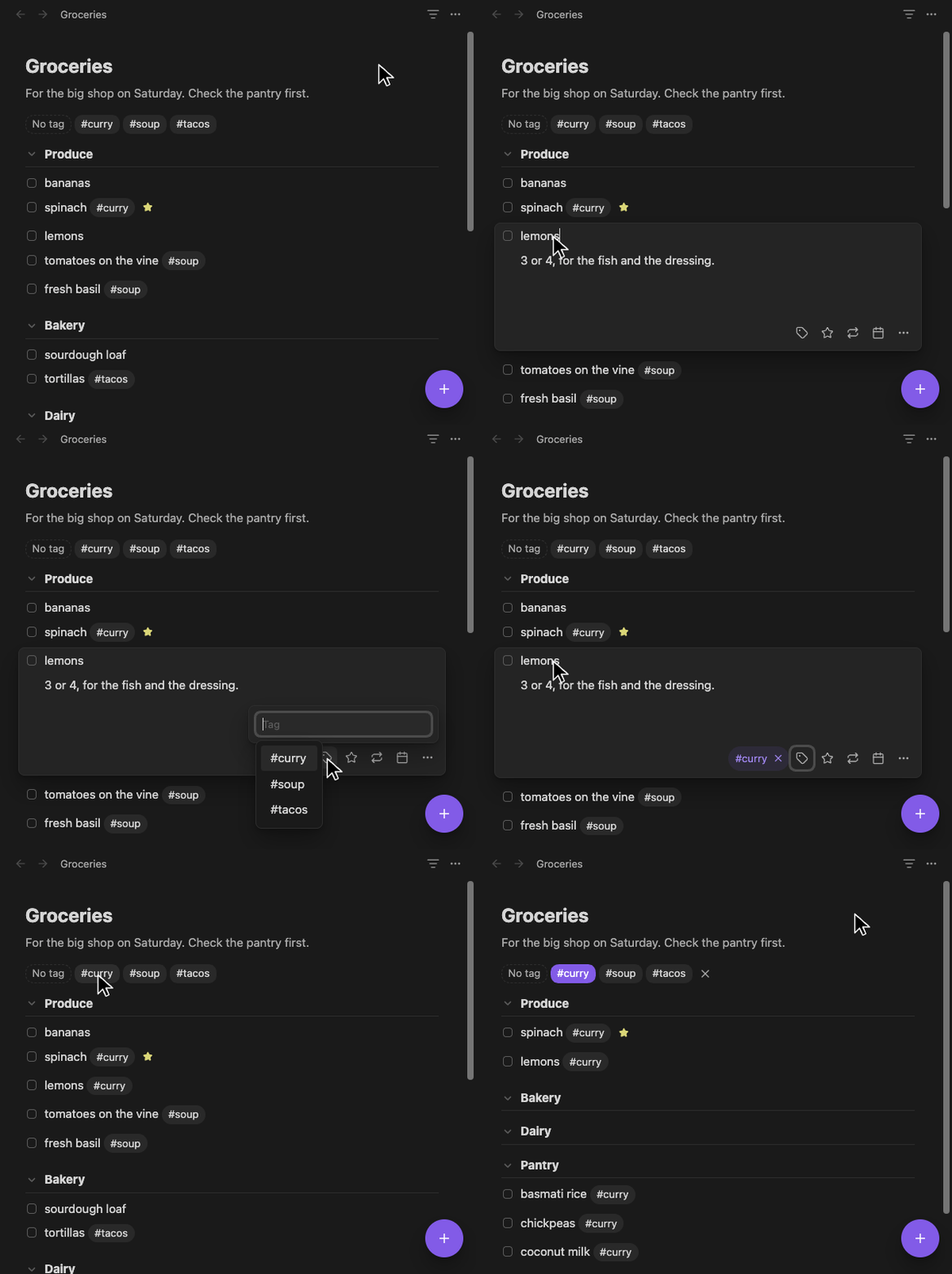
Tags
Tag items, then click a tag to see only those.
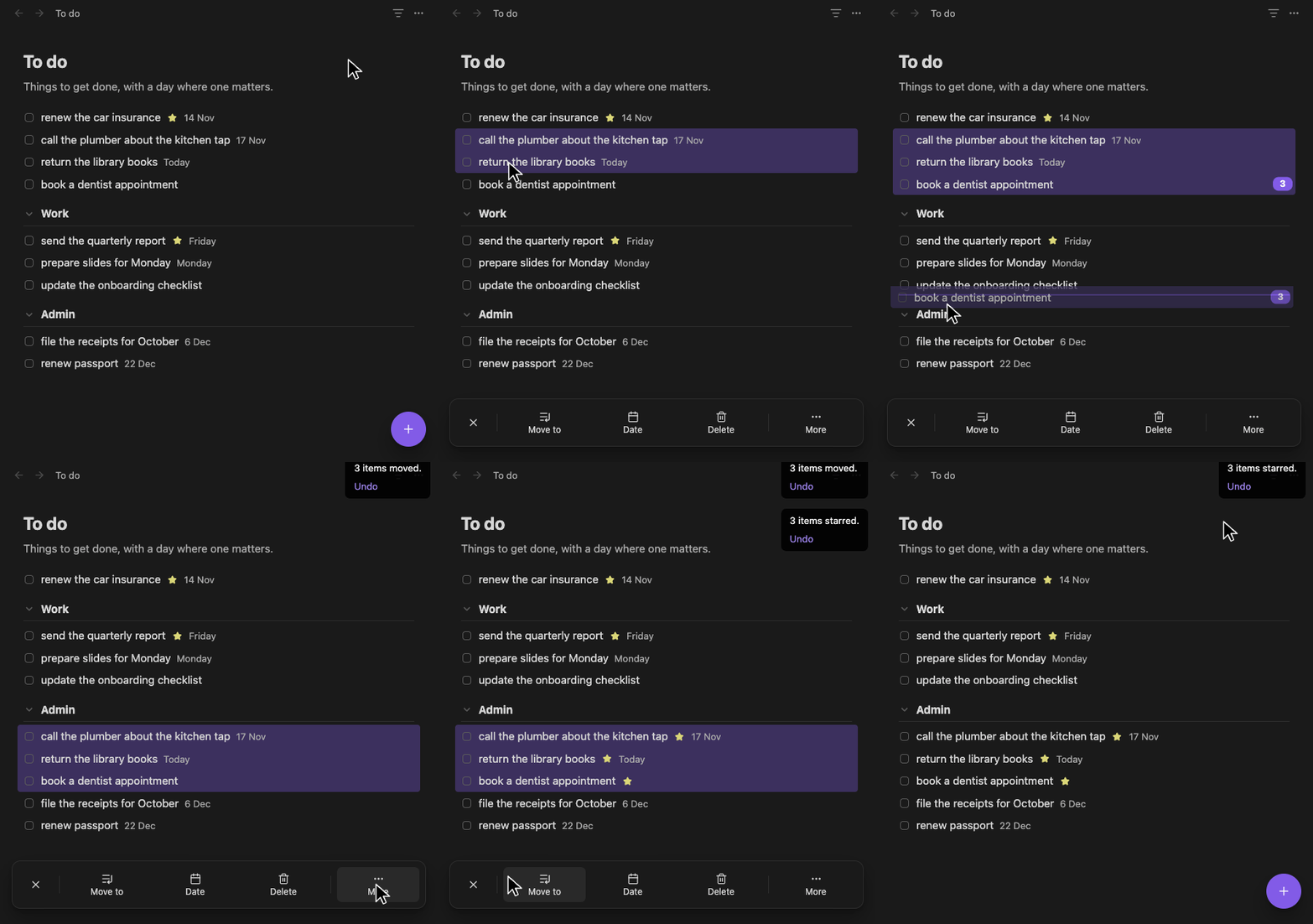
Select several
Hold an item, add others, and act on them all at once.
Notes
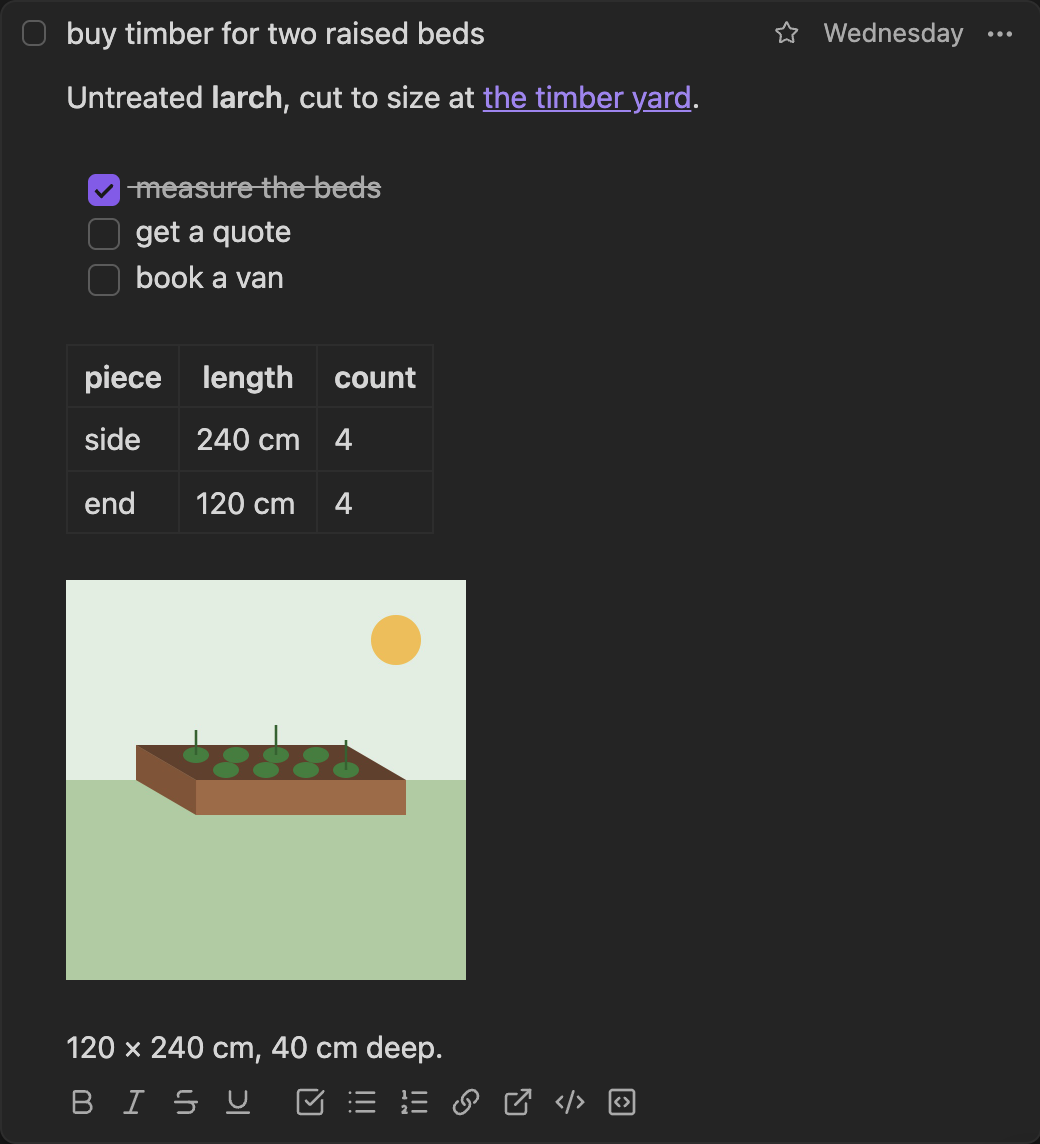
Every item has notes, with full Markdown and a toolbar.
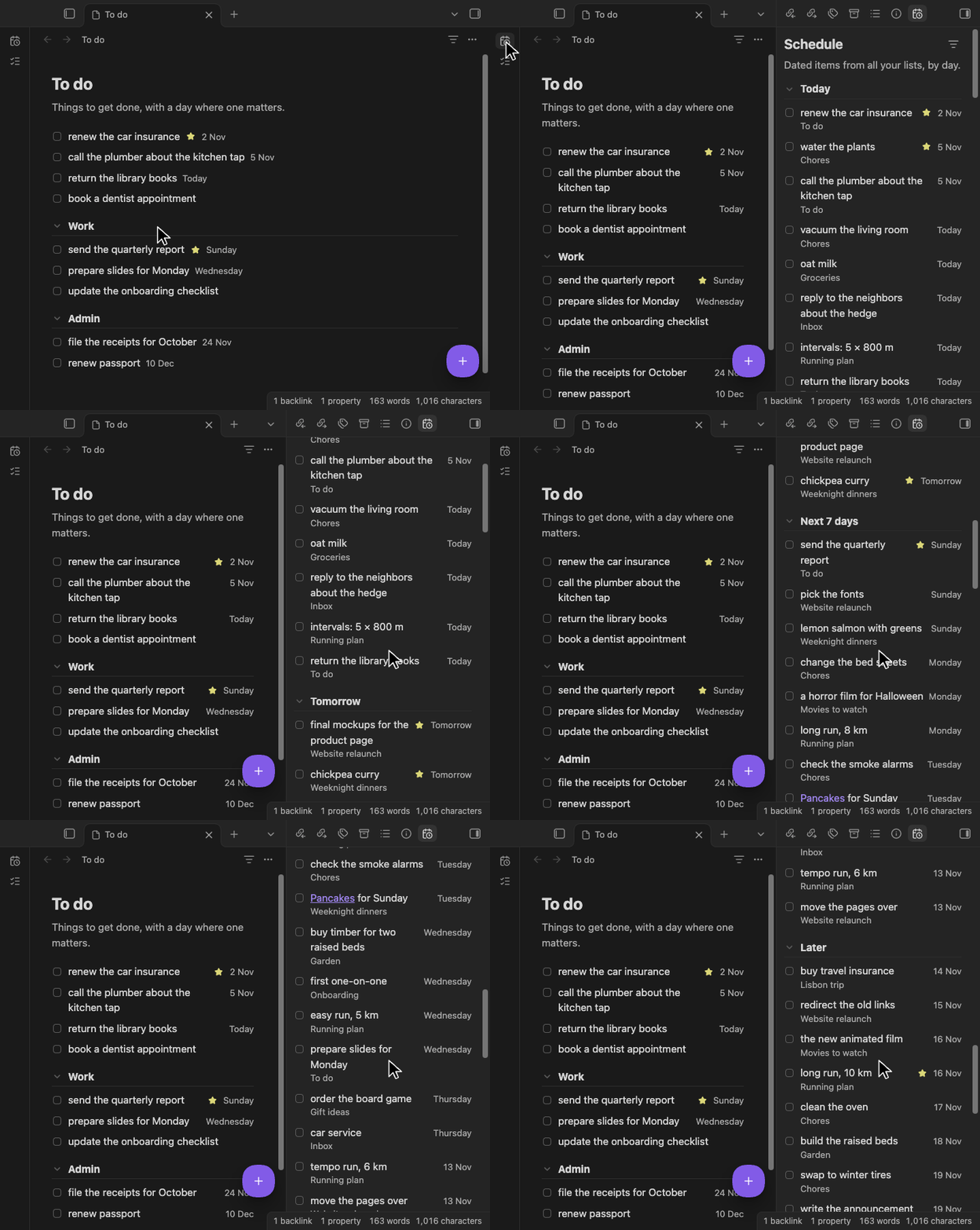
Schedule
Dated items from all your lists, in one sidebar.
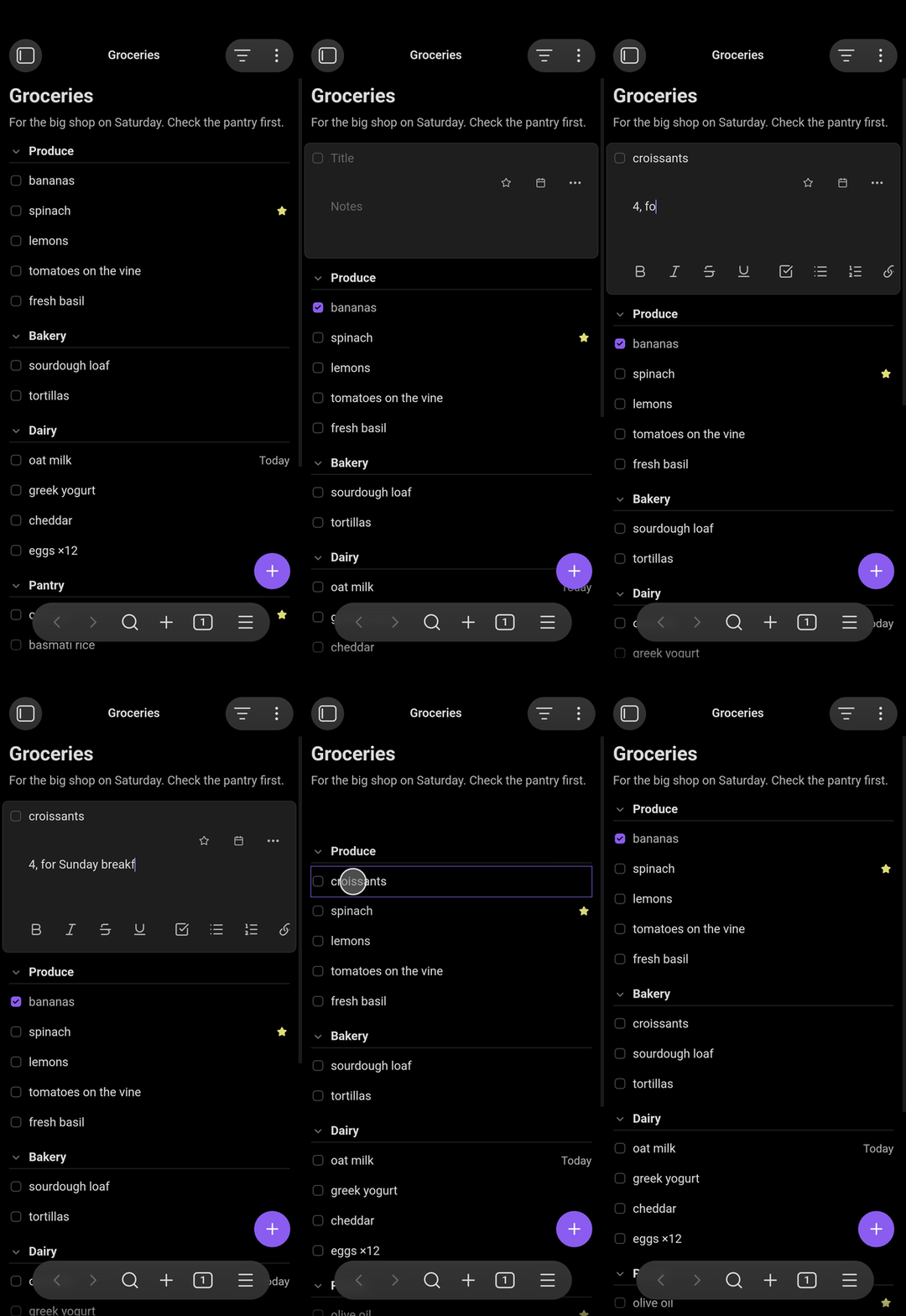
On your phone
Made for touch, with the same lists.
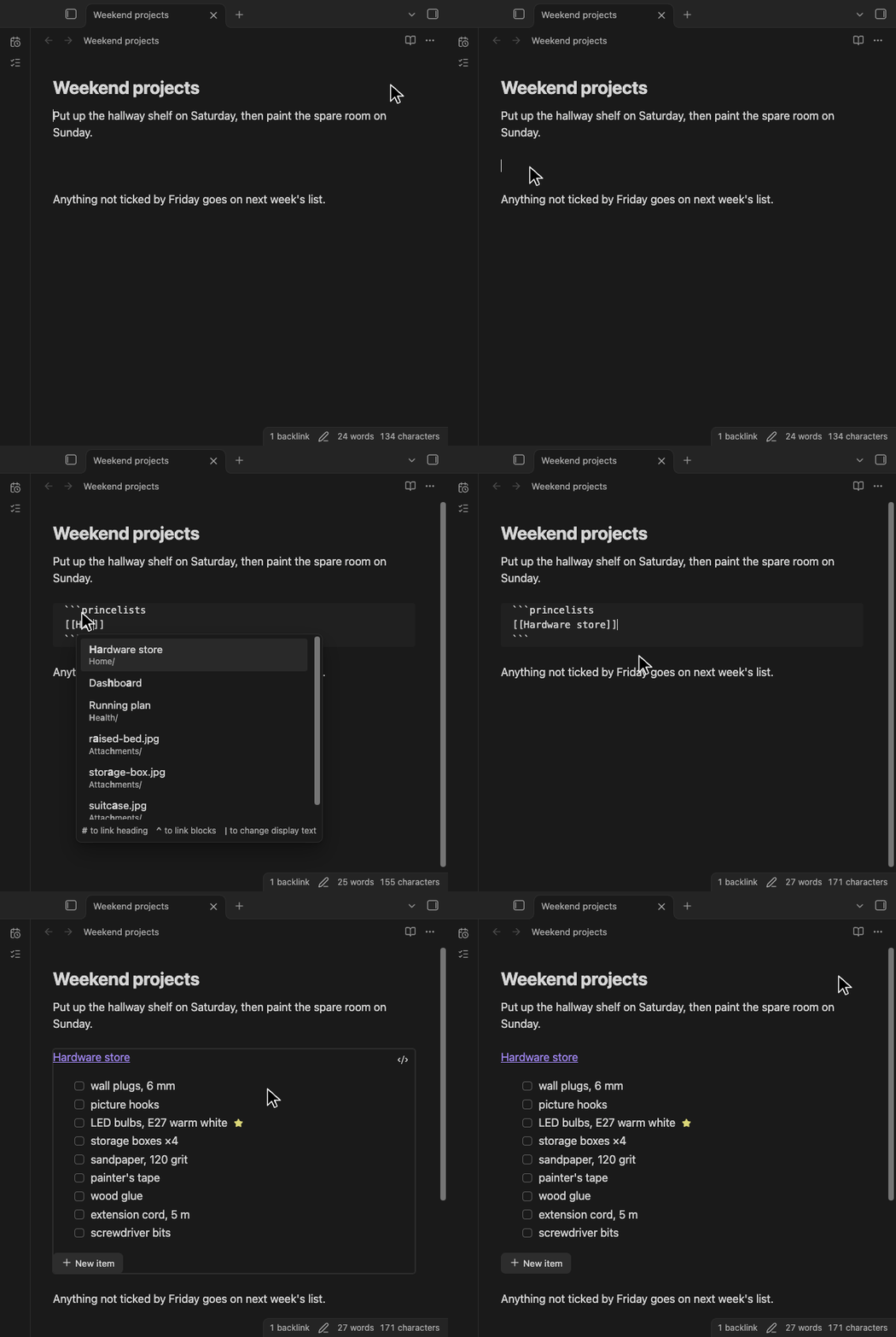
Lists inside notes
Embed a list in any note, and tick it there.
```princelists
[[Hardware store]]
```
Full feature list
Lists
- Any note can be a list: make one, or turn a note with checkboxes into one.
- Back to Markdown with Open as Markdown, or for good with Turn into note.
- Sections come from headings: drag them, or collapse one or all.
- A note for the list sits under its title.
Items
- Add with the floating +, or drag the + to where the item goes.
- Drag to reorder.
- Star an item and give it a date.
- Repeat every few days, weeks, months or years; a ticked item comes back open once its date has come and you next open its list or the Schedule.
- Tags on an item, from its card or right-click menu; a tag in a heading (
## Office #work) counts for its section, and one in the list'stagsproperty for every item. - Select several by holding an item, or with Cmd+click and Shift+click, to move, date, tick, tag, star, duplicate or delete them at once.
- Tick and forget: ticked items hide after a day, or the time you choose.
- Find items by title, notes or date, and show only starred items, or archived ones too.
- Filter by tag from the strip above the list, or show the items with No tag.
- Duplicate an item with its notes.
- Delete with Undo.
Notes on an item
- Edited like a note, with Markdown shown only where the cursor is.
- Any Markdown: links, checklists, tables and code, with a toolbar.
- Paste from the web as Markdown.
- Pictures: paste or drop them in.
Across lists
- The Schedule shows dated items by day and by list, or in date order with Sort by date. The ribbon icon opens it.
- A list inside another note can be ticked and edited there.
- Works with Tasks: dates use the Tasks plugin's format.
Keys and devices
- Shortcuts: Cmd+Enter adds an item, Cmd+F filters, Cmd+Shift+A shows or hides archived items, Cmd+Z undoes. Use Ctrl on Windows and Linux.
- Right-click menus on items, headings, pictures and the list.
- Made for touch: finger-sized buttons, and hold to select or drag.
- Fits your theme, light or dark.
- Settings: a folder for new lists, when ticked items hide, the tag strip, where the floating + shows, a Schedule button in each list's header, and the Schedule back in the sidebar if you closed it.
Quick start
- Install PrinceLists from Settings → Community plugins → Browse, and enable it. It's listed in Obsidian's community directory.
- Make a list with the list icon in the ribbon, or right-click a folder and choose New list.
- Add items with the +. Click one to add notes, a star or a date.
Already have a note with checkboxes? Right-click it and choose Turn into list. Items already ticked hide at once, and Show archived items shows them.
Install by hand instead
- Download
main.js,manifest.jsonandstyles.cssfrom the latest release. - Put them in
<vault>/.obsidian/plugins/princelists/, where<vault>is your vault's folder. - In Settings → Community plugins, turn on community plugins if Restricted mode is on, and enable PrinceLists under Installed plugins.
How a list is stored
---
princelists: true
---
Stuff for the new apartment.

## Kitchen
- [ ] cutting board
- [ ] freezer storage boxes ⏳ 2026-10-21 📅 2026-10-30

	Buy 6:
	- one for the freezer
	- five for the pantry
- [x] glass jars 1 l ✔ 2026-10-20 23:55
princelists: truemakes a note a list.tagsis the list's tags, as intags: [home, errands], set with Tag list… in the list's menu, in Obsidian's file properties sidebar (Show file properties) while the list is open, or with Edit in Markdown. Write the tags without a#, or quote it: an unquotedtags: #homeis a YAML comment and gives the list no tag. Every item counts them.- Headings are sections, checkboxes are items, and lines indented under an item are its notes.
- An item's date is the Tasks plugin's scheduled date, ⏳. Other Tasks fields, such as 📅, stay as they are, except that a repeating item's 📅 and 🛫 move with its ⏳ when it comes back.
✔with a time marks when you ticked an item. Tasks still sees it as done.- Only the lines you edit change. The rest of the note stays as you wrote it. The one exception is a repeating item coming back, which changes its own line and unticks the checklist in its notes.
The full format is in the design.
Good to know
- Private: PrinceLists works only on notes Obsidian opens: your vault's, and on desktop a note you open from outside it. No network requests of its own, no data collected, no account. A picture linked from the web loads as in any note. What Obsidian's plugin directory notes:
- Vault enumeration: to find your lists, the Schedule goes through your vault's list of notes, and reads only the lists.
- Clipboard access: only when you ask. Copy image, Copy text, Cut and Copy write to it. Paste and Paste as plain text in the right-click menu read it, and what you paste with Cmd+V is read from your paste. PrinceLists never reads the clipboard by itself.
- Obsidian Sync: turn on Sync's "Active community plugin list" and "Installed community plugin list" to get PrinceLists on your other devices. If two devices edit a list within seconds, Sync can drop one change, as in any note. Sync's "Create conflict file" setting keeps both, as extra lists.
- A repeating item stays ticked in the file until it comes back, so until then Tasks queries and other apps show it done.
- Renamed a list? Update the blocks that show it in other notes.
- On iOS, a picture dropped from Photos may not reach Obsidian; paste it instead.
- Made for Obsidian on macOS, iOS, Android and Windows. If something looks wrong, open an issue.
Contributing
Bug reports, ideas and pull requests are welcome.
- Start with CONTRIBUTING.md and the rules in AGENTS.md.
- Be kind: see the code of conduct.
- The designs listed in AGENTS.md say what the plugin does and why.
- To report a security problem, see SECURITY.md.
License
MIT. The built main.js includes commonmark.js, entities, mdurl, @codemirror/lang-markdown and @lezer/markdown, and adapts the Tasks plugin's field patterns, under their own licenses: see THIRD_PARTY_NOTICES.
For plugin developers
Search results and similarity scores are powered by semantic analysis of your plugin's README. If your plugin isn't appearing for searches you'd expect, try updating your README to clearly describe your plugin's purpose, features, and use cases.