Private Mode
approvedby markusmo3
Simple #private mode
Private Mode
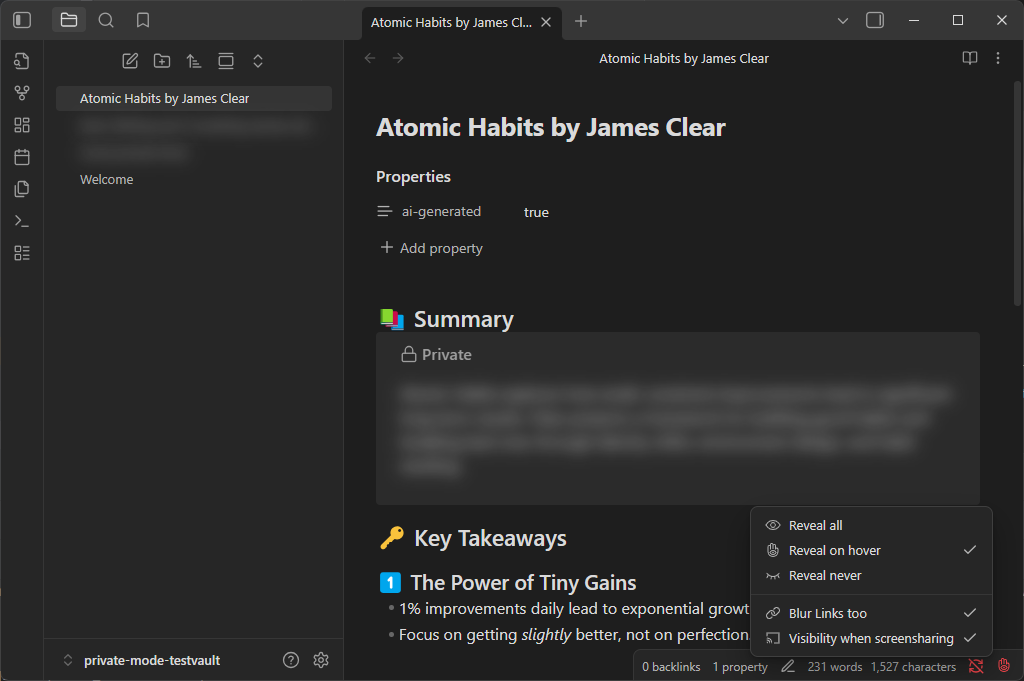
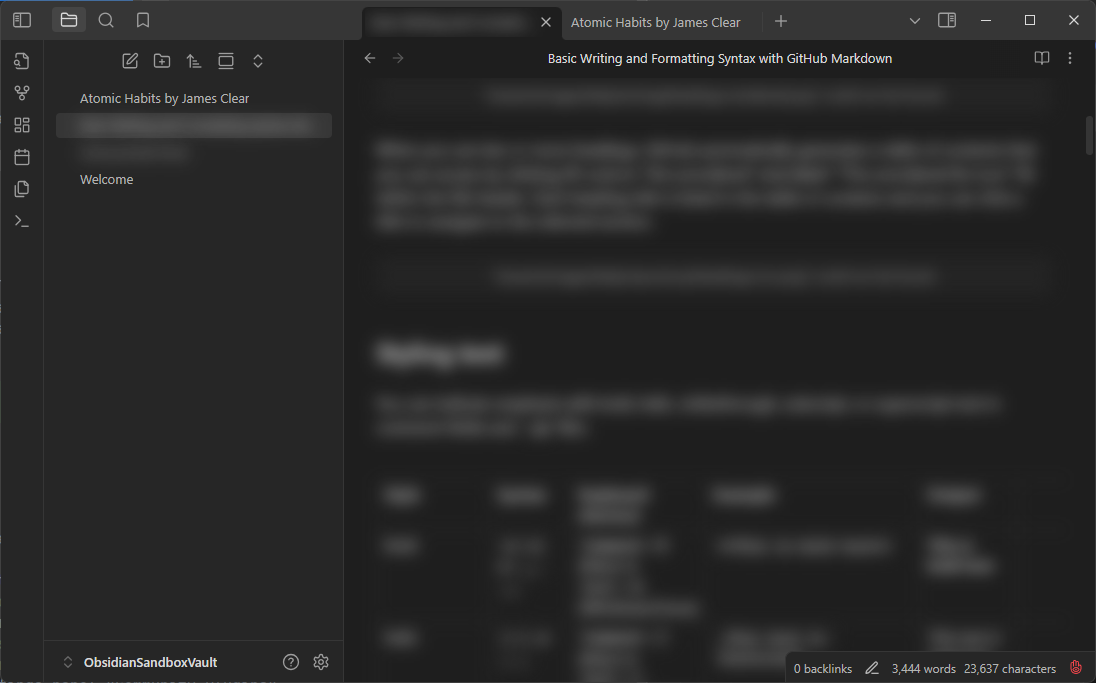
Simple #private mode for Obsidian. All files, links and search results tagged with #private will get blurred out in the default mode. You have to either hover over or focus on the element to show it temporarily or use the command "Reveal all" to always show it.
This plugin requires the obsidian plugin Supercharged Links to work
Features
- 3️⃣ Three Modes
- Reveal all: to disable the blurring completely
- Reveal on hover: only show #private content on hover (default)
- Reveal never: only show #private content for the currently editing line
- 🔗 Blur also all links to #private files, or not, its your choice
- 💻 By default not visible when using screenshare! Keep your secrets :) (desktop-only)
- 📱 Supported on Obsidian Mobile
- 🎀 Commands to set visibility (also usable on mobile)
- ✅ Status bar indicator that shows the current state (desktop-only)
- left click to cycle visibility
- right click to open the menu
- red means recording and obsidian will be visible in screensharing
- ⌨️ Recommended keyboard shortcuts (not set by default)
- ALT-L to cycle visibility
- ALT-SHIFT-L to cycle screen share protection
- 💬 Callout
private, which is also blurred and can be collapsed via default Obsidian behaviour for even more "hidden-ness"> [!private]- Optional Title > some text here: > - list
Installing
- Install Supercharged Links via the Settings Panel "Community Plugins"
- Install Private Mode via the Settings Panel "Community Plugins"
- Enable both plugins in the Settings panel "Community Plugins"
- Go into the Settings Panel for "Supercharged Links" and make sure the "Enable in tab headers" is turned on. Otherwise the plugin will not blur your #private files in the editor.
- (Optional) Adjust the
styles.scss/styles.cssto your liking- to compile the scss you can use sass
npm install -g sassandsass styles.scss styles.css
- to compile the scss you can use sass
- Enable the two plugins in your Obsidian in the Settings panel "Community Plugins"
Troubleshooting
- My file content is not hidden!
- Make sure you have the Supercharged Links setting "Enable in tab headers" turned on. Also try turning that off and on again if it was on already. Sometimes Supercharged Links doesnt correctly tag the tab headers.
Credits
Huge thanks to Privacy Glasses for the groundwork and being licensed under MIT. Use that plugin if you want a more in depth configuration. I personally didn't need or want that much customization and overhead in my plugin. Also i found the "flickering" when opening any file to be too distracting, so i created a simpler version for myself.
For plugin developers
Search results and similarity scores are powered by semantic analysis of your plugin's README. If your plugin isn't appearing for searches you'd expect, try updating your README to clearly describe your plugin's purpose, features, and use cases.