Text Hider
approvedby unbrokenhunter
Visually hides note text while editing to protect privacy in public. - This plugin has not been manually reviewed by Obsidian staff.
Text Hider
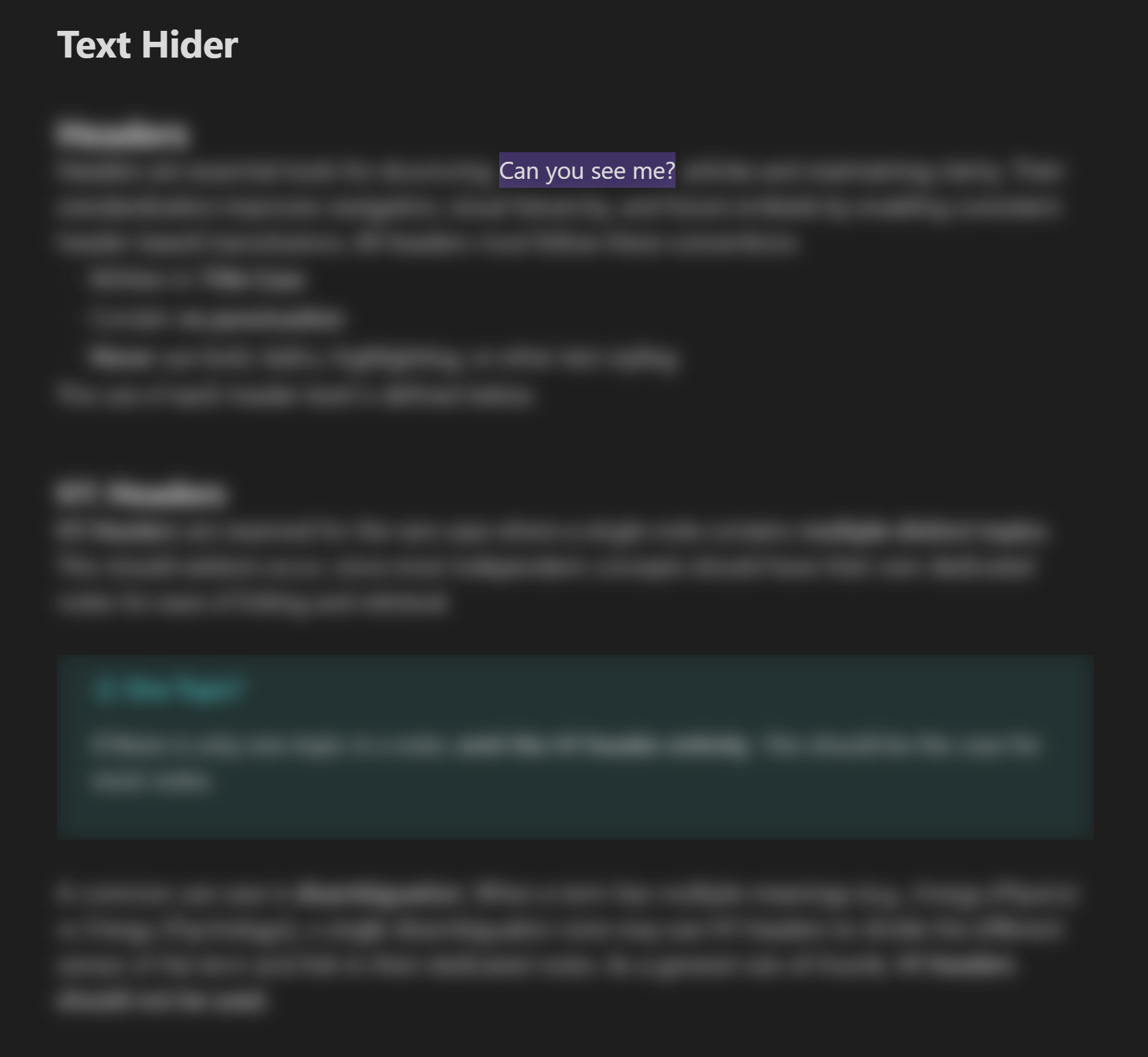
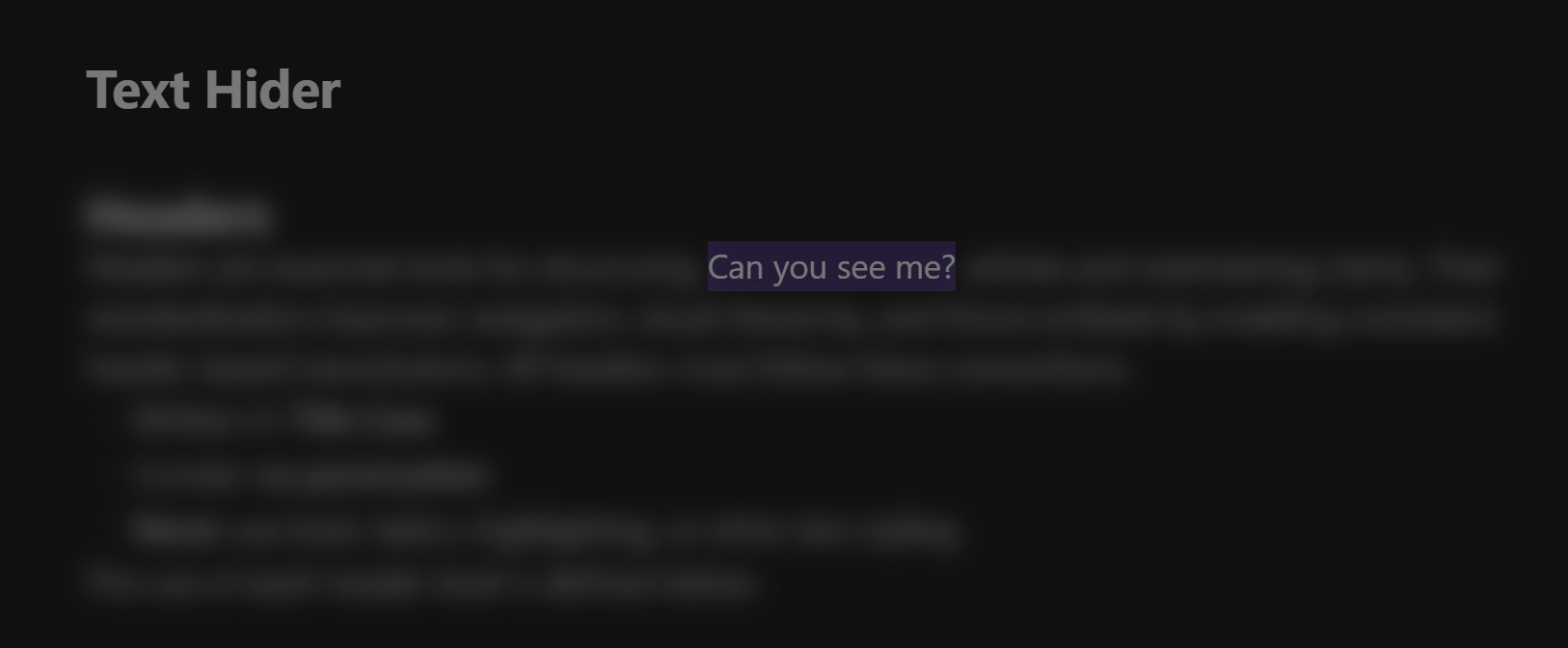
Text Hider is an Obsidian plugin that visually masks note content while you edit or read it. It is useful for working in public without exposing your writing to people nearby.
Features
-
Toggle privacy mode from the Command Palette, a hotkey, or the status-bar indicator.
-
Mask notes in both the editor and Reading View without changing the underlying Markdown files.
-
Choose one of three masking styles:
-
Hide - completely removes text from view while retaining the layout.

-
Blur - obscures text while preserving its visual shape and layout.

-
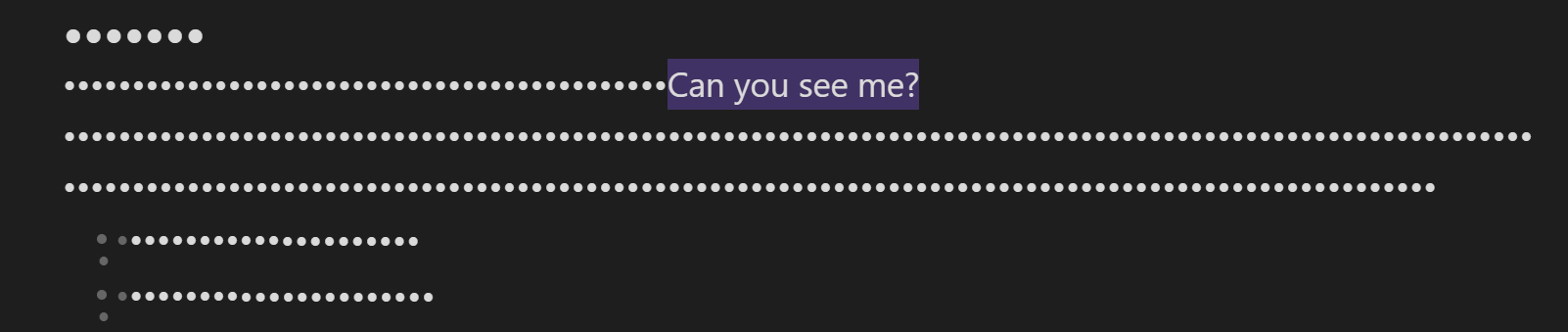
Password - displays bullet-style masking; its appearance can vary by theme.
-
-
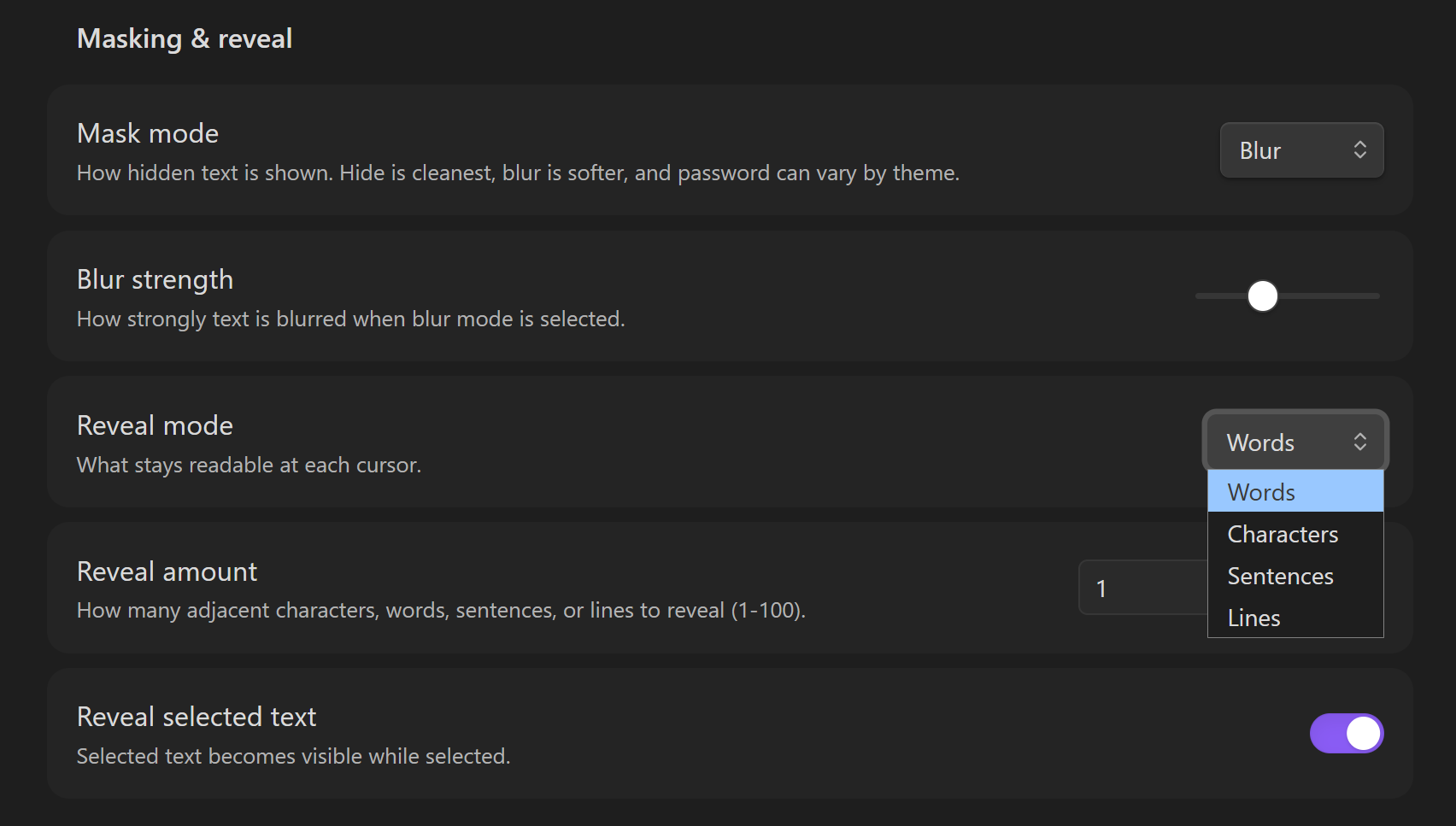
Reveal only the text around each cursor. Choose characters, words, sentences, or lines, then set how many adjacent units to reveal.
-
Optionally reveal selected text while it is selected.
-
Control how the inline note title, Markdown headers, callouts, and images are handled: ignore them, mask them, or hide them.
-
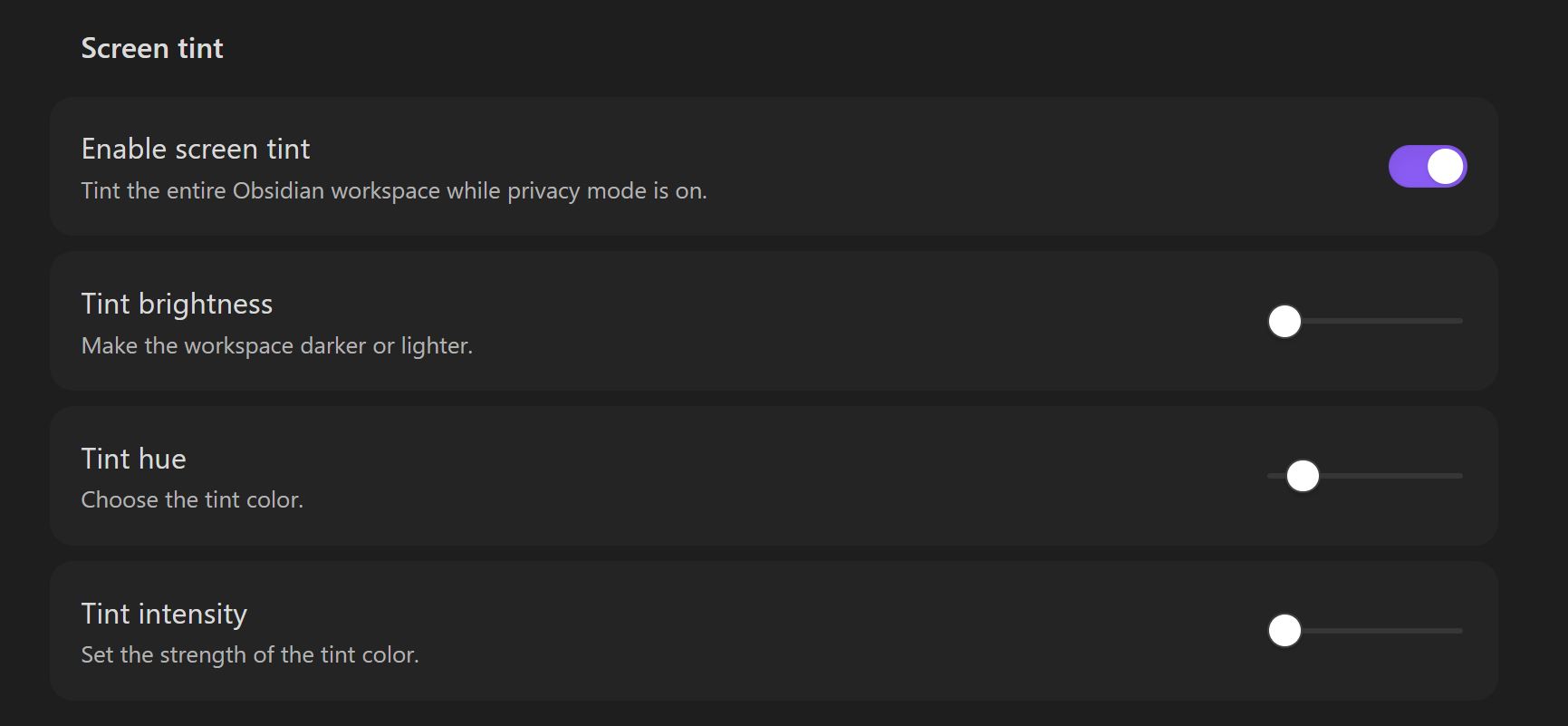
Add an optional transparent screen tint while privacy mode is enabled. Adjust its brightness, hue, and color intensity.
Settings
Masking and reveal
Select a mask style, choose what the cursor reveals, and set the reveal amount. Blur strength is shown only when Blur mode is selected.
Exceptions and behavior
Each of the following can be set to Ignore, Mask, or Hide:
- Inline note title
- Markdown headers (
#,##,###, and so on) - Markdown callouts
- Note images
By default, Text Hider keeps note titles visible and masks headers, callouts, and images.
Reveal selected text
When enabled, selected text becomes visible while it is selected.
Screen tint
Enable a transparent workspace overlay while privacy mode is active. Tint brightness darkens or lightens the workspace, while Tint hue and Tint intensity add a color tint. The overlay always remains transparent and is displayed behind Obsidian settings dialogs.
Commands and hotkeys
Text Hider provides these Command Palette actions:
- Toggle privacy mode
- Enable privacy mode
- Disable privacy mode
- Set mask mode to hide
- Set mask mode to blur
- Set mask mode to password
You can assign a different hotkey to each command:
- Open Settings -> Hotkeys.
- Search for Text Hider.
- Assign your preferred keybinding.
Notes and limitations
- Text Hider works at the display level in the editor and Reading View.
- It does not change, encrypt, or write to note files.
- Image handling applies to note images; other media remain unchanged.
- Themes can slightly affect the appearance of blur and password masking.
Turn privacy mode off at any time to show your notes normally.
Development status
Text Hider is under active development. Feedback, bug reports, and suggestions are welcome.
Releasing
From a clean local main branch, run one of these commands:
npm run release:patch
npm run release:minor
npm run release:major
The command updates the plugin version files, verifies the release artifacts, creates a release commit and matching Git tag, then pushes both. Pushing the tag triggers GitHub Actions to publish the GitHub release with main.js, manifest.json, and styles.css.
License
ISC
For plugin developers
Search results and similarity scores are powered by semantic analysis of your plugin's README. If your plugin isn't appearing for searches you'd expect, try updating your README to clearly describe your plugin's purpose, features, and use cases.