by haderlka
Weigh pro and contra arguments in a Markdown table. Rendered as editable cards with weights and a result bar.
Pro-Con Decisions
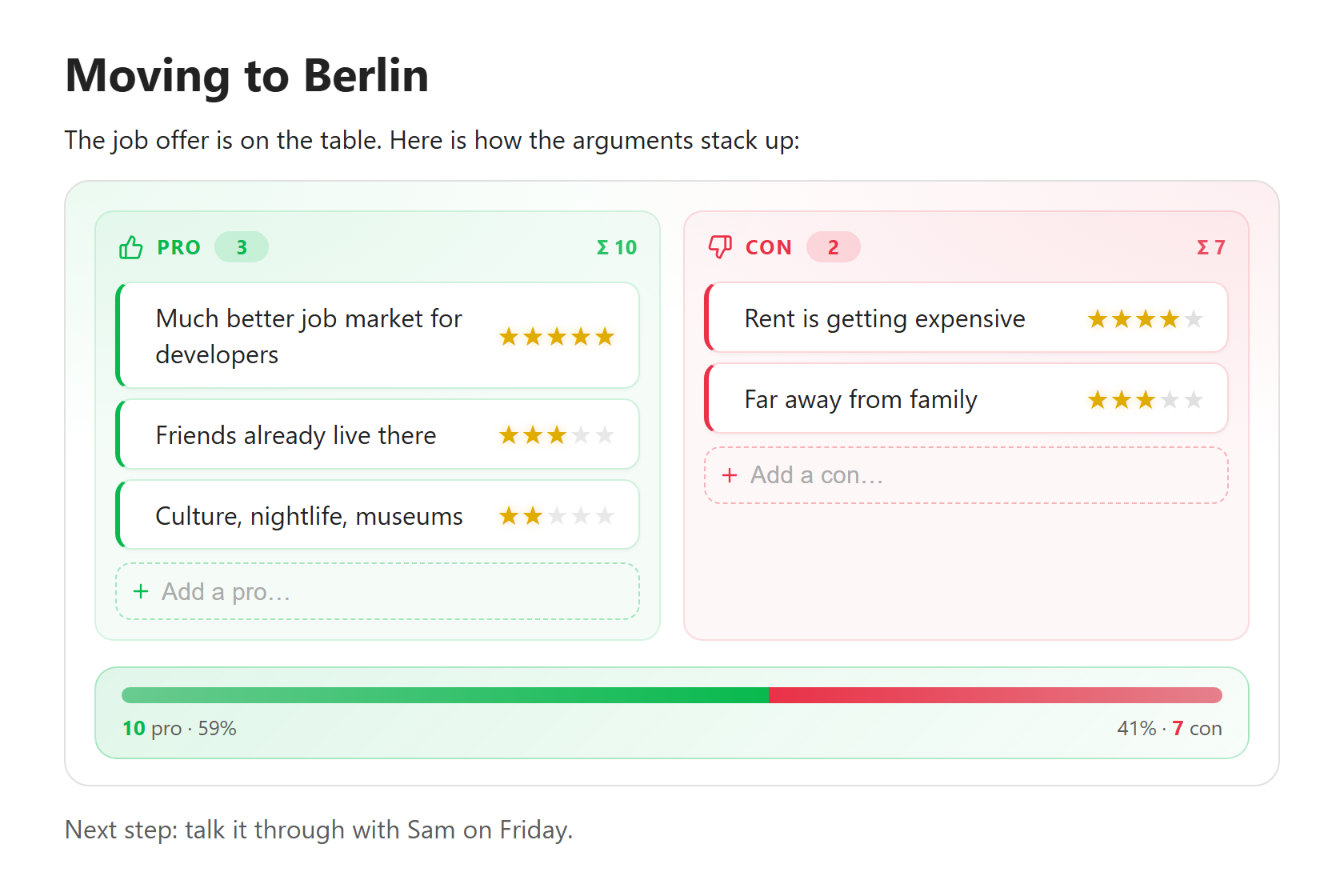
Weigh the pros and cons of a decision right inside your notes. You write a plain Markdown table of arguments with weights. Obsidian shows it as editable cards and a bar that shows which side wins.
Source code: github.com/haderlka/obsidian-procon-decisions. Issues and ideas are welcome.
If this plugin helps you make better decisions, you can support its development:

Features
- Plain Markdown underneath. Your data is an ordinary Markdown table inside a code block. It stays readable in any editor, even without the plugin.
- Edit in the rendered view. Add, rename, re-weight, move and delete arguments without touching the table syntax. This works in Live Preview and in Reading view.
- Weights as symbols. Click (or tap) a star to set how much an argument counts. You can choose stars, hearts, dots, diamonds, flames or bolts.
- Result bar. A green/red bar shows how the total weight splits between pro and con.
- Two designs. Colored, with color and subtle animations, or Plain, which is quiet, low-color and has no animation.
- Works on phones and tablets. Touch-sized controls, and a layout that stacks on narrow screens.
Screenshots
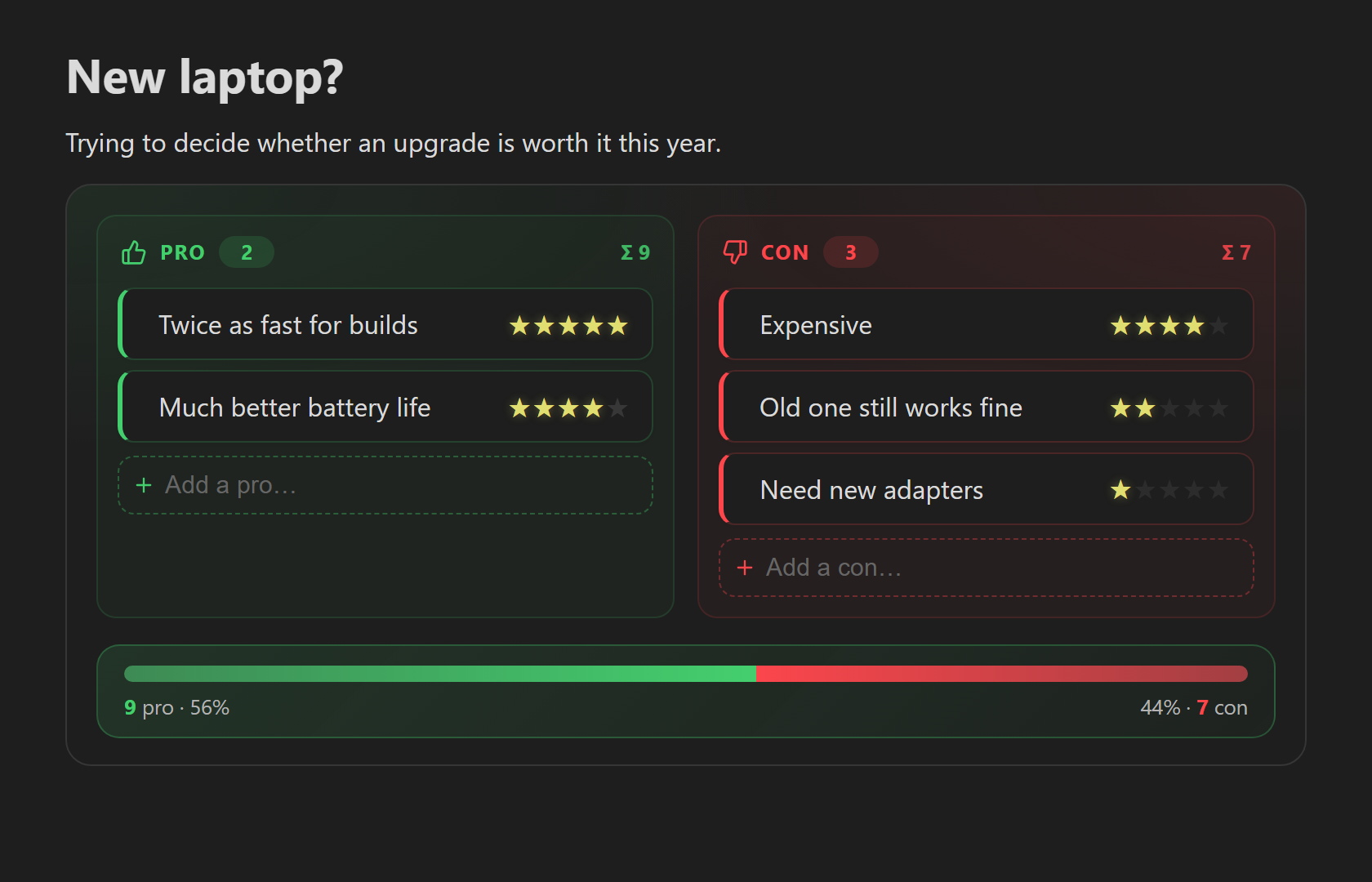 | 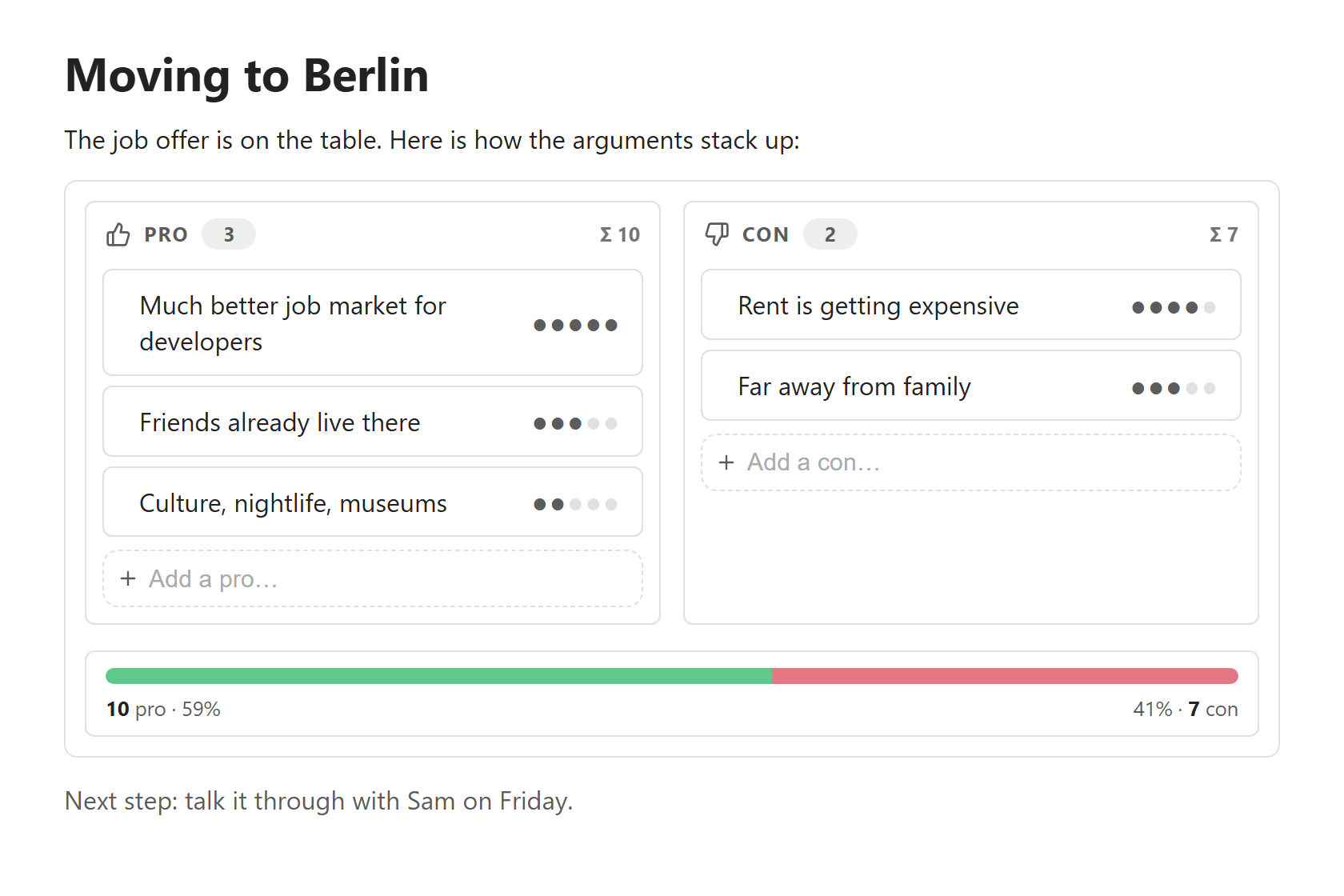 |
| Colored design, dark theme | Plain design, dots as weight symbol |
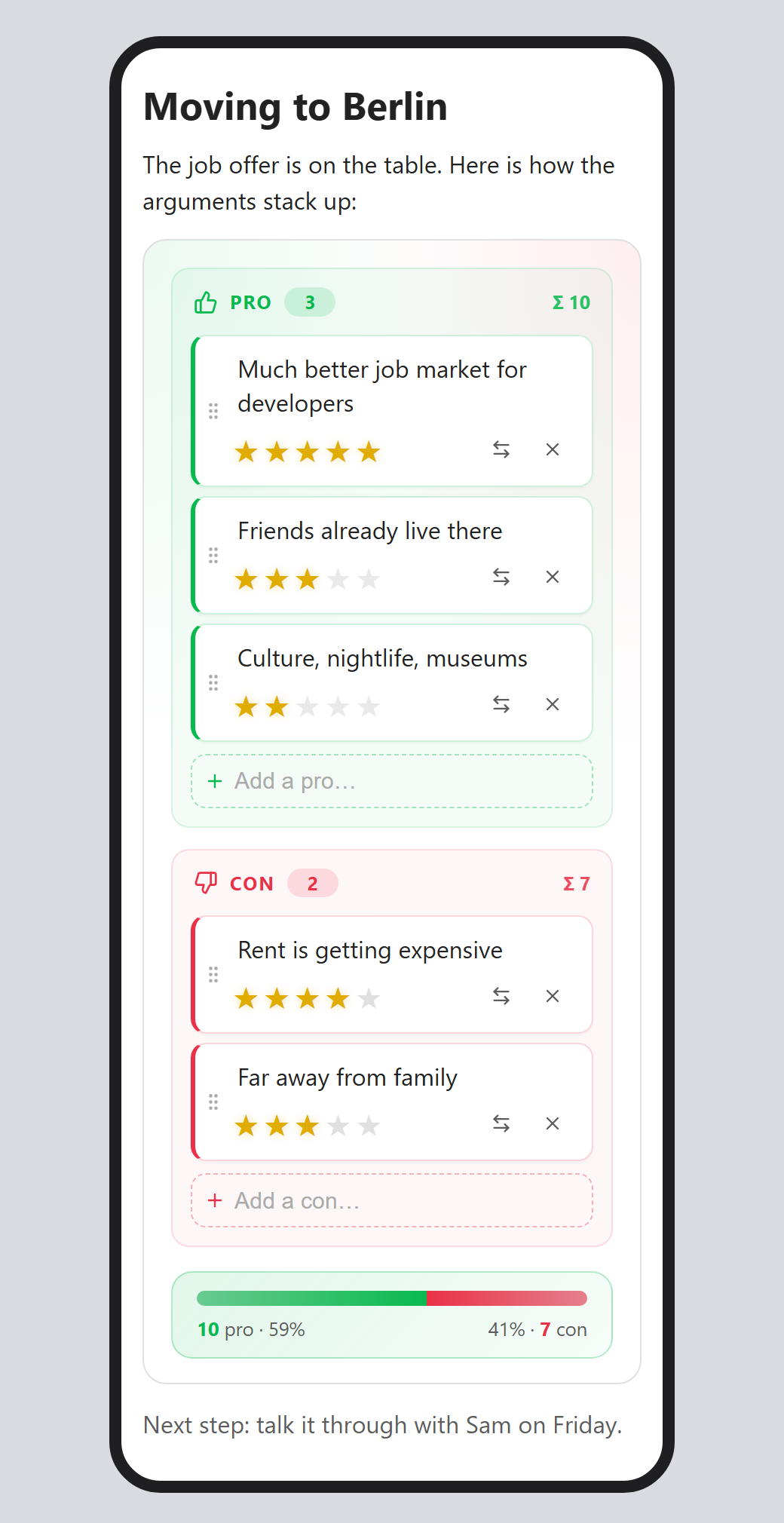
On a phone: columns stack and the controls are always visible
Usage
Run Insert pro/con decision from the command palette, or type a procon code block yourself:
```procon
| Side | Argument                  | Weight |
| ---- | ------------------------- | ------ |
| pro  | Much better job market    | 5      |
| pro  | Friends already live there | 3     |
| con  | Rent is getting expensive | 4      |
| con  | Far away from family      | 3      |
```
You can put a decision anywhere in a note, between normal text, and have as many as you like.
Syntax
| Column | What goes in it |
|---|---|
| Side | pro, +, yes, for for arguments in favour. con, contra, -, no, against for arguments against. Case doesn't matter. |
| Argument | Any text. Write a literal pipe as |. |
| Weight | A number (1–10), or a run of symbols such as ★★★ or 🔥🔥. Empty means 1. |
- The header row and separator row are optional. Rows with an unknown side are ignored.
- An optional first line such as
# My questionis kept in the file but not displayed.
Editing in the rendered view
| Action | How |
|---|---|
| Add an argument | Type into Add a pro… / Add a con… and press Enter. The field stays focused, so you can keep typing. End the text with !4 to set the weight at the same time. |
| Change the text | Click the text, edit it, then press Enter (or tap Done). Esc cancels. Clearing the text removes the argument. |
| Change the weight | Click a symbol. With the keyboard, focus the weight and use the arrow keys or 1–9. |
| Move to the other side | Use the ⇄ button. |
| Reorder or move | Drag the ⋮⋮ grip, with a mouse or a finger. |
| Delete | Use the × button. |
On desktop the buttons appear when you hover over a card. On touch devices they're always visible.
Every edit rewrites the table inside your note, so the Markdown always matches what you see. Undo (Ctrl/Cmd+Z in the editor) works as usual.
Settings
| Setting | Options |
|---|---|
| Design | Colored (default) or Plain. |
| Weight symbol | Stars, hearts, dots, diamonds, flames or bolts. |
| Maximum weight | 3–10 symbols per argument (default 5). Higher weights in the file are capped to this value. |
Installation
From Obsidian (recommended)
Once the plugin is listed in the community plugin directory:
- Open Settings → Community plugins. If needed, click Turn on community plugins.
- Click Browse and search for Pro-Con Decisions.
- Click Install, then Enable.
Manual installation by downloading
Use this before the plugin is listed, or to install a specific version.
- Open the latest release of this repository.
- Under Assets, download these three files:
main.jsmanifest.jsonstyles.css
- In your vault, open the hidden folder
.obsidian/plugins/. Create a folder namedprocon-decisionsinside it. The folder name must match the plugin id.- Windows: in File Explorer, turn on View → Show → Hidden items.
- macOS: in Finder, press Cmd+Shift+. to show hidden files.
- Put the three files into that folder:
<your vault>/.obsidian/plugins/procon-decisions/ ├── main.js ├── manifest.json └── styles.css - In Obsidian, open Settings → Community plugins. Click the reload icon next to Installed plugins, then enable Pro-Con Decisions.
Updating a manual install: download the three files from the newer release, replace the old ones, then turn the plugin off and on again (or restart Obsidian).
Phones and tablets: Obsidian mobile can't easily reach the hidden .obsidian folder. The simplest way is to install on desktop and let your sync carry the plugin over. With Obsidian Sync, turn on Installed community plugins and Active community plugin list under Settings → Sync. iCloud, Syncthing and similar tools sync the folder automatically. Then enable the plugin on the phone.
Compatibility
- Obsidian 1.4.0 or newer.
- Desktop (Windows, macOS, Linux) and mobile (iOS, Android).
Privacy
This plugin makes no network requests and collects no data. It only reads and writes the procon code blocks in the notes you edit.
Development
npm ci            # install dependencies
npm run dev       # rebuild main.js on every change
npm run build     # type-check and create a production build
npm run lint      # Obsidian's official review rules (eslint-plugin-obsidianmd)
npm test          # unit tests for the parser/serializer (Node ≥ 22.18)
npm run screenshots  # regenerate the README images in docs/ (needs Chrome or Edge)
To try changes, link or copy the project folder into <vault>/.obsidian/plugins/procon-decisions/. Reload the plugin after each build.
Releasing
- Run
npm version patch(orminor/major). This updatespackage.json,manifest.jsonandversions.json, and creates a git tag. - Run
git push --follow-tags. - The Release GitHub Action builds the plugin and creates a draft release with the three files. Review the draft on GitHub and publish it.
Tags have no v prefix: 1.0.1, not v1.0.1.
License
For plugin developers
Search results and similarity scores are powered by semantic analysis of your plugin's README. If your plugin isn't appearing for searches you'd expect, try updating your README to clearly describe your plugin's purpose, features, and use cases.