promChip
approvedby swiSwift
Floating chip for managing AI prompts with pin-to-desktop support - This plugin has not been manually reviewed by Obsidian staff.
↓ 35 downloadsUpdated 1mo agoMIT
promChip
Floating AI prompt chips for Obsidian — pin prompts to your desktop, select text, and get AI responses in a floating window.
Features
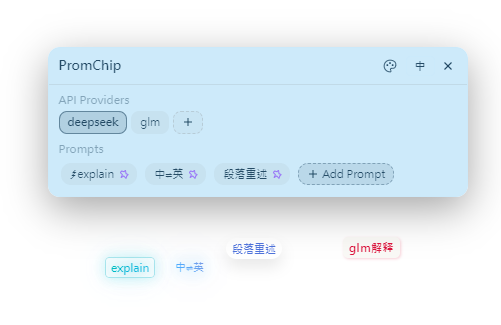
- Floating Ball — A draggable floating ball on your desktop; click to open the AI prompt settings panel
- Pinned Prompt Buttons — Pin individual prompt chips anywhere on screen; each chip is independently draggable
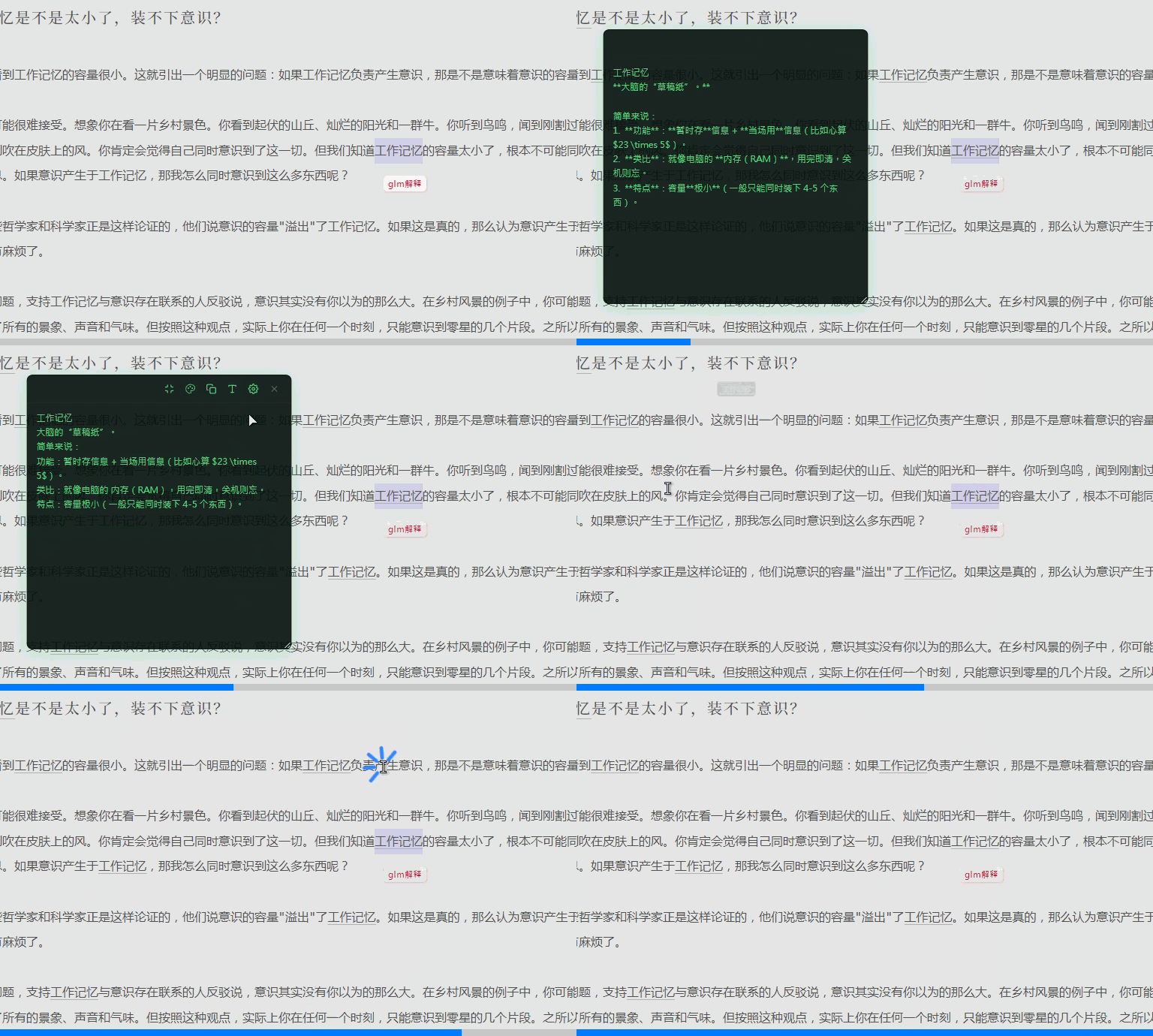
- AI Response Window — Select text in the editor, click a prompt chip, and get a streaming AI response in a floating window
- Multiple API Providers — Configure multiple API endpoints (OpenAI-compatible) and switch between them
- Streaming Responses — Real-time streaming output with markdown rendering
- Color Schemes — 24+ built-in color schemes for AI response windows (vintage, urgent, cyber, seasonal, mood styles)
- Collapsible Window — Collapse the AI window to a mini bar; hover or click to expand
- Pin Window — Pin the AI window to prevent accidental closure
- Edit & Discard — Double-click to edit AI response text; long-press or middle-click close button to discard
- CM6 Annotations — Gray underline markers on text that has AI annotations; hover to view
- i18n — Switch between Chinese and English in the settings panel
- Mobile Support — Touch-friendly interaction with proper gesture handling
Installation
From GitHub
- Download
main.jsandmanifest.jsonfrom the latest release - Create a folder named
promchipin your vault's.obsidian/plugins/directory - Place the downloaded files inside that folder
- Enable the plugin in Obsidian Settings → Community Plugins
From Obsidian Community Plugins (pending review)
- Open Settings → Community Plugins
- Search for "promChip"
- Click Install, then Enable
Usage
- After enabling the plugin, a floating ball appears on screen
- Click the floating ball to open the settings panel
- Add an API provider (base URL and API key)
- Add prompt chips — use
{{selection}}as a placeholder for selected text - Select text in the editor, then click a prompt chip to send the request
- The AI response appears in a floating window with your chosen color scheme
- Drag prompt chips anywhere on screen for quick access
Prompt Chips
- Pin prompt chips to the desktop for one-click access
- Each chip is draggable and can be positioned independently
- Right-click a chip to edit, pin/unpin, or delete
- Scroll wheel on a chip adjusts opacity (Ctrl) or scale (Alt)
AI Response Window
- Click outside the window to close (unless pinned)
- Collapse to a mini bar via the collapse button
- Switch color schemes via the palette button
- Copy response content via the copy button
- Clear markdown formatting via the format button
- Double-click to edit the response text
- Long-press or middle-click the close button to discard the response
Changelog
v1.0.0 (2025-07-29)
- Initial Release — Floating ball, pinned prompt chips, AI streaming responses, color schemes, collapsible window, CM6 annotations, i18n, mobile support
License
MIT
For plugin developers
Search results and similarity scores are powered by semantic analysis of your plugin's README. If your plugin isn't appearing for searches you'd expect, try updating your README to clearly describe your plugin's purpose, features, and use cases.