by theluckystrike
Print note properties as a formatted header in the built-in PDF export.
Properties in PDF Export
Print the properties of a note as a readable header in Obsidian's built-in PDF export. Author, date, status, tags and custom fields travel with the document you share. You do not need to copy them into the body or keep a separate export note up to date.
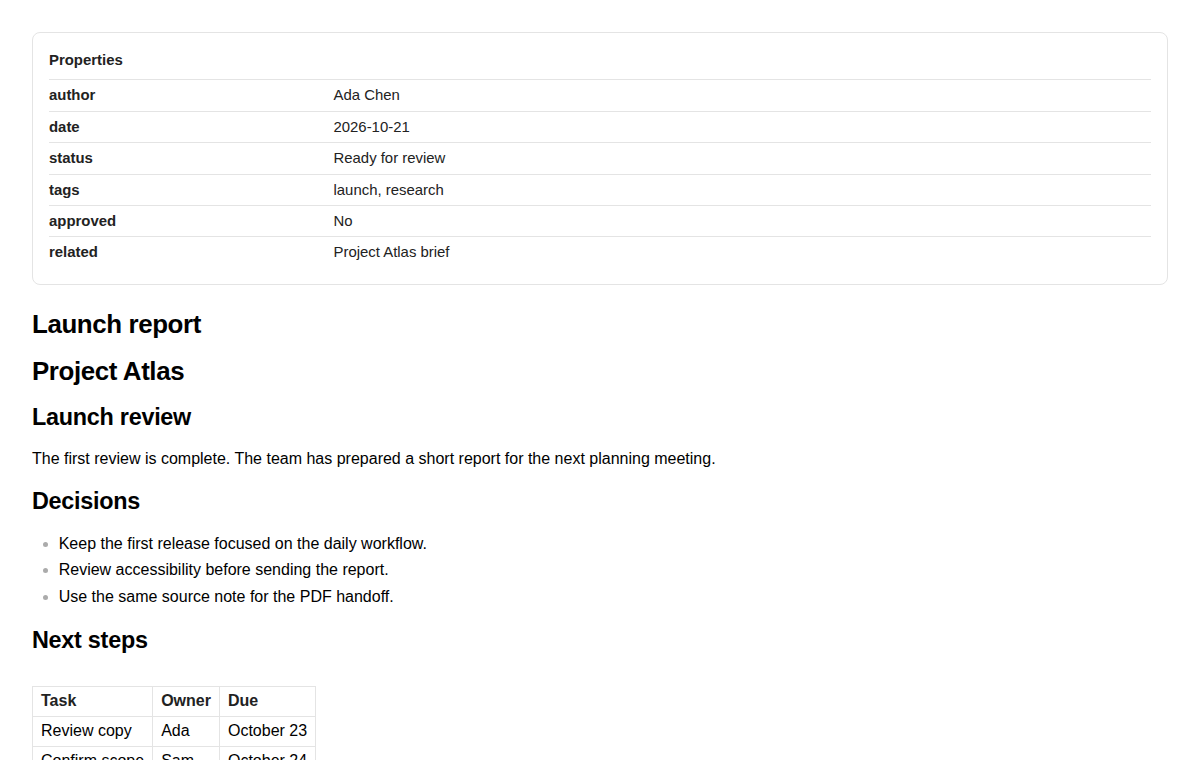
Free includes complete property headers, both layouts, a hide list, property ordering and a reading preview. Pro adds automatic layouts per folder for $15 one time or $5 a month.
Features
Properties in the core PDF export
Use the usual Export to PDF action from a note's menu. This plugin adds a header while Obsidian renders the document. The rest of your note goes through the core renderer, with the page settings you already use. There is no second PDF engine and no separate export dialog to learn.
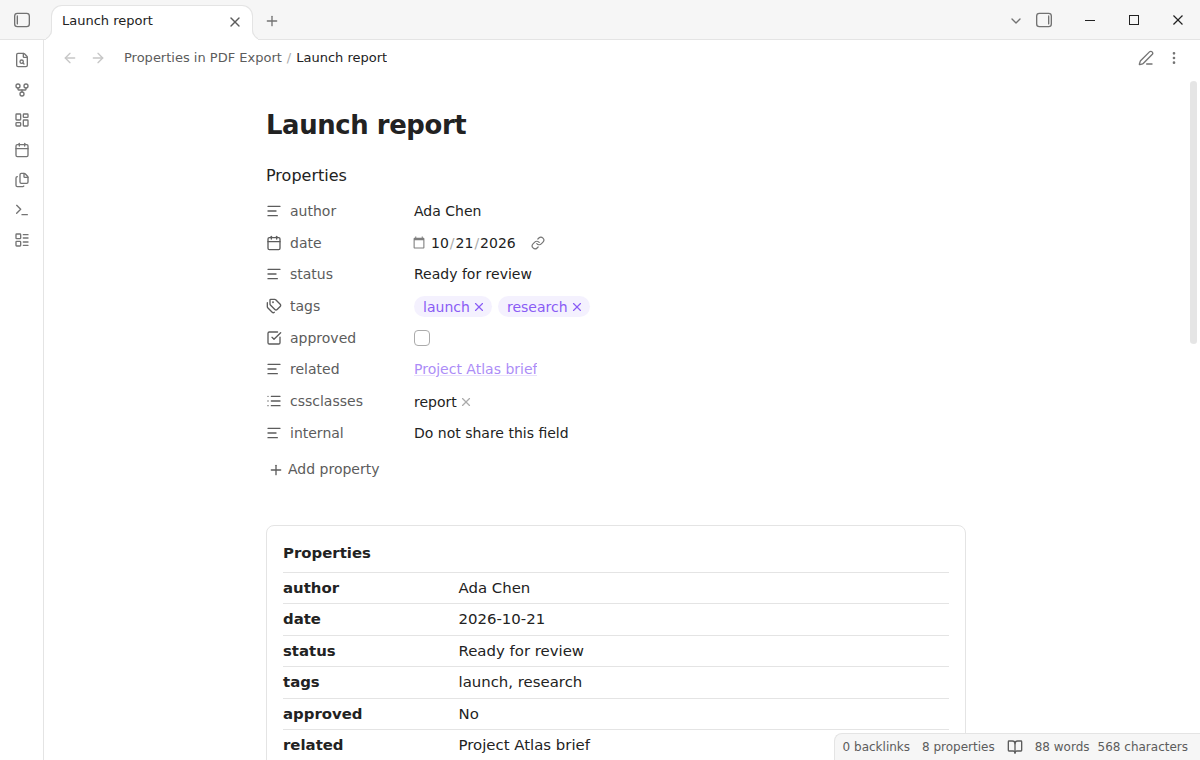
The header is hidden during normal reading unless you enable its preview. Preview lets you check which values will appear before opening the PDF export dialog. The source note stays exactly as it was. Turning the plugin off leaves no generated Markdown to remove.
Choose what readers see
The free hide list excludes exact property names. The default hide list is cssclasses, aliases. All other nonempty fields print unless you add their names. Add your own internal fields before sharing a report. Property names are case sensitive, so status and Status are different names.
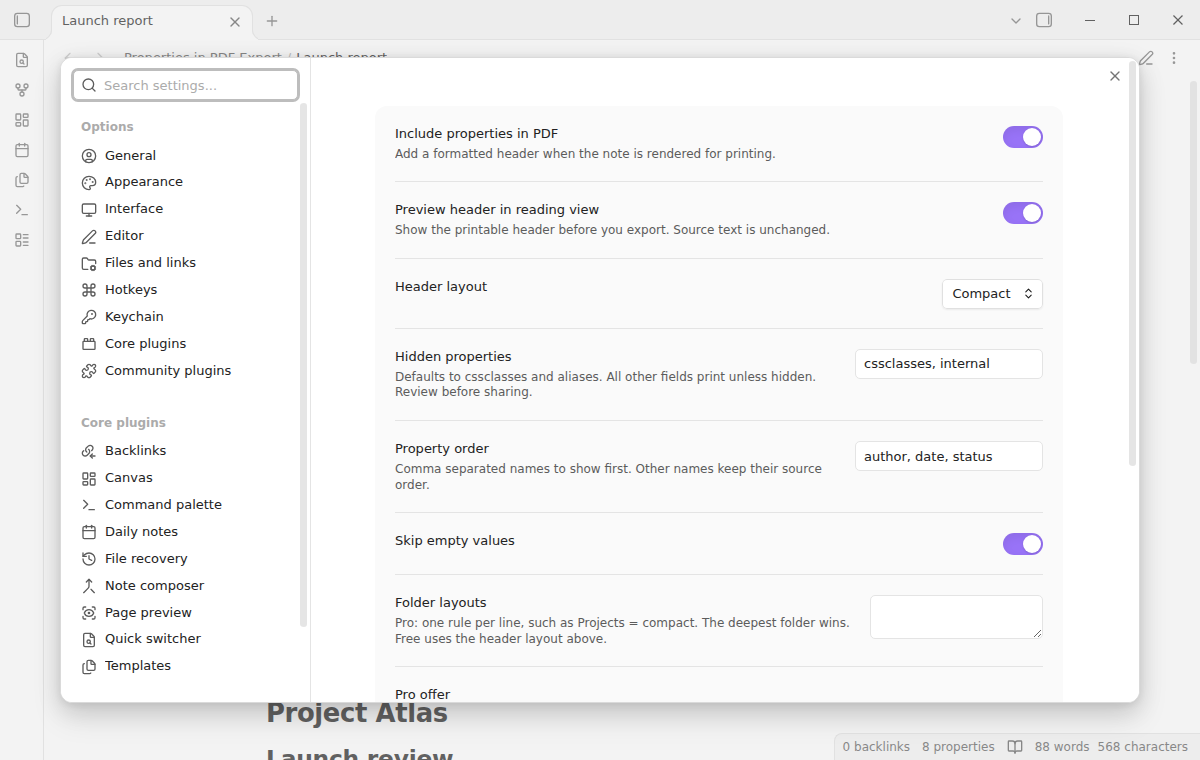
Set a preferred order such as author, date, status. Those fields appear first. Any fields you did not name follow in their original order. Missing names are ignored, so one order works across notes with different properties. Empty values are skipped by default. Turn that option off when an empty field needs to remain visible on a printed form.
Table and compact layouts
Table gives each property a label column and a value column. Compact puts short label and value pairs beside each other and wraps them when the page gets narrow. Both layouts are free. Long text and multiline values wrap inside the header. The print styles ask the renderer to keep each row together when space permits.
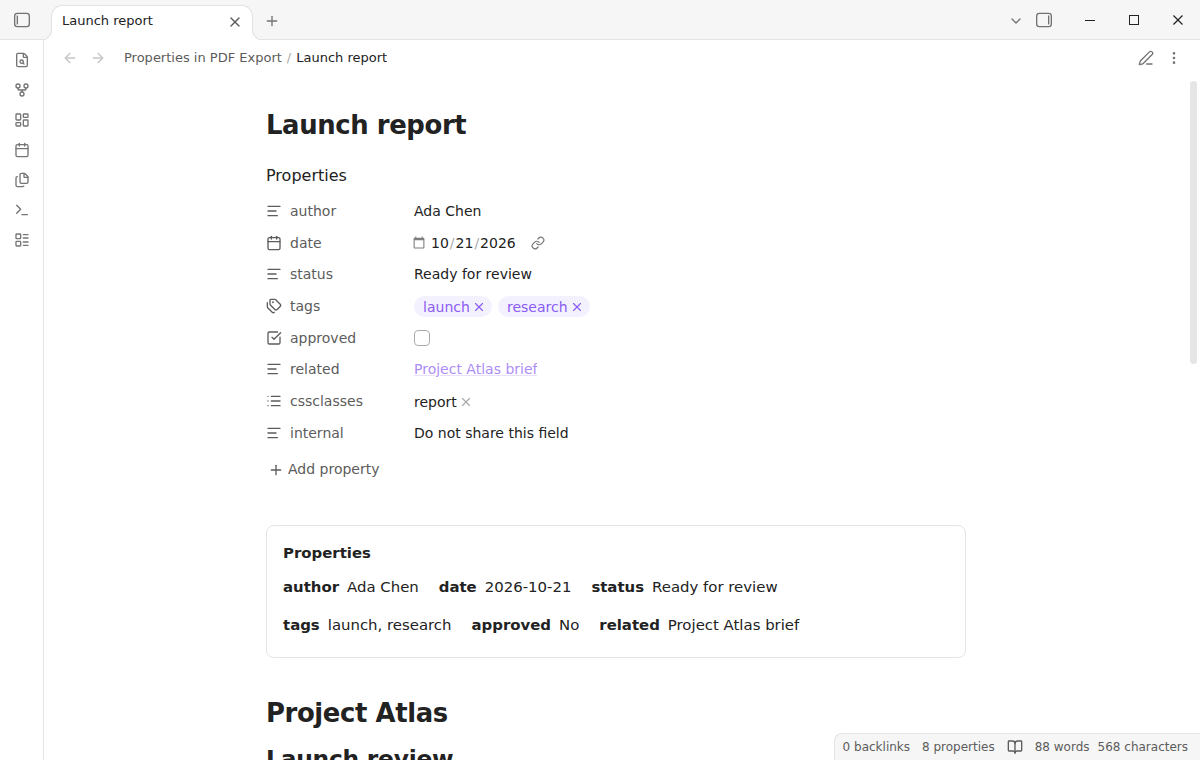
Lists become comma separated text. Checkboxes print as Yes or No, and numbers keep zero. A wiki link uses its display alias when it has one, otherwise its target. Nested objects become labeled text. Values are never interpreted as HTML or Markdown, so an angle bracket in a property stays an angle bracket in the document.
Folder layouts with Pro
Save a layout rule for a folder when different kinds of notes need different headers. For example, keep detailed reports in table layout and meeting notes in compact layout. A deeper folder can override its parent. Rules match path segments, so Work does not also match Workshop.
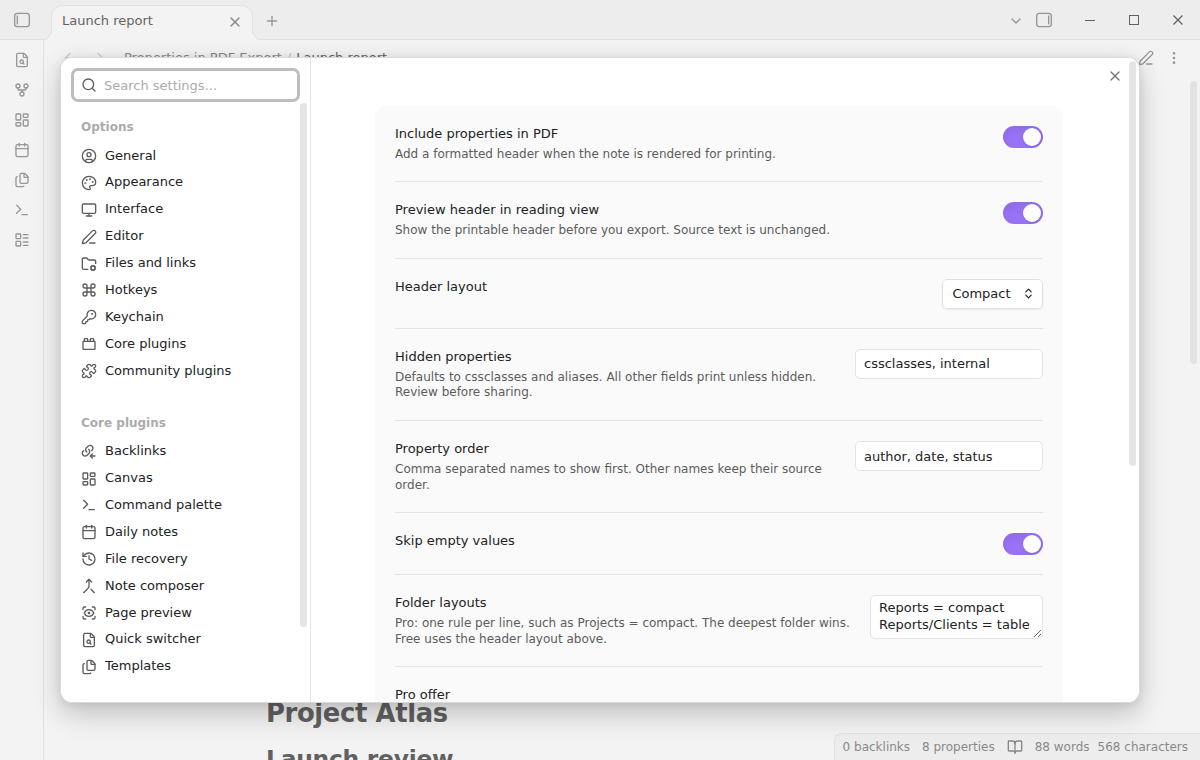
The rule format is one line per folder: Reports = compact or Reports/Clients = table. Rules affect layout only. Your hide list and preferred order still apply. Without Pro, saved rules remain in settings and the global layout applies to every note. You can still select either layout manually.
Advanced PDF Export provides a separate export panel with page breaks, style presets and page controls. Its frontmatter option can retain the YAML block. Choose Advanced PDF Export for those document controls. Choose this plugin for a labeled property header with free field filtering and ordering inside the core exporter. Complete PDF Export also supports property cards through its own export workflow.
Install
This plugin needs desktop Obsidian 1.13.4 or later. The PDF export action belongs to desktop Obsidian. Mobile PDF export is outside this version.
For a manual installation, get main.js, manifest.json and styles.css from a published release. Put those three files in your vault's .obsidian/plugins/properties-pdf-export/ folder. Reload Obsidian, then enable Properties in PDF Export under Community plugins. Keep the stylesheet with the script: it controls the print header's visibility and layout.
For a source installation, run the repository's install and build commands first, then copy the same three files into the plugin folder. Use a test vault before applying a new build to notes you share with other people.
Usage
Open a Markdown note with properties at its beginning. Set the hidden fields and preferred order in the plugin settings. Switch to reading view and run Toggle printable header preview from the command palette. The Properties block appears above the note so you can inspect its labels and values.
Next, use the note menu's Export to PDF action. Choose the paper size and margins in Obsidian's dialog and save the PDF. Open the saved file and check the first page before sending it. A narrow page or unusually long property may change where the body starts.
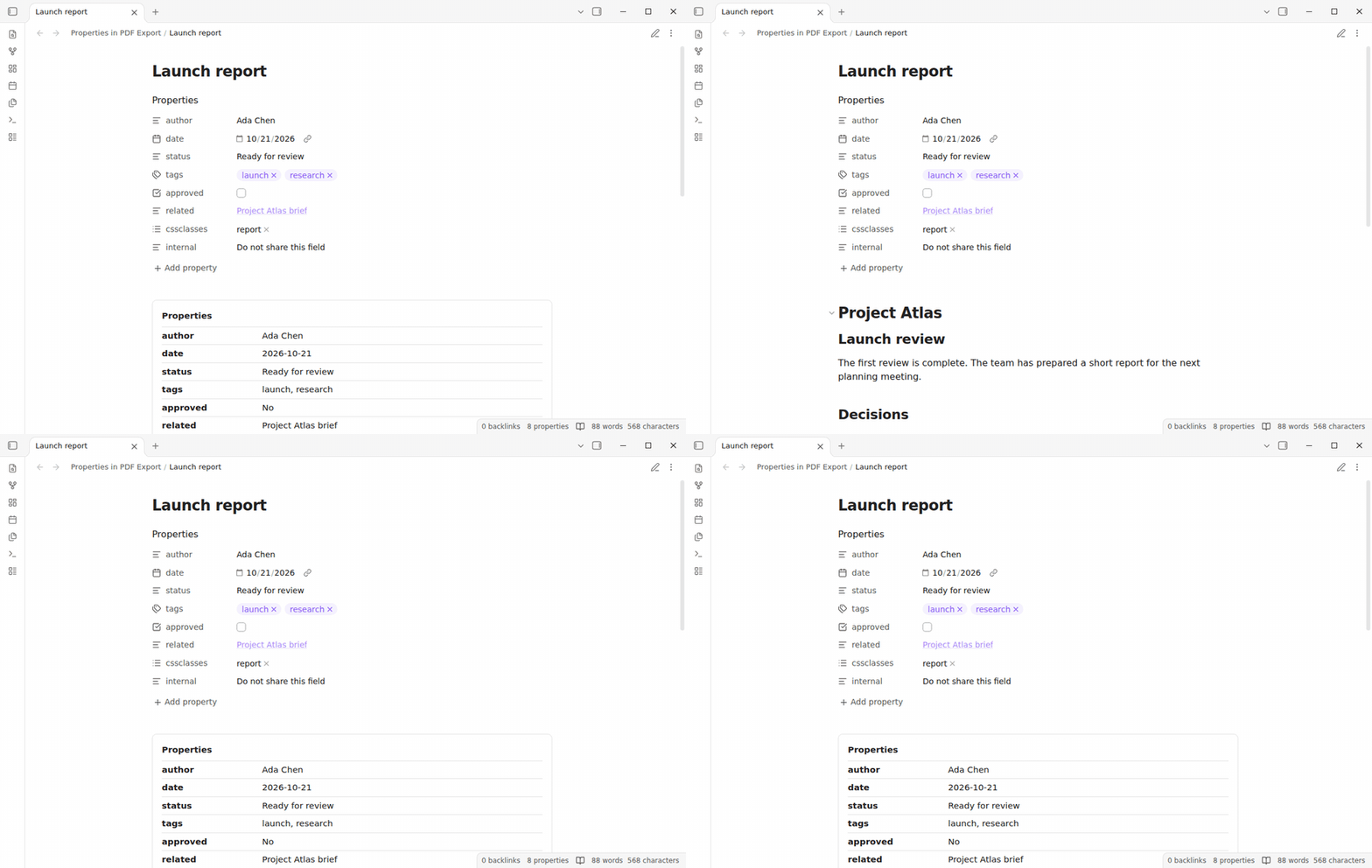
Preview is optional. The header is included in the export even when reading preview is off. A note with no printable properties gets no empty block. Headers belong to the opening section of a complete note; partial note embeds and merged document exports are outside this workflow.
Settings
Include properties in PDF turns header generation on or off. Preview header in reading view controls screen visibility separately. Header layout selects Table or Compact. Hidden properties accepts comma separated names. Property order accepts the names you want first. Skip empty values removes blank rows. Folder layouts stores the optional Pro rules.
After a setting changes, reading previews refresh. An export dialog that is already open may have rendered the previous settings, so close it and start the export again. Settings are saved with this plugin in the vault. A GitHub token is stored separately by the shared Pro sign in.
FAQ
Does this rewrite my YAML?
No. The plugin reads the frontmatter supplied by Obsidian's rendering context and creates display elements. It does not write a header into the note or modify property values. Undo is unnecessary because no source edit occurs.
Can I include private properties safely?
Review the hide list before sharing. Every nonempty property is included unless its name is hidden. Obsidian's internal position metadata is always excluded. A hidden name affects the printed header, not your source note or other plugins. Inspect the saved PDF whenever the document contains sensitive information.
Will property links be clickable?
Property values are printed as plain text. Wiki links show their alias or target but do not become clickable links. Rich Markdown, images and HTML in property values are also kept as text. Use the body of the note for content that needs rich rendering.
What about themes and other exporters?
The header uses theme colors and a small set of print styles. Themes and CSS snippets can affect the final document. This version targets the built-in PDF export of a complete Markdown note. Exporters that bypass Obsidian's Markdown post processors may omit the header.
Payment, account and network
The core features are free. Pro features need a GitHub Sponsors sponsorship of theluckystrike: $5 a month or more, or $15 once. A total payment of $15 meets the payment requirement for Pro without further payment. Sign-in and the checks below still apply. Your notes stay readable and editable with or without Pro.
GitHub handles the payment. Sponsor at https://github.com/sponsors/theluckystrike. You need no account for the free features. Pro needs the GitHub account that sponsors.
Until you select "Sign in with GitHub" in the settings, Properties in PDF Export makes no network requests. Sign in uses the GitHub device flow. Properties in PDF Export sends its public client ID and the scope read:user to https://github.com/login/device/code and shows you a code. While you enter the code at https://github.com/login/device, it asks https://github.com/login/oauth/access_token every few seconds to check the sign-in status. The scope permits profile reads only. GitHub needs this access to show the sponsorship tier. It grants no repository scope and no write access.
After sign in, Properties in PDF Export sends one query to https://api.github.com/graphql. It checks if the signed-in account sponsors theluckystrike. It asks for the tier and the total payment to theluckystrike. The plugin reuses a successful check for 7 days. Failed checks can retry after 6 hours. Select Refresh to request an earlier check. It sends no note content, file names or other vault data, and it has no telemetry.
After a successful check, Pro can work offline for up to 14 days. Sign out or a negative sponsorship answer turns Pro off. The plugin stores the GitHub token through the secret storage API of Obsidian. It does not put the token in its saved settings or its local sponsorship data. The local storage of this device keeps your GitHub login, the tier and the time of the last check. Sign out clears the token. You can also revoke the access in your GitHub settings, under Applications.
Support
For help and other plugins, visit NoteMods. When reporting a formatting problem, include your Obsidian version, theme, selected layout and a small example with private values removed. Describe whether it happens in the reading preview, saved PDF or both. The plugin is distributed under the MIT license.
For plugin developers
Search results and similarity scores are powered by semantic analysis of your plugin's README. If your plugin isn't appearing for searches you'd expect, try updating your README to clearly describe your plugin's purpose, features, and use cases.