by x-ideas
A plugin for Obsidian that allows you to move file and all the related files (inlinks) in the file tree to a new folder.
↓ 32 downloadsUpdated 8d agoMIT
Obsidian Related Move Files
move file and all the related files (inlinks) in the file tree to a new folder. Which can be used to organize your obsidian vault quickly.
Example
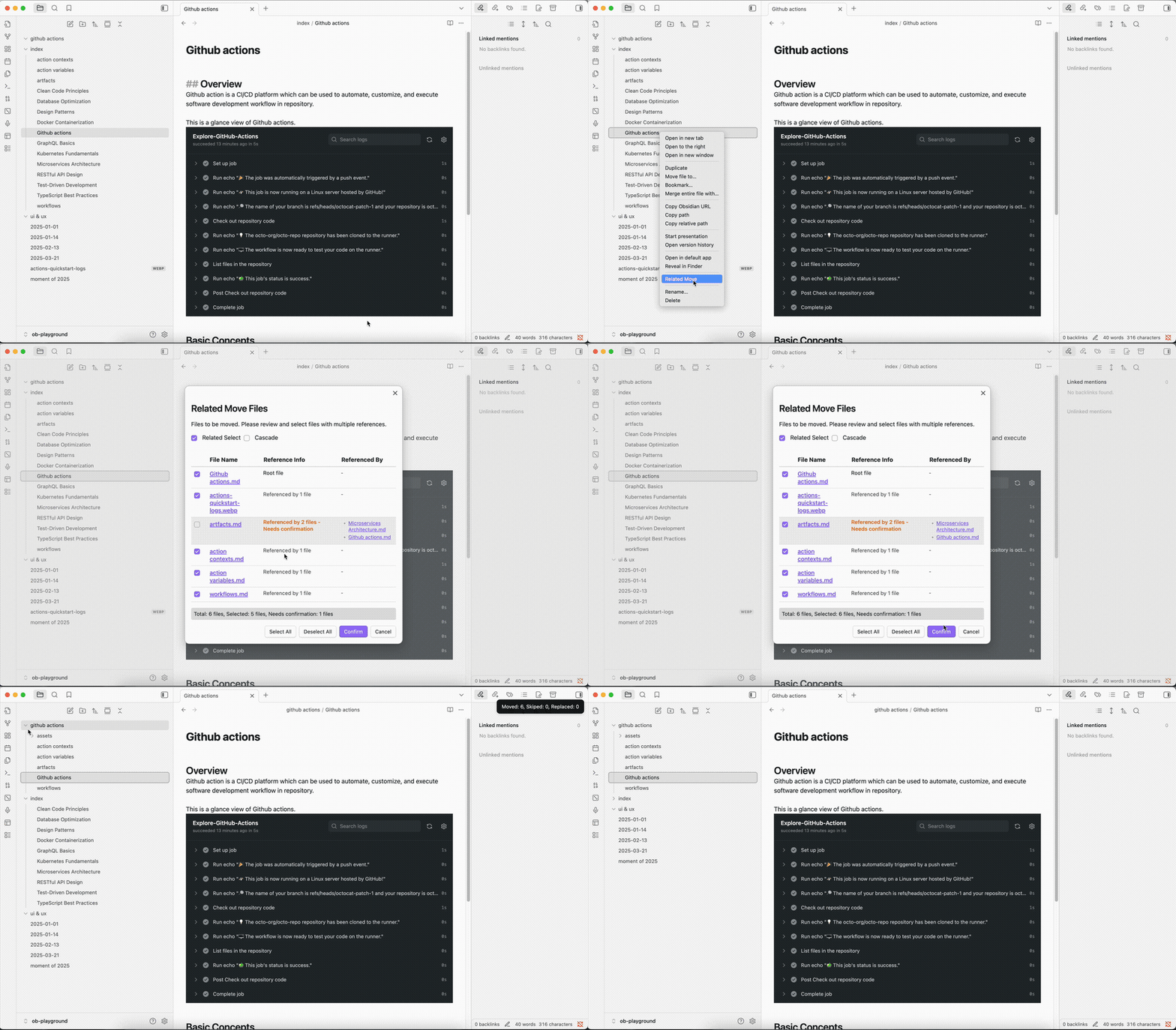
If your github action related files are scattered everywhere in your vault, you can use this plugin to move them to a new folder.
- First: Create a new folder in your vault, for example:
github-action. - Second: Select the root file of the
github action related files - Third: Select
Related Movemenu item in the file context menu or editor context menu. - Fourth: Select the new folder you created in the modal.
- Fifth: Click
Confirmbutton to move the files.
That's it. All the github action related files will be moved to the new folder.
Features
- Move file and all the related files (inlinks) in the file tree to a new folder.
- Support related select and cascade select.
- Support move files to a new folder.
- i18n support.
Installation
Manual Installation
- Download the latest release from GitHub Releases.
- Download the
main.js,manifest.json,styles.cssfiles from the release. - Create a new folder named
related-movein your Obsidian plugins folder. - Copy the
main.js,manifest.json,styles.cssfiles to therelated-movefolder. - Restart Obsidian.
- Enable the plugin in the Obsidian settings.
Community Plugin Manager(Not Published Yet)
- Search for "Related Move" in the Community Plugin Manager.
- Click "Install" to install the plugin.
- Enable the plugin in the Obsidian settings.
- Restart Obsidian.
Install from BRAT(Currently Recommended)
- Install [BRAT](https://github.com/TfTHacker/obsidian42-brat) if you haven't installed it yet.
- Enable BRAT in **Settings → Community plugins**
- Open Command Palette(Ctrl+P) and type `BRAT: Plugins: Add a beta plugin for test` to open the Community Plugin Manager.
- input the plugin repository url: https://github.com/x-ideas/obsidian-related-move
- select the latest version
- click `Add plugin` button to install the plugin.
- enable `related-move` plugin in **Settings → Community plugins** if it's not enabled automatically.
For plugin developers
Search results and similarity scores are powered by semantic analysis of your plugin's README. If your plugin isn't appearing for searches you'd expect, try updating your README to clearly describe your plugin's purpose, features, and use cases.