by v-49
Position two Markdown panes independently, then lock relative scrolling without jumping. Hold Alt to adjust one pane.
Relative Scroll Lock
Position two panes independently. Lock them in place. Scroll together.
简体中文 · Download · Report an issue
Compare a source passage with a revision elsewhere in the same long note, or compare two different notes. Locking preserves both starting positions. Neither pane jumps to the other pane's location.
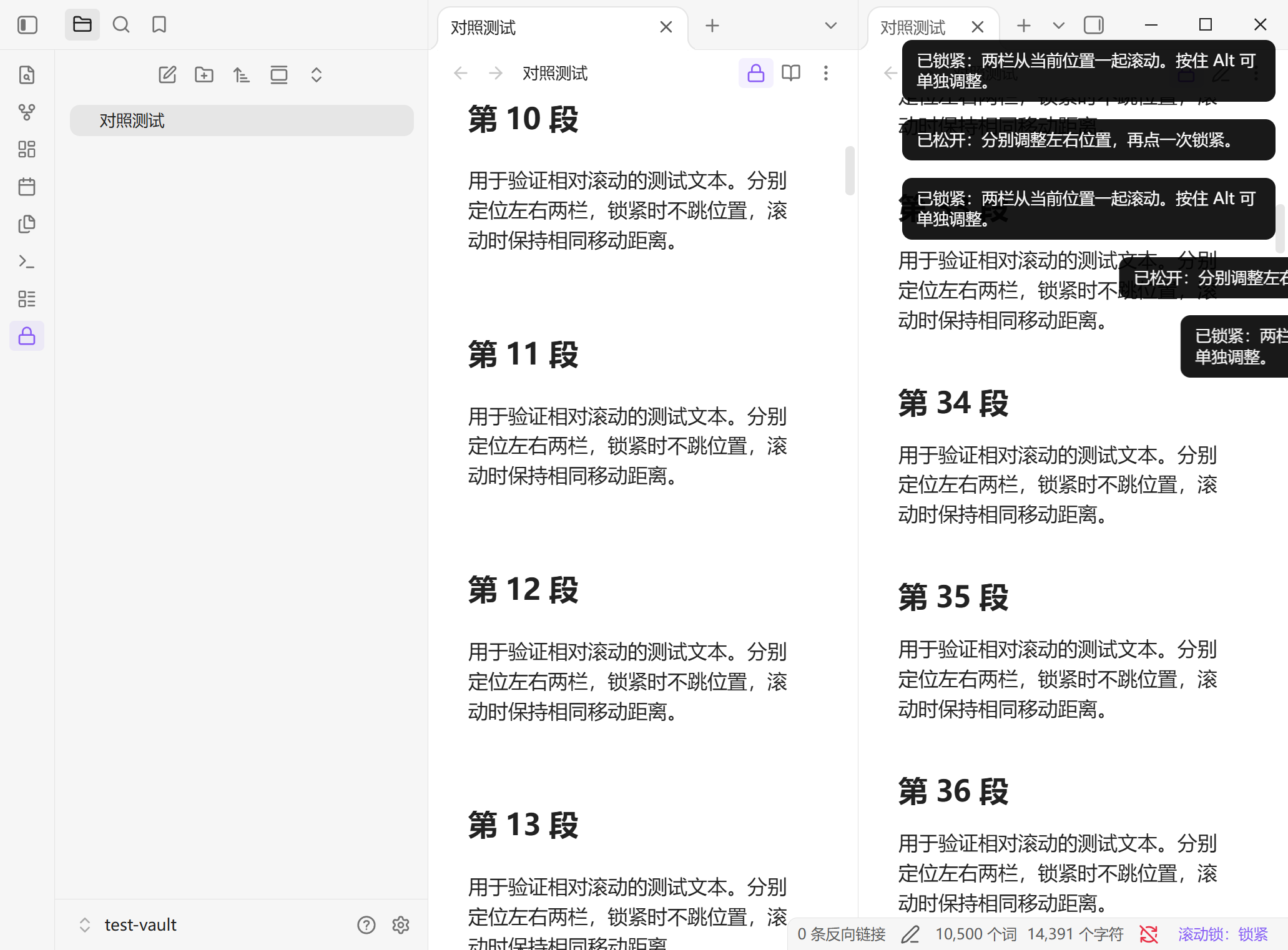
The screenshot shows an isolated test vault with synthetic content. The UI follows Obsidian's language: Chinese for Chinese locales, English otherwise.
Use
- Open exactly two Markdown panes side by side in the main workspace. They can show the same note or different notes.
- Scroll each pane to its desired starting passage.
- Click Scroll lock: unlocked in the status bar. Scrolling either pane now moves the other pane by the same vertical pixel distance.
- Click again to unlock and adjust the positions separately.
Hold Alt while scrolling to adjust only the pane under the pointer. Release Alt to resume synchronization from the new positions. The ribbon and note-header lock buttons work like the status-bar button.
Unlike native linked tabs, this plugin preserves an arbitrary starting offset. It synchronizes movement, not matching text, line numbers, or percentages. Different passage lengths can drift; use Alt or unlock to adjust.
If the two panes are already natively linked, clicking Lock removes their native link. Unlocking or disabling the plugin does not restore it. You can recreate the native link from the tab context menu.
Install
Available in Obsidian Community Plugins.
In Obsidian, open Settings → Community plugins → Browse, search for Relative Scroll Lock, install, and enable it. You can also open the community page and select Add to Obsidian.
Manual installation
- Download
relative-scroll-lock-1.0.2.zipfrom the latest release. - Extract its
relative-scroll-lockfolder into your vault's plugin directory, normally.obsidian/plugins/. If you use a custom configuration directory, use itsplugins/directory instead. - Reload Obsidian and enable Relative Scroll Lock in Settings → Community plugins. Turn off Restricted mode if it is enabled.
The plugin folder must contain main.js, manifest.json, and styles.css. These files are also available individually on the release page. GitHub's automatic source-code archives require a build and are not installable packages.
No default shortcut is assigned. In Settings → Hotkeys, search for Relative Scroll Lock and assign a shortcut to Lock / unlock. For example, use Ctrl + Alt + L if it is available. The command palette also provides Lock / unlock and Unlock.
Compatibility and limits
- Desktop only; Obsidian 1.13.7+. The original local build was tested on Windows / Obsidian 1.13.7; the public build was separately verified on Windows / Obsidian 1.14.4. macOS and Linux have not been tested on real devices.
- Exactly two visible, horizontally adjacent Markdown panes in the main workspace. Sidebars and hidden tabs do not count.
- Supports the same note in both panes, Live Preview, source mode, Reading view, and mixed modes.
- PDF, Canvas, mobile, pop-out windows, stacked vertical layouts, and three or more visible main panes are unsupported.
- Starts unlocked. A file, view-mode, or incompatible layout change automatically unlocks the pair.
- At the top or bottom, one pane stays clamped while the other may continue. Reverse movement proceeds from the current positions.
- Pixel-based movement does not automatically align corresponding passages. Font sizes, zoom, folds, edits, and images loading can change visual alignment.
Privacy
No network requests, telemetry, account, payment, note-body access, or frontmatter changes. No third-party runtime dependencies; the plugin uses Obsidian's API.
The plugin accesses current views, note paths, layout, and scroll containers. Locking can remove the pair's native tab link; Obsidian saves that workspace state. No scroll positions or pair relationships are persisted by the plugin.
Development
npm ci
npm run check
npm run package
Source lives in src/main.js; esbuild produces the release main.js. The package command stages installable files in dist/relative-scroll-lock/.
See validation notes for the distinction between automated regression coverage and real Obsidian checks. Source mode uses the same editor scroll container but has not had a separate real-app scenario run.
Developed with AI assistance for a real review workflow. All public screenshots and examples use synthetic text.
License and feedback
MIT. Free and open source. Not affiliated with Obsidian.
Please include your Obsidian version, OS, pane modes, and reproduction steps when reporting an issue. Remove personal information from examples.
For plugin developers
Search results and similarity scores are powered by semantic analysis of your plugin's README. If your plugin isn't appearing for searches you'd expect, try updating your README to clearly describe your plugin's purpose, features, and use cases.