Remark My Words
approvedby hoelk-f
Annotate PDF passages with categorized comments and arrange connected notes on a visual canvas. - This plugin has not been manually reviewed by Obsidian staff.
Remark My Words
Read a PDF. Mark a passage. Give your thoughts room.
Remark My Words is an Obsidian community plugin for reading and annotating PDFs. Write categorized comments beside passages, then switch to a canvas where your notes become movable cards connected to the original text. Use it for manuals, reports, books, articles, and other PDF documents in your vault.
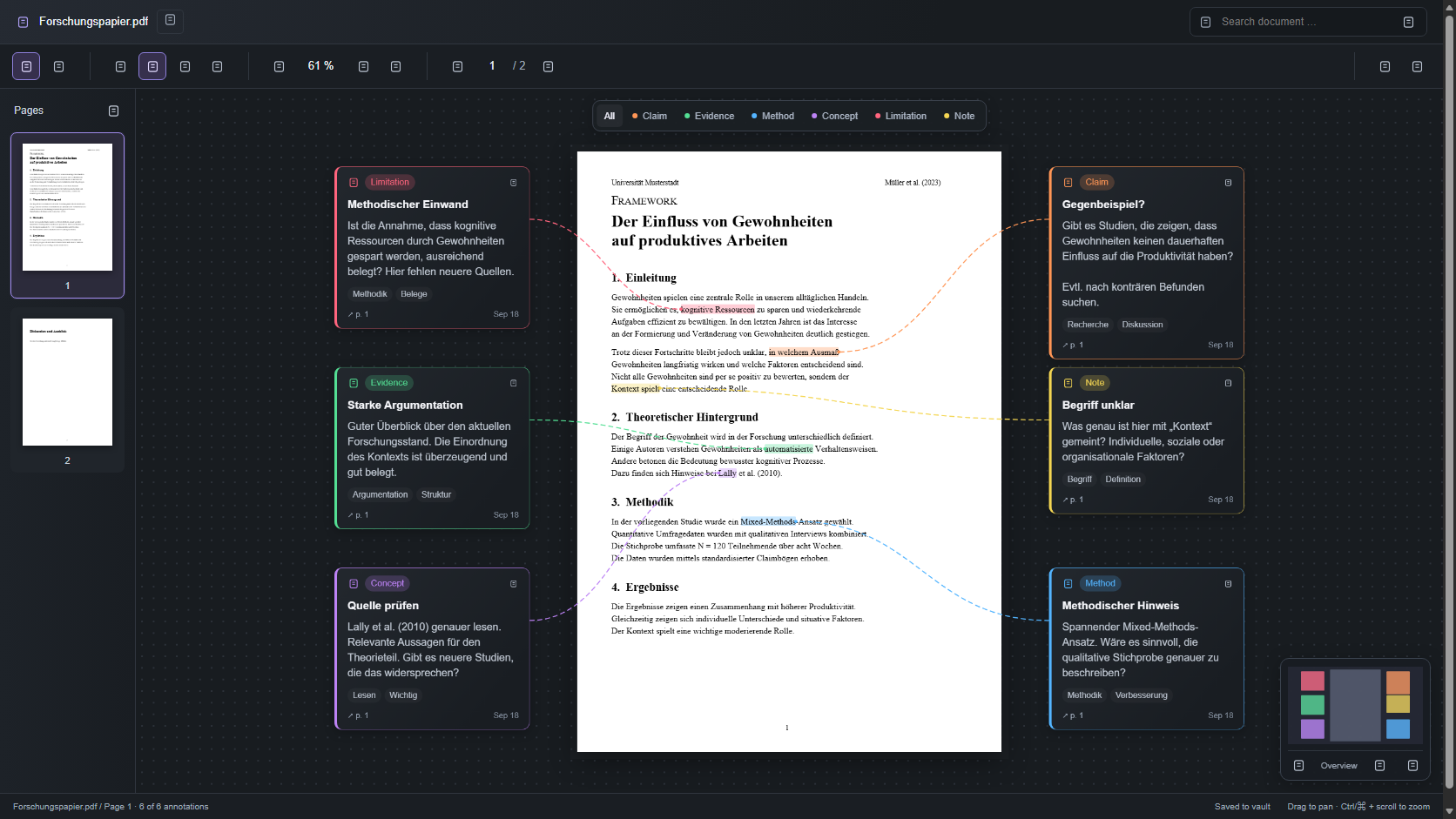
Canvas preview with a sample document in the browser test harness. Obsidian supplies the actual toolbar icons.
Read closely, think spatially
| Reading mode | Canvas mode |
|---|---|
| Focus on one PDF page with normal scrolling. | Arrange comment cards around the PDF. |
| Select a passage and add a comment from the floating toolbar. | Follow colored connectors back to the source passage. |
| Click a highlight to read, edit, or delete its comment. | Pan, zoom, filter categories, and navigate with the minimap. |
| Keep your reading position when saving a comment. | Keep your card positions when switching modes. |
Classify annotations as Claim, Evidence, Method, Concept, Limitation, or Note. Each comment can have a title, description, and tags. Page thumbnails, document search, and document-wide notes are included.
Install
Initial release target: Obsidian Desktop 1.13.7 or later, using an up-to-date Obsidian installer. Mobile support is not enabled for the initial release.
Manual installation
Until the plugin is approved for the Community directory:
- Open Releases and choose a published release. If none is available yet, use the source-build instructions below.
- Download the attached main.js, manifest.json, and styles.css files. GitHub's automatic source-code archive is not the installable plugin.
- Create
<your-vault>/.obsidian/plugins/remark-my-words/and put those three files inside it. - Reload Obsidian, open Settings → Community plugins, and enable Remark My Words.
The PDF renderer and worker are included in main.js; no additional worker file
or internet connection is needed to read and annotate documents.
After approval, users will be able to find Remark My Words under Settings → Community plugins → Browse. A GitHub release alone does not make it available in that directory.
Build from source
With Node.js 22 or later:
git clone https://github.com/hoelk-f/remark-my-words.git
cd remark-my-words
npm ci
npm run package:release
Copy the contents of dist/remark-my-words/ into the plugin folder above.
Get started
- After installing, enable Remark My Words under Settings > Community plugins.
- Run Remark My Words: Open PDF from the command palette or click the pen-and-file ribbon icon. The active PDF opens immediately; otherwise choose a PDF from the vault. You can also right-click a PDF and choose Open in Remark My Words.
- Use the book icon for Reading or the dashboard icon for Canvas. Tooltips identify each control.
- Select text, click a category in the floating toolbar, and fill in Add comment. Right-clicking selected text also offers categories.
- In Reading, click a highlighted passage to open its comment, then use Edit or Delete as needed. Click outside the preview, press Escape, or use its close button to dismiss it. The Read page comments button also works with a keyboard or touch input.
- In Canvas, drag a card by its header. Double-click it to edit; its … menu provides category changes and deletion. ↗ p. … takes you back to the passage.
Navigate pages with thumbnails, arrows, or the page number. Search with Enter for the next matching page or Shift+Enter for the previous one. The … toolbar menu can reopen the document in Obsidian's native PDF viewer.
Customize categories
Click the tags icon (Manage categories) in the PDF toolbar. The same manager is available from Settings > Remark My Words and the command palette. Add a category, change its name, color, or icon, or delete it; then choose Save categories. Cancel leaves the previous settings unchanged.
The initial categories remain Claim, Evidence, Method, Concept, Limitation, and Note. Changes apply across PDFs in this vault and survive restarting Obsidian. Keep at least one category. Deleting a category removes it from new comment choices; existing comments keep their category and remain editable. An existing deleted category appears as (deleted) in the comment editor.
Your data stays in your vault
The plugin does not send PDFs, comments, or notes to an external service. It has no accounts, telemetry, or paid features. Normal reading and annotation do not make network requests. Plugin installation and updates are handled by Obsidian and GitHub.
Comments and notes are stored beside the PDF in a readable JSON file:
document.pdf
document.pdf.obsidian-annot.json
The original PDF is not modified. Keep the PDF and its annotation file together when moving or backing up your documents. Renaming the PDF currently requires renaming its annotation file to match. Your vault's existing sync service can sync these files; the plugin does not provide its own synchronization.
Upgrading from the old development name
If you installed obsidian-pdf-annotator-comment, disable that plugin first and
install this version in remark-my-words. Avoid enabling both versions together.
Existing .obsidian-annot.json files are reused; you do not need to rename them
for the plugin rename. Old categories are migrated while preserving comments,
coordinates, and card positions. Reassign any command hotkeys under the new
plugin name. See data compatibility.
Keyboard shortcuts
| Shortcut | Action |
|---|---|
| V / H | Select text / pan canvas |
| + / − | Zoom in / out |
| Ctrl/⌘ + wheel | Zoom around the pointer |
| 0 | Fit page and cards in Canvas; fit page width in Reading |
| Page Up / Page Down | Previous / next page |
| Ctrl/⌘ + F | Search this PDF |
| Escape | Dismiss a preview or clear the selection |
| Arrow keys on a focused card | Move by 10 units; Shift moves by 40 |
| Enter on a focused card | Edit the comment |
| Ctrl/⌘ + Enter in the description field | Save the comment |
Current limits
- One PDF page is displayed at a time in both modes.
- Scanned documents need an existing text layer; OCR is not included.
- Annotations live in the JSON file, not as native annotations inside the PDF.
- Search jumps between matching pages; phrases spanning multiple PDF text runs may not be fully highlighted.
- Concurrent edits to the same PDF from multiple views or devices are not merged.
- The initial release targets desktop. Automated browser tests do not replace testing in Obsidian, and mobile compatibility has not been verified.
Feedback and development
Report a bug or request a feature. For bugs, include your Obsidian version, plugin version, operating system, and steps to reproduce. Share only non-sensitive sample documents.
- Contributing
- Development, architecture, and data format
- Release and Community directory submission guide
- Changelog
Maintainer: publish an update
Run npm run release from an up-to-date checkout of main. The script publishes
the current version on the first run and increments the patch version for later
updates. It includes all non-ignored local changes, runs checks, builds, commits,
tags, pushes, and waits for GitHub Actions to publish the three installable files.
Use npm run release:preview to preview the plan without changes.
See the release guide for prerequisites, version options,
recovery, and the one-time Obsidian Community submission.
License
Remark My Words is released under the MIT License. PDF rendering uses Mozilla's PDF.js, licensed under Apache 2.0. License notices are retained in the distributed bundle. See third-party notices.
This is an independent community project, not an official Obsidian product.
For plugin developers
Search results and similarity scores are powered by semantic analysis of your plugin's README. If your plugin isn't appearing for searches you'd expect, try updating your README to clearly describe your plugin's purpose, features, and use cases.