by Rion
Track your vault with Git: auto-commit, diff preview, push and pull.
Rion Git
English | 简体中文
A lightweight Git plugin for Obsidian: review changes in the sidebar, write a commit message, commit, push, pull — and see exactly what changed in any file.
Desktop only. It drives the Git you already have installed.
Features
| Feature | Description |
|---|---|
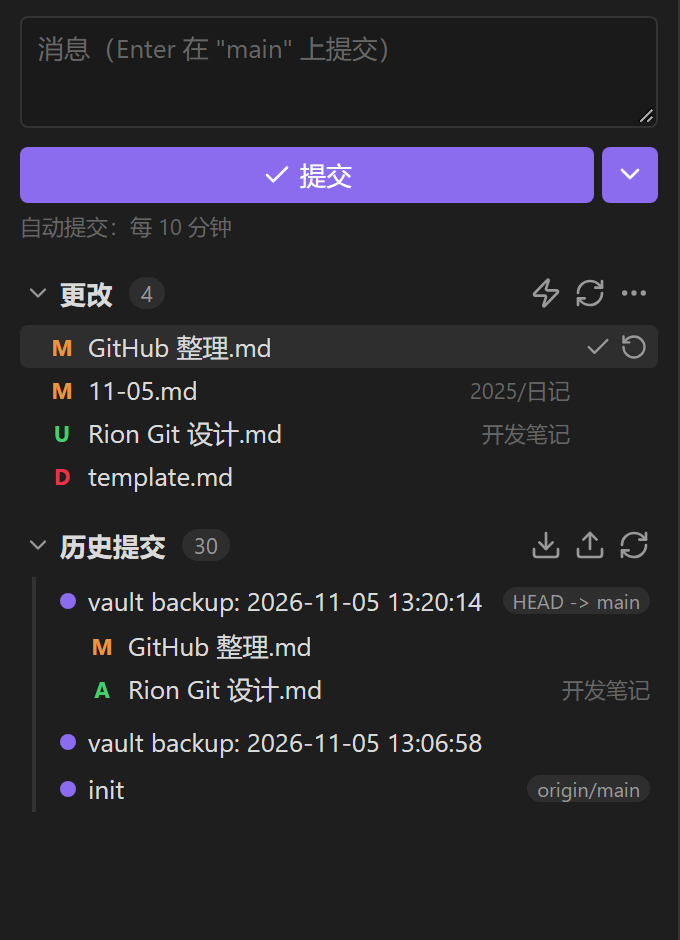
| Sidebar panel | Change list, commit box and actions, close in spirit to VS Code's Source Control |
| Diff view | Click a file to open its diff in an editor tab, side by side with your notes |
| Per-file actions | Hover a file row to reveal "commit this file" and "discard changes" |
| History | Latest 30 commits; expand one to list its files, click a file to see that commit's diff |
| History stats | Commit calendar heatmap plus a weekly trend chart (lines and file count, dual axis) |
| Push / pull | One click, with automatic upstream setup on first push |
| Smart auto-commit | Commits when changes reach a file-count or line-count threshold |
| Status bar | Always-visible change count and operation state; click to open the panel |
Interface
Sidebar panel:
Diff view, opened in an editor tab when you click a file:
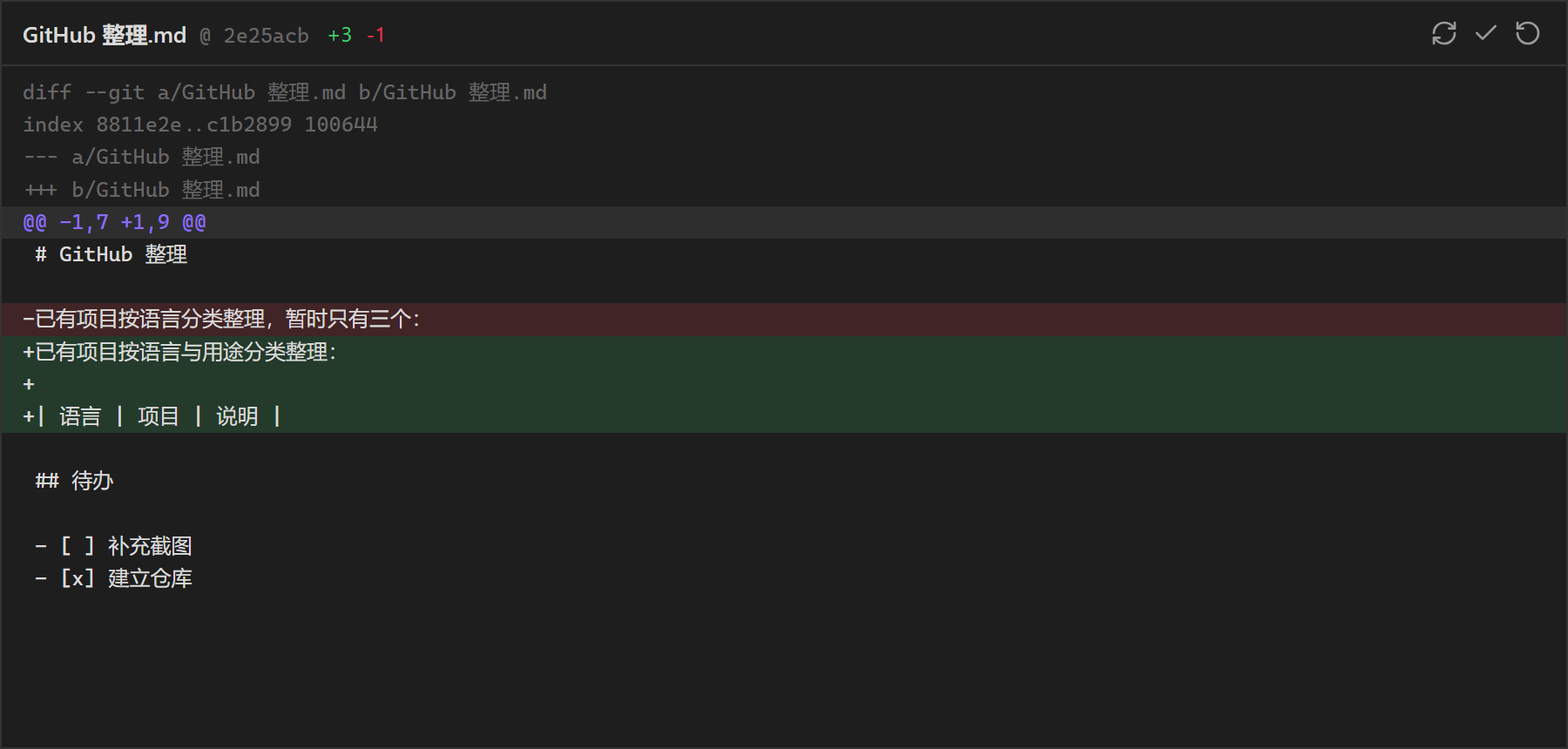
These previews are rendered from the plugin's real DOM structure and
styles.css, using Obsidian's default dark theme colours.
Usage
Open the panel
The panel opens automatically in the right sidebar when Obsidian starts (disable it in settings). If you closed it earlier, any of these reopens it:
- Click the
git-branchicon in the ribbon - Click the status bar item (
Git ✓/Git • 3) - Run "Rion Git: Open sidebar panel" from the command palette
Commit changes
- Type a message in the box at the top (leave empty to use the template from settings — default
vault backup: <timestamp>) - Press
Enteror click "✓ Commit" - To push right away, use the
⌄caret and pick "Commit and push"
The message box clears on success while keeping focus, so you can keep going.
Inspect and handle a single file
- Click a file row → opens the diff in a new editor tab, with
+N -Min the header - Hover a file row → two icons appear on the right:
✓commit only this file (other changes stay uncommitted)⟳discard this file's changes (asks for confirmation first; untracked files get deleted)
Browse history
- Click any entry under "History" to expand the list of files it touched
- Click a file there to see that commit's diff for it
- The pill on the right shows where a ref points, e.g.
HEAD -> main,origin/main
History stats
Click the 📈 icon at the right end of the "History" header, or run "Rion Git: Open history stats" from the command palette.
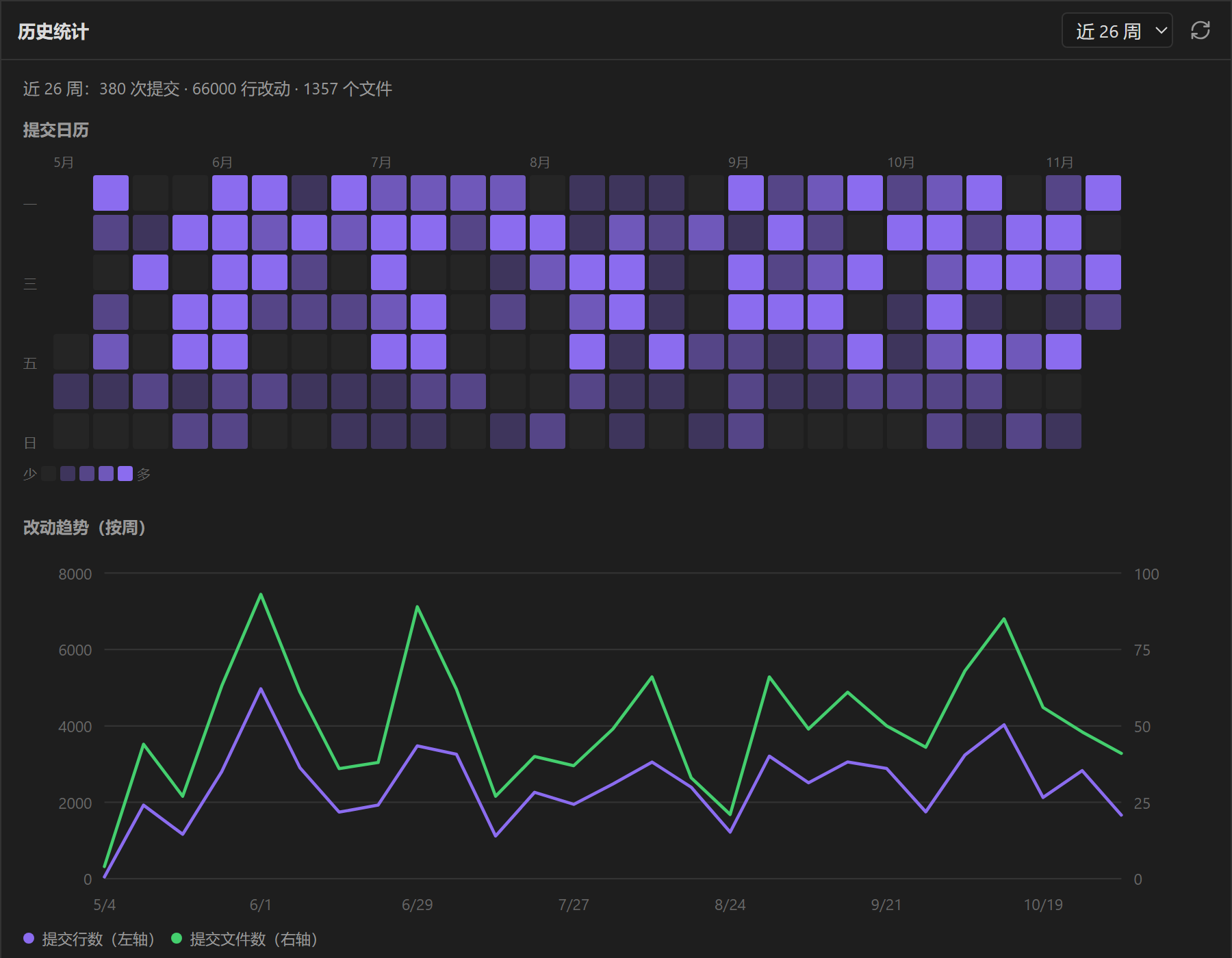
- Commit calendar: GitHub-style heatmap, one cell per day, darker means more commits that day (hover for details)
- Trend: two lines aggregated by week — purple is committed lines (left axis), green is committed file count (right axis)
- Range selector in the top right: last 13 / 26 / 52 weeks
Push and pull
Use ⬇ (pull) and ⬆ (push) in the History section header, or the equivalent commands.
The first push sets up tracking automatically via push -u origin <branch>.
Auto-commit
Three mutually exclusive modes:
| Mode | Trigger |
|---|---|
| Off | Manual commits only |
| Interval | Every N minutes (default 10) |
| Smart | When changes reach a threshold: ≥ N files or ≥ N lines |
Either smart threshold can be set to 0 to ignore that dimension; setting both to 0 is the same as off. Line counts include additions and deletions, and untracked new files contribute their own line count.
The ⚡ icon in the panel is a shortcut toggle: highlighted means on, and clicking cycles between "off" and the mode you used last.
Successful auto-commits are silent; only the status bar and panel update.
Status bar
| Shows | Meaning |
|---|---|
Git ✓ | Working tree is clean |
Git • 3 | 3 uncommitted changes |
Git ⟳ Pushing… | Operation in progress |
Git ⚠ | Error — hover for details |
Settings
Settings → Community plugins → Rion Git
| Option | Default | Description |
|---|---|---|
| Git executable | git | If Obsidian launched from a shortcut can't find git, use an absolute path such as C:\Program Files\Git\cmd\git.exe |
| Commit message template | vault backup: {{date}} | {{date}} becomes YYYY-MM-DD HH:mm:ss |
| Auto-commit mode | Interval | Off / Interval / Smart — mutually exclusive |
| Auto-commit interval | 10 min | Interval mode only |
| Smart: changed-files threshold | 5 | Smart mode only; 0 = ignore file count |
| Smart: changed-lines threshold | 200 | Smart mode only; 0 = ignore line count |
| Push after auto-commit | Off | Requires a configured remote; backs off 5 minutes after a failure |
| Open panel on startup | On | Opens the panel in the right sidebar when Obsidian starts |
| Show status bar | On | Takes effect after reloading the plugin |
Commands
| Command | Action |
|---|---|
| Open sidebar panel | Show the Rion Git panel |
| Commit all changes | Commit using the template message |
| Commit and push | Commit, then push |
| Push to remote | git push |
| Pull from remote | git pull (merge mode) |
| Show changes | Open a change list |
| Initialize repository | git init for this vault plus a default .gitignore |
| Refresh status | Re-read repository state |
Technical notes
- TypeScript + esbuild, bundled into a single
main.js; onlyobsidianand Node built-ins stay external. - Drives the system Git through Node's
child_process.execFile, with arguments passed as an array and never through a shell — so spaces and non-ASCII characters in paths survive intact. It also means your existing credential helper and SSH keys are reused; the plugin never stores passwords or tokens. - Layered design:
git/exec.tsis the only place that spawns a process,git/ops.tstranslates an operation into git commands, and the UI only reads state and expresses intent. Supporting mobile later (viaisomorphic-git) would be confined to that seam. - Serialized queue: Git's
index.lockis global, so every call is queued — this is what keeps auto-commit from colliding with a manual push. - Status parsing:
git status --porcelain=v1 -z --untracked-files=all, NUL-delimited, so filenames containing spaces, CJK characters or newlines stay correct. - Path encoding: every git invocation passes
-c core.quotepath=false; otherwise non-ASCII paths come back as octal escapes like\346\225\264. - UI: both the sidebar panel and the diff view are custom Obsidian
ItemViews (not modals), so they can be split, and they survive restarts. - Refresh strategy: vault
modify/create/delete/renameevents are debounced (700 ms) and only trigger a status refresh; a 30-second poll covers changes made outside Obsidian. Auto-commits are still driven solely by the timer.
Known limitations
- Desktop only — relies on a local git binary and Node APIs;
isDesktopOnlyis set inmanifest.json. - Requires Git to be installed, with
user.name/user.emailconfigured, or commits will fail. - Credentials are managed by the system: run a
git pushin a terminal once to make sure your credential helper or SSH key works. - Conflicts are detected and reported, but there is no one-click "keep mine / keep theirs" yet.
- No branch switching, merging, or per-hunk staging.
- Binary files and files above 2 MB get no diff preview.
- Avoid keeping the vault on a sync drive (OneDrive, iCloud) while using Git — syncing
.gittends to corrupt the repository.
Privacy and network access
- Data stays local. Nothing is sent anywhere by the plugin itself; all repository work is done by the
gitexecutable already installed on your machine. - Network is used only for
push,pull, and optional auto-push — and only towards the Git remote you configured. There are no other outbound requests. - File access is limited to your vault folder: the plugin runs
gitwith the vault as its working directory, and reads untracked files (up to 512 KB each) to preview their contents and count changed lines. - No telemetry, no accounts, no ads. Credentials are handled by your system Git configuration (credential helper or SSH agent); the plugin never sees or stores them.
License
MIT
For plugin developers
Search results and similarity scores are powered by semantic analysis of your plugin's README. If your plugin isn't appearing for searches you'd expect, try updating your README to clearly describe your plugin's purpose, features, and use cases.