Script Launcher
approvedby alessandroruggiero
Add scripts shortcuts on your bottom bar and launch them.
Script Launcher
This is an Obsidian plugin that allows you to easily run script written in any language directly from the app.
How to use it
Adding a new script
Go in the plugin settings and click the + icon
You will have to fill in some information about the script you want to add:
Script name→ the name of the script you want to add (has no influnence on the script itself)Script path→ absolute path to the script you want to launch (it can be anything: binary, executable, python script,shell script, bash script ecc...)Show on bottom bar→ this is a checkbox, if selected the script will be shown on the bottom bar and clicking it will launch itRun on startup→ this is a checkbox, if selected the script will run automatically once Obsidian start upShow exit code→ this is a checkbox, if selected the script show the exit code when terminatedIcon→ is the icon displayed on the bottom bar, if left empty the name will be shown instead
Deleting a script
Click the Delete button on the script's settings you want to delete
Launching a script
Click the scipt icon on the bottom bar of the Obsidian app.
If the script does not show up as an icon go in the settings and select Show on bottom bar
You can also run the script using the Run script Obsidian command, you will be prompted with a list of scripts with a searchbar, selecting a script will run it.
The output of the script will be shown as notices in the Obsidian app.
Examples
Google Drive backup
This script for example syncs on demand files from all you vaults at the click of a button
(cd $path_to_vaults && grive -s $vaults_folder)
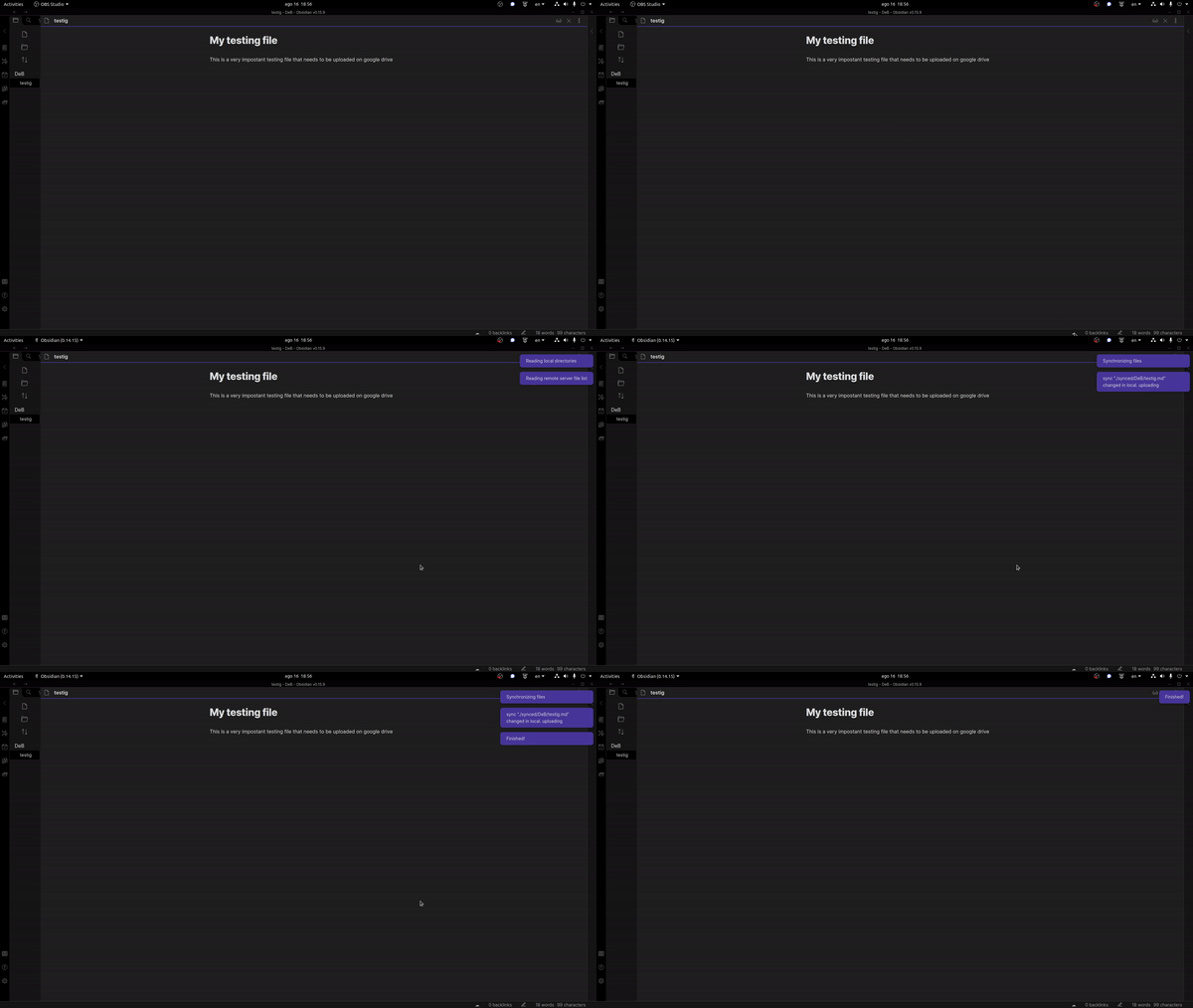
if you want to write a script to backup only the files in your vault you can use the $1 argument:
The plugin passes the path to your vault as the first parameter to the script
(cd $path_to_script && grive -s $1)
The second parameter passed to the script ($2) is the path to the currently open file, if there is no open file an empty string will be returned ("")
How to install it
Remember to enable Commpunity Plugins in the Obsidian settings.
From the Community plugins
The best way to install the plugin is through the Obsidian community plugins, just search for script launcher and you will immediately find it.
Build from source
First clone the repo, then in the repo's folder run
make build_and_copy vault_path=path_to_your_vault
This will build the plugin and move the files in the correct folder in your vault to allow you to test it
From a tag
Go to the most recent tag and download the script-launcher zip, unzip it and extract the script-launcher folder (it should contain 3 files: main.js manifest.json and styles.css)
Move this folder into path_to_your_vault/.obsidian/plugins/ (if the plugins folder is not already there create it)
For plugin developers
Search results and similarity scores are powered by semantic analysis of your plugin's README. If your plugin isn't appearing for searches you'd expect, try updating your README to clearly describe your plugin's purpose, features, and use cases.