Actions
unlistedby @mcmanussliam
Create and manage custom `shell` or `js` actions that can run on either a schedule, via command palette, or in response to file events.
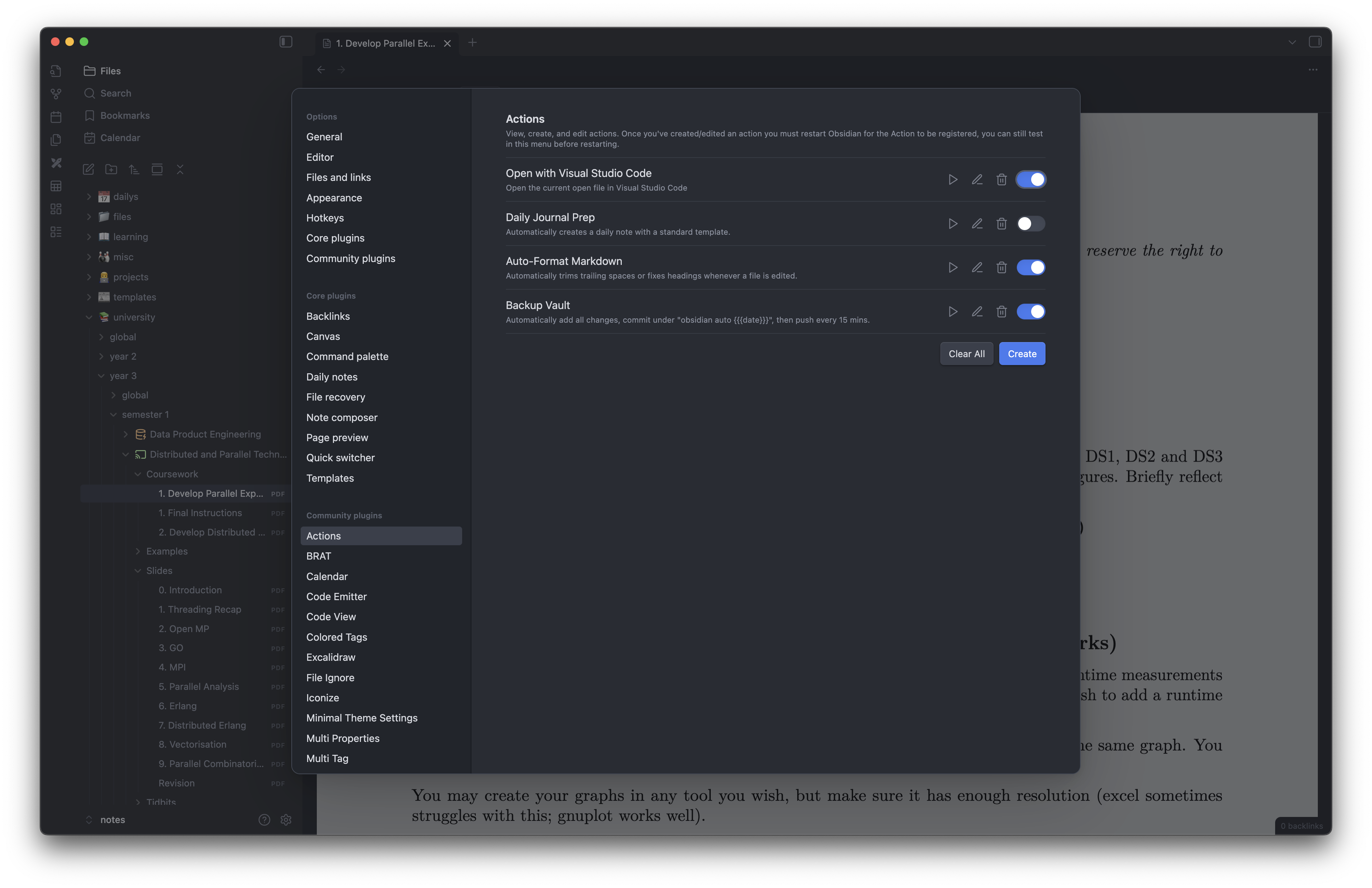

Obsidian Actions
Obsidian Actions is a lightweight Obsidian plugin for small automations. Each action has three parts:
- a trigger
- an execution type
- a code body
Use it to run commands, call scripts, show notices, or respond to Obsidian events without building a full plugin. See documentation here.
Install
Community Plugin
Since this plugin isn't officially released in the Community Plugins store yet, the easiest way to install it is with Obsidian BRAT, which lets you install plugins directly from GitHub.
After BRAT is enabled:
- Open Settings
- Go to BRAT
- Click Add Beta Plugin
- You'll be asked for the plugin's GitHub repository URL. (https://github.com/mcmanussliam/obsidian-actions)
- Install it
Manual Install
Copy the plugin files into:
<vault>/.obsidian/plugins/actions
Required files:
main.jsstyles.cssmanifest.json
Quick Start
- Open
Settings -> Actions. - Create a new action.
- Choose a trigger.
- Choose
jsorshell. - Write the code.
- Restart Obsidian to register commands and hooks.
Start with a manual JavaScript action:
new Notice("Action ran");
Suggested fields:
hook:manualtype:jsenabled:true
Triggers
| Hook | Behavior |
|---|---|
manual | Runs when you trigger it from Obsidian |
startup | Runs when the plugin loads |
interval | Runs on a cron schedule |
createFile | Runs when a file is created |
modifyFile | Runs when a file is modified |
deleteFile | Runs when a file is deleted |
renameFile | Runs when a file is renamed |
Execution Types
| Type | Use It For |
|---|---|
js | Obsidian-aware automations that need app APIs, notices, or editor context |
shell | Existing scripts, CLI tools, or system workflows |
Available JavaScript helpers include:
appvaultworkspacemetadataCachefileManagerNoticeModalSettingFuzzySuggestModalexec
Runtime Variables
Before an action runs, the plugin renders its code with Mustache templates such
as {{file_name}} or {{path}}.
Available variables include:
pathrelative_pathextensionselectedword_countvault_namefile_namefile_name_with_extcontenttimestampdatetime
Example:
echo "Processing {{{file_name_with_ext}}} at {{time}}"
Compatibility
| Type | Desktop | Mobile |
|---|---|---|
js | Supported | Depends on the APIs and code you use |
shell | Supported where Obsidian can execute local shell commands | Not reliable on mobile |
shell actions are best suited to desktop environments with access to local
scripts, binaries, and a usable shell environment.
Examples
Open the current file in VS Code:
/path/to/code "{{{path}}}"
Show the current file in a notice:
new Notice(`Current file: {{{file_name_with_ext}}}`);
Run a backup script on a schedule:
/absolute/path/to/backup-vault.sh
For plugin developers
Search results and similarity scores are powered by semantic analysis of your plugin's README. If your plugin isn't appearing for searches you'd expect, try updating your README to clearly describe your plugin's purpose, features, and use cases.