ScriptVault
unlistedby Juan Rudilla
Edit and run scripts, dotfiles, and developer config files.
ScriptVault
An Obsidian desktop plugin for editing and running scripts, dotfiles, and developer config files without leaving your vault.
Syntax highlighting, ShellCheck linting, an outline panel, a script runner, and starter templates are built in.
Features
| Feature | Description |
|---|---|
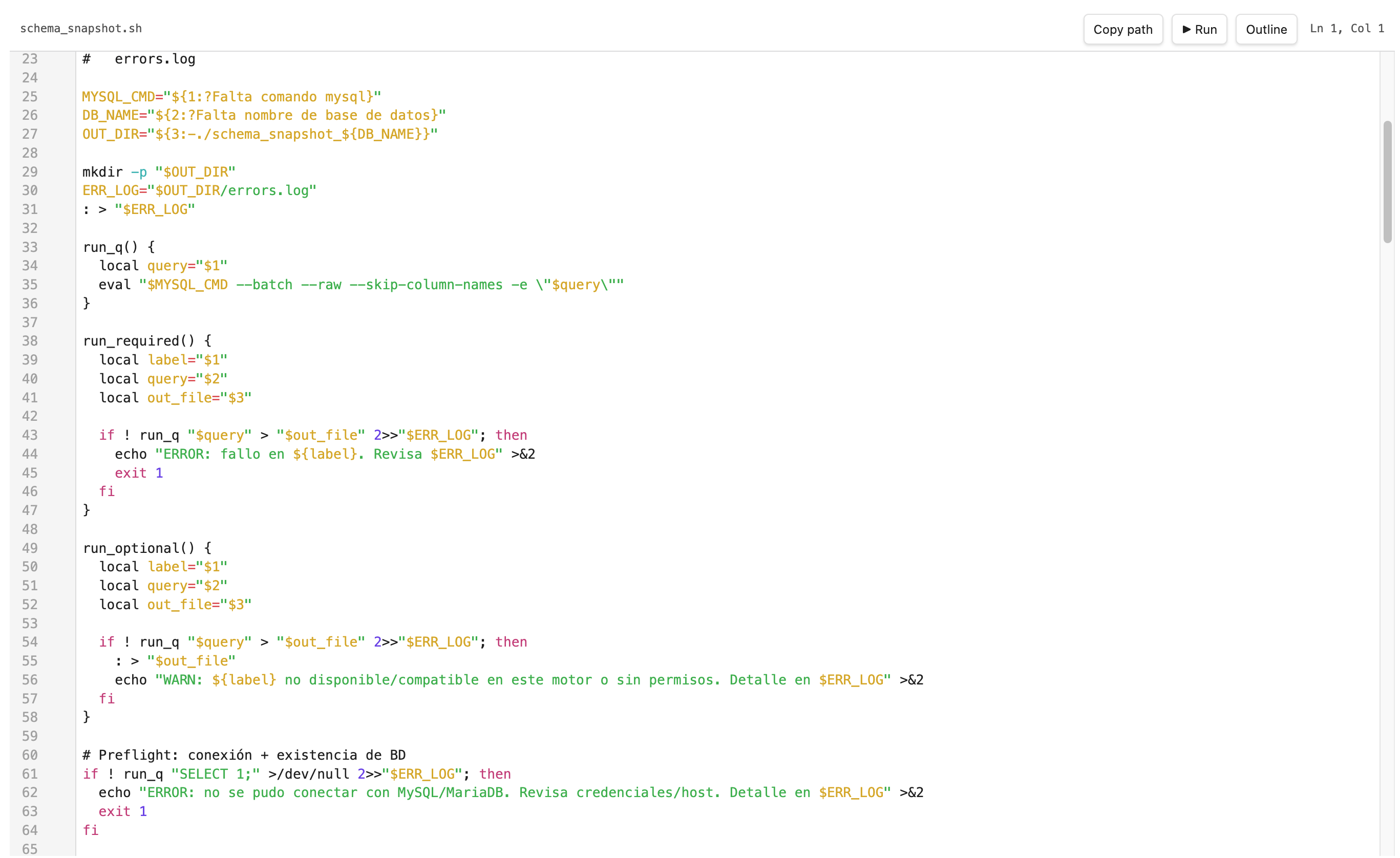
| Syntax highlighting | CodeMirror 6 highlighting for Bash/Shell, Zsh, Fish, PowerShell, Dockerfile, YAML, .env, .gitignore, .gitconfig, .npmrc, .editorconfig |
| Shebang detection | Auto-detects language from #!/bin/bash, #!/usr/bin/env fish, etc. |
| Filename-only files | Opens Dockerfile, Makefile, GNUmakefile in the ScriptVault editor automatically |
.env masking | Values after = are hidden by default; toggle to reveal |
| Run scripts | Execute the current script and stream stdout/stderr to a sidebar panel |
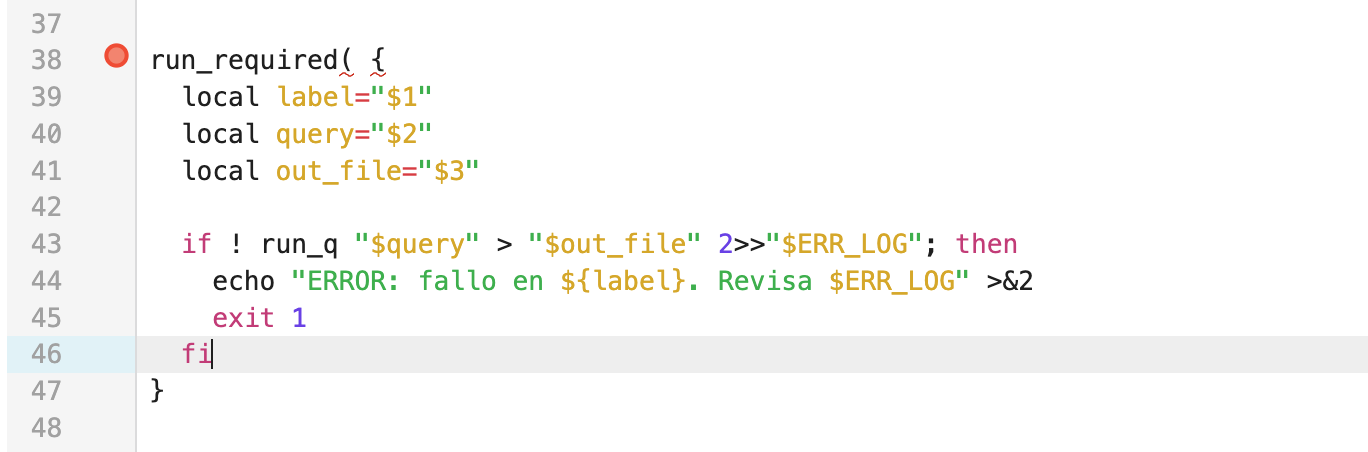
| ShellCheck linting | Inline diagnostics via ShellCheck (requires ShellCheck installed) |
| chmod +x | Shows a "chmod +x" button in the header if the file is not executable yet |
| Function outline | Sidebar listing functions, targets (Makefile), and FROM stages (Dockerfile) — click to jump |
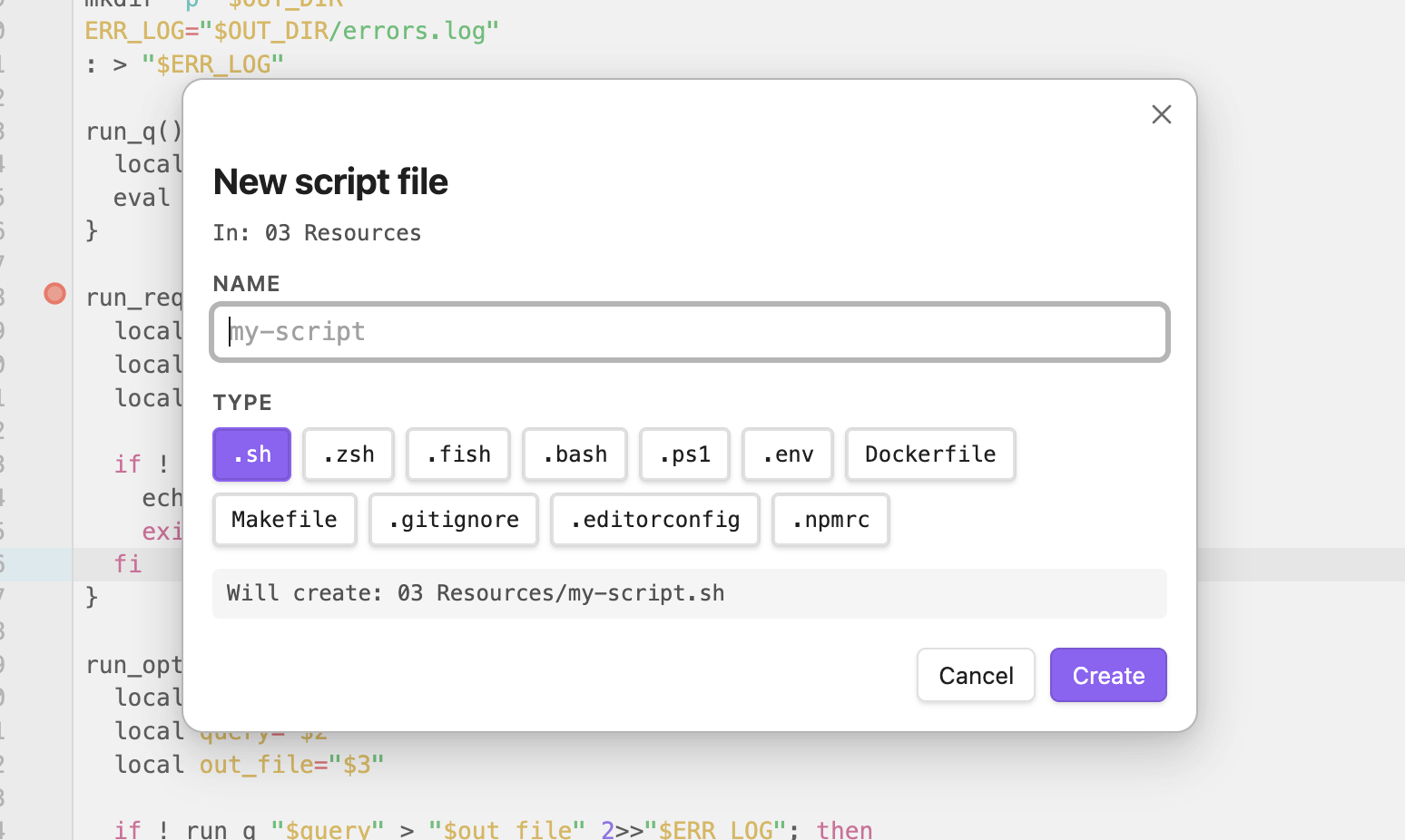
| New script modal | Create a new script with a template from the file explorer context menu |
| Copy path | Copy the absolute file path to clipboard from the header |
| Line/column counter | Live cursor position shown in the header |
Screenshots
Editor view:
New script modal:
Inline error diagnostics:
Installation
Via BRAT (recommended for beta testing)
- Install the BRAT plugin.
- In BRAT settings, click Add Beta Plugin and enter:
jrudilla/obsidian-scriptvault - Enable ScriptVault in Settings → Community plugins.
Manual installation
- Download
main.js,manifest.json, andstyles.cssfrom the latest release. - Copy the three files into
<your-vault>/.obsidian/plugins/scriptvault/. - Reload Obsidian and enable ScriptVault in Settings → Community plugins.
Obsidian marketplace
Once accepted, you'll be able to install directly from Settings → Community plugins → Browse.
Requirements
- Obsidian Desktop 1.4.16+
- "Detect all file extensions" must be enabled in Settings → Files & Links to open
Dockerfile,Makefile, and other extensionless files. - ShellCheck (optional, for linting): install via your package manager:
# macOS brew install shellcheck # Debian/Ubuntu apt install shellcheck # Arch pacman -S shellcheck - ScriptVault is a desktop-only plugin.
Supported file types
| Extension / name | Language |
|---|---|
.sh, .bash, .zsh, .fish | Shell |
.ps1 | PowerShell |
.env | Properties (masked values) |
.gitignore, .gitconfig, .npmrc, .editorconfig | Properties |
Dockerfile, dockerfile | Dockerfile |
Makefile, makefile, GNUmakefile | Shell (Makefile targets in outline) |
Settings
| Setting | Default | Description |
|---|---|---|
| Enable ShellCheck linting | On | Show inline ShellCheck diagnostics. Requires ShellCheck installed. |
| Mask .env values by default | On | Hide values after = when opening .env files. |
| Intercept filename-only files | On | Automatically open Dockerfile/Makefile in ScriptVault. |
| Confirm script execution per session | On | Show a confirmation modal the first time you run each script per session. |
| Runner shell override | (empty) | Force a specific interpreter path. Leave empty for auto-detection. |
| Runner timeout (ms) | 30000 | Kill the script after this many milliseconds. |
Usage
Opening files
- Files with a supported extension open in ScriptVault automatically.
- For
Dockerfile/Makefile: ensure "Detect all file extensions" is on, then open normally. - Right-click any file or folder → Open in ScriptVault / New script file…
- Command palette: ScriptVault: Open current file
Running scripts
- Open a runnable file (
.sh,.bash,.zsh,.fish,.ps1). - Click ▶ Run in the header.
- Before running, ScriptVault saves the current editor contents to disk.
- On the first run of a given file per session, a confirmation modal lists the script path and interpreter.
- Output streams to the Script Output sidebar panel (stdout normal, stderr in red).
ShellCheck linting
ShellCheck diagnostics appear inline in the gutter as you type (750 ms debounce). Hover a highlighted range to see the full message and SC code. Toggle off in settings if not needed.
chmod +x
If a shell script is not executable, a chmod +x button appears in the header. Click it to grant execute permission without leaving Obsidian.
Security
The Run feature executes arbitrary shell commands from files in your vault. Only run scripts you trust. Trust is remembered per file for the current plugin session only, and ScriptVault disables the run button when the chosen interpreter is not available on the machine.
Disclosures
- Desktop-only plugin.
- No accounts, API keys, or external services required.
- No telemetry, analytics, ads, or network requests.
- Can execute local scripts on your machine when you click Run.
- Can read file metadata needed for absolute path copy, executable-bit checks, and launching local scripts.
- Can modify local files when you edit them in the view, create new script files, or use chmod +x.
Commands
| Command | Description |
|---|---|
ScriptVault: Open current file | Force-open the active file in the ScriptVault editor |
ScriptVault: Show outline | Open the function outline sidebar |
Development
git clone https://github.com/jrudilla/obsidian-scriptvault.git
cd obsidian-scriptvault
npm install
npm run dev          # watch mode — main.js rebuilt on every save
npm run build        # production build (type-check + minify)
npm run typecheck    # type-check only
Run npm run build, then copy main.js, manifest.json, and styles.css to your test vault's .obsidian/plugins/scriptvault/ and reload the plugin.
Tech stack
- TypeScript 5 / strict mode
- CodeMirror 6 —
@codemirror/legacy-modesfor language parsers (bundled);@codemirror/stateand@codemirror/vieware external (provided by Obsidian) - esbuild — CJS output, tree-shaken, ~130 KB
- Obsidian API 1.4.16+
Contributing
See CONTRIBUTING.md.
License
MIT © Juan Rudilla
For plugin developers
Search results and similarity scores are powered by semantic analysis of your plugin's README. If your plugin isn't appearing for searches you'd expect, try updating your README to clearly describe your plugin's purpose, features, and use cases.