Scroll Line
approvedby abdelrahmanhafez
Scroll the viewport up or down by a configurable number of lines without moving the cursor. - This plugin has not been manually reviewed by Obsidian staff.
Scroll Line
Move the viewport, not the cursor.
Scroll an Obsidian note by exact lines while your cursor and selection stay put.

| Selection stays put | Works in Reading mode |
|---|---|
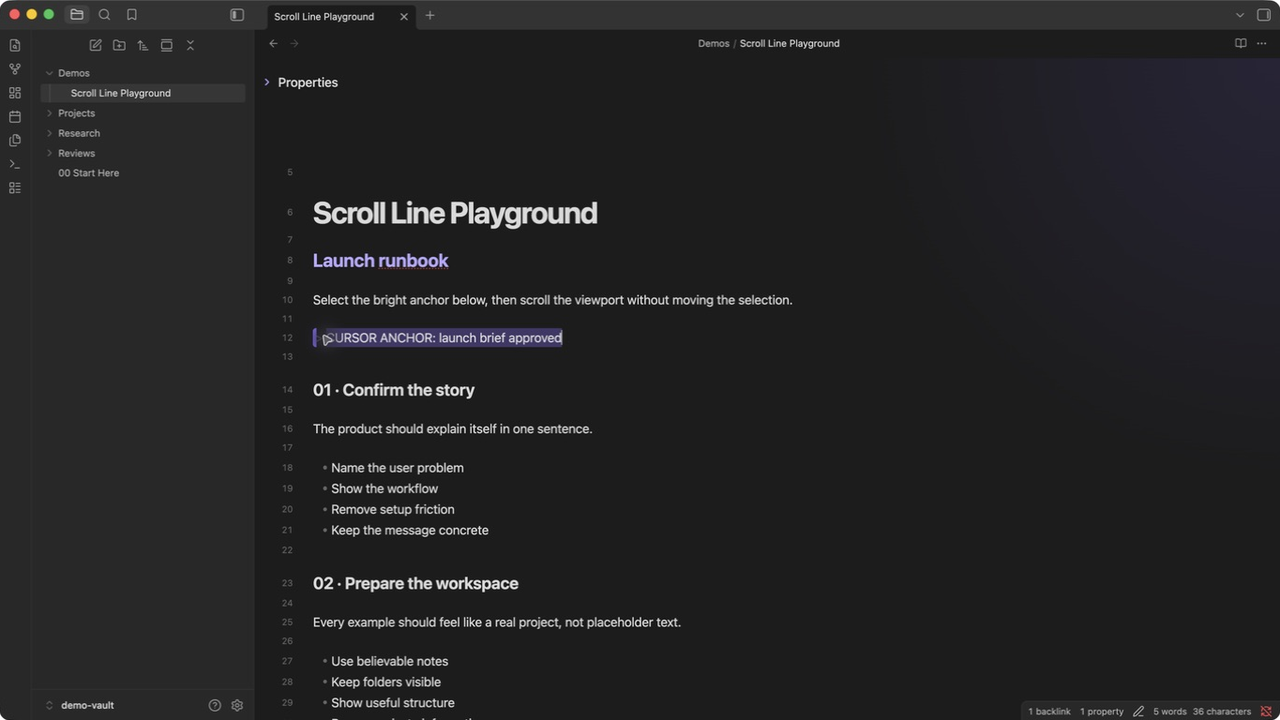 | 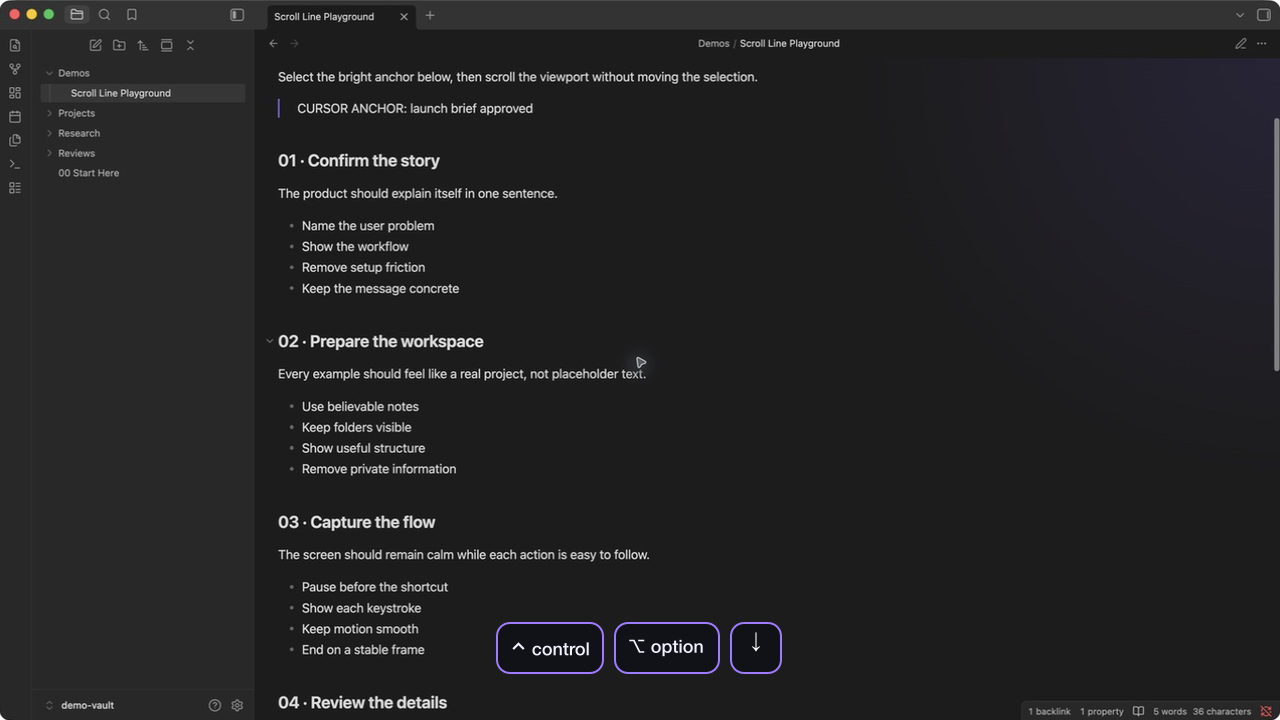 |
See it in action
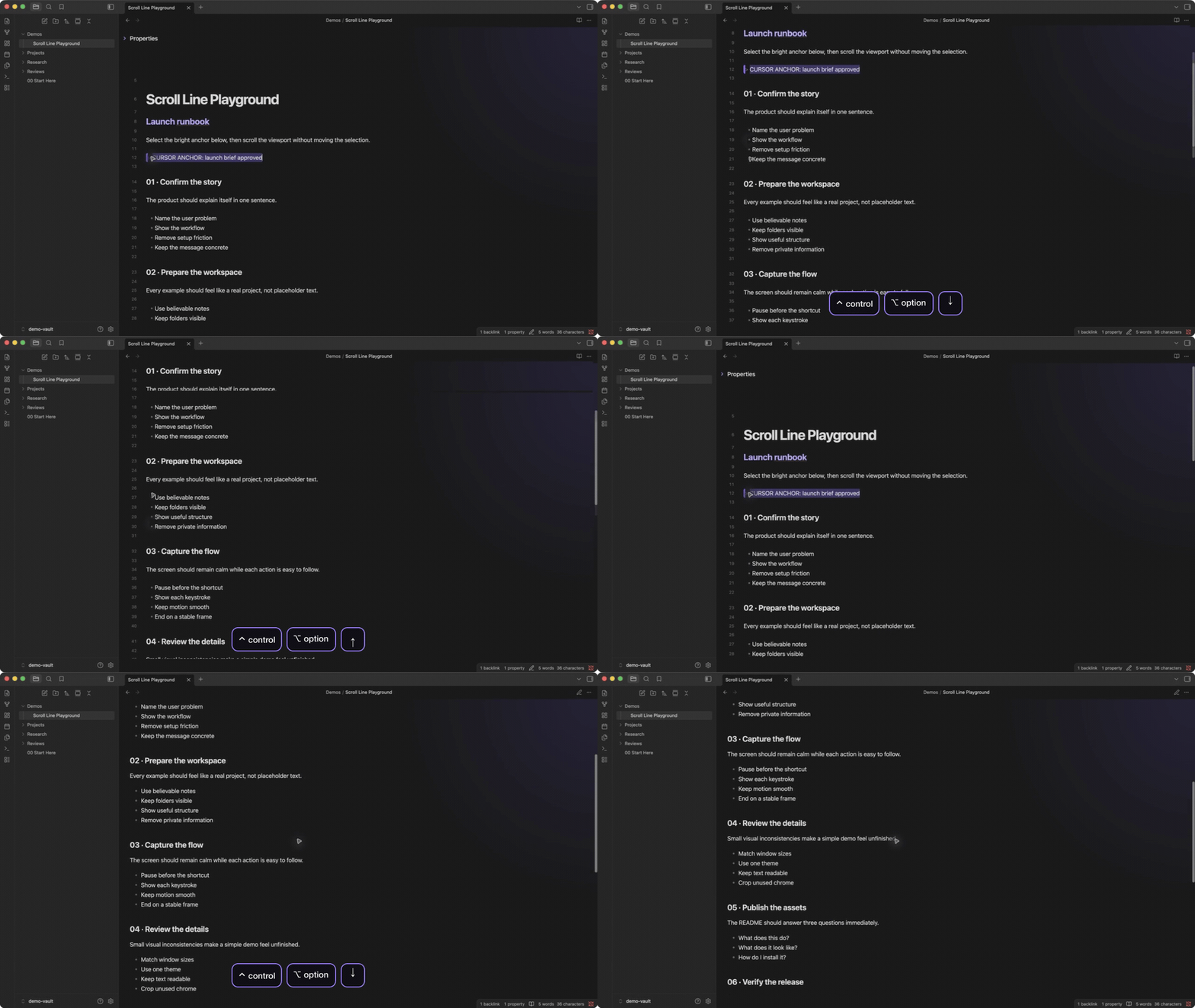
Demo setting: 4 lines per keypress.
Watch the full-quality recording
What it does
- Scrolls by a configurable number of visual lines
- Keeps the cursor and selection exactly where they are
- Supports smooth animation and continuous key repeat
- Works in Editing and Reading modes
- Uses the active view's line height, so movement stays accurate across themes and font sizes
Shortcuts
| Action | Editing mode default |
|---|---|
| Scroll down | Ctrl + Option + Down |
| Scroll up | Ctrl + Option + Up |
Change either binding in Settings > Hotkeys. Assign the commands there if you also want to use them in Reading mode.
Settings
Open Settings > Scroll Line to change:
- Lines per scroll: Number of lines moved by each keypress
- Smooth scroll: Animate movement instead of jumping instantly
Install
Open Scroll Line in the Obsidian Community directory, then press Add to Obsidian.
For a manual installation, download main.js, manifest.json, and styles.css from the latest release, then place them in <vault>/.obsidian/plugins/scroll-line/.
License
For plugin developers
Search results and similarity scores are powered by semantic analysis of your plugin's README. If your plugin isn't appearing for searches you'd expect, try updating your README to clearly describe your plugin's purpose, features, and use cases.