Simple Backup
approvedby Laszlo Repassy
Backs up the vault to a folder of your choice, versioned by date and time, in the background without blocking the interface, with automatic daily/weekly/monthly retention. - This plugin has not been manually reviewed by Obsidian staff.
Simple Backup
A minimal Obsidian plugin with a single job: copy your entire vault to a folder of your choice, timestamped and versioned, without ever slowing down Obsidian.
Why
Most sync/backup plugins are built around cloud services, conflict resolution, or partial sync. Simple Backup does none of that — it just makes a plain, timestamped copy of the vault on a schedule (or on demand), and prunes old copies according to a retention policy you control. If you already sync your vault another way and just want a local (or network-drive) safety net, this is it.
How it works
- On each run, Simple Backup copies the vault using fully asynchronous file operations (Node's
fs.promises), so the actual disk I/O runs on a background thread pool instead of Obsidian's UI thread — the interface never freezes or stutters during a backup, even a large one. - The vault is copied into
<target>/<vault-name>-<YYYY-MM-DD-HHmm>/. - Common junk/VCS folders (
node_modules,.git,.trash, OS metadata files, etc.) are excluded by default and configurable. - After every backup, a retention policy (keep N daily / N weekly / N monthly snapshots) prunes old backups automatically. The snapshot that was just created is always kept.
- Only errors are logged, to
backup-errors.loginside the plugin's own folder — there is no verbose success log to sift through.
Features
- Manual trigger: ribbon icon and a command palette entry ("Run backup now").
- Scheduled triggers (each independently toggleable):
- On Obsidian startup
- Hourly
- Daily, at a configurable time
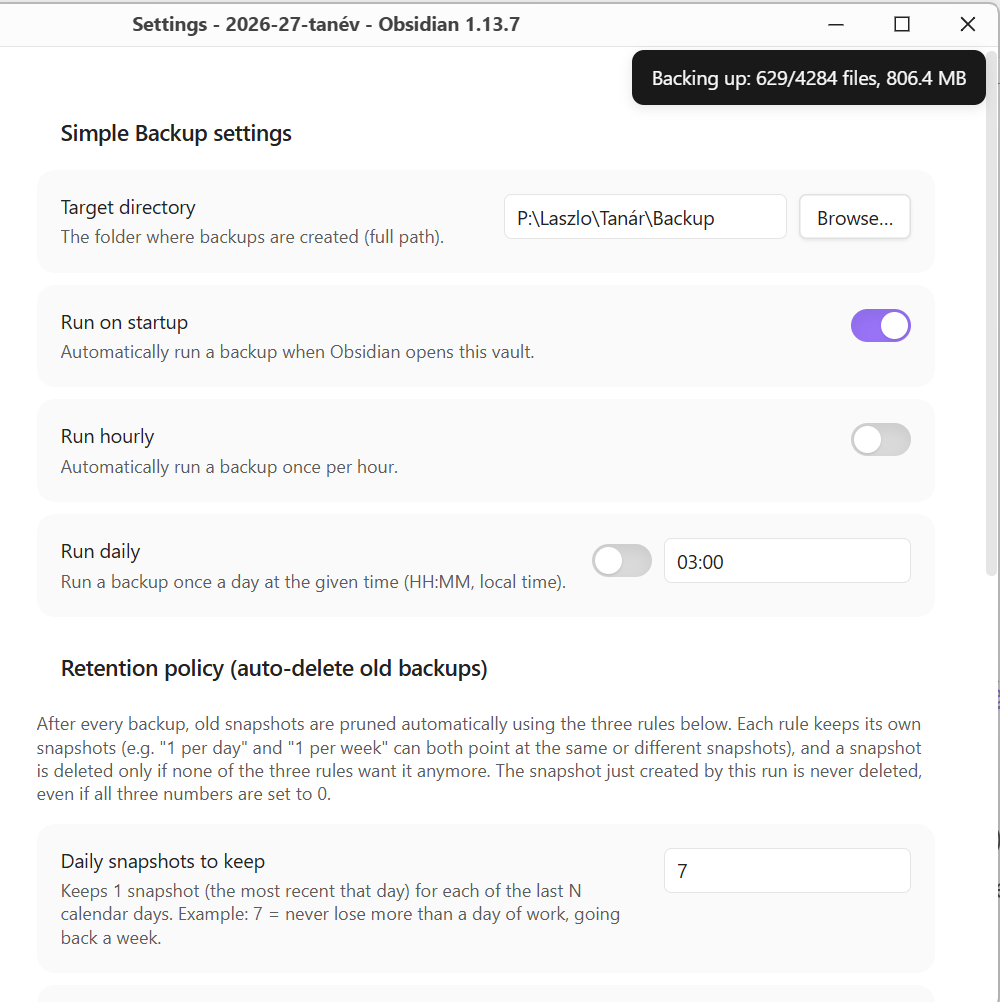
- Live progress notice: a small, single, continuously-updating notification shows roughly how far the current backup has gotten (files copied, size so far).
- Retention/rotation: configurable number of daily/weekly/monthly snapshots to keep; everything else gets deleted automatically at the end of each run.
- Folder picker: a native "Browse…" button next to the target directory field (uses Electron's dialog on desktop).
- Configurable exclude list for files/folders that shouldn't be copied.
Settings
| Setting | Description |
|---|---|
| Target directory | Absolute path of the folder where dated backup snapshots are created. Required. |
| Run on startup | Trigger a backup automatically whenever Obsidian opens the vault. |
| Run hourly | Trigger a backup once per hour. |
| Run daily | Trigger a backup once a day at a set HH:MM (local time). |
| Keep daily / weekly / monthly | How many most-recent daily/weekly/monthly snapshots to retain. |
| Excluded files/folders | Comma-separated list of names to skip while copying (matched by exact name, not path). |
Requirements
- Desktop only (Windows/macOS/Linux). The plugin relies on Node.js's
fsmodule and (optionally) Electron's native dialog, neither of which is available in Obsidian Mobile — the plugin is markedisDesktopOnlyand won't load on iOS/Android.
Installation (manual)
- Copy
manifest.jsonandmain.jsinto<your-vault>/.obsidian/plugins/simple-backup/. - Reload Obsidian (or toggle the plugin off/on) and enable Simple Backup under
Settings → Community plugins. - Open the plugin's settings and set a target directory before running your first backup.
Known limitations
- No separate OS process. An earlier version of this plugin ran the copy in a spawned child process at a lowered OS scheduling priority. In practice, Obsidian's Electron build silently ignores the standard mechanism for turning its own executable into a plain Node process (
ELECTRON_RUN_AS_NODE), so the spawned "child" never actually ran the worker script — it just exited immediately. Rather than depend on that, the backup now runs inside Obsidian's own process using fully asynchronous I/O, which keeps the UI responsive without needing a second process at all. The trade-off is that the copy no longer gets a lowered OS priority of its own — in practice this is a non-issue, since copying is I/O-bound, not CPU-bound. It's also why there's no "run on shutdown" option: without a surviving separate process, a backup triggered on close could only ever be a best-effort race against Obsidian actually exiting, which isn't a promise worth making. Use "Run on startup" or a scheduled time instead. - A backup interrupted mid-copy (Obsidian closed before it finished, machine lost power, target drive disconnected) is left exactly as it is — it's never auto-deleted, but it's also excluded from the daily/weekly/monthly retention accounting, so it won't accidentally count as "the latest good snapshot" either. Clean it up manually if you find one (it has no
.backup-completemarker file inside it). - The target directory can't be the vault itself. It can be a subfolder of the vault, or any other location — just not the vault's root path exactly.
- The "Browse…" folder picker depends on Electron's
remote.dialog, which isn't part of every Obsidian/Electron build. If it's unavailable, the button shows a notice and you can still type the path in by hand.
Project layout
src/main.js— the plugin entry point: settings UI, scheduling, and the ribbon icon/command.backup-core.js— theBackupRunclass and helpers that do the actual asynchronous copying and retention. Required bysrc/main.jsand by the test suite.build.js— bundlessrc/main.js+backup-core.jsinto a single, self-containedmain.jsat the repo root (via esbuild). Runnpm run buildafter editing either source file.main.js(repo root) — the generated, distributable build output. This is the file that actually ships — don't edit it directly, it's overwritten bynpm run build. It has to be self-contained because Obsidian's community plugin installer and BRAT only ever fetchmanifest.json,main.js, andstyles.css— nothing else.manifest.json— standard Obsidian plugin manifest.
License
MIT
For plugin developers
Search results and similarity scores are powered by semantic analysis of your plugin's README. If your plugin isn't appearing for searches you'd expect, try updating your README to clearly describe your plugin's purpose, features, and use cases.