Ginkgo Backup
approvedby Ginkgo Backup
A time machine for your Obsidian vault. Instantly diff, preview, and restore any version without leaving the app — no Git required. - This plugin has not been manually reviewed by Obsidian staff.
Ginkgo Backup for Obsidian
A time machine for your Obsidian vault — instant push, version diff, and one-click restore, powered by the Ginkgo Backup desktop engine.




[!IMPORTANT] This plugin is the "Sensor" for your vault. To start backing up, you MUST also install the Ginkgo Desktop Engine.
This plugin watches your vault and sends changes to the engine. The engine handles compression, encryption, scheduling, and storage. Without it, the plugin cannot back up anything.
Overview
Ever rewritten a paragraph and wished you could get the original back? Or merged a note by mistake and lost half your work?
Ginkgo Backup captures every save into a versioned timeline, so any previous state is one click away — diff it, preview it, restore it, all without leaving Obsidian.
Why Ginkgo Backup?
- No Git knowledge required — No commits, branches, or push/pull. Just save, and it's backed up.
- No cloud subscription — The backup engine runs locally on your machine. Your data never leaves your control.
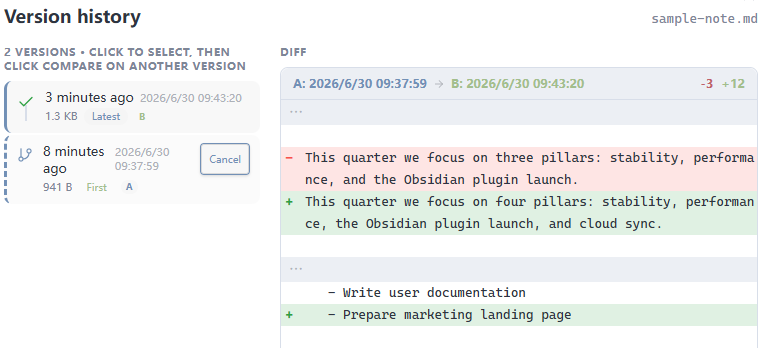
- Diff any two versions — Pick any two points in history and see exactly what changed, line by line.
- Visual calendar timeline — Jump to any day with a date picker, not a scroll through commit logs.
- Instant push on save — Every save is captured within seconds, not on a schedule.
Quick Start
-
Install the desktop engine first — Download and run the Ginkgo Backup desktop app (Windows). Launch it, then copy the API token from Settings → API.
-
Add & enable the plugin — In Obsidian, open Settings → Community plugins, install this plugin, and enable it.
-
Connect & pick a vault — The welcome guide walks you through pasting the token and testing the connection. Then run
Ginkgo: Configure sourceto pick the repository for this vault. Done — your notes are now versioned.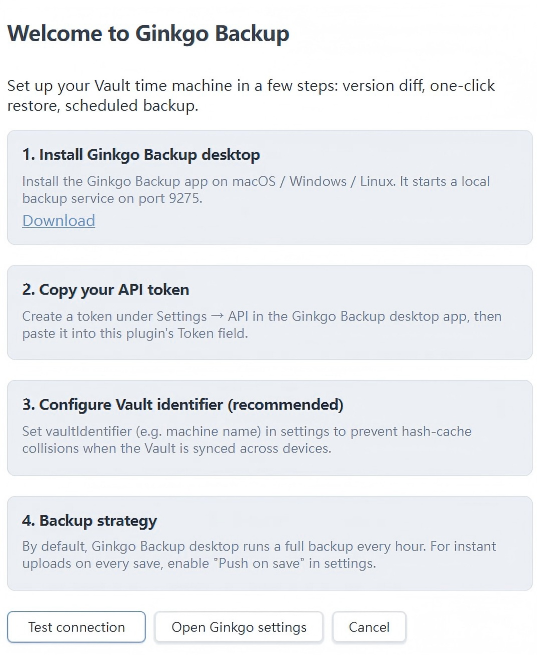
Tip: set a Vault identifier (e.g. your machine name) in settings when the same vault is synced across multiple devices. This keeps per-device hash caches isolated.
How it works
Obsidian save → plugin → Ginkgo Backup desktop engine → local versioned storage
The plugin is a lightweight frontend; the actual backup engine (snapshot storage, deduplication, scheduling) runs as a standalone desktop app. This separation is intentional — your vault history stays independent of Obsidian's lifecycle. Backups keep running even if Obsidian is closed, the plugin is disabled, or you uninstall it later. Your history survives all of those.
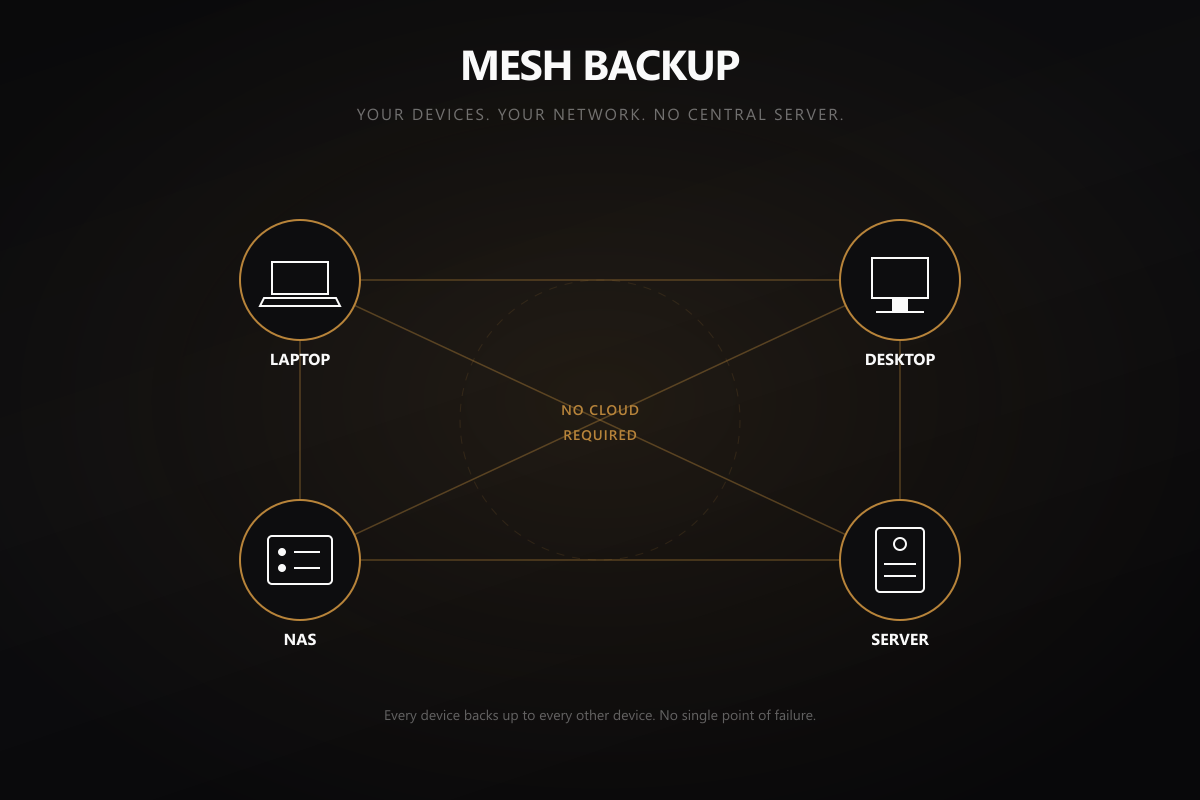
The engine can also link your devices directly over your local network — laptop, NAS, and desktop can back up to each other without routing through a cloud service.
Features
-
Instant Push on Save — Every save is captured within seconds. Identical content is skipped, so only real changes are stored.
-
Scheduled Full Backup — Optionally back up the entire vault (including images and attachments) on a timer.
-
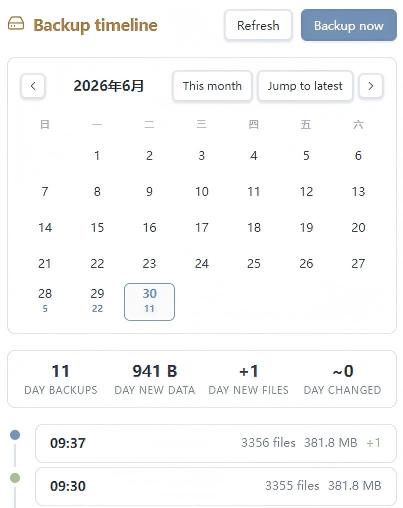
Visual Timeline — A sidebar calendar lets you jump to any day and browse that day's snapshots with file counts, sizes, and change badges (
+added,~modified). -
Version History & Diff — Right-click any file to see its full history. Pick any two versions and see exactly what changed, line by line.
-
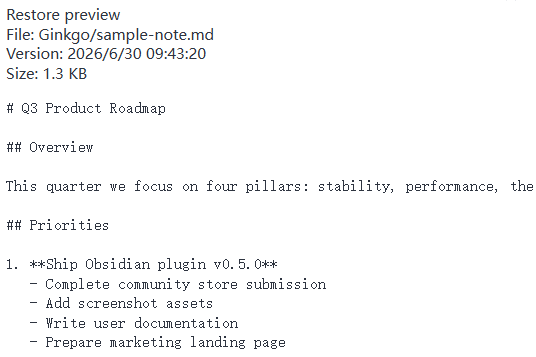
One-Click Restore — Preview a version before restoring. Your current content is saved automatically first, so an accidental restore never destroys unsaved work.
-
Connection Auto-Recovery — Network drops are retried automatically; pending pushes flush the moment the link comes back. The status bar shows live connection state at a glance.
-
Secure by Default — HTTPS is enforced for non-local hosts; the API token travels in a request header, never in the URL.
-
Bilingual UI — English and 简体中文, with automatic locale detection.
Timeline & History
Timeline view — Open via the ribbon icon (hard-drive) or the Ginkgo: Open timeline command. A calendar lets you pick any date; the list below shows that day's snapshots with a summary header (snapshot count, total new bytes, last backup time). Click any snapshot card to drill into its file list.
File history modal — Right-click any file in the file explorer or editor and choose Ginkgo → File history. Browse every version, diff any two (LCS line-level, with context-only mode for large files), or diff a version against the current content. Hit Restore to preview and confirm.
Requirements
- Obsidian 1.0+ (desktop)
- Ginkgo Backup desktop app (Windows) — the backup engine that powers this plugin
Settings
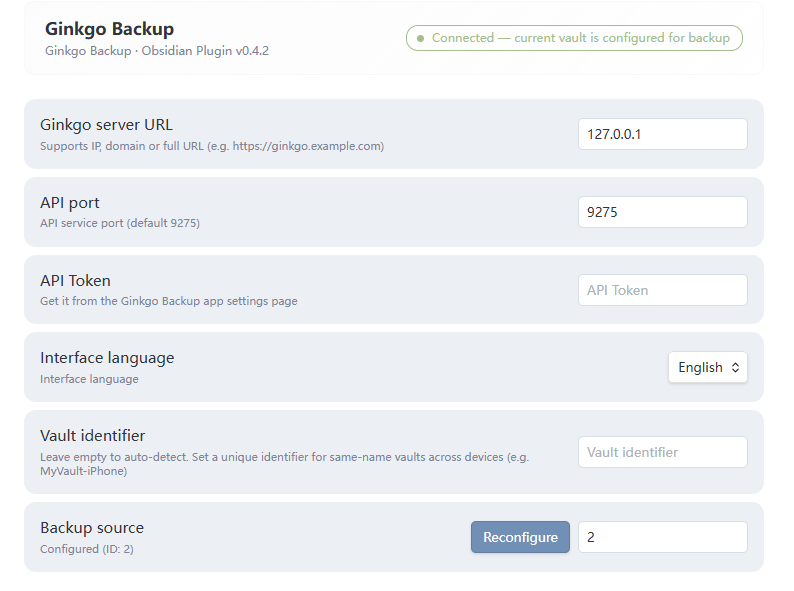
Connection
| Setting | Default | Description |
|---|---|---|
| API host | 127.0.0.1 | Ginkgo Backup server address (IP, domain, or full URL) |
| API port | 9275 | Server port (1–65535) |
| API token | — | Authentication token from Ginkgo Backup Settings → API |
| Vault identifier | — | Unique name for this vault on this device (recommended for multi-device setups) |
| Source ID | 0 | Auto-detected; can be set manually if needed |
Backup Strategy
| Setting | Default | Description |
|---|---|---|
| Push on save | on | Instantly push text files to staging on save |
| Push debounce delay | 30000 ms | Wait time before pushing after a save (5000–120000 ms) |
| Scheduled full backup | off | Run a full vault backup on a timer |
| Full backup interval | 60 min | Interval between scheduled full backups (5–1440 min) |
Filters & Display
| Setting | Default | Description |
|---|---|---|
| Watch extensions | md, canvas, base, json, css | File types monitored for instant push |
| Exclude paths | .obsidian, .trash, .DS_Store | Path prefixes excluded from backup (one per line) |
| Large file threshold | 5 MB | Files above this size are skipped by instant push |
| Show status bar | on | Show the live backup status bar item |
| Status refresh interval | 60 s | How often to poll the server for status (10–300 s) |
Interface
| Setting | Default | Description |
|---|---|---|
| Language | auto | auto follows navigator.language; force zh-CN or en |
Security
- HTTPS enforced off-host — When the API host is a public domain or IP (not
localhost/127.0.0.1/ RFC 1918 private ranges), HTTPS is used automatically. Loopback and private-LAN hosts may still use HTTP. Explicithttp(s)://prefixes in the host field are always honored. - Token in header — The API token is sent via the
X-Ginkgo-Tokenrequest header, never as a URL query parameter, so it cannot leak through server logs or referrers. - Content hashing — File de-duplication uses the Web Crypto API (
crypto.subtle.digest("SHA-256")); no file content is hashed by hand-rolled code. - No telemetry — The plugin makes no outbound requests except to your configured Ginkgo Backup server.
Internationalization
The UI ships with English and 简体中文. Set Language to auto (default) to follow your browser/OS locale, or pin it explicitly. Missing keys fall back to English, then to the key itself.
Manual Installation
If the plugin is not yet available in the community browser, or you want to test a pre-release build:
- Download
main.js,manifest.json, andstyles.cssfrom the latest GitHub Release. - In your vault, navigate to
.obsidian/plugins/(create thepluginsfolder if it doesn't exist). - Create a subfolder named
ginkgo-backup. - Copy the three downloaded files into
.obsidian/plugins/ginkgo-backup/. - In Obsidian, open Settings → Community plugins, click the reload icon, then enable Ginkgo Backup.
Disclosures
- Network use — This plugin communicates with the Ginkgo Backup desktop app running on your machine (default
127.0.0.1:9275). No data is sent to remote servers. - Free vs paid — The Obsidian plugin is fully functional with the free version of Ginkgo Backup.
FAQ
Does this work on mobile? The plugin runs on desktop only — full backups require the desktop engine to scan your vault directory. If you sync your vault across devices (iCloud, Dropbox, Syncthing, etc.), mobile edits are automatically backed up once they sync to a desktop running Ginkgo Backup.
Can I diff binary files like images?
No — instant push covers text files (md, canvas, base, json, css). Binary attachments are captured by full backups and can be restored, but not diffed line-by-line.
How far back can I go? The timeline loads up to 500 recent snapshots for calendar browsing. Older snapshots remain accessible through the Ginkgo Backup app directly.
Links
- Website: ginkgobackup.com
- Download Ginkgo Backup: ginkgobackup.com/#download
- Source code: github.com/ginkgobackup/obsidian-ginkgo-backup
- Changelog: CHANGELOG.md
License
For plugin developers
Search results and similarity scores are powered by semantic analysis of your plugin's README. If your plugin isn't appearing for searches you'd expect, try updating your README to clearly describe your plugin's purpose, features, and use cases.