Simple Git
approvedby Mikhail Soldatkin
A lightweight and simple git client. - This plugin has not been manually reviewed by Obsidian staff.
Obsidian Simple Git Plugin
A lightweight and simple Git client for Obsidian. It adds a compact set of Git actions to the status bar so you can pull, commit, push, create and switch branches without leaving your vault.
Desktop only. The plugin shells out to your local
git(and optionallygit-lfs) executable, so it does not run on Obsidian Mobile.
Features
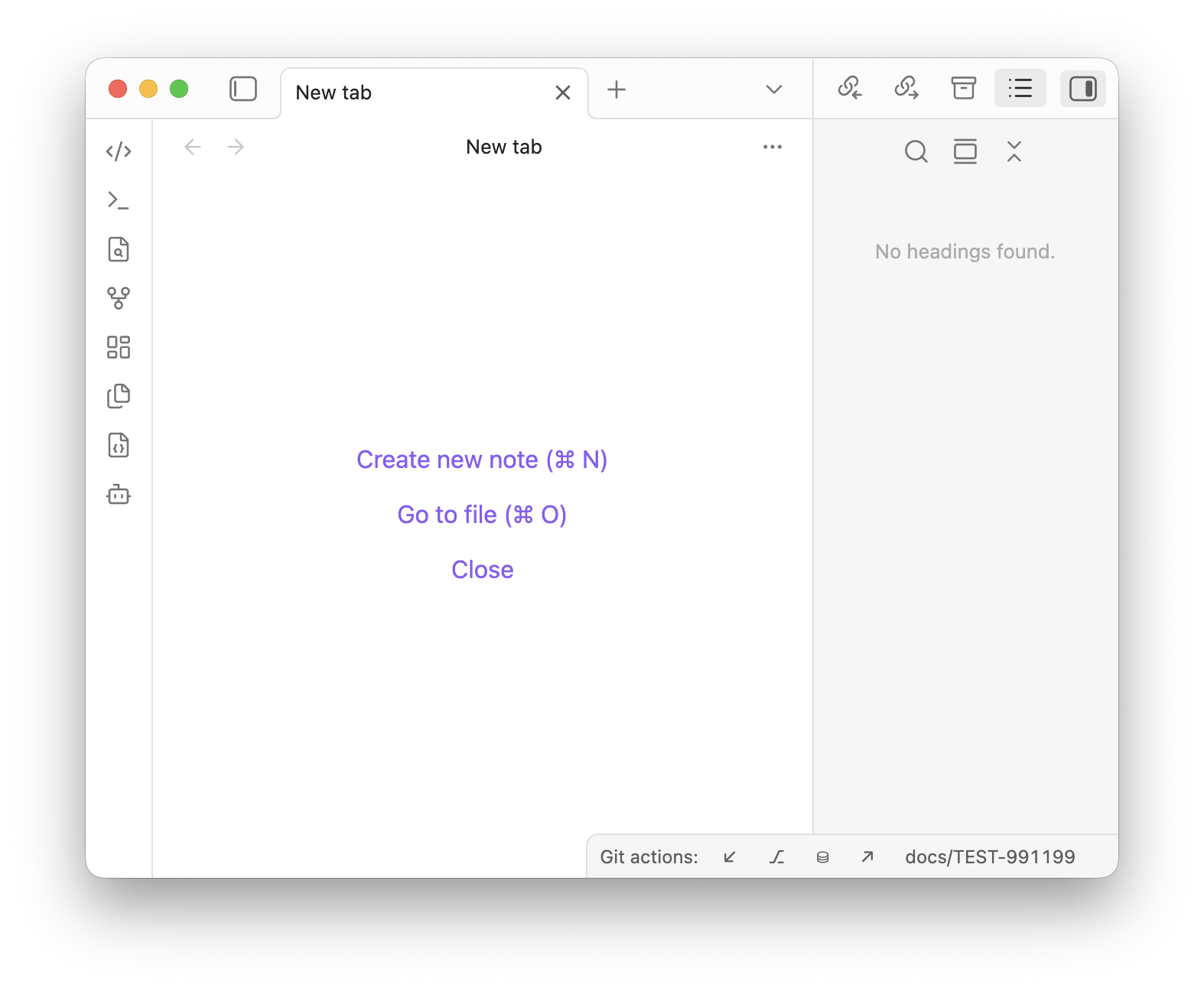
All actions live in the status bar under the Git actions: label:
| Icon | Action | Description |
|---|---|---|
↙ | Pull | Pull updates from the remote repository. |
⎇ | Create branch | Pull the current branch, then create and push a new branch (see Creating a branch). |
⛁ | Commit | Open the commit window to stage and commit changes (see Committing & pushing). |
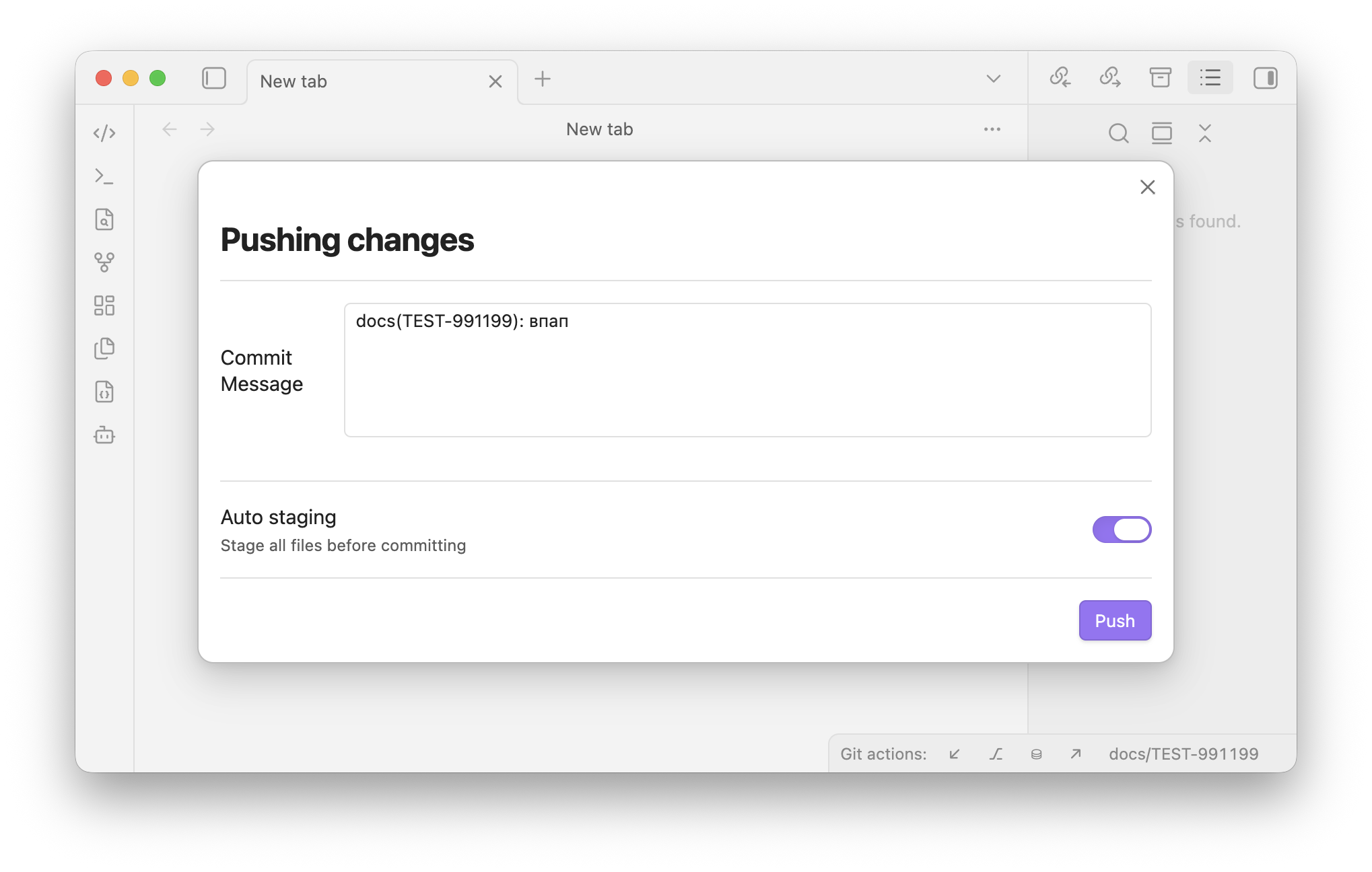
↗ | Push | Open the commit window, then commit and push in one step. |
main | Current branch | Shows the current branch name. Click it to switch to another branch with a searchable list. |
Creating a branch
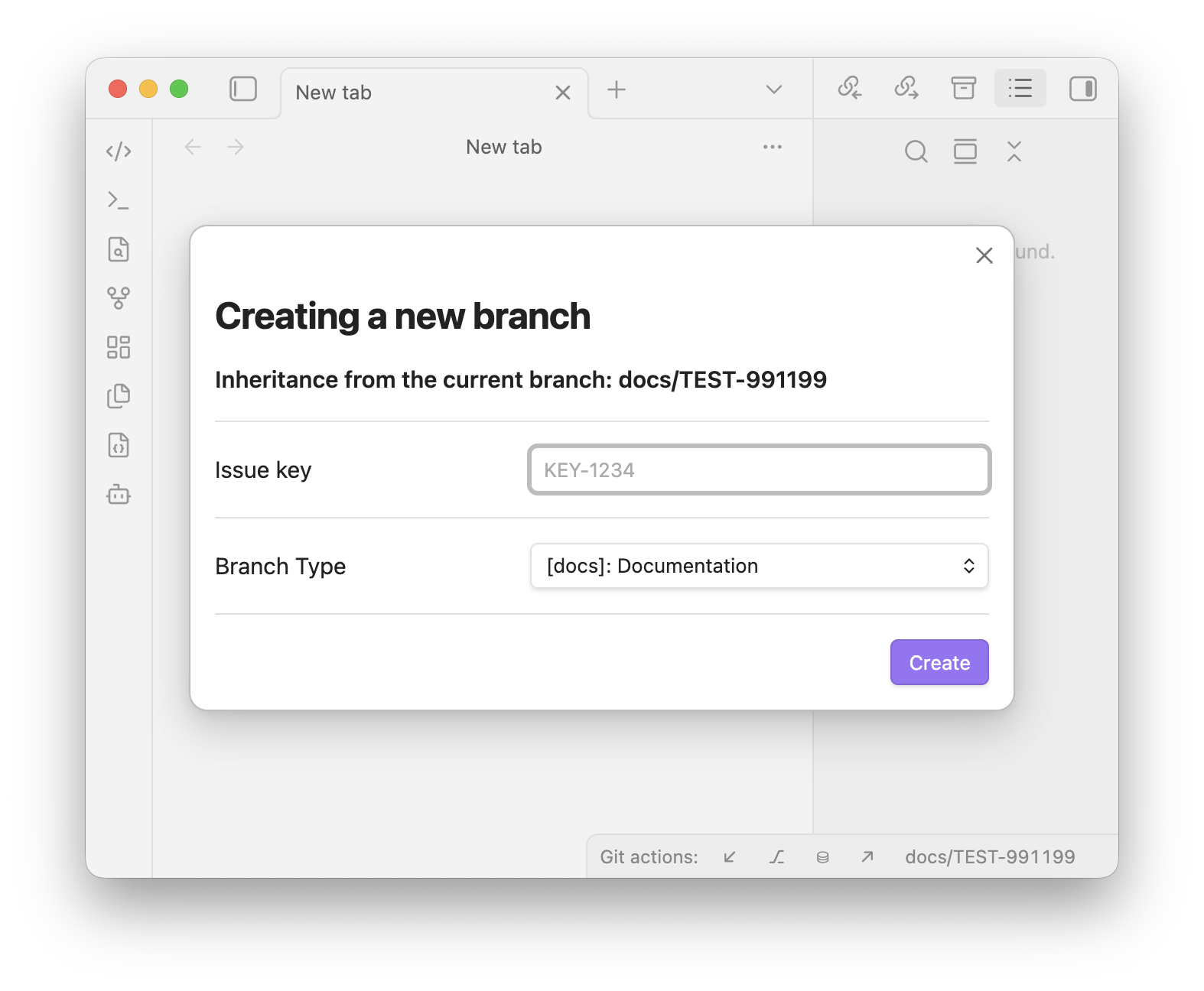
Clicking ⎇ opens a dialog where you provide:
- Issue key — e.g.
KEY-1234. - Branch type — chosen from a configurable dropdown (
feature,docs,release,hotfix, …).
The new branch is named <type>/<issue-key> (for example feature/KEY-1234), created from the current branch, and pushed to origin with upstream tracking.
Committing & pushing
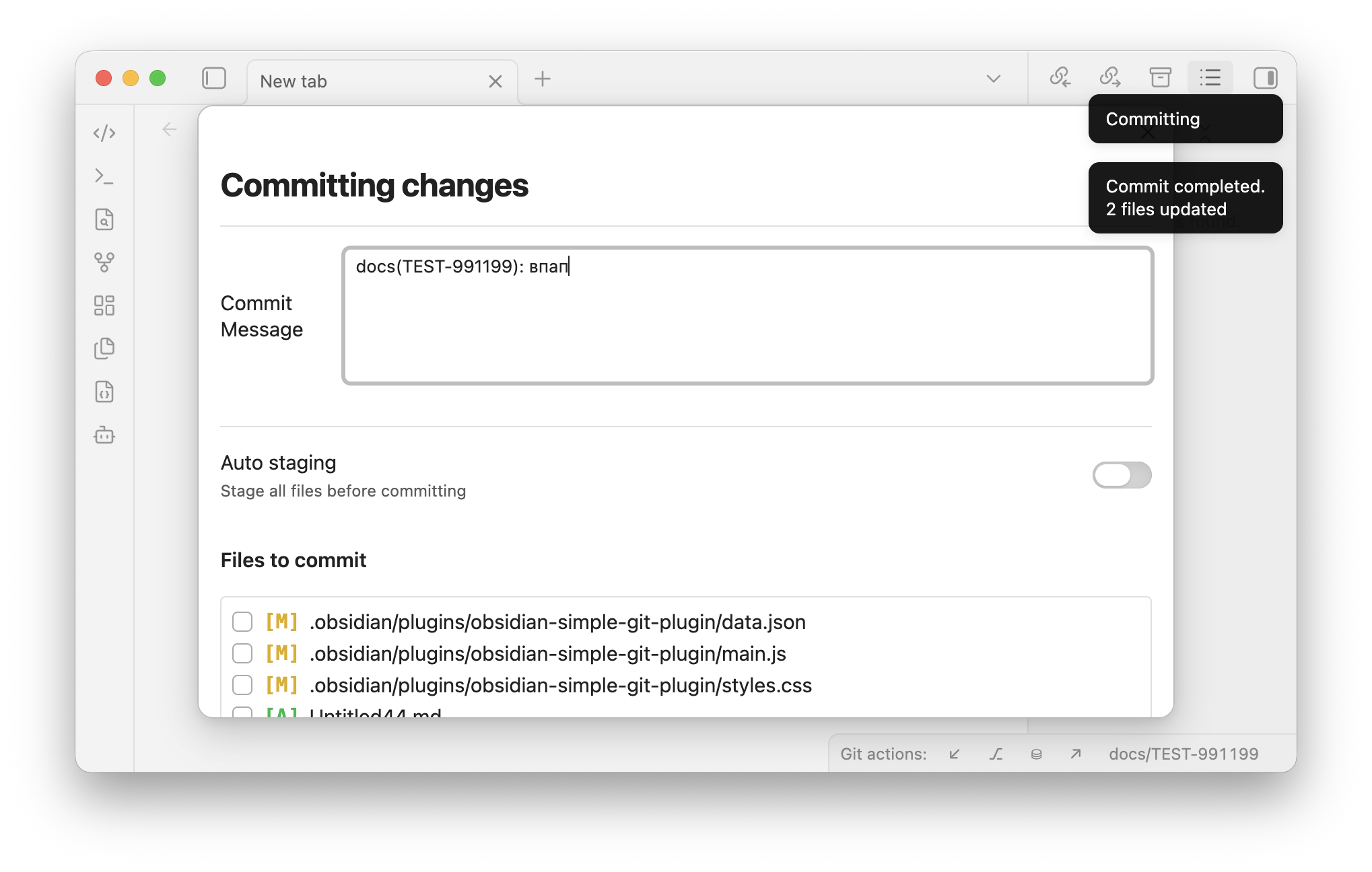
The commit window (used by both Commit and Push) lets you:
- Enter a commit message (remembered per branch).
- Toggle Auto staging — stage every change before committing.
- When auto staging is off, pick exactly which files to include from a tree of changed files:
- Each file shows its full path and a status badge —
[A]added,[M]modified,[R]removed. - Files already staged are checked by default; tick or untick to adjust what goes into the commit.
- The list is sorted by full path and scrolls when there are many files.
- Each file shows its full path and a status badge —
Switching branches
Click the current-branch item in the status bar to open a searchable list of local branches (fuzzy search by name) and check out the selected one.
Git LFS
On startup the plugin detects git-lfs and configures the LFS filters automatically. If git or git-lfs lives in a non-standard location, add its directory under Settings → Environment → Path.
Settings
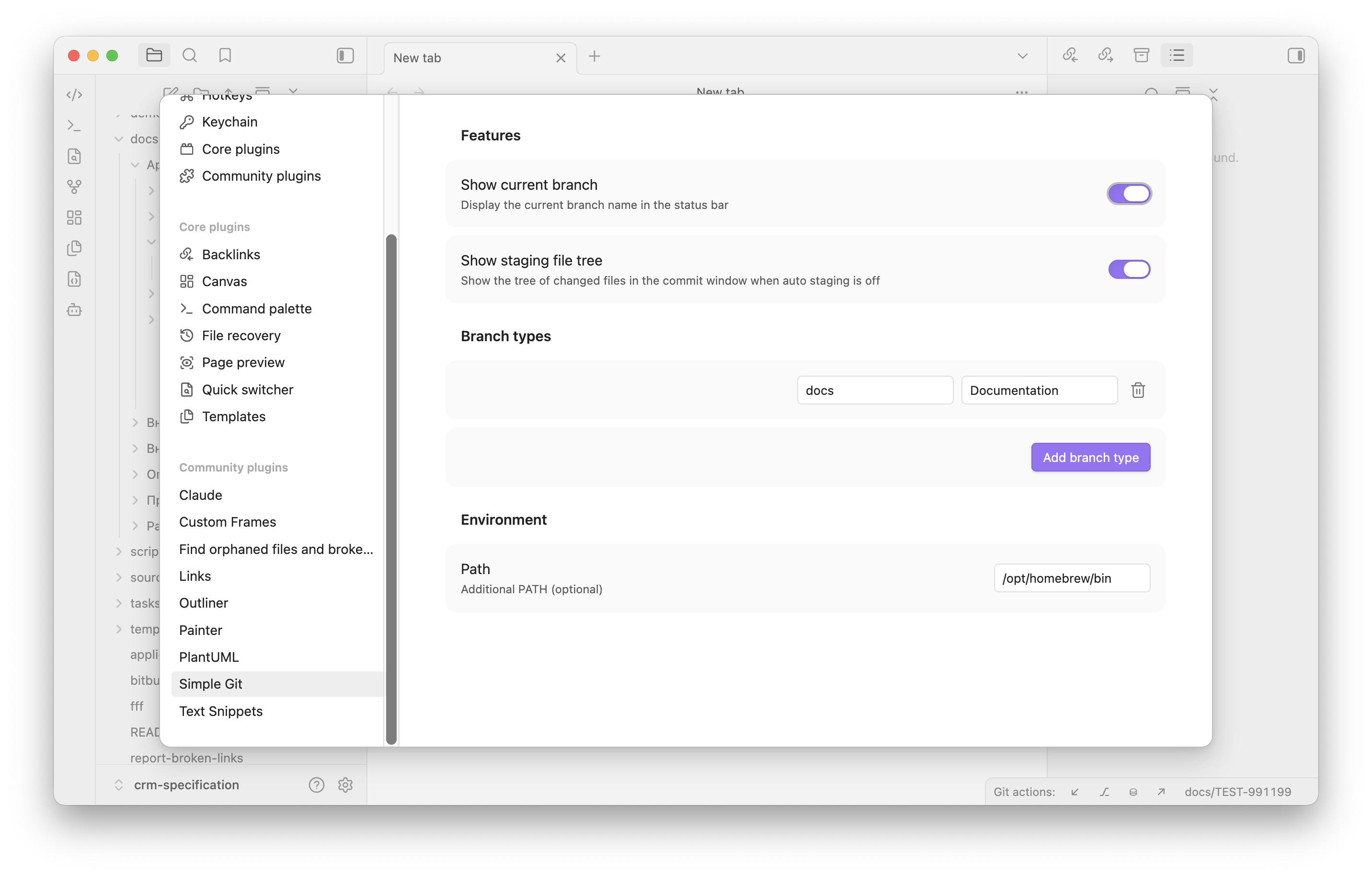
- Branch types — manage the list of branch-type options (value + label) shown when creating a branch. Add or remove entries as needed.
- Features
- Show current branch — show or hide the current branch name in the status bar.
- Show staging file tree — show the tree of changed files in the commit window when auto staging is off.
- Environment
- Path — an additional
PATHentry used to locategit/git-lfs.
- Path — an additional
Installation
From source
- Clone this repo into your vault's plugins folder:
VaultFolder/.obsidian/plugins/. - Make sure Node.js is at least v16 (
node --version). - Run
npm ito install dependencies. - Run
npm run buildto producemain.js. - Reload Obsidian and enable Obsidian Simple Git Plugin in Settings → Community plugins.
Manual
Copy main.js, styles.css, and manifest.json into VaultFolder/.obsidian/plugins/simple-git/, then reload Obsidian and enable the plugin.
Development
npm run dev— compile in watch mode (rebuildsmain.json change).npm run build— type-check and produce a production build.npm version patch | minor | major— bump the version inmanifest.jsonandpackage.jsonand updateversions.json.
How to make a new release
git tag 1.0.5 && git push origin 1.0.5 replace 1.0.5 by your own tag
License
MIT
For plugin developers
Search results and similarity scores are powered by semantic analysis of your plugin's README. If your plugin isn't appearing for searches you'd expect, try updating your README to clearly describe your plugin's purpose, features, and use cases.