Git Ribbon Sync
approvedby Pietro
Sync vault changes: quicky pull, push, and view git history from ribbon icons and commands. - This plugin has not been manually reviewed by Obsidian staff.
Git Ribbon Sync
A lightweight, seamless Obsidian plugin that adds dedicated Git action buttons directly to your left sidebar ribbon. Easily pull, commit, push, and inspect your repository's commit history without ever opening a terminal.
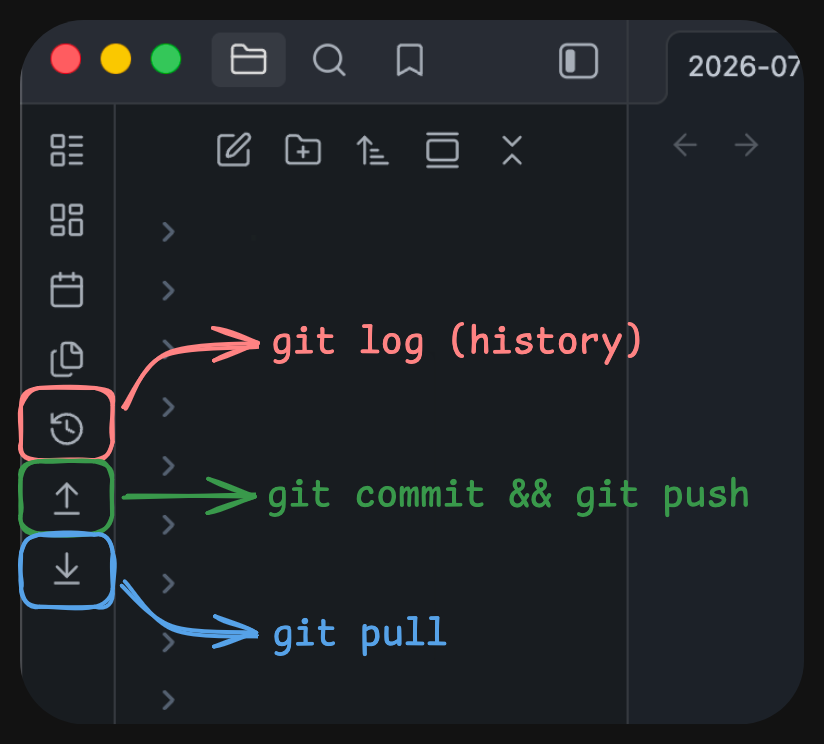
Ribbon Icons & Usage
The plugin adds three buttons to your left ribbon bar:
| Icon | Command | Description |
|---|---|---|
history | Show Git History | Opens an interactive tab inside Obsidian rendering your repository's commit log in a styled table. |
arrow-down-to-line | Git Pull | Executes git pull in your vault root and displays a status notification upon completion. |
arrow-up-from-line | Git Commit & Push | Stages files, commits with a message like Vault sync: mac 2026-07-28 14:30:00, and pushes to your remote repo. |
Settings
Navigate to Settings → Community Plugins → Git Ribbon Sync to configure:
- Device Name: Customize the identifier included in automated commit messages (defaults to your machine's OS or hostname).
- Commit Message Prefix: Modify the leading text for automated sync commits (default:
Vault sync:).
Command Palette & Hotkeys
All three ribbon actions are registered as official Obsidian commands:
- Open the Command Palette.
- Search for:
Git Ribbon Sync: Git PullGit Ribbon Sync: Git Commit & PushGit Ribbon Sync: Show Git Commit History
- Assign custom keyboard shortcuts under Settings → Hotkeys.
Development & Building
To modify or build the plugin locally:
# Install dependencies
npm install

# Run watch mode (auto-compiles on save and copies to your vault)
npm run dev

# Single build for release
npm run build
For plugin developers
Search results and similarity scores are powered by semantic analysis of your plugin's README. If your plugin isn't appearing for searches you'd expect, try updating your README to clearly describe your plugin's purpose, features, and use cases.