Simple Progress Bar
approvedby Toby Chen
A minimal and elegant plugin that visualizes your checkbox completion with beautiful progress bars. - This plugin has not been manually reviewed by Obsidian staff.
Simple Progress Bar
A minimal and elegant Obsidian plugin that visualizes your checkbox completion with beautiful progress bars.
Features
Section Progress Bar
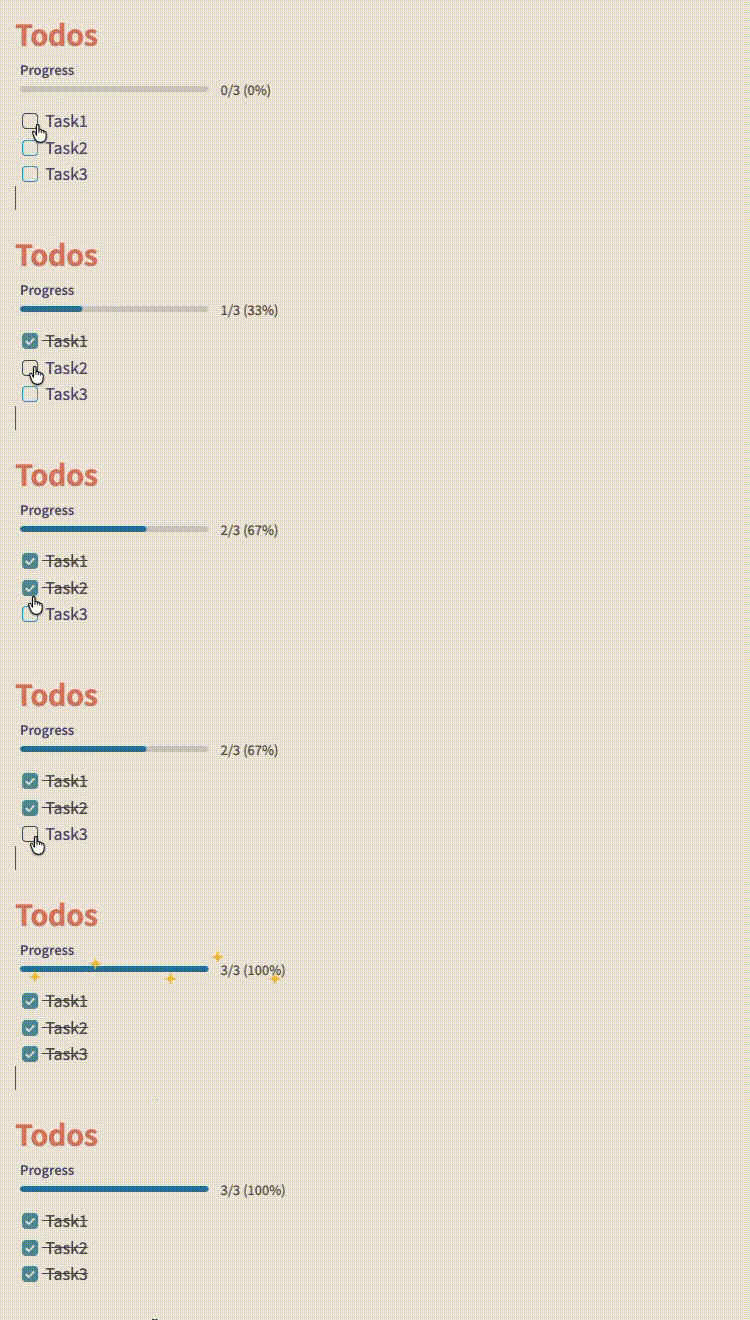 Track progress for specific sections using embedded progress bars. Simply add a code block:
```sp-bar
[YOUR TEXT]
```
The section progress bar automatically counts checkboxes within the same heading section.
Note Progress Bar
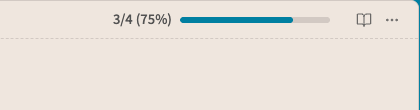
Displays a clean progress bar in the note header showing completion for all checkboxes in the current note. Updates in real-time as you check off tasks.
Usage
Automatic Note Progress
The note progress bar appears automatically in the header when your note contains checkboxes:
- [ ] Task 1
- [x] Task 2
- [x] Task 3
Embedded Section Progress
Add progress tracking to specific sections with the command palette command Simple Progress Bar: Insert inline progress bar, or type the code block manually:
## Section 1
```sp-bar
Progress
```

- [x] Task A
- [x] Task B
- [ ] Task C
The embedded bar will show: 2/3 (67%). If you select text before running the insert command, the selected text becomes the bar label.
Settings
- The settings page includes a quick-start card with exact command names.
- Show in note header - Toggle the note progress bar on/off.
Commands
Use these exact commands from Obsidian's command palette:
- Simple Progress Bar: Insert inline progress bar - Insert an
sp-barcode block at the cursor. If text is selected, it becomes the progress bar label. - Simple Progress Bar: Toggle note progress bar - Quickly show/hide the note progress bar.
- Simple Progress Bar: Show note progress bar - Show the note progress bar.
- Simple Progress Bar: Hide note progress bar - Hide the note progress bar.
The insert command is available from the command palette after the plugin is enabled. Open a markdown note before running it so the plugin knows where to insert the progress bar.
Installation
Manual Installation
- Download the latest release
- Extract files to
<vault>/.obsidian/plugins/simple-progress-bar/ - Reload Obsidian
- Enable the plugin in Settings → Community plugins
Development
See DEVELOPMENT.md for instructions on building and testing locally.
Troubleshooting
If the 100% completion animation does not play, or a local build looks stale after copying files, see TROUBLESHOOTING.md.
Features at a Glance
- Clean, minimal design that adapts to your theme
- Real-time updates as you check/uncheck tasks
- Note-wide progress tracking in the header
- Section-specific progress bars via code blocks
- Customizable label text for embedded bars
- Zero configuration required
Known Issue
- Obsidian may delay re-rendering a freshly edited
sp-barcode block until the note view refreshes. If an embedded bar does not appear immediately after editing the code block itself, switch notes or toggle reading/source mode once.
Support
Found a bug or have a feature request? Open an issue
License
MIT
For plugin developers
Search results and similarity scores are powered by semantic analysis of your plugin's README. If your plugin isn't appearing for searches you'd expect, try updating your README to clearly describe your plugin's purpose, features, and use cases.