by Puneeth Shetty
Navigate note headings with a floating glass outline and reading-progress ring.
SlickOutline
A compact, floating outline that keeps long Obsidian notes easy to navigate.
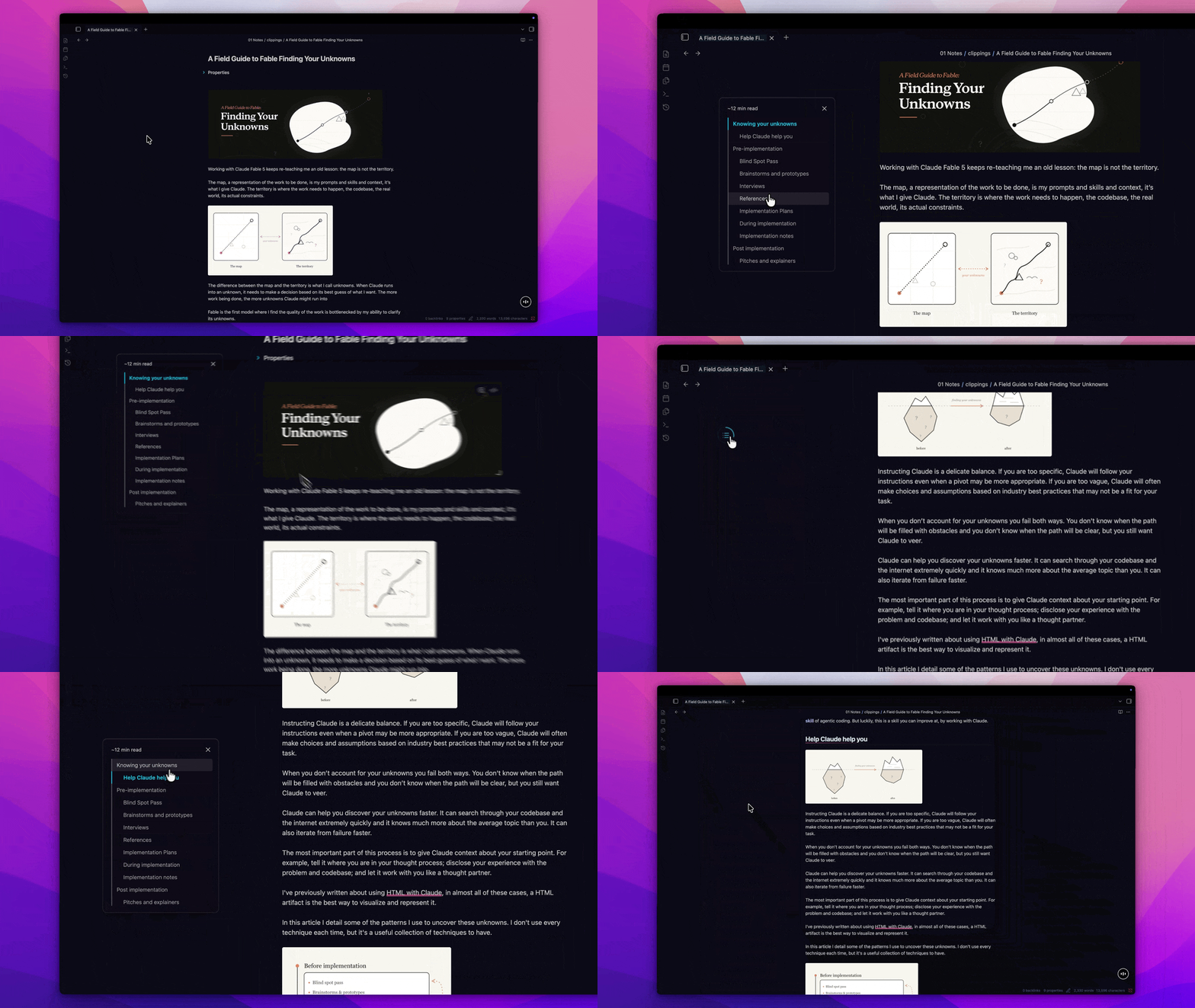
SlickOutline gives each note pane its own lightweight document outline. Open it when you need to jump between headings, collapse it when you want a clear workspace, and follow your reading progress without giving up space to a permanent sidebar.

Features
- Browse and navigate H1-H4 headings in a compact, floating panel.
- Track reading progress in the collapsed ring and see estimated reading time when the outline is open.
- Drag the control anywhere, snap it to a corner, and use it independently in multiple panes and pop-out windows.
- Match light, dark, and custom themes.
Demo
If you've found SlickOutline useful, please consider ☕️ Buying me a coffee
Installation
Once SlickOutline is available in the Obsidian Community Plugins directory:
- Open Settings -> Community plugins.
- Select Browse and search for SlickOutline.
- Install and enable the plugin.
Getting started
- Enable SlickOutline in Obsidian's Community plugins settings.
- Open a Markdown note in Live Preview or Reading View.
- Run SlickOutline: Show outline from the command palette.
- Select the circular control to open the outline, then select a heading to navigate to it.
Run the command again to remove SlickOutline from the current pane. You can also assign the command a hotkey in Obsidian's settings.
SlickOutline is pane-local: enabling, expanding, and navigating the outline affects only the pane you are working in. Switching notes keeps the outline enabled but collapses it.
Customize the outline
Placement
Choose Top left, Top right, Bottom left, or Bottom right under Settings -> SlickOutline -> Placement.
You can also drag the collapsed control to create a custom position. A snap preview appears near pane edges, and the saved position adapts proportionally when the window changes size. Selecting a corner in settings replaces the custom position.
Reading speed
Set your preferred words per minute under Settings -> SlickOutline -> Reading speed. SlickOutline uses it to estimate the reading time for the current note while excluding frontmatter and code blocks.
Use Reset to defaults to restore the top-left placement and a reading speed of 200 words per minute.
Compatibility and behavior
- SlickOutline is desktop-only.
- Live Preview and Reading View are supported.
- Source Mode is not supported; the control hides until you return to a supported view.
- Heading labels and reading time refresh when the panel reopens rather than after every edit.
- The outline remains open while scrolling or navigating between headings.
- Placement and reading speed are shared settings, while outline visibility is managed independently for each pane.
Feedback
Report bugs or suggest improvements through GitHub Issues.
For plugin developers
Search results and similarity scores are powered by semantic analysis of your plugin's README. If your plugin isn't appearing for searches you'd expect, try updating your README to clearly describe your plugin's purpose, features, and use cases.