Smart ChatGPT
approvedby π΄ Brian
Integrate OpenAI's ChatGPT seamlessly in notes. Automatically saves links, allows marking threads as done, and integrates with Dataview.
[!INFO] 2025-12-11 this page is a WIP, see https://smartconnections.app/smart-chat
Conversations stay with your notes
[!QUESTION] Why juggle browser tabs or copied prompts? Keep conversations inside Obsidian with Smart Chat and let your vault supply the context.
[!WARNING] The Problem Switching between external chat tools and your notes breaks focus, leaks context, and risks sending private data to the wrong place.
[!SUCCESS] What success looks like Stay in flow: start a thread, pull in notes with
@, review context before sending, and answer follow-ups without leaving Obsidian.
[!FAILURE] The cost of doing nothing Context keeps leaking across tools. You lose time re-reading notes, copy/pasting prompts, and second-guessing what was sent to which provider.
Smart Chat
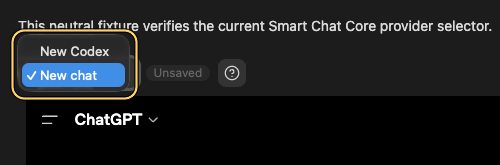
Smart Chat keeps conversations inside your notes by embedding web chat apps directly in codeblocks and tracking thread URLs alongside your work. Use Smart Chat Pro when you need API adapters, routing, and context workflows beyond embedded chat.

What Smart Chat does
- Embed provider chat UIs in codeblocks so conversations stay with the note they belong to.
- Save thread URLs and status (
chat-active,chat-done) directly in the note for tracking. - Provide a sidebar Smart ChatGPT view for quick access to ChatGPT in Obsidian.
- Offer optional Smart Chat Pro workflows for API-based chat and routing.
Core: Smart ChatGPT (embedded chat)
- Provider codeblocks that render embedded chat UIs directly inside notes.
- Thread URL tracking with
chat-activeandchat-donefields saved in your notes. - Dataview dashboards for in-progress and completed threads.
- Smart ChatGPT sidebar view for quick access without leaving your current file.
Optional: Smart Chat Pro (API routing)
- API adapters, per-thread routing, and context tooling via Smart Environment actions.
- Explicit routing: choose which threads talk to cloud providers vs local models.
- Review context before sending so you decide what leaves your vault.
Quick start (core)
[!TLDR] 3 steps
- Install Smart ChatGPT from Obsidian Community plugins and enable it.
- Run a command like Insert OpenAI ChatGPT codeblock from the command palette.
- Chat in the embedded view; Smart Chat saves the thread URL and status in the note.
Smart Chat Pro API flow
- Start a new thread and set the system prompt for the task at hand.
- Pull in notes with
@to review and edit context before sending. - Route responses per-thread to Ollama or a Smart Chat Pro adapter depending on privacy or latency needs.
- Trigger Smart Environment actions (like Smart Context) when you need refreshed context or links.
Pro: provider routing and adapters
- Smart Chat Pro ships adapters for OpenAI, Anthropic, Gemini, Azure OpenAI, and more through the Smart Environment.
- Routing is explicit: each thread can target a different provider or stay on Ollama. Context only leaves your machine when you choose a cloud adapter.
- Settings live under Smart Chat Pro with clear API key inputs and model selectors per provider.
Built for you
Smart Chat started as a way to keep conversations and context together. The Obsidian community has helped shape it into a flexible interface for local-first AI workflows.
- Keep private notes local by default; switch to cloud providers only when you choose.
- Chat UI matches the Connections storytelling so onboarding feels consistent across Smart Plugins.

[!NOTE] Stop losing your conversations! Hey there! I'm π΄ Brian. I found myself constantly juggling browser tabs for different AI chats while working on my notes. I'd lose track of important conversation threads and waste time trying to map them back to the right project.
This plugin is my solution. It brings your AI chats right into the Obsidian notes where they belong. It's built to create a seamless, asynchronous workflow with AI, making sure your valuable discussions are always organized and right where you need them.
Key features
- π¬ Embed Multiple AIs: Works with ChatGPT, Anthropic Claude, Google Gemini, Perplexity, DeepSeek, xAI Grok, Google AI Studio, and Open WebUI.
- π Automatic Link Saving: Conversation URLs save back into your note.
- β Simple Task Management: Mark conversations as "active" or "done".
- π Multi-Thread Management: Switch between threads inside a note.
- π Dataview Integration: Build dashboards from
chat-activeandchat-donefields.
Getting started with codeblocks
- Install Smart ChatGPT from Obsidian Community plugins.
- Insert a codeblock from the command palette (e.g.,
Insert OpenAI ChatGPT codeblock). - Start chatting; the plugin detects thread URLs and saves them to the block.
Examples
```smart-chatgpt
```
When you start a conversation, the plugin automatically updates the codeblock with the new thread's URL, marking it as chat-active.
```smart-chatgpt
chat-active:: 1709719305 https://chatgpt.com/c/some-new-thread
```
Managing Conversations
- Mark as Done: When you're finished with a conversation, click the βMark Doneβ button. The plugin will update the line to
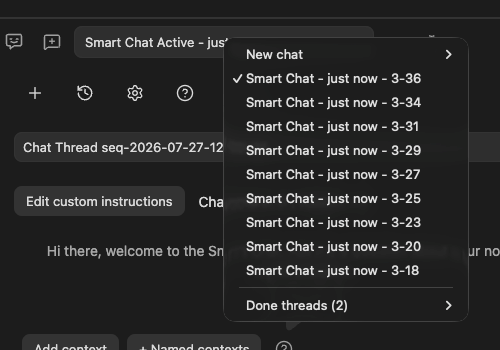
chat-done. This is great for tracking tasks. - Switching Threads: If you have multiple threads in one codeblock, a dropdown menu appears, letting you easily switch between them. Done threads are marked with a β.
Dataview snippets
Because the plugin saves thread status directly in your notes as chat-active or chat-done, you can use Dataview to create powerful dashboards.
# In Progress
```dataview
LIST WITHOUT ID file.link
WHERE chat-active
SORT file.mtime DESC
```
# Completed
```dataview
LIST length(file.chat-done) + " completed"
WHERE chat-done
SORT length(file.chat-done) DESC
```
Codeblocks for Supported AI Chat Services
Use a specific codeblock for each service:
| Codeblock | Service |
|---|---|
smart-chatgpt | OpenAI ChatGPT |
smart-claude | Anthropic Claude |
smart-gemini | Google Gemini |
smart-deepseek | DeepSeek |
smart-perplexity | Perplexity |
smart-grok | xAI Grok |
smart-aistudio | Google AI Studio |
smart-openwebui | Open WebUI |
Sidebar Smart ChatGPT view
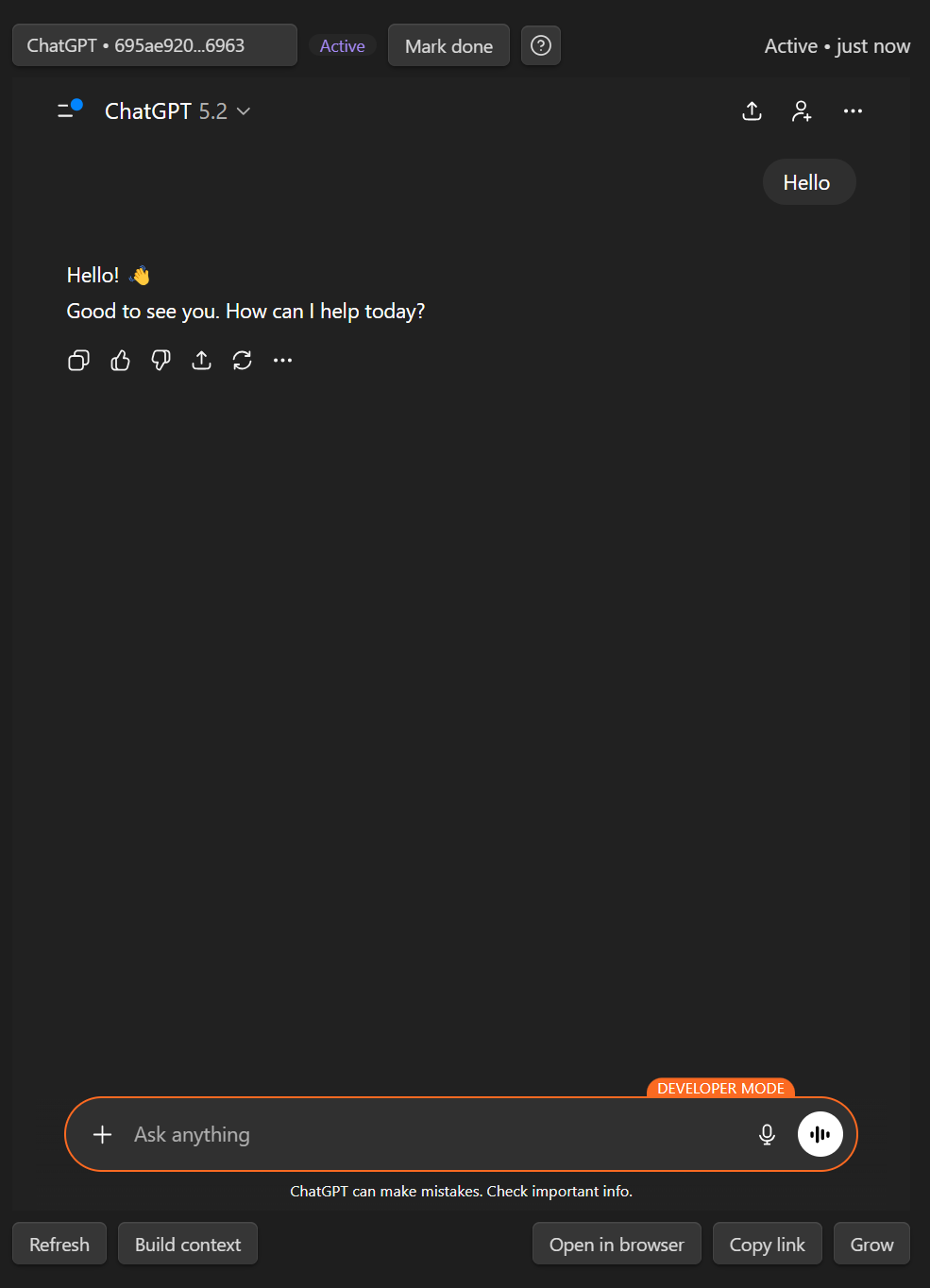
- Open the Smart ChatGPT view from the command palette to keep ChatGPT available in the sidebar.
- Use Refresh to reload the session or Copy URL to capture the current thread link.
FAQ
- Claude won't sign in: Enable Obsidian's Web viewer core plugin, log in via Web viewer, then refresh the embedded chat.
- Google sign-in errors: Use Web viewer to complete authentication, then return to the note and refresh.
- AI Studio thread link isn't saved: After sending the first message, click Save in AI Studio so Smart Chat can capture the URL.
- Can I use Open WebUI (Ollama) with Smart Chat? Yes. Use the
smart-openwebuicodeblock and set the base URL in Settings β Smart ChatGPT β Open WebUI base URL. - Where does my data live? Core Smart Chat embeds provider web apps in Obsidian and stores thread links in your notes. Smart Chat Pro sends content to providers you explicitly configure.
- How do I switch models? For core codeblocks, use the provider's UI. Smart Chat Pro adds per-thread model selection in its settings UI.
- Does Smart Chat work with Smart Connections? Yes. Smart Connections handles discovery across your vault, while Smart Chat handles conversations and thread tracking. Both are part of the Smart Plugins ecosystem.
Part of the Smart Ecosystem
Smart ChatGPT is a proud member of the Smart Plugins family, which includes the flagship Smart Connections plugin.
Our mission is to build user-aligned, privacy-first tools that empower you to think better and achieve your goals. We believe in software that is:
- π Private & Local-First: Your data stays with you.
- π Open-Source: Transparent and community-driven.
- βοΈ Mission-Driven: Built to empower you, not to profit from your data.
Come for the tools, stay for the community and our shared vision of thriving with AI.
Developed by π΄ Brian | smartconnections.app
For plugin developers
Search results and similarity scores are powered by semantic analysis of your plugin's README. If your plugin isn't appearing for searches you'd expect, try updating your README to clearly describe your plugin's purpose, features, and use cases.