StoneGate
approvedby xsiphr
Lock screen protection for your vault - This plugin has not been manually reviewed by Obsidian staff.




StoneGate protects your Obsidian vault and individual folders with password authentication, idle timeouts, brute-force lockouts, and an optional stealth mode that hides protected folders entirely.

 Installation
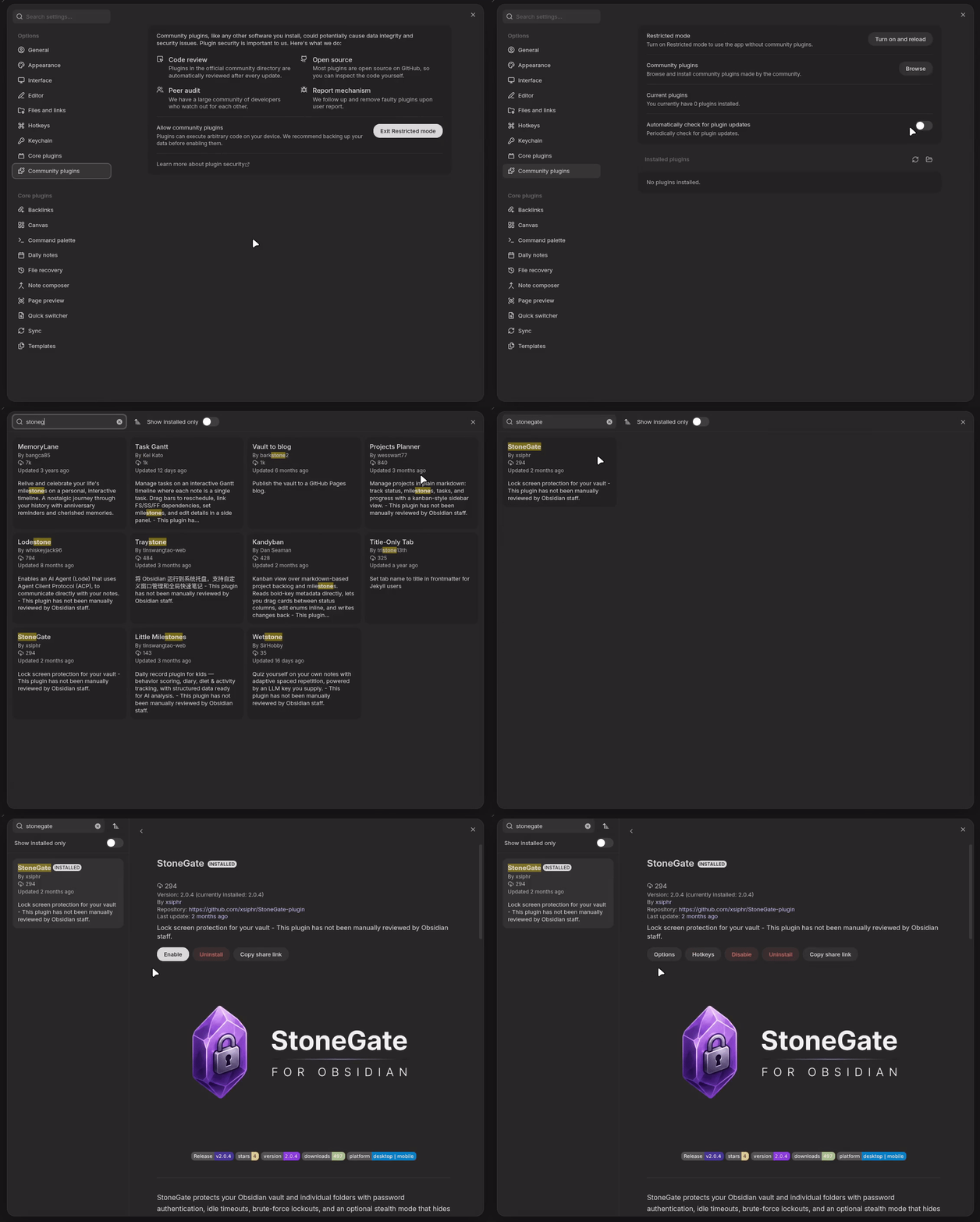
From Community Plugins (recommended)
- Open Obsidian's Settings → Community plugins.
- Make sure Restricted mode is turned off.
- Click Browse and search for "StoneGate".
- Click Install, then Enable the plugin.
Manual installation
- Download
main.js,manifest.json, andstyles.cssfrom the latest release. - Create a folder named
stonegateinside your vault's.obsidian/plugins/directory. - Copy the three downloaded files into that folder.
- Reload Obsidian and enable StoneGate from Settings → Community plugins.

Features
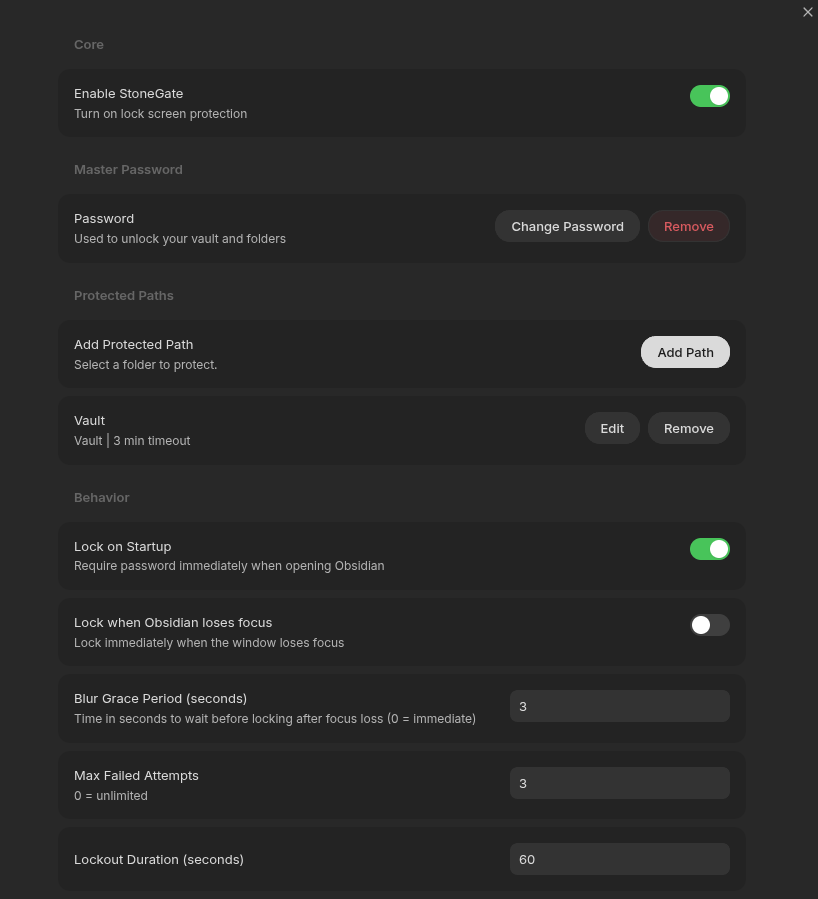
Vault & Folder Protection Lock your entire vault or specific sensitive folders, each with its own password.
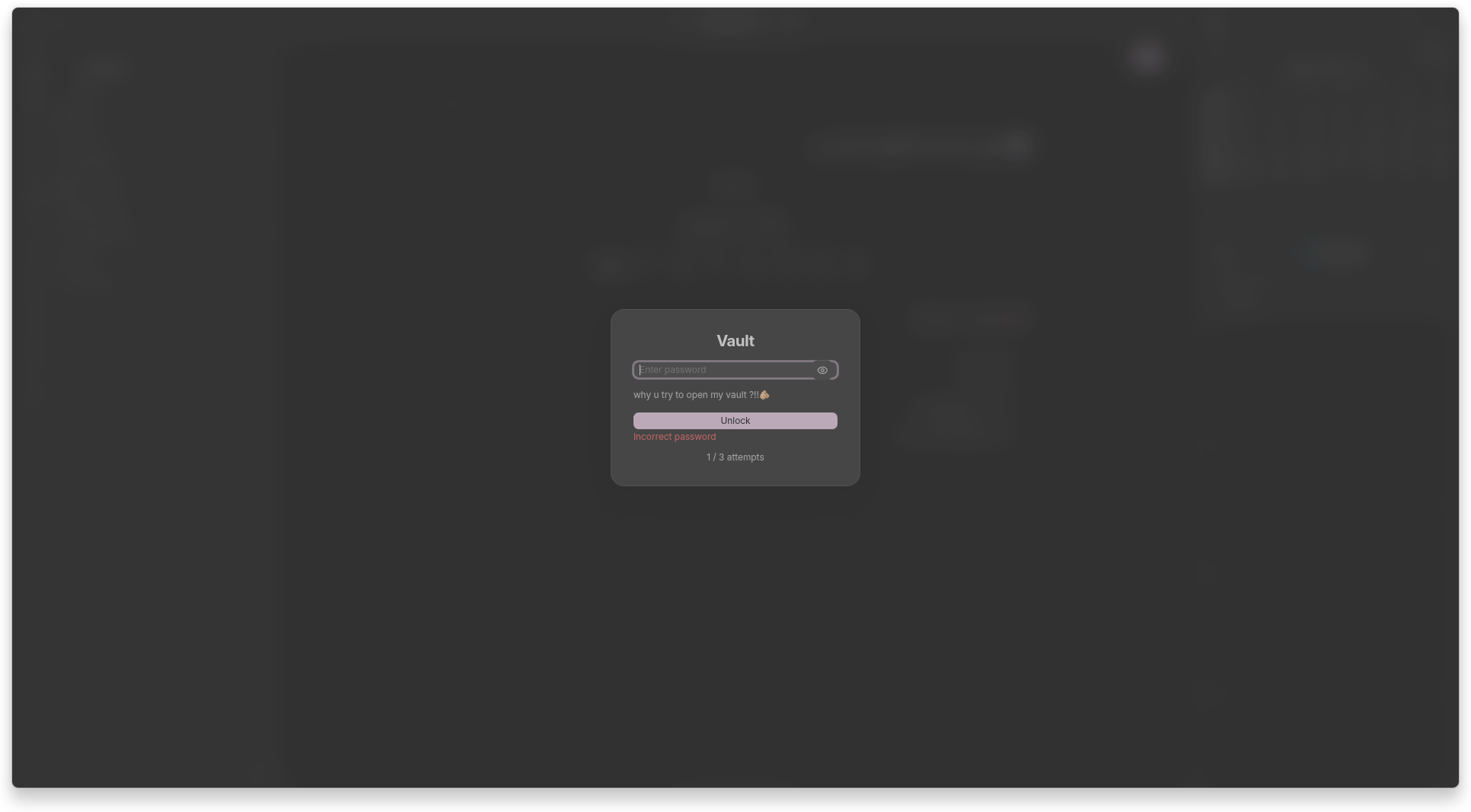
Idle Timeout Automatically re-lock a path after a configurable period of inactivity.
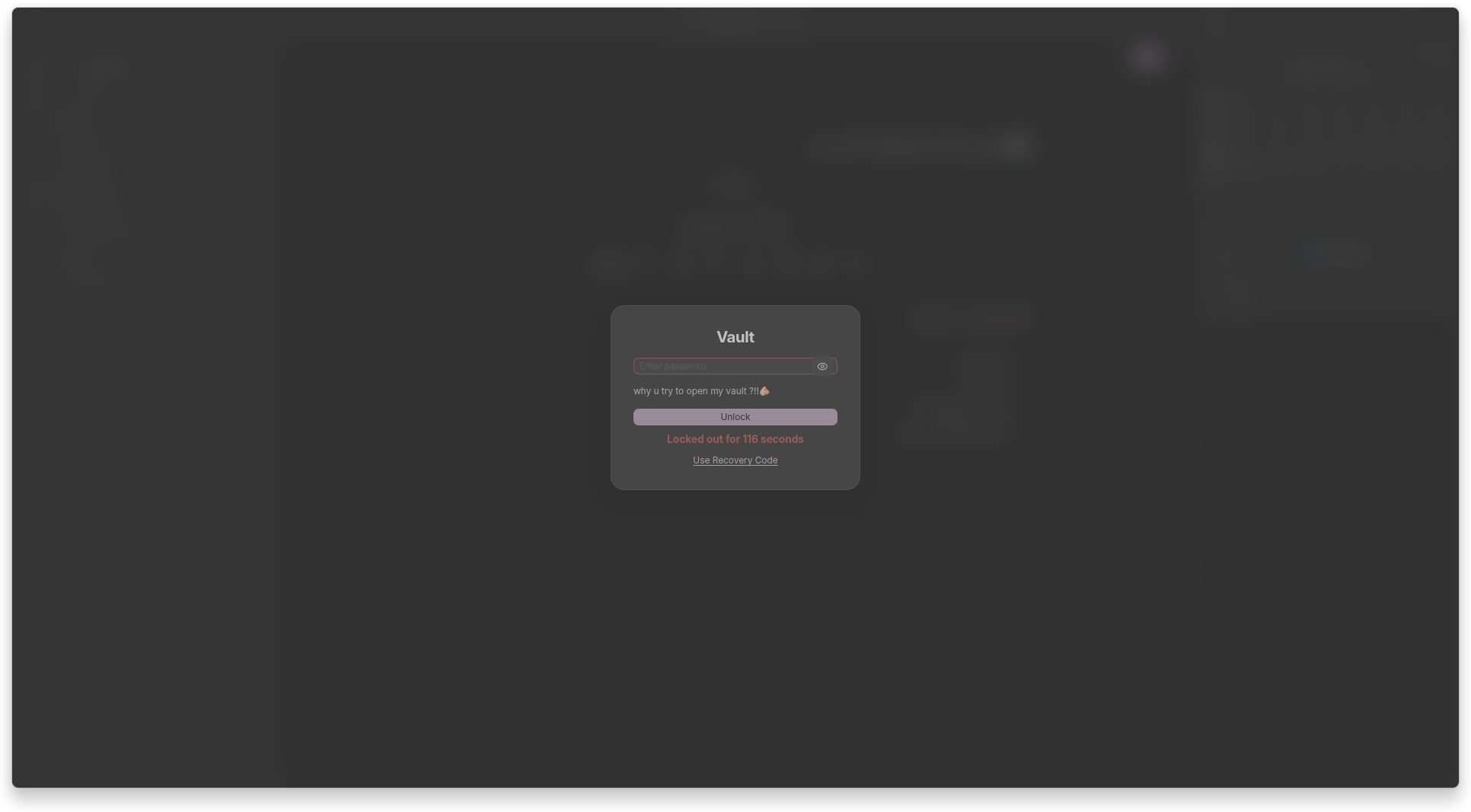
Persistent Lockout Blocks further attempts for a cooldown period after repeated failed passwords.
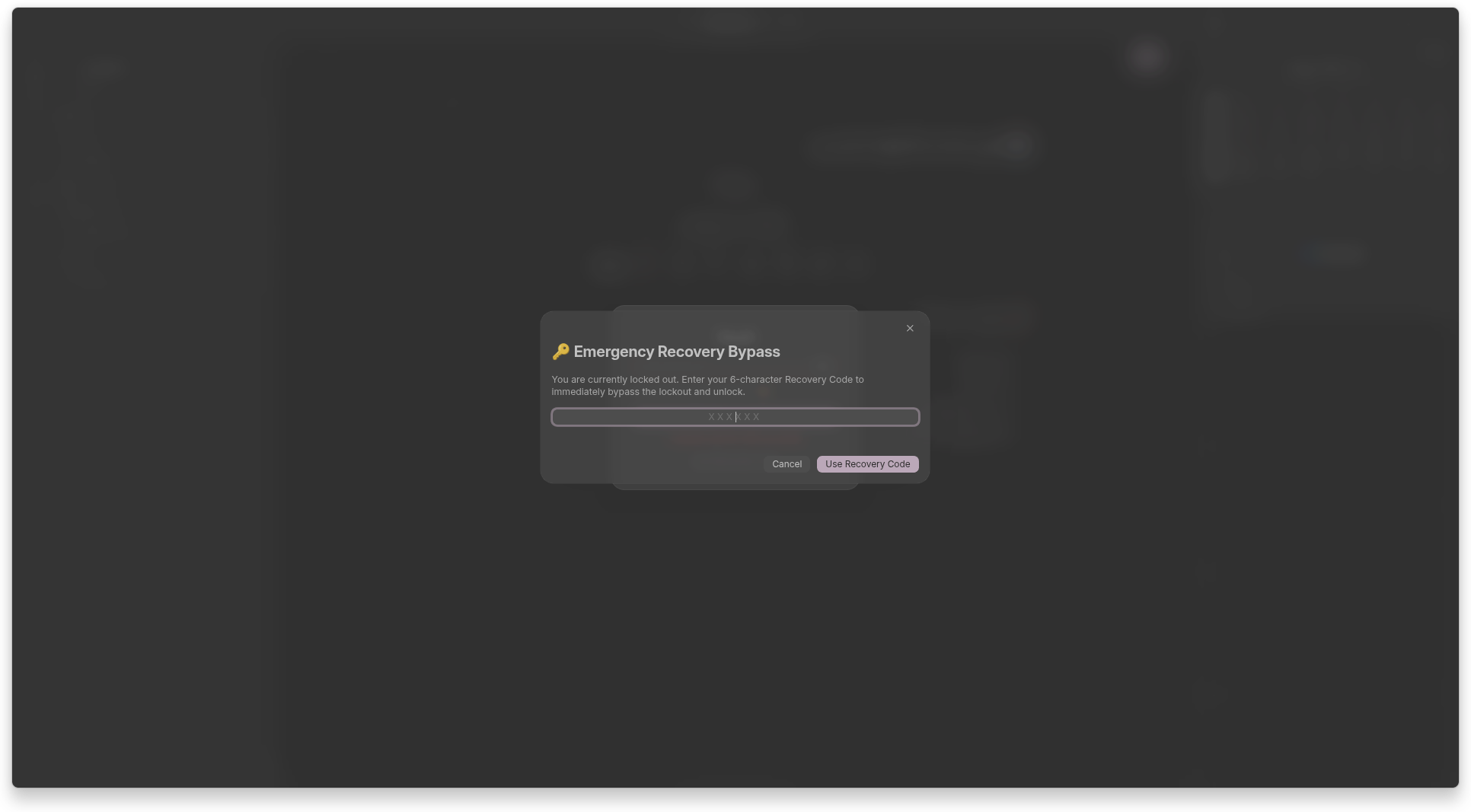
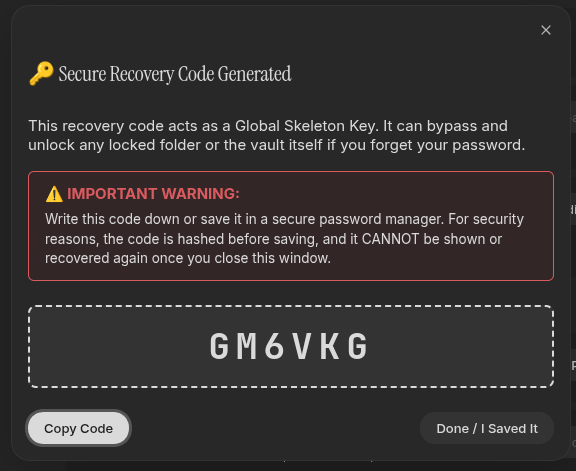
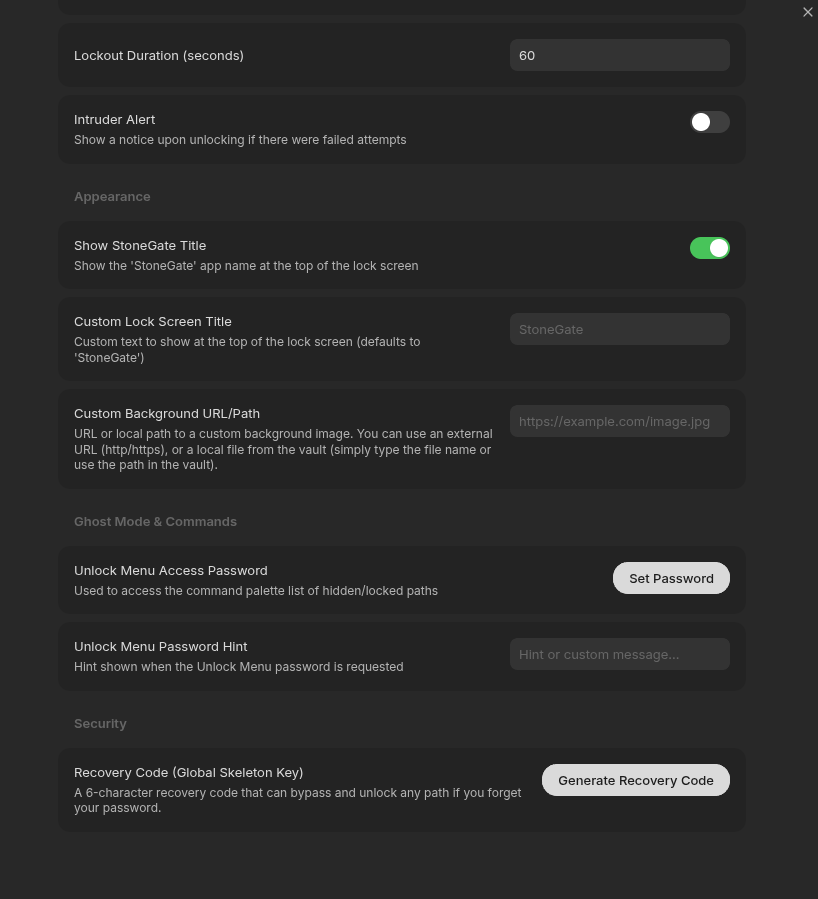
Emergency Recovery Generate a one-time recovery code to regain access if you forget your password.
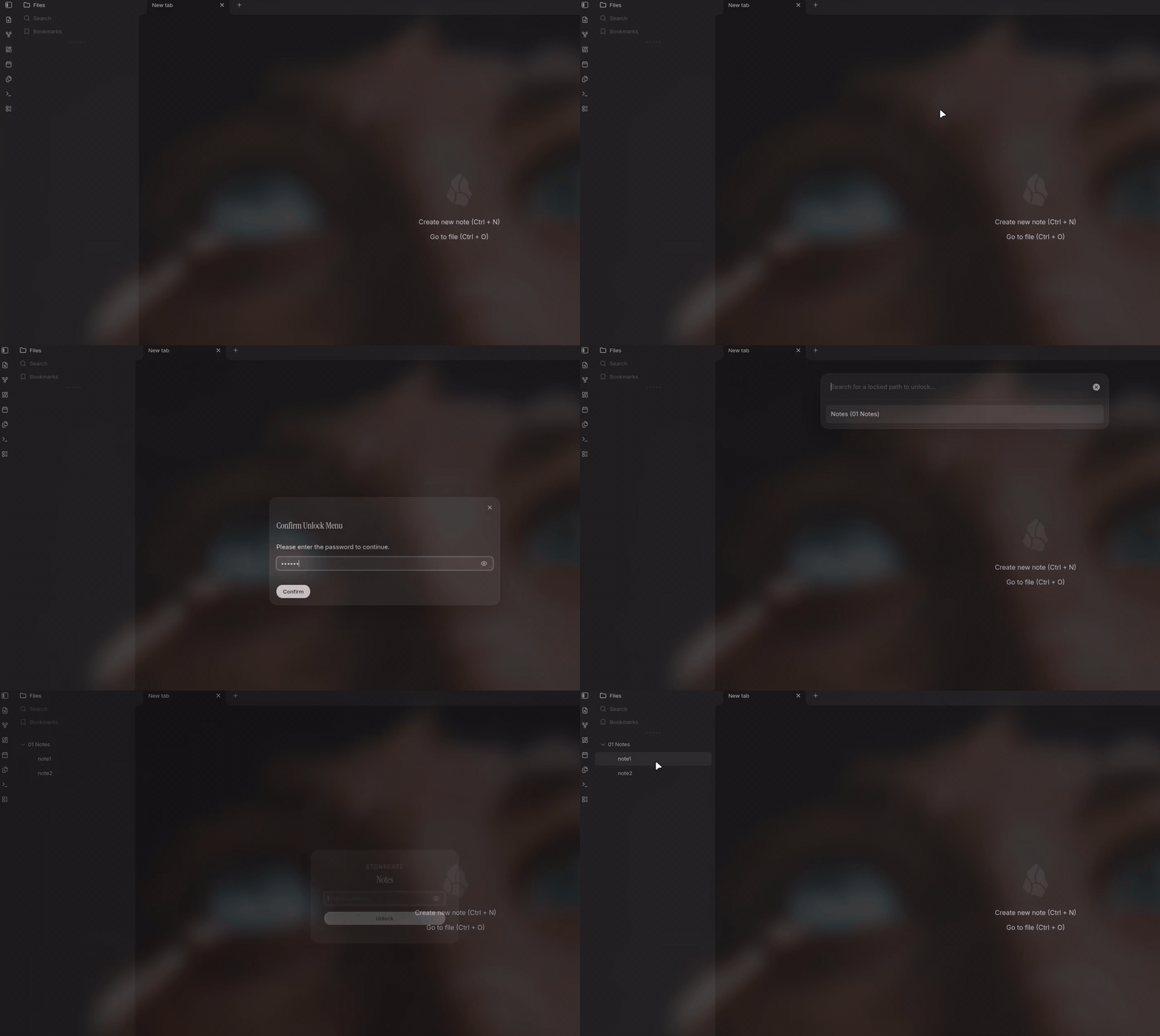
Ghost Mode Hide protected folders from the File Explorer entirely until unlocked.
Custom Backgrounds Set a custom lock screen background from a URL or a file in your vault.

Configuration
- Master Password — set in the plugin's settings tab to enable base vault protection.
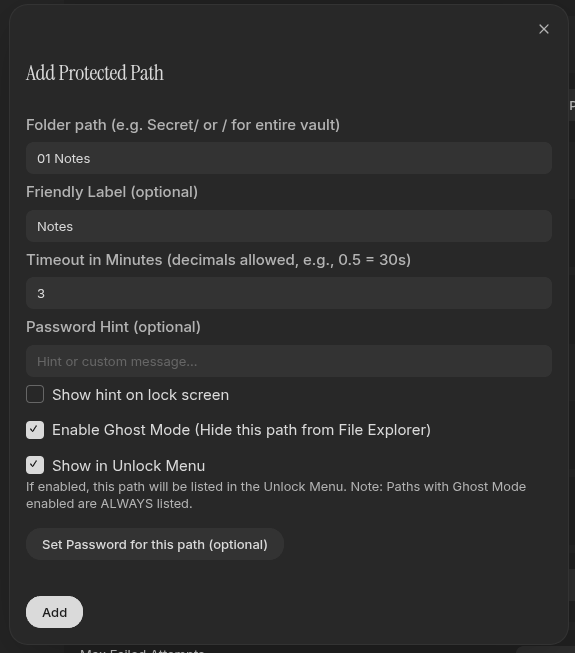
- Per-folder passwords — add a protected path and give it its own password, independent of the master password.
- Recovery Code — generate under "Recovery Options." Keep this code offline; it's the only way back in if you forget your password.
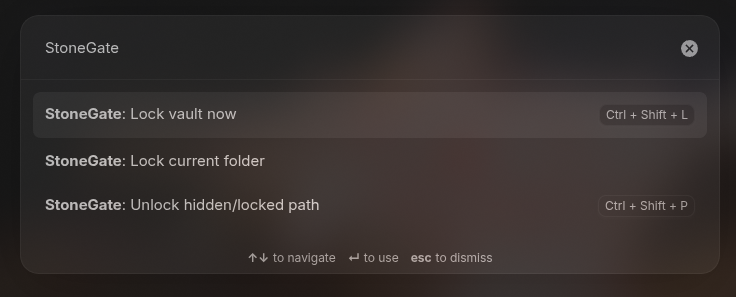
- Ghost Mode — when enabled on a path, that folder disappears from the File Explorer while locked. Reach it via the Command Palette (
StoneGate: Unlock hidden/locked path).
Hotkeys
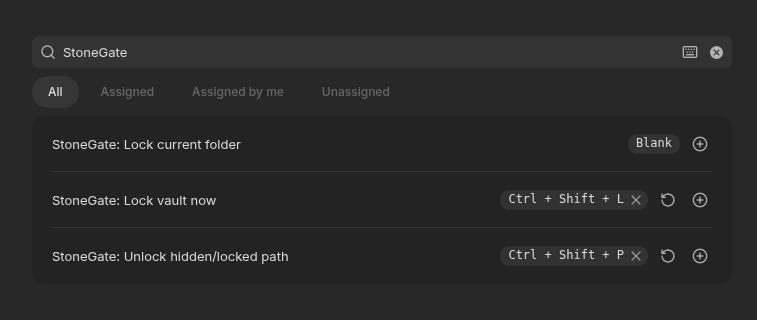
Configure these under Settings → Hotkeys:
- Lock vault now — manually trigger the lock screen.
- Lock current folder — lock just the folder containing the active file.
- Unlock hidden/locked path — open the menu to find and unlock a protected or hidden path.
Security Practices
- Hashing — passwords and recovery codes are hashed with PBKDF2 (SHA-256, 200,000 iterations) via the Web Crypto API, each with a unique random salt.
- Local only — all secrets stay on your device. Nothing is transmitted to an external server.
- Defense in depth — for sensitive vaults, pair StoneGate with system-level encryption (e.g. Cryptomator) rather than relying on it alone.
License
Distributed under the MIT License. See LICENSE for more information.
Created with 🤍 by Abdulrahman Agiba | xsiphr
For plugin developers
Search results and similarity scores are powered by semantic analysis of your plugin's README. If your plugin isn't appearing for searches you'd expect, try updating your README to clearly describe your plugin's purpose, features, and use cases.