by verf1x
Turn Markdown notes into flashcards, test yourself, retry missed questions, and review with spaced repetition.
Obsidian Study Cards
Study Cards turns Markdown notes into study cards and organizes them into study sections.
Study Cards in action
Desktop
Choose a whole note or a heading level. The form shows how many cards each choice creates.
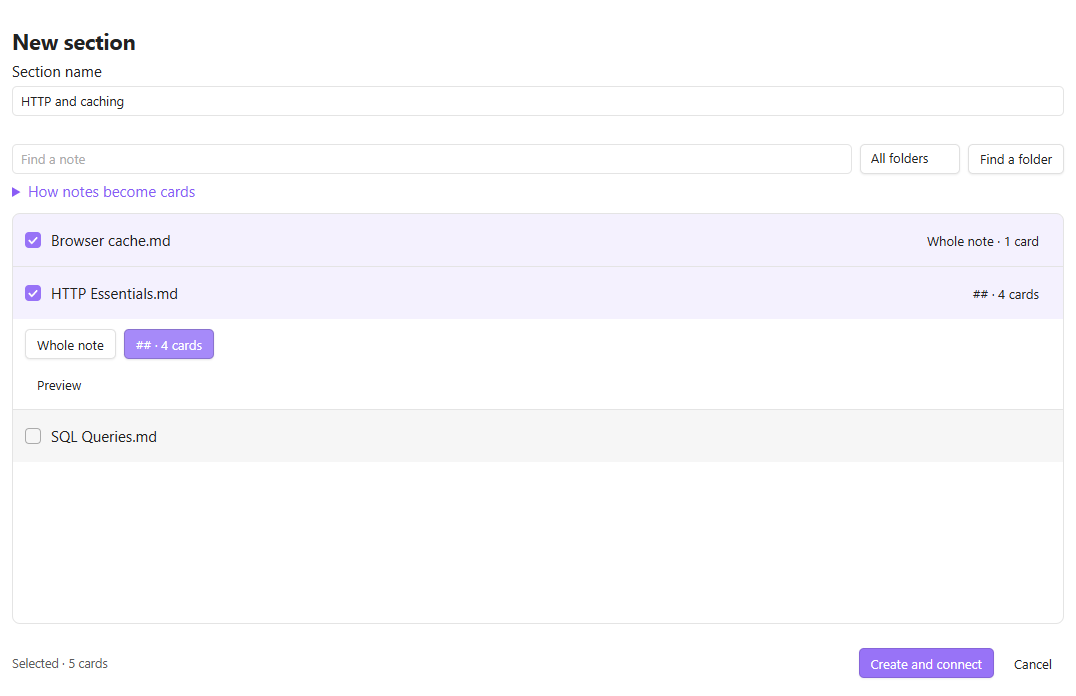
Check a full Markdown answer before connecting the notes.
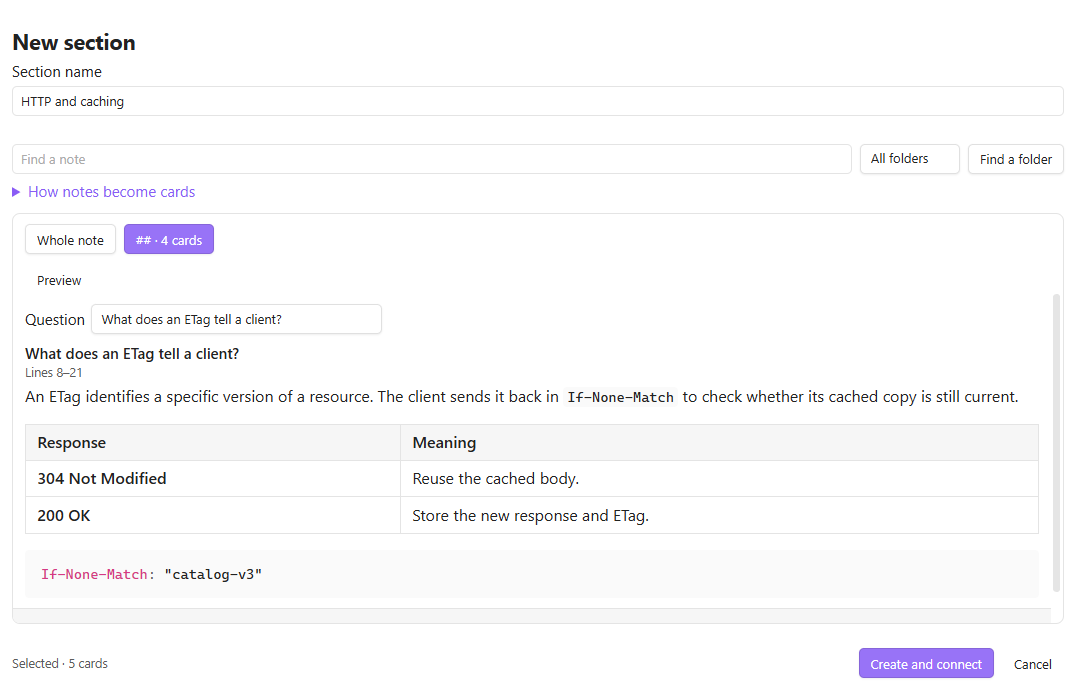
Android
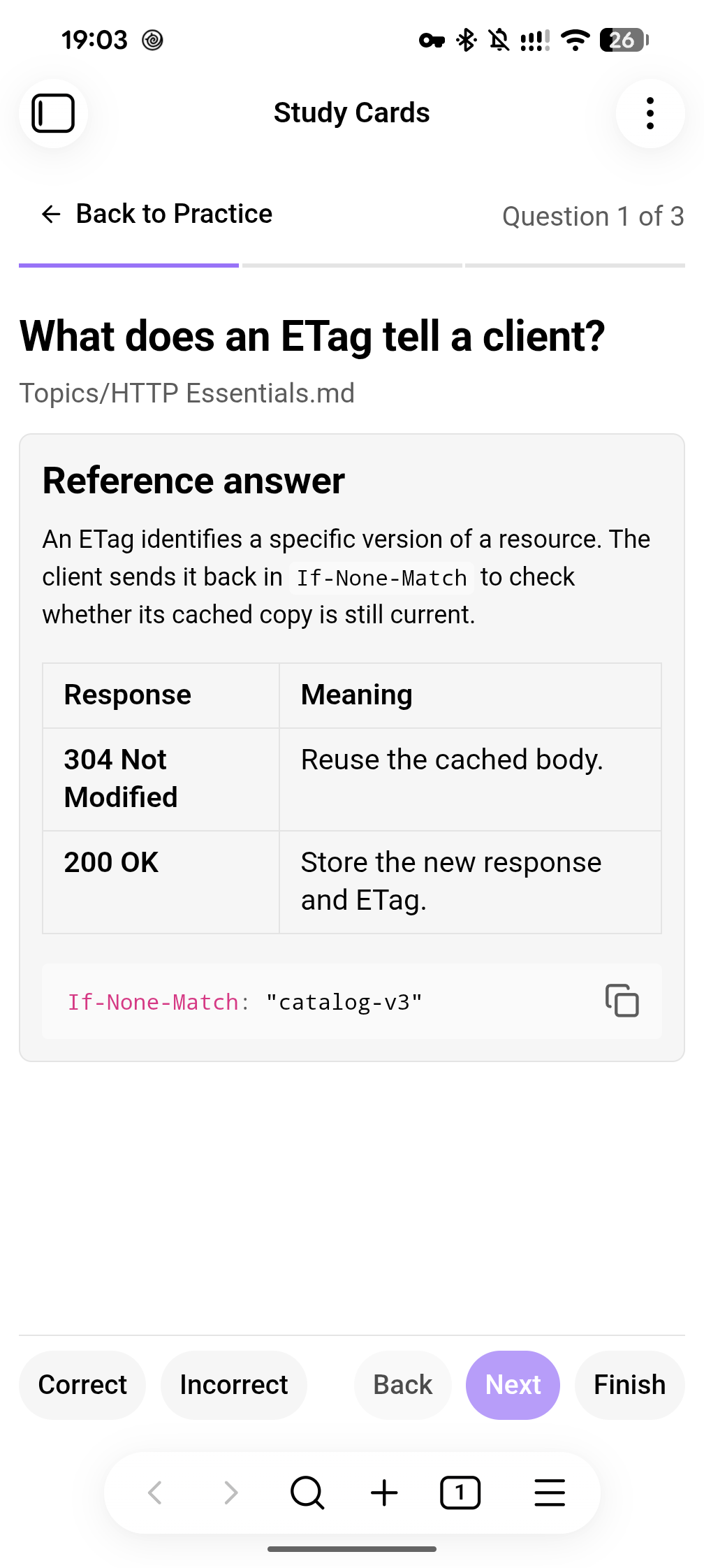
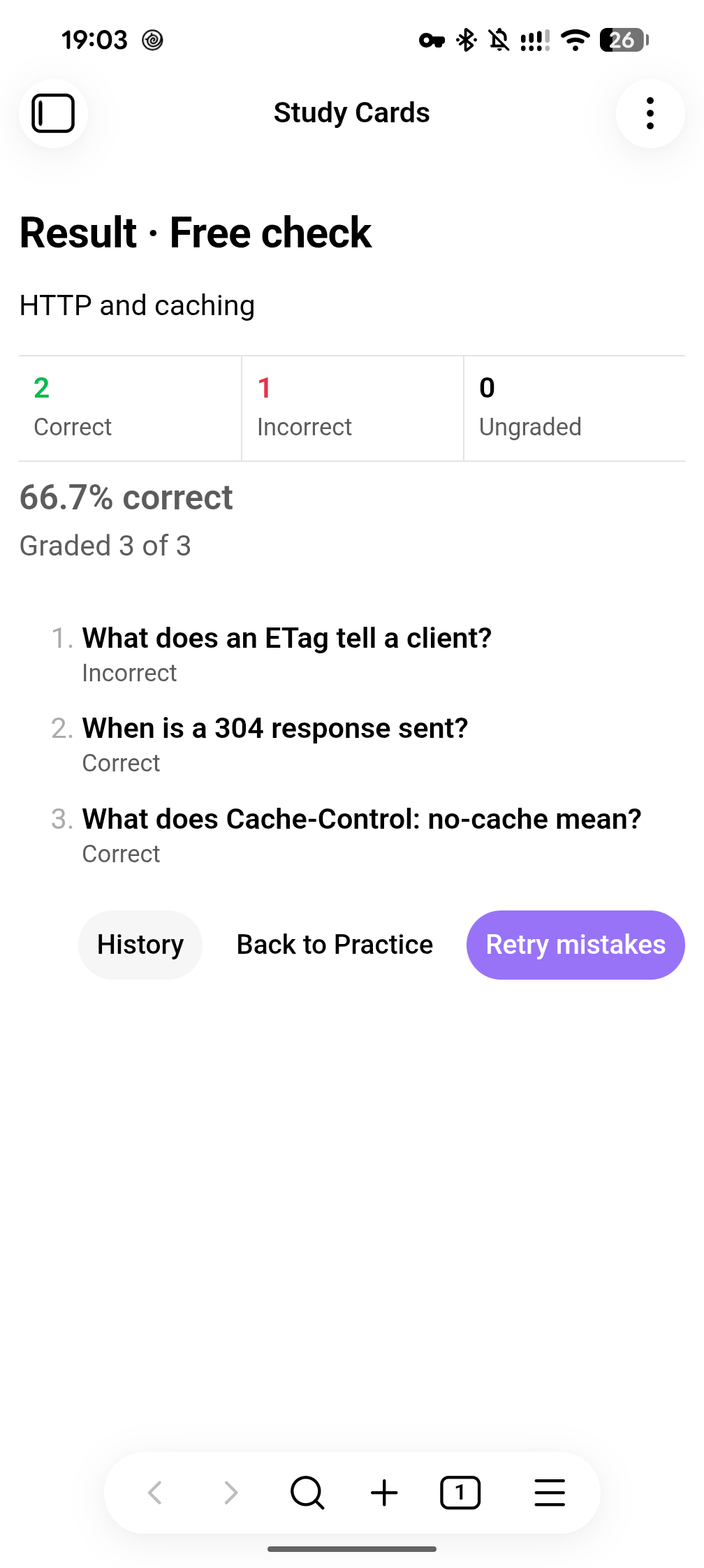
Reveal the reference answer during a free check, then revisit the questions you missed.
| Free check | Results |
|---|---|
 |  |
Installation
For manual installation, download main.js, manifest.json and styles.css from the same GitHub release. To build locally, use the Node.js version in .node-version, run npm ci and npm run build, and take the same three files from the repository root.
Copy all three files into .obsidian/plugins/study-cards/ in your vault. Enable Study Cards in Community plugins, then open it from the ribbon or the command palette.
Choose Connect notes to create a study section from Markdown notes or folders. Open a note’s optional preview to check which headings become cards. Manage sources from Cards, start or resume checks from Practice, and open completed results from History. For an existing note to join an active folder source automatically, set qcards_source: true in its properties.
Platform compatibility
Study Cards requires Obsidian 1.15.1. The 0.1.3 acceptance report records checks on Windows 11, Arch Linux under WSL2 and Android 17 on a Pixel 8 Pro. Study Cards can also be installed on macOS and iOS. Compatibility on those platforms is unverified.
Test vault
After building locally, run npm run test-vault -- "../Study Cards test" to create a vault in a new folder with the working plugin and a collection of 100 questions. Open the folder as a vault and enable Study Cards. See the release guide for testing with files downloaded from a draft and recording acceptance results.
Catalog and free-check prototype (#9)
Run npm ci and npm run prototype -- "path to a new vault". Open that folder as a vault in Obsidian, enable its local Study Cards plugin, and open Study Cards. The vault includes a 100-question collection with a long first answer, an information-entropy question with LaTeX, and a separate note to try connecting.
Switch between the list, table and answer preview in the catalog. Start a free check, reveal the answer with Space, grade with 1 or 2, and move with the arrow keys. Confirm the result to try retrying mistakes. Checks and history are held in memory for the lifetime of the plugin. The same setup command updates the prototype build and preserves the vault's notes and plugin data.
In an existing demo vault, connect Материалы/Энтропия источника.md to try the LaTeX example.
Progress and backups
Study Cards stores shared progress in Study Cards/data.json inside the vault. Enable syncing of Other file types in Obsidian Sync and include the Study Cards folder. The last opened study section and recovery copies are stored on the device. If versions diverge, open the Study Cards tab to choose a version before making further changes.
In Obsidian Settings, open Study Cards and expand Advanced · data and snapshots to export a snapshot or preview and import one. On mobile, the export is saved as a dated JSON file in the vault root. Copy Markdown notes separately. If an imported source is unavailable, use Reconnect in Cards to find its new path. Card progress follows the UUID in the note.
Contributing
Start each change in a dedicated Git worktree and branch. Follow the contribution workflow to open a pull request, review the changes, and verify them before merging into main.
CI runs npm ci, npm run typecheck, npm test and npm run build. See the release guide for tagging, acceptance and publishing.
License
MIT. The working main.js includes the license notices for the dependencies bundled into it.
For plugin developers
Search results and similarity scores are powered by semantic analysis of your plugin's README. If your plugin isn't appearing for searches you'd expect, try updating your README to clearly describe your plugin's purpose, features, and use cases.