by Yann Djoko
Fast class notes: a / menu of study blocks, symbols by name, numbered headings, tables you can grow, a formatting bar.
StudyOS Notes
Fast class notes in Obsidian, made for keeping up with a teacher.

What it does
/menu of study blocks. Type/at the start of a line: Part, Section, Definition, Example, Important, Exam tip, Exercise (numbered), Solution (folded), Theorem, Method, Summary, Self-test, Table, Formula, lists (bulleted, numbered, lettered), Code, Drawing (Excalidraw, if installed), Mind map (canvas), Divider. A few letters filter it:/def,/ex,/tab.- Symbols by name. Type
\sigmafor σ,\infor ∈,\tofor →. About 260 symbols: Greek, arrows, logic, sets, relations, operators, superscripts and subscripts, fractions, units.\alone lists the ones already in the note, then your recent ones, then the likely ones. - As you type:
->becomes →,=>⇒,<=≤,>=≥,!=≠,<->↔.x^2becomes x²,q_0q₀,x^{n+1}xⁿ⁺¹. Ctrl+Z gives back what you typed. - Numbered headings that stay in order:
##+ space starts a part (I.),###a section (1.),####a subsection (1.1). Four styles: I. · 1. · 1.1 · 1.1.1, or 1. · 1.1 · 1.1.1, or I. · 1. · 1.a · 1.a.i, or I. · 1. · a) · i). On in class notes: notes withnumbered: true(ortype: lecture) in their properties, or every note if you choose it in the settings. - Tables you can grow.
/tablepicks the size on a grid. Hover a table for a bar to add or delete rows and columns. - Lettered lists.
a)then Enter givesb). - A formatting bar over a selection: bold, highlight, italic, strike, code, superscript, subscript, math, clear.
- Callouts made for study: definition, theorem, method, exercise, solution, quiz.
Everything is plain Markdown. Turn off any part in the settings.
Screenshots
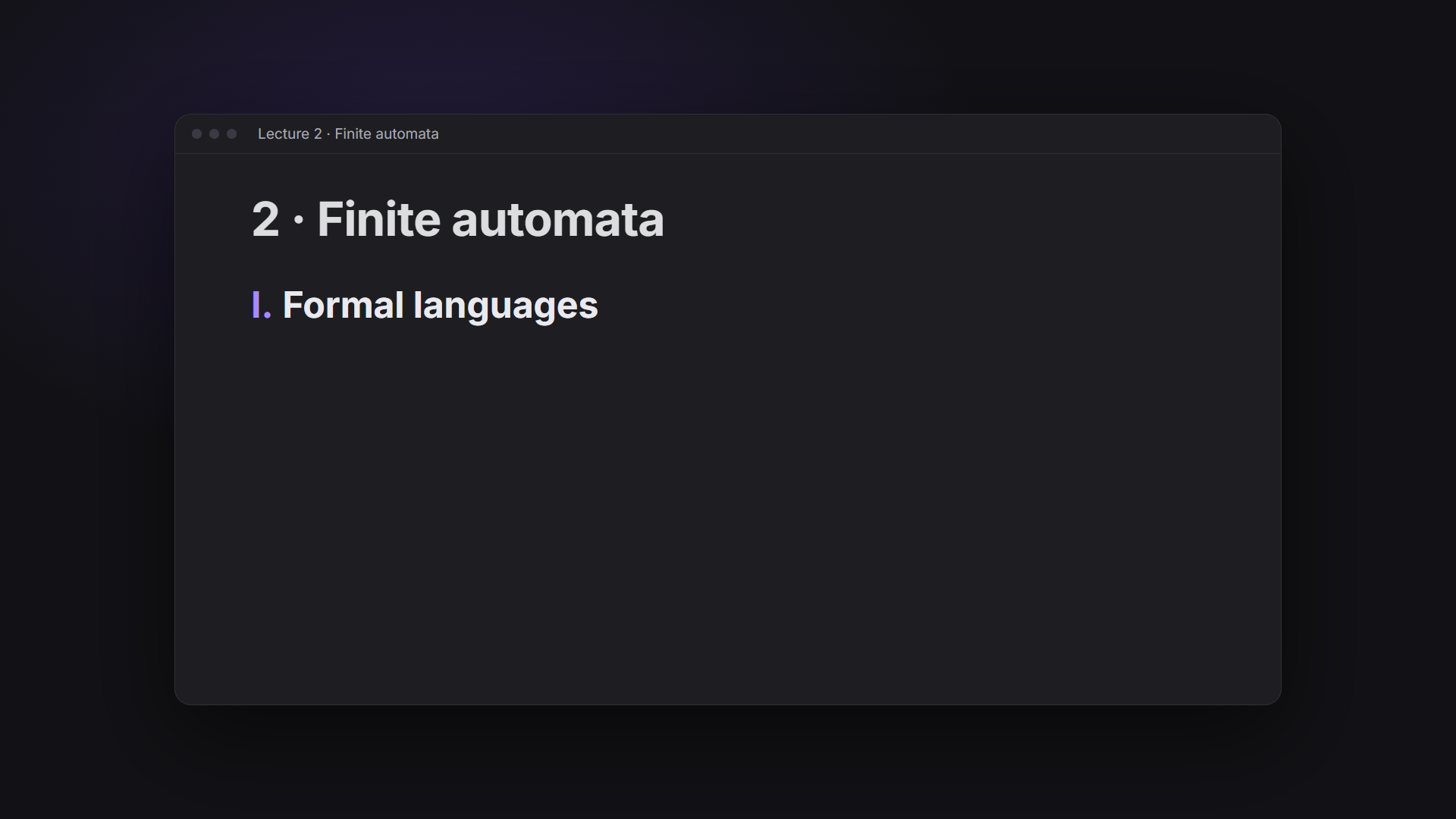 | 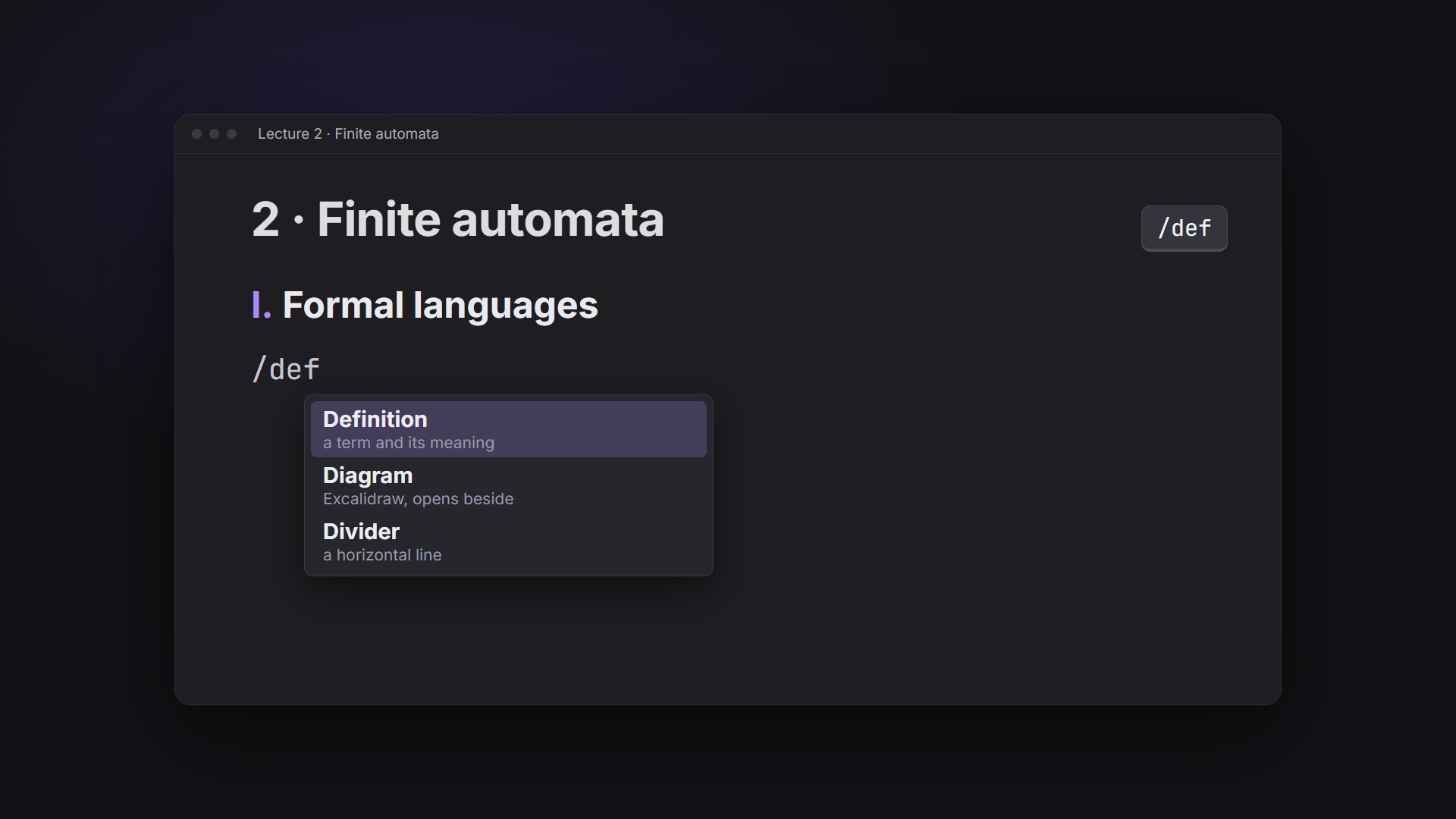 |
## + Space: a numbered part | /def: the blocks menu |
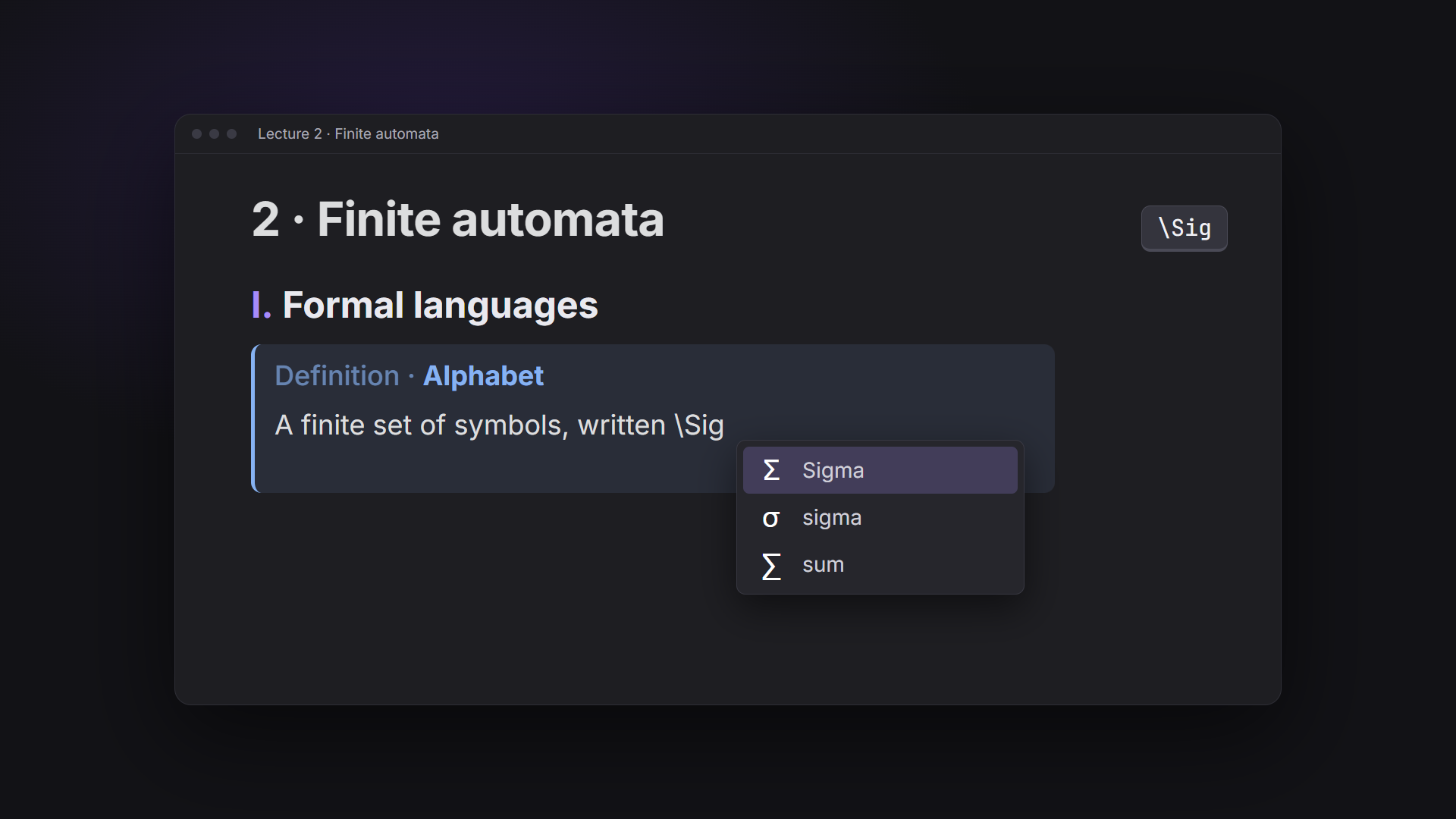 | 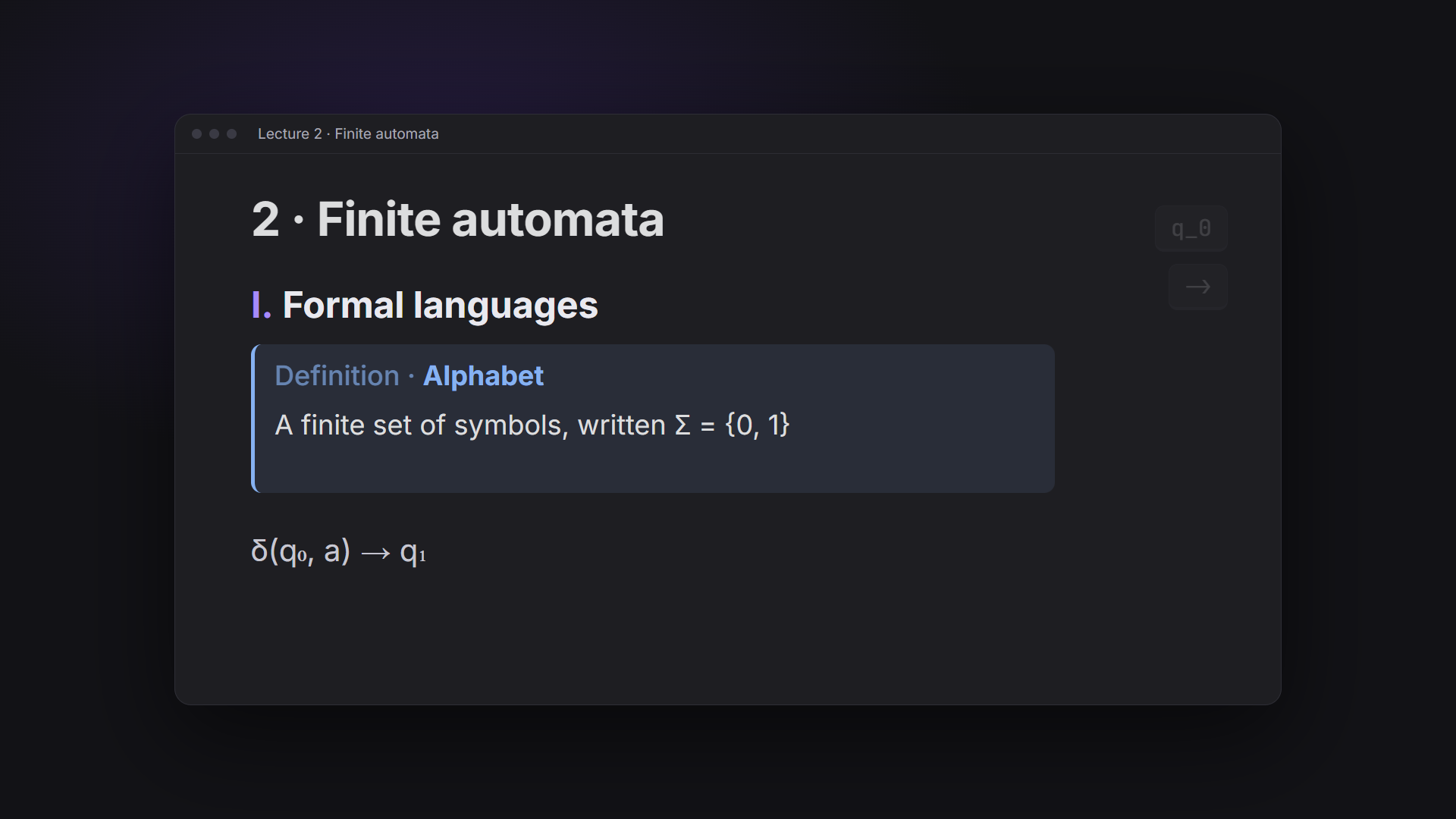 |
\Sig: Σ and its neighbours | A finished note |
Commands
Highlight the selection, insert a table, add a row below, add a column on the right, delete a row or column, renumber headings, insert a block. No default hotkeys: set your own in Settings > Hotkeys.
Install
Settings > Community plugins > Browse > search "StudyOS Notes" > Install > Enable.
StudyOS
StudyOS Notes is the note-taking part of StudyOS, a complete Obsidian vault for students: the lecture of the class going on in one keystroke, photos of the board turned into notes and filed in the right lecture, your timetable, deadlines, marks and reviews, NotebookLM per course, on the computer and the phone. See the StudyOS page for details.
Support
StudyOS Notes is free. If it saves you time in class, you can buy me a coffee: the Support button on this plugin's page in Obsidian (Settings > Community plugins).
License
Source available under the PolyForm Noncommercial License 1.0.0: free for personal, study and other noncommercial use, including changing it for yourself. Selling it, or using it in a paid product, is not allowed without written permission from Y-Labs.
Build
npm run build writes main.js from src/ (no dependencies).
For plugin developers
Search results and similarity scores are powered by semantic analysis of your plugin's README. If your plugin isn't appearing for searches you'd expect, try updating your README to clearly describe your plugin's purpose, features, and use cases.