Cornell Notes Pro
approvedby M-AbdullahTariq
Cornell note-taking plugin for Obsidian. Live Render. No Switching Between Modes. - This plugin has not been manually reviewed by Obsidian staff.
Cornell Notes Pro
Turn any Obsidian note into a Cornell-style study sheet using plain Obsidian callouts — no special syntax to learn. Cues line up in a left margin, your notes sit beside them, and a summary runs across the bottom. It works in both Reading view and Live Preview (editing), and you can stack several Cornell "pages" in one file.
Screenshots
| Reading view | Live Preview | Review mode |
|---|---|---|
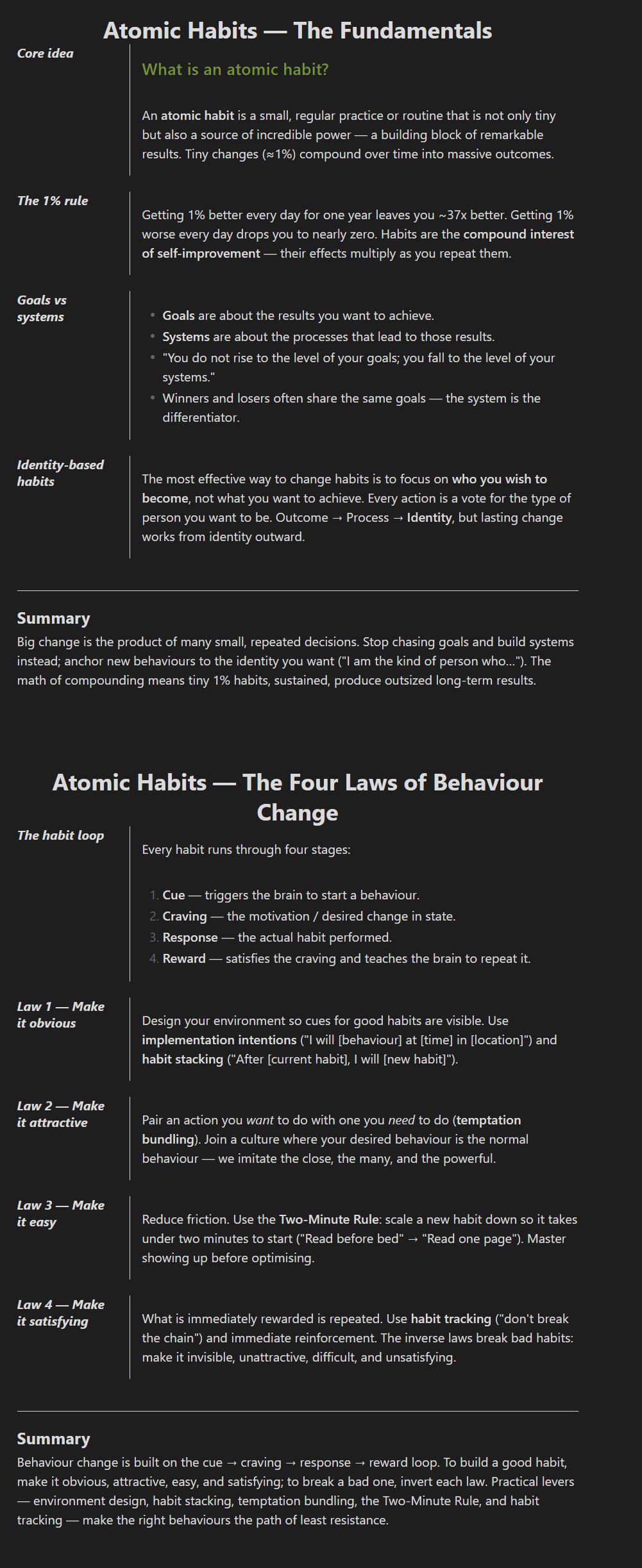 | 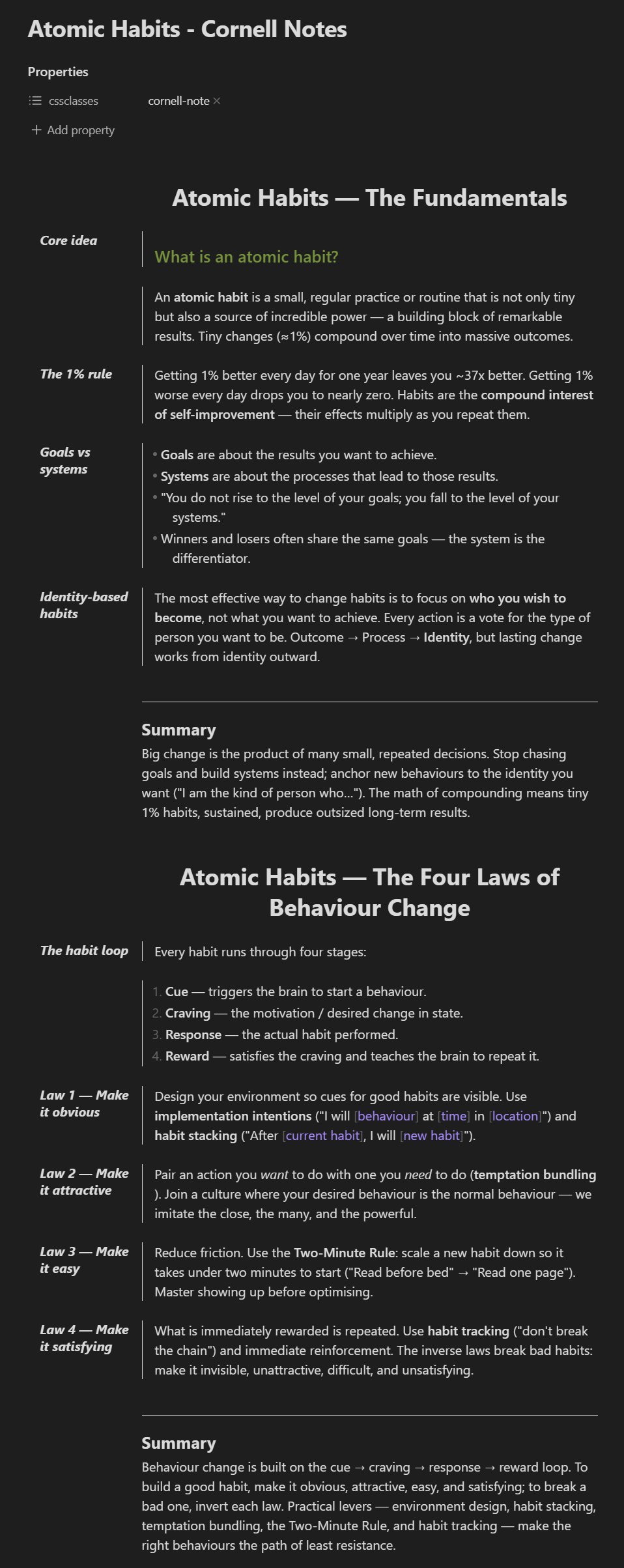 | 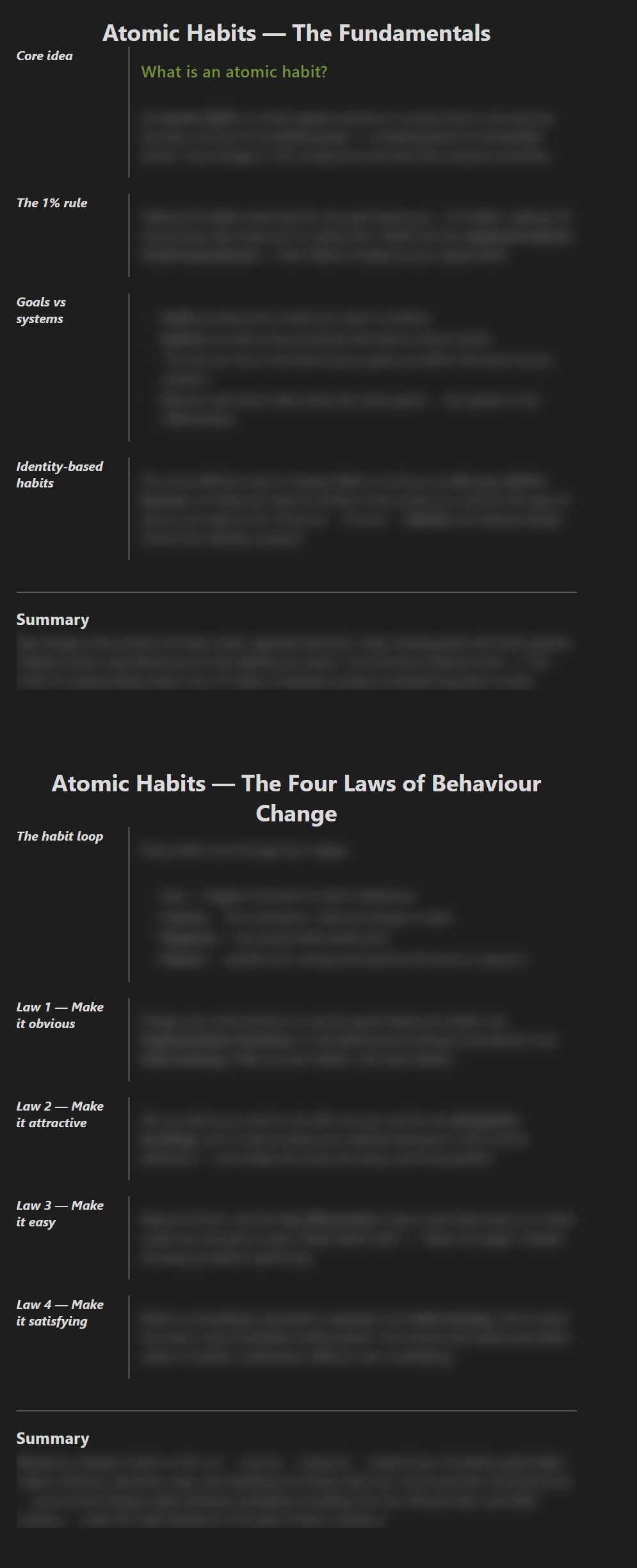 |
Get started in 30 seconds
- Install and enable the plugin (Settings → Community plugins).
- Create a note: open the command palette (
Ctrl/Cmd-P) → Create new note, or click the columns icon in the left ribbon. You get a ready-to-use Cornell note. - Write it like the example below. That's it.
To turn an existing note into a Cornell sheet, add this to the very top:
---
cssclasses:
  - cornell-note
---
Writing a Cornell note
A Cornell note is just three kinds of callout:
> [!title] Photosynthesis

> [!cue] What is it?

Plants convert light into chemical energy stored as sugars.

> [!cue] Where does it happen?

In the chloroplasts, mainly in the leaves.

> [!summary]
> Photosynthesis turns light, water, and CO2 into glucose and oxygen.
- Cue (
> [!cue]) → sits in the left margin, next to the notes it labels. - Notes → anything you write under a cue (text, lists, tables, images, headings) lines up in the notes column.
- Summary (
> [!summary]) → a full-width band across the bottom. - Title (
> [!title]) → a centered page heading. No title? The file name is used automatically.
[!tip] Leave a blank line between a cue and a paragraph beneath it. Otherwise Markdown glues the paragraph into the cue, so the notes show in the narrow margin column instead of the notes column. The plugin flags this with a red border to remind you. Lists and headings don't need the blank line.
Use a normal --- rule to divide sections within a page.
Multiple pages in one file
Each > [!title] starts a new page — its own title, cues, notes, and summary —
running until the next > [!title]. Pages are separated by a gap so they read
as separate sheets. Anything before the first title sits under the file-name
title.
Type callouts faster (optional)
Set a shortcut word for cue / summary / title in settings. Type that word on its own line inside a Cornell note and it expands into the matching callout, with the cursor placed right after. The three words must be different.
Review mode (study with active recall)
Run the Toggle review mode command. Cues (and the page title) stay visible as prompts, while the notes and summary are blurred. Read a cue, recall the answer, then click the cue to reveal its notes (click again to hide). Click the summary to reveal it on its own.
- Works in Reading view.
- It's global — it affects every open Cornell note.
- Reset review reveals re-hides everything so you can start the recall over.
Export to PDF (optional, desktop only)
PDF export is off by default. Turn it on in Settings → Cornell Notes Pro → Optional → Enable PDF export.
Then right-click a note (or a folder of notes) in the file explorer → Export PDF. A modal lets you choose which notes to include, preview them as paper-like sheets, and export either one PDF per note or a single combined PDF. Sheets are A4 on a clean white background, and review-mode blur never carries into the export.
Settings
Open Settings → Community plugins → Cornell Notes Pro. Settings are grouped into two tabs so the everyday options aren't crowded by the extras.
Layout
| Setting | Default | What it does |
|---|---|---|
| Cue column width | 120 px | Width of the left margin column. |
| Divider line color | lightgrey | Color of the cue/notes divider (any CSS color). |
| Divider line thickness | 1 px | Set to 0 to hide the divider. |
Optional
| Setting | Default | What it does |
|---|---|---|
| Enable PDF export | off | Show the right-click "Export PDF" option. |
| Highlight cue on hover (review mode) | off | Draw a box around a cue when you hover it in review mode. |
| Cue / Summary / Title shortcut | empty | A word that auto-expands into the matching callout. The three must differ. |
Changes apply instantly — no reload needed.
Commands
| Command | What it does |
|---|---|
| Create new note | Makes a pre-filled Cornell note in the current folder. |
| Toggle review mode | Turns active-recall study mode on/off (Reading view). |
| Reset review reveals (re-blur all) | Re-hides every revealed region. |
Theming (CSS snippets)
The plugin marks every Cornell block with stable data- attributes, so themes
and CSS snippets can target them without depending on the plugin's internals.
The same vocabulary is used in Reading view, Live Preview, and the PDF export:
| Attribute | Where | Meaning |
|---|---|---|
data-cornell-slot | block wrappers (all views) | The block's role: cue, body, summary, title, heading, or full. |
data-cornell-in-region | heading wrappers | The heading sits inside a cue's notes region (carries the divider). |
data-cornell-notes-end | body/heading wrappers | Last divider-carrying block of its region. |
data-cornell-page-break | title wrappers | Every page title except the document's first. |
data-cornell-cue-group | block wrappers (Reading view) | Review-mode reveal key shared by a cue and its region. |
data-cornell-review-blur | block wrappers (Reading view) | Blurs in review mode until revealed. |
data-cornell-revealed | block wrappers (Reading view) | Currently revealed in review mode. |
data-cornell-line | editor lines (Live Preview) | The line's role: cue, body, summary, title, heading, or gap. |
data-cornell-summary-start | editor lines (Live Preview) | A summary's first source line. |
data-cornell-over-limit | editor lines (Live Preview) | An over-length title line. |
data-cornell-invalid | embed blocks (Live Preview) | The widget contains an invalid cue. |
These names are a public surface — they won't change without a major version bump.
Building from source
npm install
npm run build
This produces main.js.
Acknowledgements
The PDF export's render-and-capture approach — rendering the note into an
isolated Electron <webview> and writing the page with printToPDF — was
adapted from obsidian-better-export-pdf
by l1xnan, used under the MIT License:
MIT License

Copyright (c) 2023 l1xnan

Permission is hereby granted, free of charge, to any person obtaining a copy
of this software and associated documentation files (the "Software"), to deal
in the Software without restriction, including without limitation the rights
to use, copy, modify, merge, publish, distribute, sublicense, and/or sell
copies of the Software, and to permit persons to whom the Software is
furnished to do so, subject to the following conditions:

The above copyright notice and this permission notice shall be included in all
copies or substantial portions of the Software.

THE SOFTWARE IS PROVIDED "AS IS", WITHOUT WARRANTY OF ANY KIND, EXPRESS OR
IMPLIED, INCLUDING BUT NOT LIMITED TO THE WARRANTIES OF MERCHANTABILITY,
FITNESS FOR A PARTICULAR PURPOSE AND NONINFRINGEMENT. IN NO EVENT SHALL THE
AUTHORS OR COPYRIGHT HOLDERS BE LIABLE FOR ANY CLAIM, DAMAGES OR OTHER
LIABILITY, WHETHER IN AN ACTION OF CONTRACT, TORT OR OTHERWISE, ARISING FROM,
OUT OF OR IN CONNECTION WITH THE SOFTWARE OR THE USE OR OTHER DEALINGS IN THE
SOFTWARE.
License
Licensed under the GNU General Public License v3.0.
For plugin developers
Search results and similarity scores are powered by semantic analysis of your plugin's README. If your plugin isn't appearing for searches you'd expect, try updating your README to clearly describe your plugin's purpose, features, and use cases.