Style Obmd
approvedby penyt
Add customizable colors to highlights and bold text, with commands to convert styled Markdown to inline HTML. - This plugin has not been manually reviewed by Obsidian staff.
Style Obmd for Obsidian
A simple Obsidian plugin that adds customizable colors to highlights and bold text, with commands to convert the styled Markdown into portable inline HTML.
Simply add a {key} to Obsidian’s built-in Markdown highlight or bold syntax. Even if you uninstall the plugin, the text will remain highlighted or bold using standard Obsidian Markdown syntax.
The conversion commands make it easy to preserve these styles when you need to publish notes as webpages.
Demo:
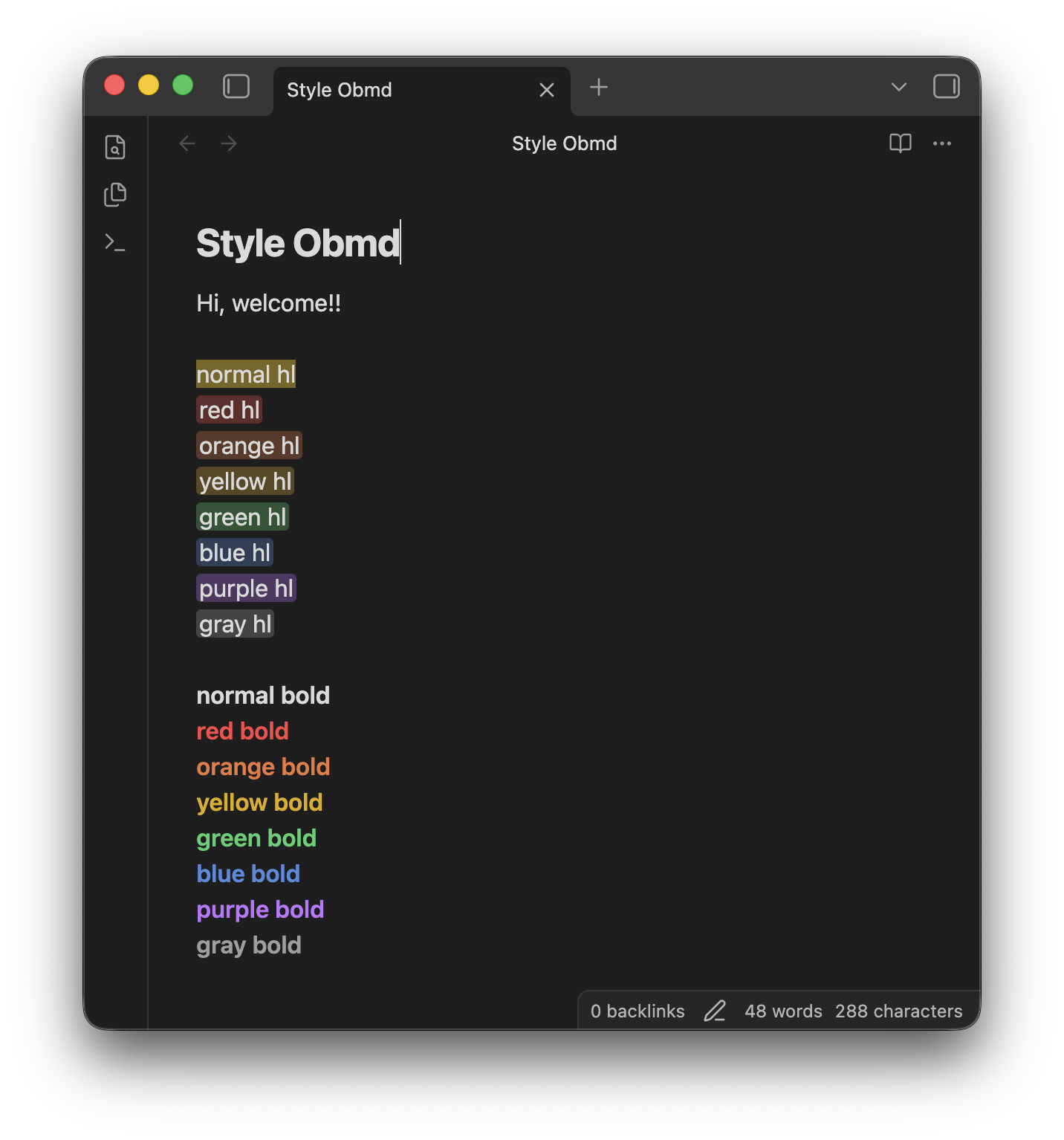 (Example visualization)
Features
- Colored Highlights: Add a color key inside standard highlight syntax, such as
=={r}red highlight==. - Colored Bold Text: Add a color key inside standard bold syntax, such as
**{b}blue text**. - Live Preview and Reading View: See the colors while editing and reading your notes.
- Settings:
- Decoration (optional): Add horizontal padding and rounded corners to highlights. (My preference 😀)
- Customizable Colors: Choose the red, orange, yellow, green, blue, purple, and gray colors in the plugin settings.
- Commands:
- HTML Conversion: Convert Style Obmd markers in the current note or across the entire vault to HTML tags with inline styles.
Usage
Use one of the supported color keys inside braces:
| Color | Key | Highlight example | Bold example |
|---|---|---|---|
| Red | {r} | =={r}red highlight== | **{r}red text** |
| Orange | {o} | =={o}orange highlight== | **{o}orange text** |
| Yellow | {y} | =={y}yellow highlight== | **{y}yellow text** |
| Green | {g} | =={g}green highlight== | **{g}green text** |
| Blue | {b} | =={b}blue highlight== | **{b}blue text** |
| Purple | {p} | =={p}purple highlight== | **{p}purple text** |
| Gray | {gray} | =={gray}gray highlight== | **{gray}gray text** |
Settings
You can customize the following options in Settings → Style Obmd:
| Setting | Description | Default |
|---|---|---|
| Highlight decoration | Add horizontal padding and rounded corners to highlights and exported HTML. (My preference 😀) | On |
| Red | Color used by the {r} marker. | #fb4646 |
| Orange | Color used by the {o} marker. | #e9783f |
| Yellow | Color used by the {y} marker. | #e0ac00 |
| Green | Color used by the {g} marker. | #44cf6e |
| Blue | Color used by the {b} marker. | #5389df |
| Purple | Color used by the {p} marker. | #be75ff |
| Gray | Color used by the {gray} marker. | #9e9e9e |
| Reset colors | Restore all marker colors to their default values. | — |
Each selected color is used at full opacity for bold text and at 30% opacity for highlight backgrounds.
Commands
Open the command palette and run one of the following commands:
| Command | Description |
|---|---|
| Style Obmd: Convert current note styles to HTML | Convert all Style Obmd markers in the active note to inline HTML. |
| Style Obmd: Convert all vault styles to HTML | Convert Style Obmd markers in every Markdown file in the vault. |
The conversion commands skip fenced code blocks and inline code.
⚠️ The vault-wide command (Style Obmd: Convert all vault styles to HTML) modifies multiple files and CANNOT be undone from a single editor history. Back up or commit your vault before running it.
Installation
From Community Plugins
(Once the plugin is approved)
- Open Settings → Community plugins.
- Turn off Restricted mode.
- Select Browse and search for
Style Obmd. - Select Install, then select Enable.
Manual Installation
- Go to the Releases page.
- Download
main.js,manifest.json, andstyles.cssfrom the latest release. - Create a folder named
style-obmdin your vault's plugin folder:<Vault>/.obsidian/plugins/style-obmd. - Move the downloaded files into that folder.
- Reload Obsidian and enable the plugin in Settings → Community plugins.
License
Donate
If you find this plugin helpful, please give me a GitHub star ⭐️ or buy me a coffee ☕️!

For plugin developers
Search results and similarity scores are powered by semantic analysis of your plugin's README. If your plugin isn't appearing for searches you'd expect, try updating your README to clearly describe your plugin's purpose, features, and use cases.