by Ashly Lorenzana
Assign Unicode symbols and emoji to keys and insert them directly into your notes.
Symbol Keyboard for Obsidian
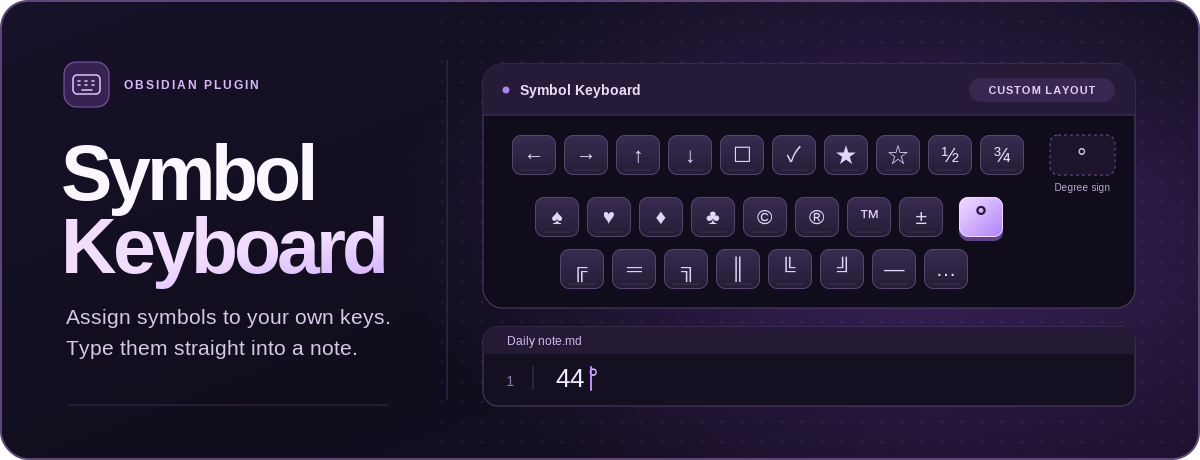
Assign Unicode symbols and emoji to your own keyboard and insert them directly into a Markdown note.
Install on desktop
- Extract this ZIP.
- Copy the extracted
symbol-keyboardfolder into.obsidian/plugins/inside your vault. Create thepluginsfolder if necessary. Use your vault’s configured Obsidian folder if you renamed it. - Restart Obsidian. In Settings → Community plugins, enable community plugins if needed, then turn on Symbol Keyboard.
- Click the keyboard icon in the left ribbon or run Symbol Keyboard: Open keyboard from the Command Palette.
Use
Open a note in Live Preview or Source mode. In the right sidebar, click Edit keys, choose a specific key, then select a symbol or paste a custom one. Select another key to keep building your layout. Select an occupied key to replace or clear it.
Click Done, click in your note, then click a symbol key. It inserts at the cursor or replaces selected text. The sidebar stays open while you type. Assignments are saved per vault. Your Chrome extension has its own separate layout.
Build from source
The symbol-keyboard folder is ready to install. The editable sources are in source. To rebuild, run the following from the extracted directory with Node.js installed:
npx --yes esbuild@0.28.2 source/main.js --bundle --format=cjs --platform=node --target=es2020 --external:obsidian --outfile=symbol-keyboard/main.js
For plugin developers
Search results and similarity scores are powered by semantic analysis of your plugin's README. If your plugin isn't appearing for searches you'd expect, try updating your README to clearly describe your plugin's purpose, features, and use cases.