by theluckystrike
Copy links to marked data rows in Markdown tables and open notes at those rows.
Table Row Links
Table Row Links lets you copy a link to a data row in a Markdown table. It puts a small anchor comment in the first cell, then copies a Markdown link. Open that link to open the note with the cursor on the marked row.
Use it for an order, a project task or a review item that needs a precise reference. The free commands work without an account. Pro adds a search across vault notes, reading-view row links and anchor cleanup.
Features
Copy a row link
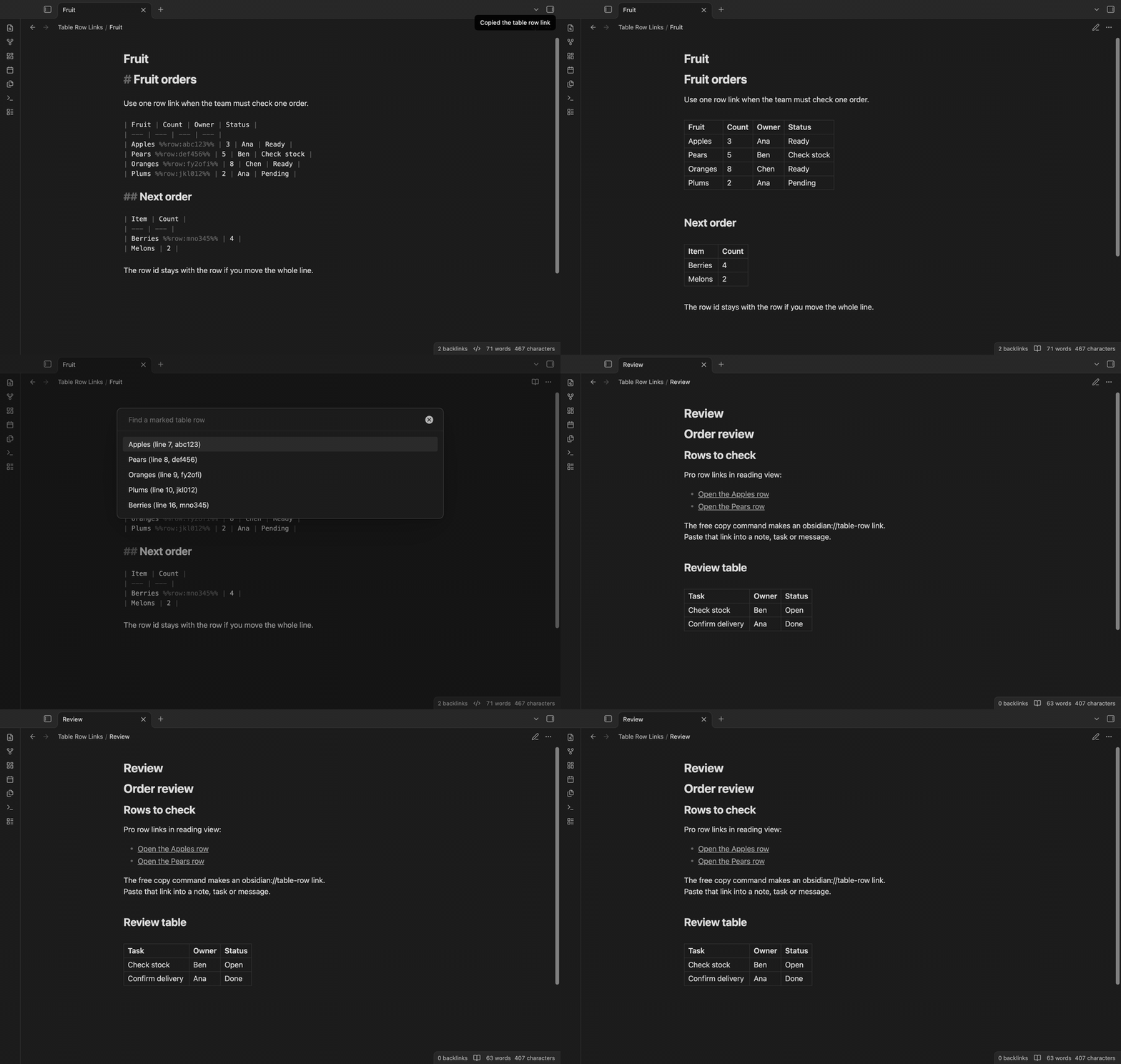
Put the cursor in a data row and run "Copy link to this table row". A row such as | Apples | 3 | becomes | Apples %%row:abc123%% | 3 |. The id has six lowercase letters or digits. Copy from that row again to reuse the id. The command changes the row in the editor, so the edit is part of the note's undo history.
The link label comes from the first cell, with a limit of 40 characters. An empty first cell gets a label such as "Row 2". That number starts at 1 in each table. The editor context menu also has the copy action when the cursor is on a data row.
Open the marked row
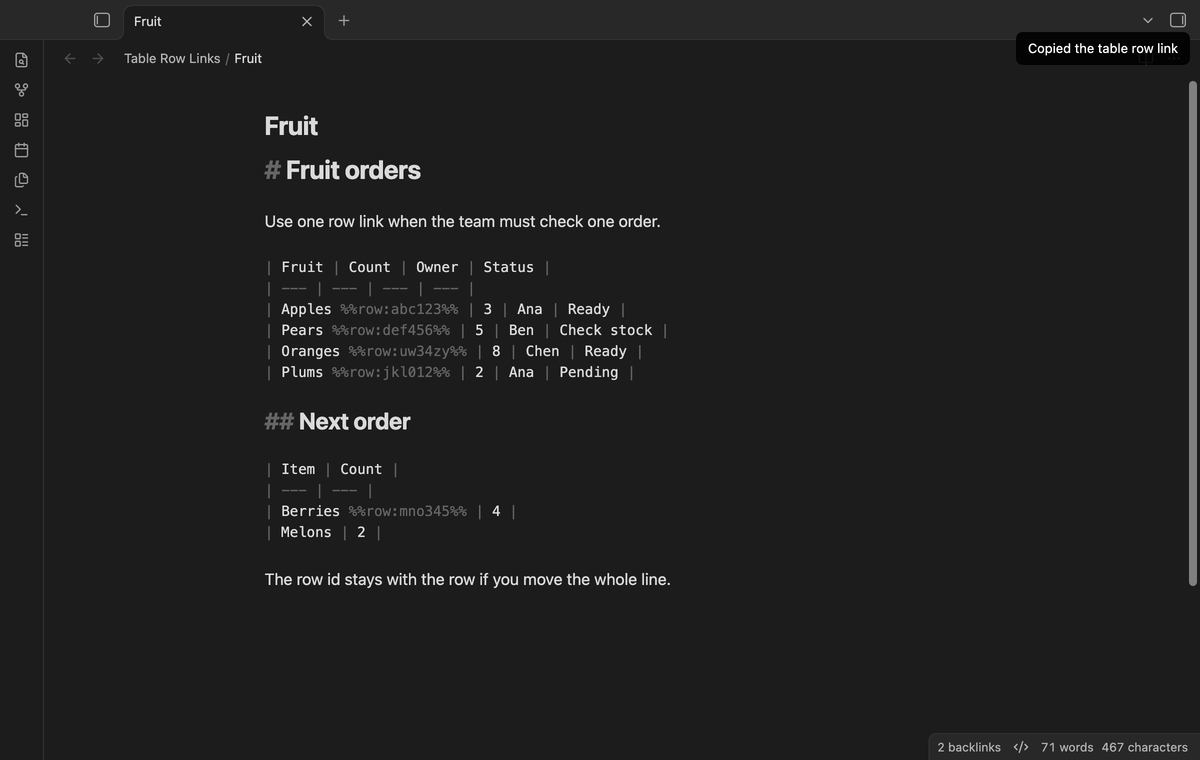
The copied link uses obsidian://table-row, with the vault name, file path and row id. The plugin opens the note in Source mode, places the cursor on the row and scrolls to it. Paths with spaces and a hash character are encoded in the link. Reading view hides the anchor comments and shows the cell values.
If the row id is missing, the note opens at the top and a notice gives the missing id and path. If the file is missing, a notice gives the path. A link names one vault; it needs the same vault name and file path on the device that opens it.
Jump inside the current note
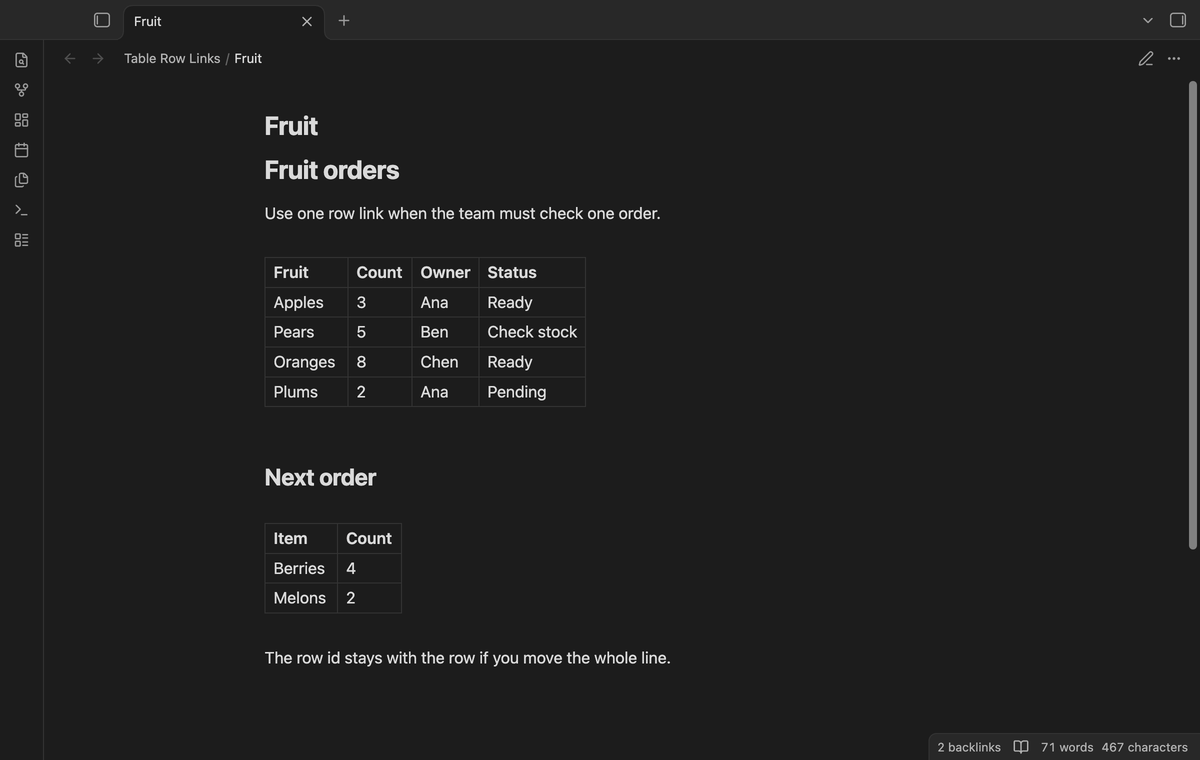
Run "Jump to table row..." in the editor to see the marked rows of the current note. Type part of a label or id to filter the list. Each item shows its label, line number and id. Select a result to move the cursor to that row. Rows without a marker do not appear until you copy a link from them.
Search the vault (Pro)
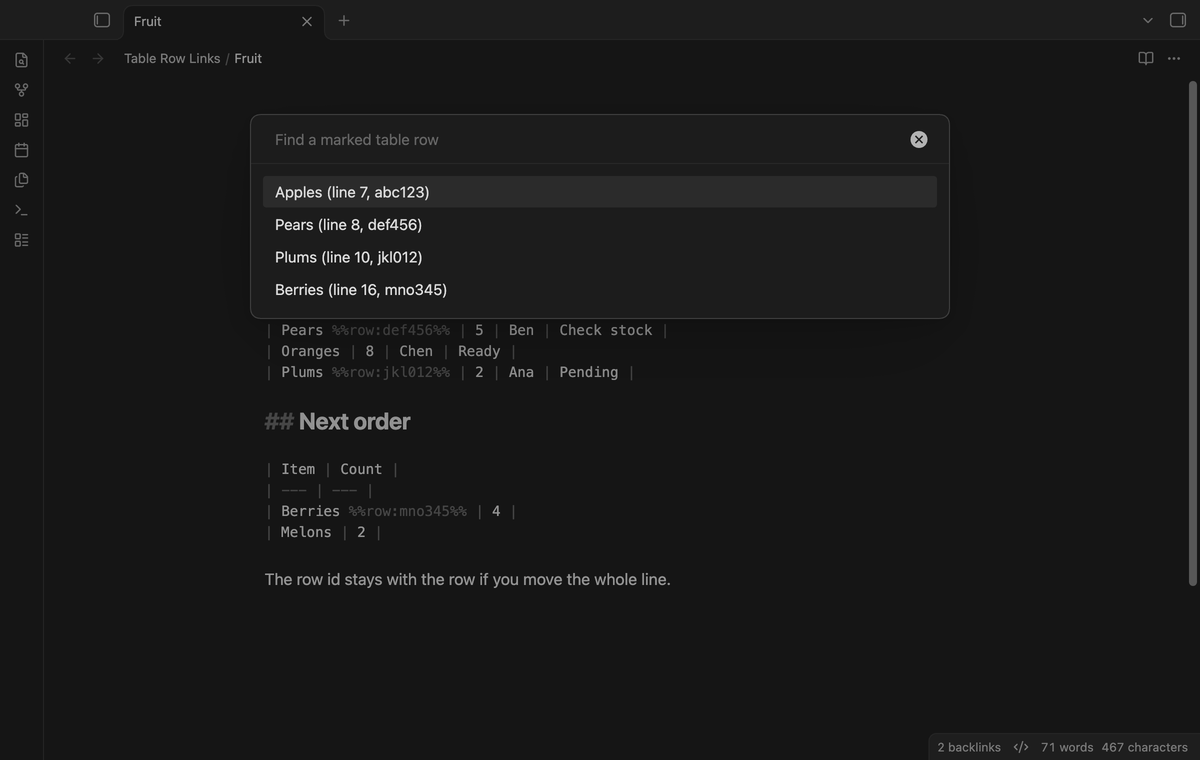
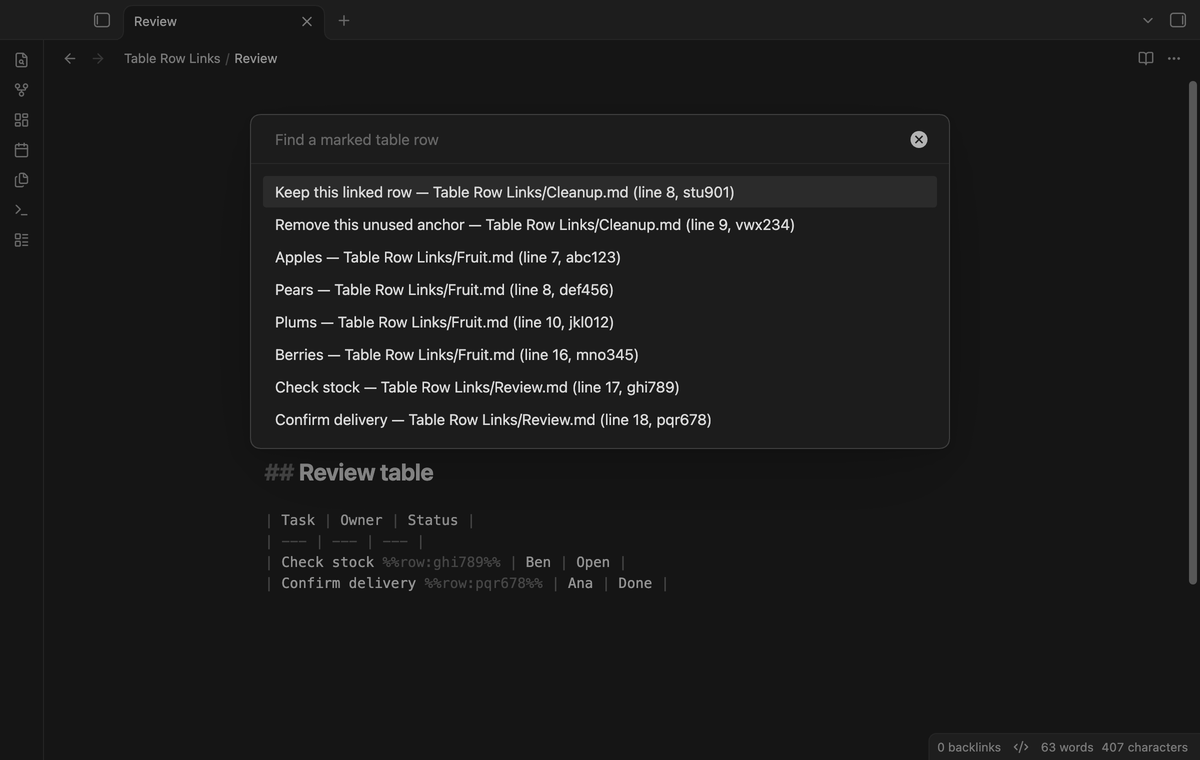
Run "Jump to table row in vault (pro)" to read Markdown notes in the current vault and list their marked rows. A result includes the file path, so you can tell similar labels apart. Select a result to open its note at that row. The list is built when you run the command. Run it again after you change markers in another note.
Reading-view row links (Pro)
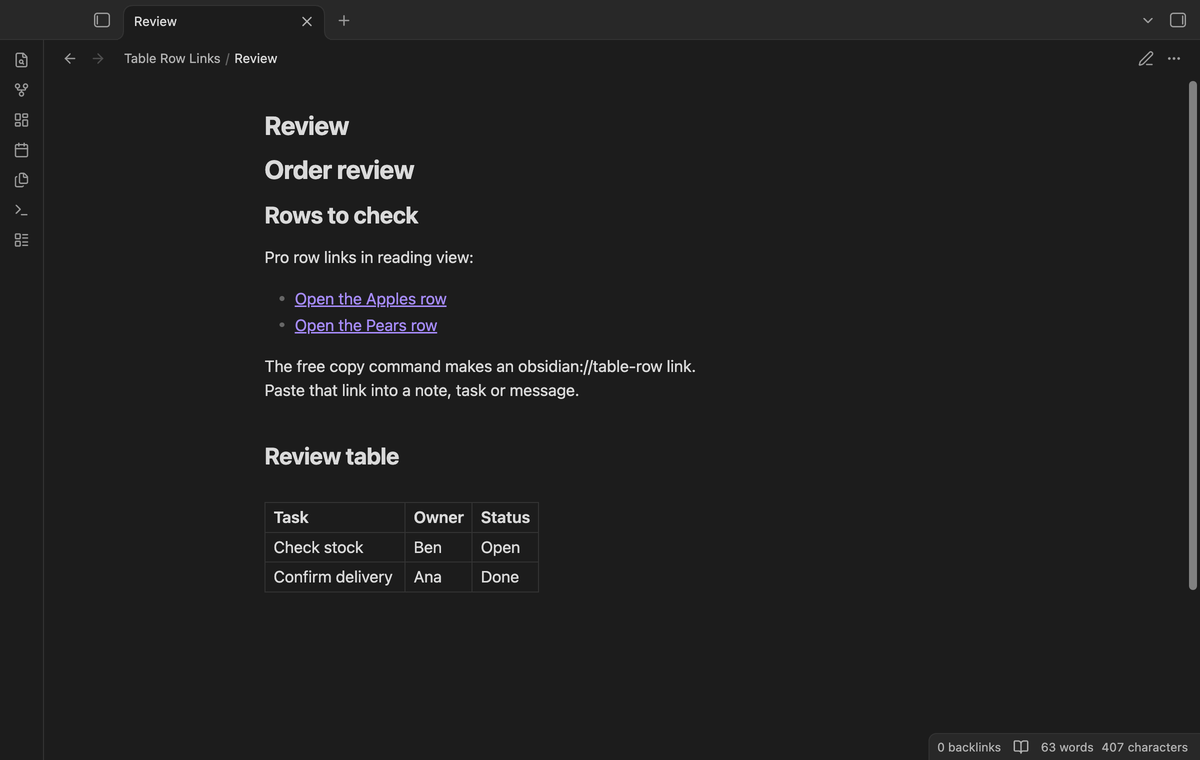
In reading view, Pro handles a link such as [[Fruit#^abc123|Open Apples]] when abc123 is a marker in the target table's first cell. Click it to open that row in editing mode. Ctrl-click, or Cmd-click on macOS, opens a new tab. A link to a normal block uses Obsidian's normal handler.
This feature is a navigation aid. It does not create native block ids for table rows. Row hover previews and row embeds are outside this version's scope. The free copy command makes a URI link; it does not make a wikilink.
Remove unused anchors (Pro)
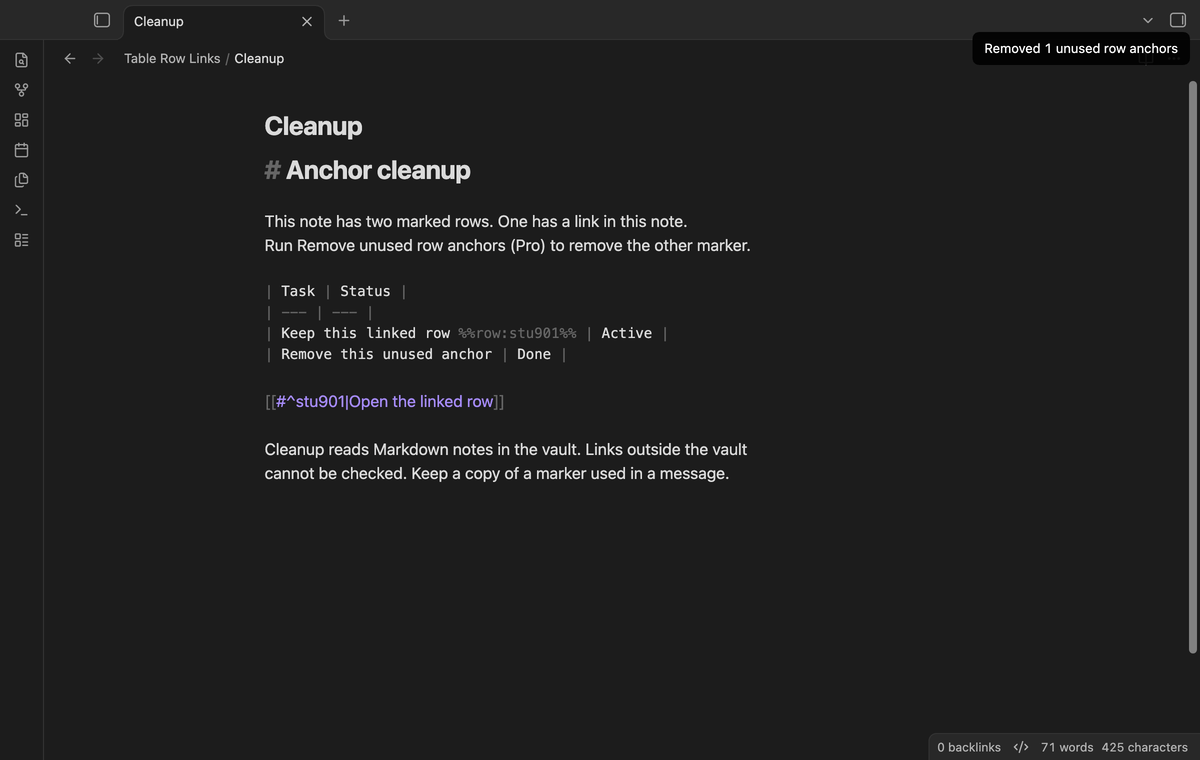
Run "Remove unused row anchors (pro)" in the editor. The plugin scans Markdown notes in the vault for row URI links, row-style wikilinks and Markdown links to the current note. A wikilink in a table cell with an escaped alias pipe also counts. It removes first-cell markers that have no such reference. It leaves the cell text in place and reports the number removed. Use Undo to restore an edit.
Links in email, messages, another vault or non-Markdown files are outside the scan. A copied link that you have not pasted into a vault note does not protect its anchor. Keep those markers if you need the external links. Cleanup stops if the current editor text changes during the scan.
Install
Table Row Links needs Obsidian 1.13.4 or later. When it is listed in the community directory, open Settings, Community plugins, Browse, and search for "Table Row Links". Select Install and Enable.
To install a release by hand, put main.js, manifest.json and styles.css in <vault>/.obsidian/plugins/table-row-links/. Reload the community plugin list and enable Table Row Links. Install it in the vault where you want to open row links.
Usage
- Open a Markdown note in editing mode. Use Source mode if the table editor does not place the cursor on the line you want.
- Put the cursor on a data row, below the table header and separator.
- Run the copy command from the command palette or editor context menu.
- Paste the link into a note, task or message. Keep the anchor in the target row.
The parser supports tables with leading and trailing pipes, including single-cell rows and escaped pipes. It skips fenced code and indented code. Tables without outer pipes, HTML tables and generated tables are outside this parser's scope.
Settings
"Editor context menu item" is on by default. Turn it off to hide the menu action; the commands remain available. Obsidian's Hotkeys settings lets you assign keys to the commands. The plugin sets no default hotkey.
The Pro section has the sponsor link, sign-in action, status, Refresh and Sign out. The screenshots use a local test sponsorship response, without a payment or a live GitHub request.
FAQ
Does the link survive a moved row?
The plugin finds the marker, rather than a saved line number. Move the whole row with its comment to keep that reference. Renaming the note or vault does not rewrite copied URI links. Update the path or copy a new link after a rename. If two rows have the same id, the first matching data row is the target.
What was not tested?
The app tests run on macOS with the earliest supported and latest public desktop versions. Mobile devices, Windows, Linux, external application URI launch, Sync conflicts, large vault performance, third-party themes and live GitHub payment/sign-in were not tested. The app test stubs the clipboard boundary and the sponsorship response. The source uses no Node or Electron API, but this is not a mobile test result.
Payment, account and network
The core features are free. Pro features need a GitHub Sponsors sponsorship of theluckystrike: $5 a month or more, or $15 once. A total payment of $15 meets the payment requirement for Pro without further payment. Sign-in and the checks below still apply. Your notes stay readable and editable with or without Pro.
GitHub handles the payment. Sponsor at https://github.com/sponsors/theluckystrike. You need no account for the free features. Pro needs the GitHub account that sponsors.
Until you select "Sign in with GitHub" in the settings, Table Row Links makes no network requests. Sign in uses the GitHub device flow. Table Row Links sends its public client ID and the scope read:user to https://github.com/login/device/code and shows you a code. While you enter the code at https://github.com/login/device, it asks https://github.com/login/oauth/access_token every few seconds to check the sign-in status. The scope permits profile reads only. GitHub needs this access to show the sponsorship tier. It grants no repository scope and no write access.
After sign in, Table Row Links sends one query to https://api.github.com/graphql. It checks if the signed-in account sponsors theluckystrike. It asks for the tier and the total payment to theluckystrike. The plugin reuses a successful check for 7 days. Failed checks can retry after 6 hours. Select Refresh to request an earlier check. It sends no note content, file names or other vault data, and it has no telemetry.
After a successful check, Pro can work offline for up to 14 days. Sign out or a negative sponsorship answer turns Pro off. The plugin stores the GitHub token through the secret storage API of Obsidian. It does not put the token in its saved settings or its local sponsorship data. The local storage of this device keeps your GitHub login, the tier and the time of the last check. Sign out clears the token. You can also revoke the access in your GitHub settings, under Applications.
Support
Report a bug in this repository's issue tracker. Include the Obsidian version, editing or reading mode, and a small table that shows the problem. Remove private note text before you share it. The plugin uses the MIT license.
For plugin developers
Search results and similarity scores are powered by semantic analysis of your plugin's README. If your plugin isn't appearing for searches you'd expect, try updating your README to clearly describe your plugin's purpose, features, and use cases.