by yujia
Add row numbers beside any Markdown table, give it an editable caption and footnote stored in the note, and copy it as an image or Markdown.
Table Tools
Markdown tables in Obsidian have no row numbers, nowhere to put a caption, and no way to hand one to somebody else without reformatting it by hand. Table Tools adds all three, without touching the table's Markdown.
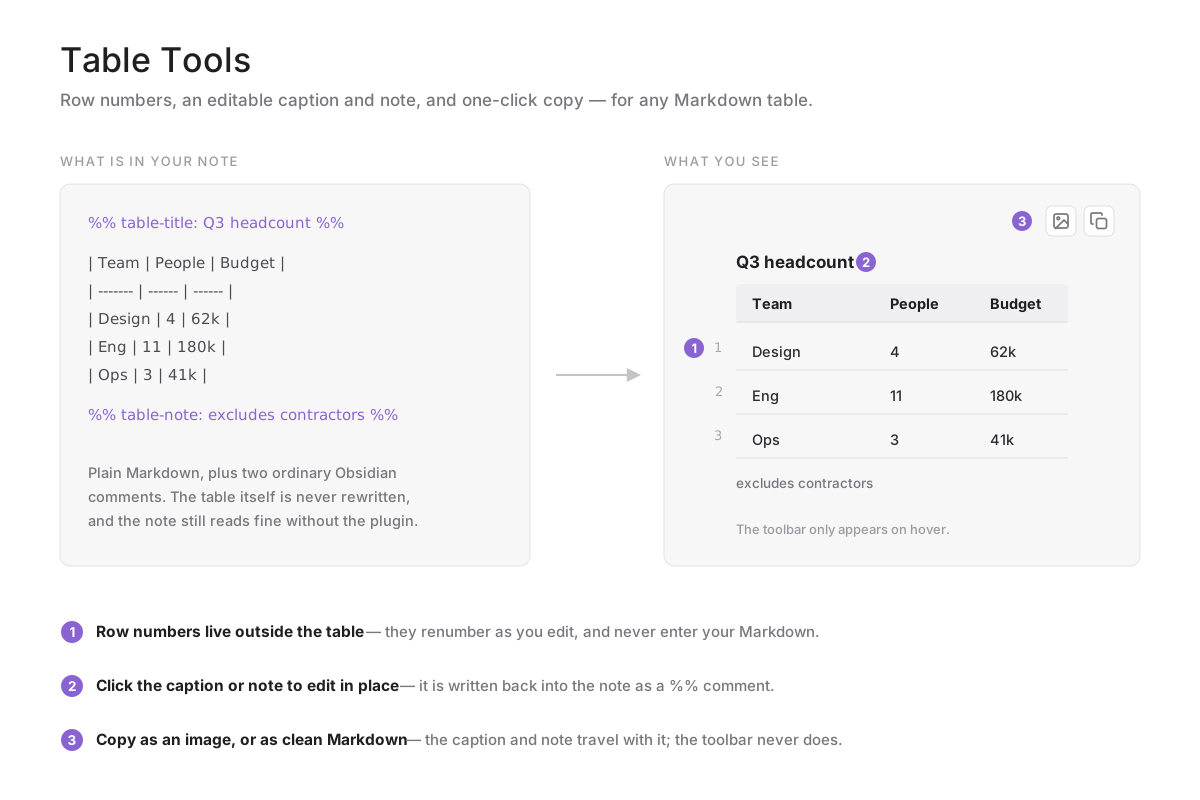
What it does
Row numbers in the gutter. Every body row is numbered in the margin beside the table. The numbers are drawn outside it, so they renumber themselves as you add and delete rows and never end up in your Markdown.
A caption above and a note below. Click either one to type; press Enter to save
or Escape to discard. Both are stored in the note itself, as ordinary Obsidian
comments:
%% table-title: Q3 headcount %%

| Team    | People | Budget |
| ------- | ------ | ------ |
| Design  | 4      | 62k    |

%% table-note: excludes contractors %%
The comment lines are hidden in Reading view and in Live Preview, and reappear in source mode or when your cursor is on them. Because they are plain comments, the note stays readable — and the table stays valid Markdown — with the plugin disabled or uninstalled.
Copy the table out. Hovering a table reveals two buttons in its top-right corner:
- Copy as image renders the table, caption and note to a PNG on your clipboard, using your current theme. The toolbar and any empty placeholders are left out of the shot. If the clipboard is unavailable the PNG is saved into your vault instead.
- Copy as Markdown puts a clean Markdown table on the clipboard, with the caption as a bold line above it and the note in italics below.
There is also a Process tables on this page command, for the rare table that a plugin or an embed renders after the page has settled.
Installing
From Obsidian: Settings → Community plugins → Browse, search for Table Tools, then Install and Enable.
Manually: download main.js, manifest.json and styles.css from the
latest release
into <your vault>/.obsidian/plugins/table-tools/, then enable the plugin in
Settings.
Notes
- The interface follows Obsidian's own language setting: Chinese when Obsidian is in Chinese, English otherwise.
- Editing a caption or note rewrites that one comment line in the note. The table's own rows are never rewritten.
- If a table cannot be matched back to a line in the note — which can happen inside an embed or a rendered code block — the caption and note are read-only there, and a notice says so rather than writing to the wrong place.
Building it yourself
npm install
npm run build     # bundles src/ into main.js
Releases are built by GitHub Actions from a version tag and published with build
provenance, so the main.js in a release can be verified against this source.
License
For plugin developers
Search results and similarity scores are powered by semantic analysis of your plugin's README. If your plugin isn't appearing for searches you'd expect, try updating your README to clearly describe your plugin's purpose, features, and use cases.