by hugommartins
A knowledge management utility that allows the assignment of custom definitions to tags.
Tag Descriptions
An Obsidian plugin that lets you assign custom definitions to your tags and see them as tooltips wherever the tag appears.




Features
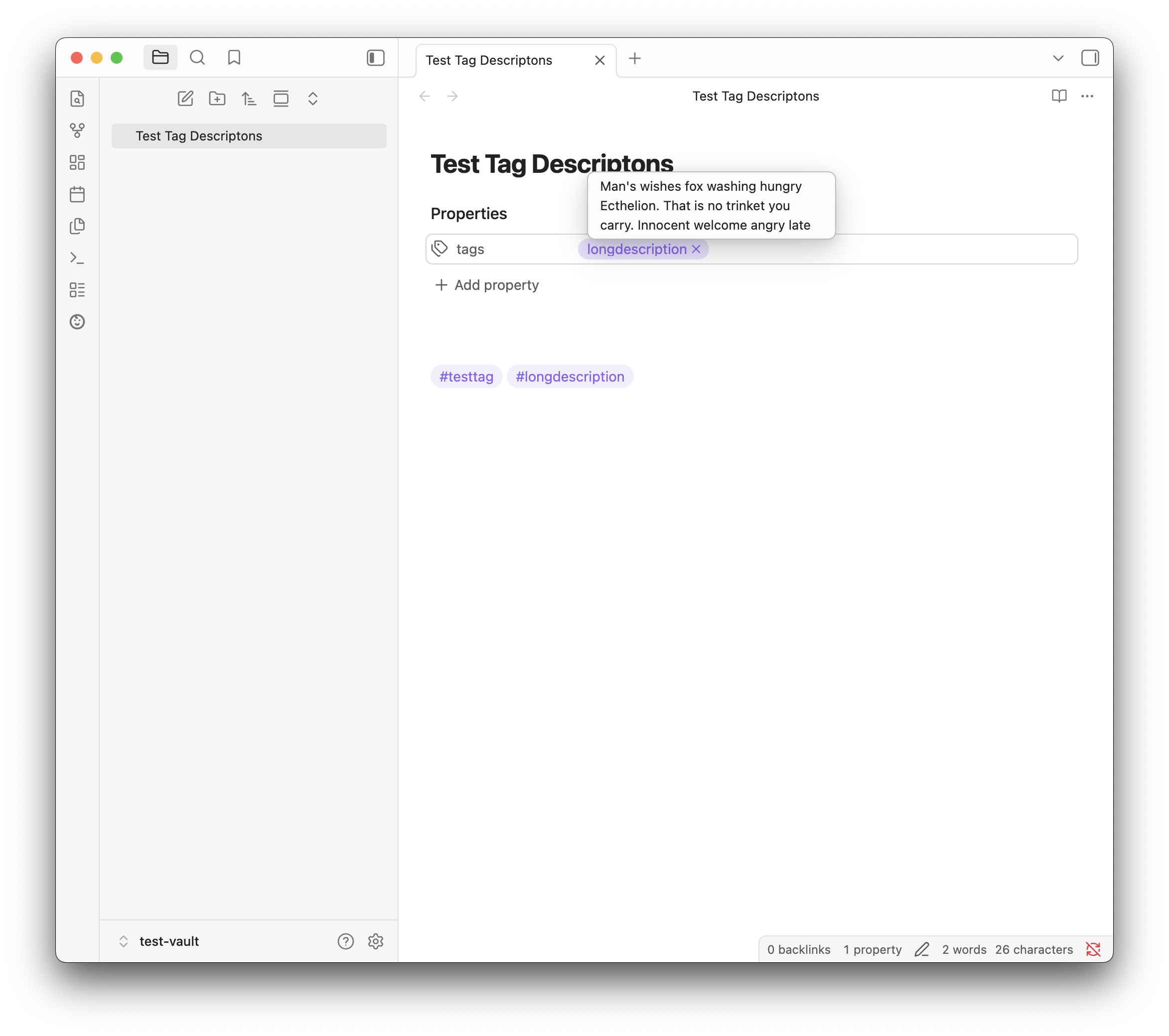
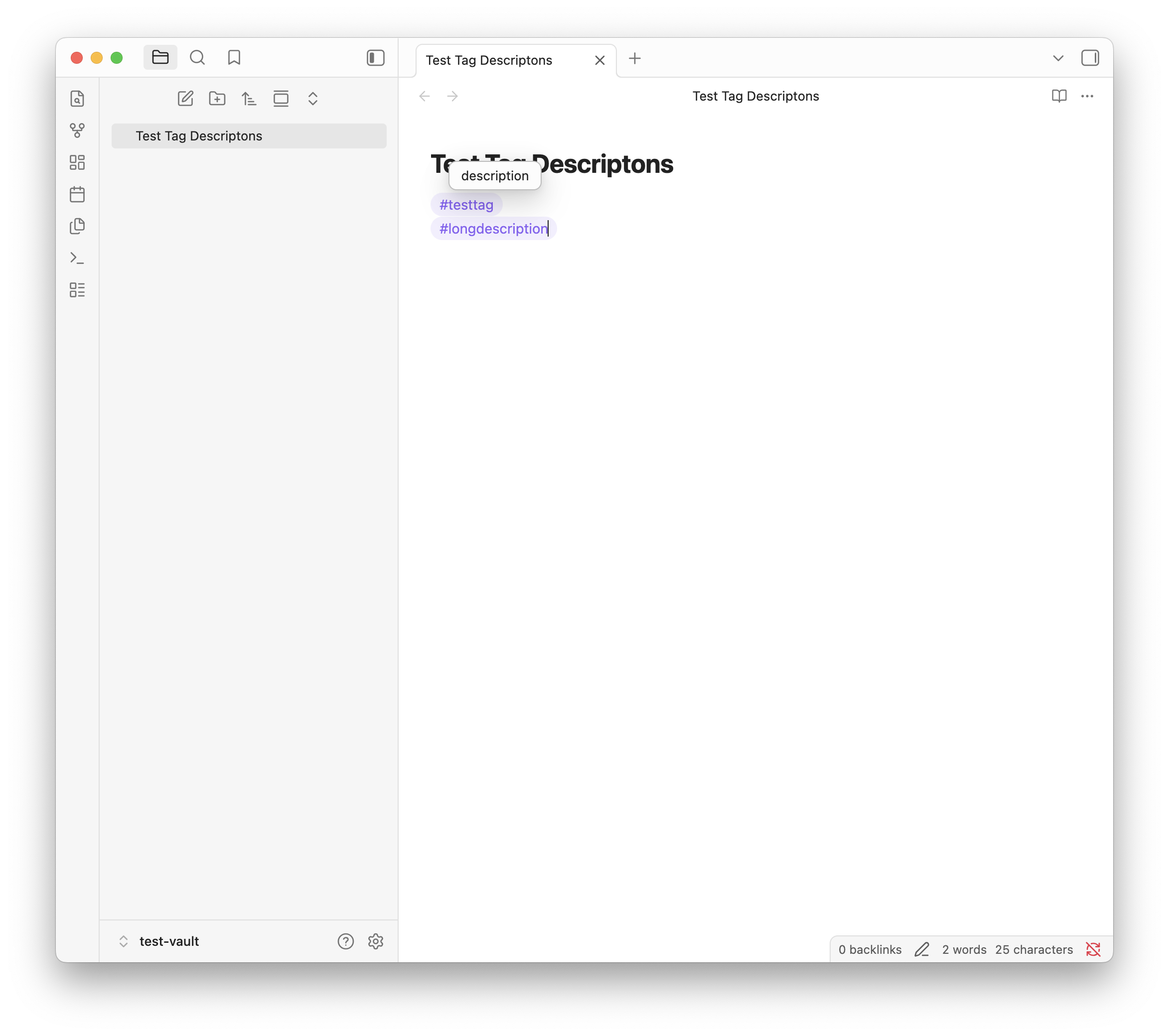
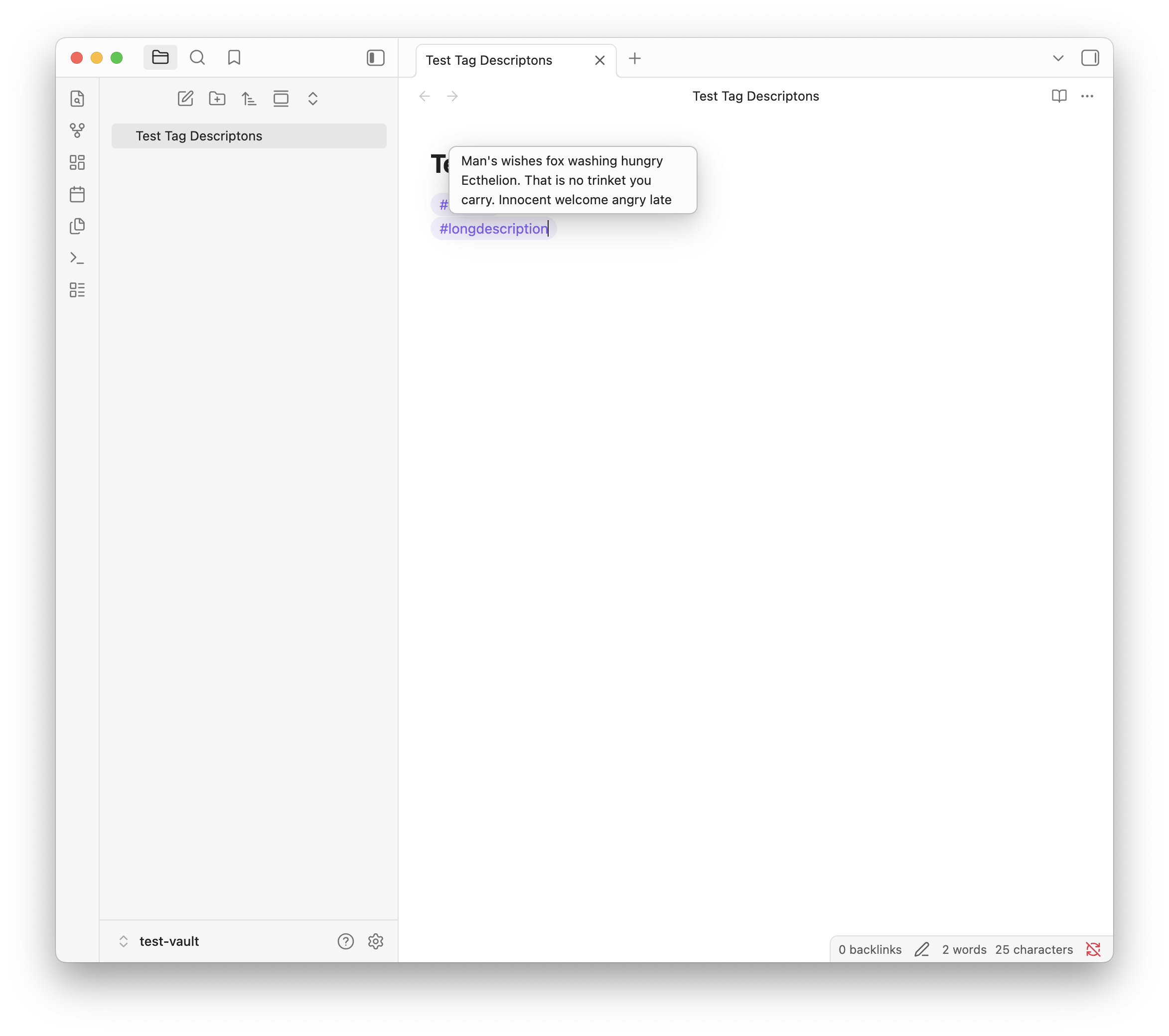
- Hover tooltips: hover over any tag in Reading view or Live Preview to see its description.
- Nested tag inheritance: nested tags such as
#project/alphafall back to the description of their closest parent. - Flexible trigger: show tooltips on hover with an adjustable delay, or only while holding a modifier key.
- Context menu: right-click a tag in the editor to set or update its description without leaving the note.
- Missing descriptions: a list of tags used in your vault that have no description yet, ranked by usage, with the option to ignore tags that do not need one.
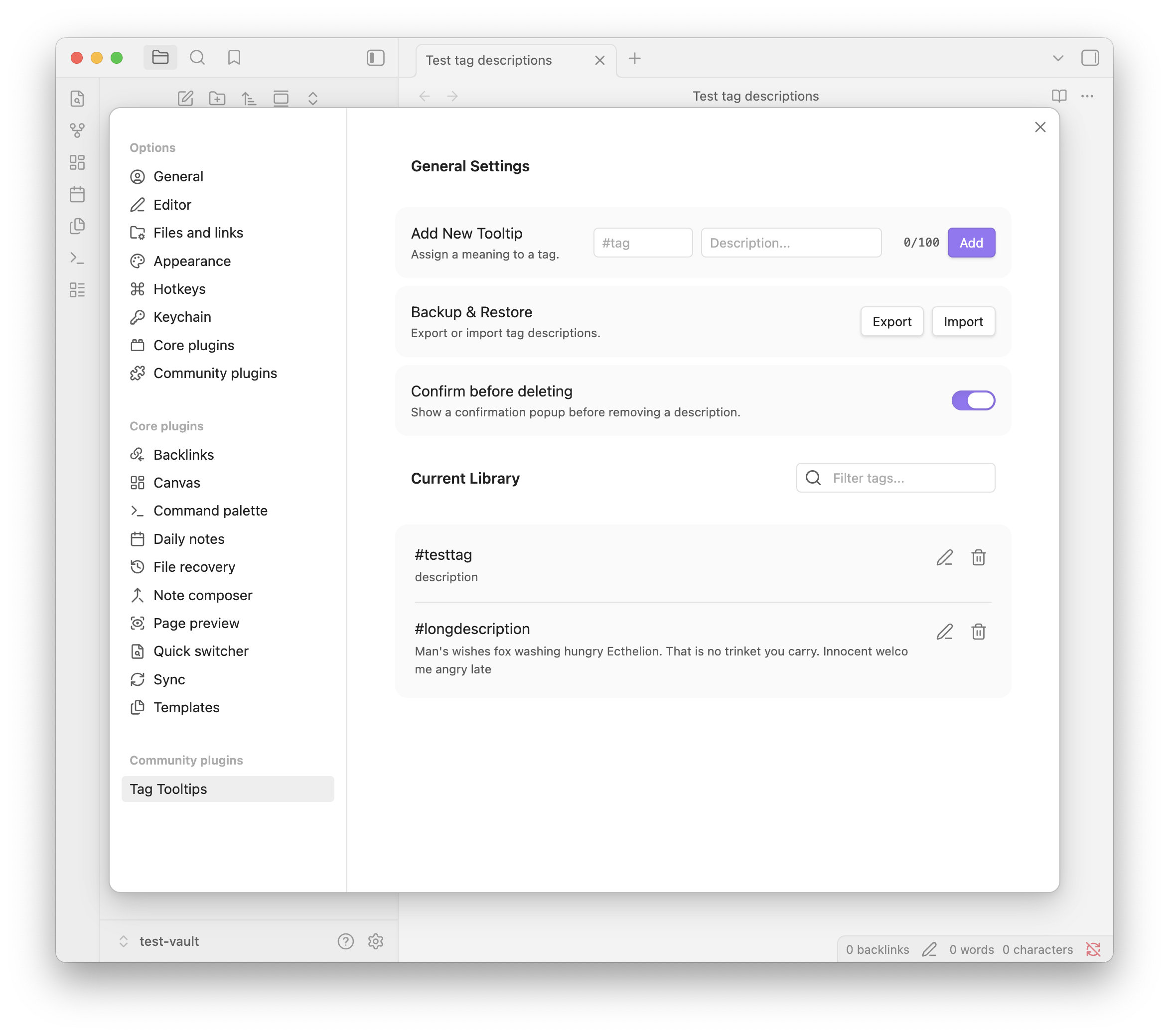
- Settings library: a searchable list of every description, with inline edit and delete.
- Input safeguards: live character counter, duplicate protection when adding tags, and an optional confirmation before deleting.
- Backup and restore: export descriptions to JSON and import them into another vault.
Installation
Requires Obsidian 1.5.0 or later. The plugin is desktop only.
Community plugins
The plugin has been submitted to the Obsidian community plugin directory and is pending review. Not available at the moment.
BRAT
- Install the BRAT plugin and enable it.
- Run the command BRAT: Add a beta plugin for testing.
- Enter
hugommartins/obsidian-tag-descriptionsand confirm. - Enable Tag Descriptions under Settings > Community plugins.
Manual
- Download
main.js,manifest.jsonandstyles.cssfrom the latest release. - Copy them to
<your-vault>/.obsidian/plugins/tag-descriptions/. - Reload Obsidian and enable Tag Descriptions under Settings > Community plugins.
Usage
Add a description
You do not need to plan your tags in advance. Use them while you write and define them as you go:
- Right-click a tag in the editor and select Set description.
- Type the meaning and save.
- The tooltip is now active for that tag everywhere in the vault.
You can also add descriptions manually in the plugin settings. A tag entered without a leading # is converted to the correct format automatically.
Find tags without a description
The plugin settings list every tag used in your vault that has no description yet, most used first, with the number of notes that use it. Click Add description next to a tag to define it. The list shows the top 50; use Show all to see the rest.
Tags that do not need a description can be hidden with the eye icon. Hidden tags are collected under Ignored tags, where Show lists them and the eye icon restores one. The ignore list is included in the backup export.
Nested tags
With Inherit parent descriptions enabled (the default), a nested tag without its own description shows the description of its closest parent. For example, if #project is described and #project/alpha is not, hovering #project/alpha shows the #project description followed by "(inherited from #project)". A tag with its own description always shows that one. Tags covered by an inherited description are left out of the missing descriptions list.
Manage your library
Use the plugin settings as a master glossary as the vault grows:
- Search and filter: find tags by name or by words in their definition.
- Edit: use the pencil icon to refine a tag or its description.
- Delete: use the trash icon to remove a description. Disable Confirm before deleting to skip the confirmation prompt.
Choose when tooltips appear
Under Show tooltip in the plugin settings, pick one of two modes:
- On hover: the description appears when you point at a tag. Use Hover delay (0 to 1000 ms) to wait before it shows.
- While holding a modifier key: the description appears only while you hold the chosen key (Ctrl or Cmd, Alt or Option, or Shift) over a tag. This keeps tooltips out of the way while you read or edit.
Frontmatter tags
- Tooltips for frontmatter tags appear in the Properties view, not in source mode.
- Setting a description through the right-click menu is not supported on frontmatter tags. Use the plugin settings instead.
Backup and Restore
To move descriptions between vaults:
- In the source vault, open the plugin settings and click Export.
- Save the
tag-tooltips-backup.jsonfile. - In the target vault, open the plugin settings and click Import and select the file.
The backup is a JSON file with the tag descriptions and the list of ignored tags:
{
  "tagMap": {
    "#testtag": "description",
    "#longdescription": "A longer description for the tag."
  },
  "ignoredTags": ["#todo"]
}
On import, entries that are not valid tag-to-text pairs are skipped and reported. Descriptions for tags that already exist in the target vault are overwritten, and imported ignored tags are added to the existing ignore list. Backups from version 1.0.0, which are a flat object mapping each tag to its description, can still be imported.
Limitations
- Descriptions are plain text and limited to 100 characters (by design).
- Tag matching is case-sensitive (by design):
#Projectand#projectare treated as different tags. - Tooltips need a pointer (hover or modifier key), so touch devices are not supported.
- Tooltips work in the main Obsidian window only, not in pop-out windows.
Roadmap
Features
- Nested tag inheritance
- Discover missing descriptions - list undefined tags by usage with inline add.
- Hold a modifier key to show tooltips
- Mobile support
UI and UX
- Hover delay
- Styling options
For plugin developers
Search results and similarity scores are powered by semantic analysis of your plugin's README. If your plugin isn't appearing for searches you'd expect, try updating your README to clearly describe your plugin's purpose, features, and use cases.