Teacher Planner
approvedby Nick Smith
Academic planner built for teachers: build your timetable, plan lessons, track directed time, and keep notes, all inside your vault. Handles A/B weeks, cover, duties and calendar export. - This plugin has not been manually reviewed by Obsidian staff.
Teacher Planner for Obsidian
The planner built for how teachers actually work. Your timetable, your lessons, your directed time, and your notes, together in one place and never leaving your vault.
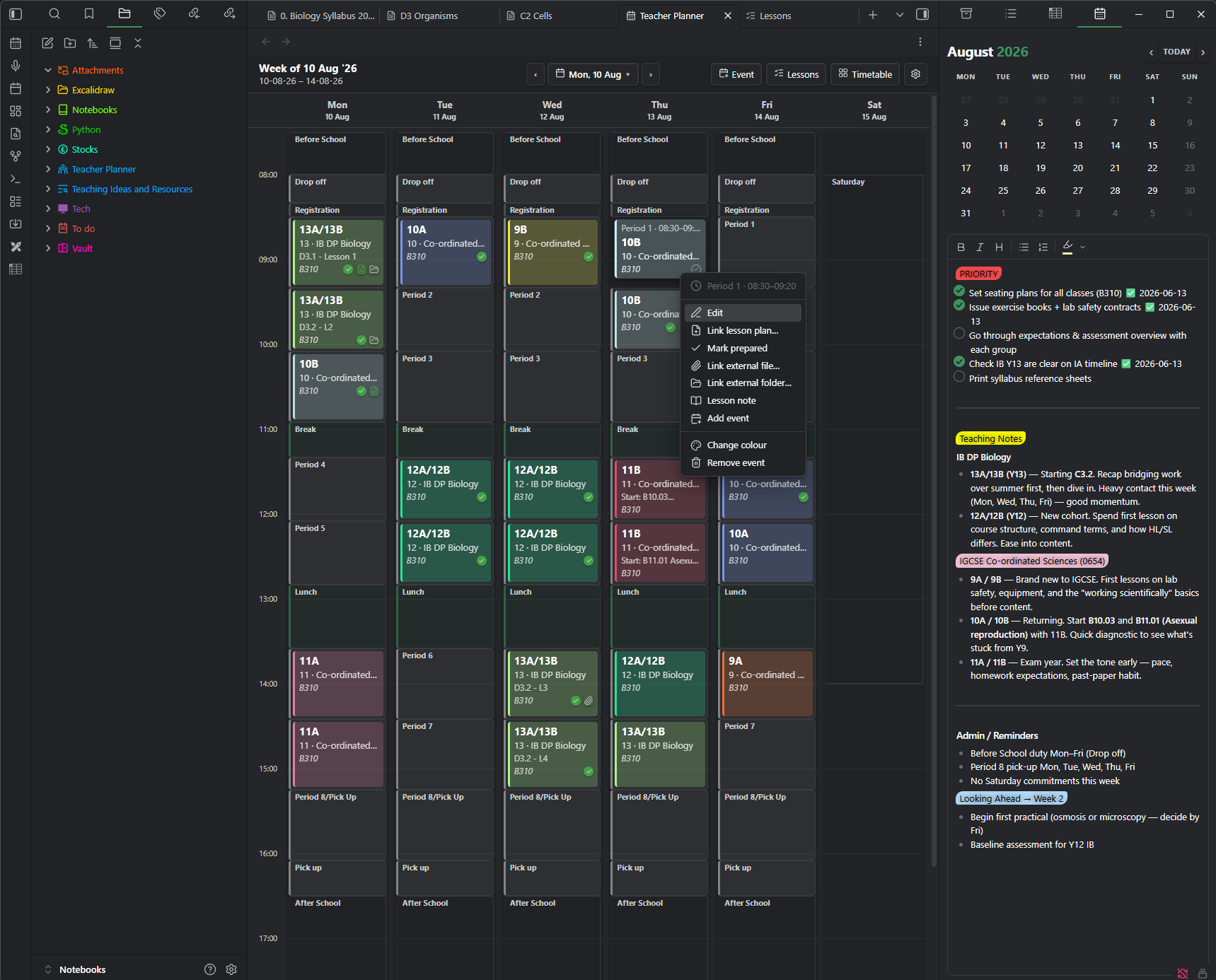
Teacher Planner turns Obsidian into a proper academic planner. It understands the things an ordinary calendar never does: periods and breaks, A and B weeks, cover and duties, directed time, and the difference between a lesson and a meeting. Everything sits alongside your notes, with no extra app to open, no subscription, and no data leaving your machine.
If you have ever kept your timetable in one place, your lesson notes in another, and your hours in a spreadsheet, this brings all three together.
Why teachers like it
It speaks your language. You set up your real school day once, with your own period names, block types, and class codes, and the planner works the way your week actually runs for the rest of the year.
It stays out of your way. Your timetable repeats automatically, one-off changes do not disturb it, and your notes are ordinary markdown files you can search, link, and back up like anything else in your vault.
It is yours. The plugin is free and open source, it runs on desktop and mobile, and your planner never leaves your device.
Build your timetable once
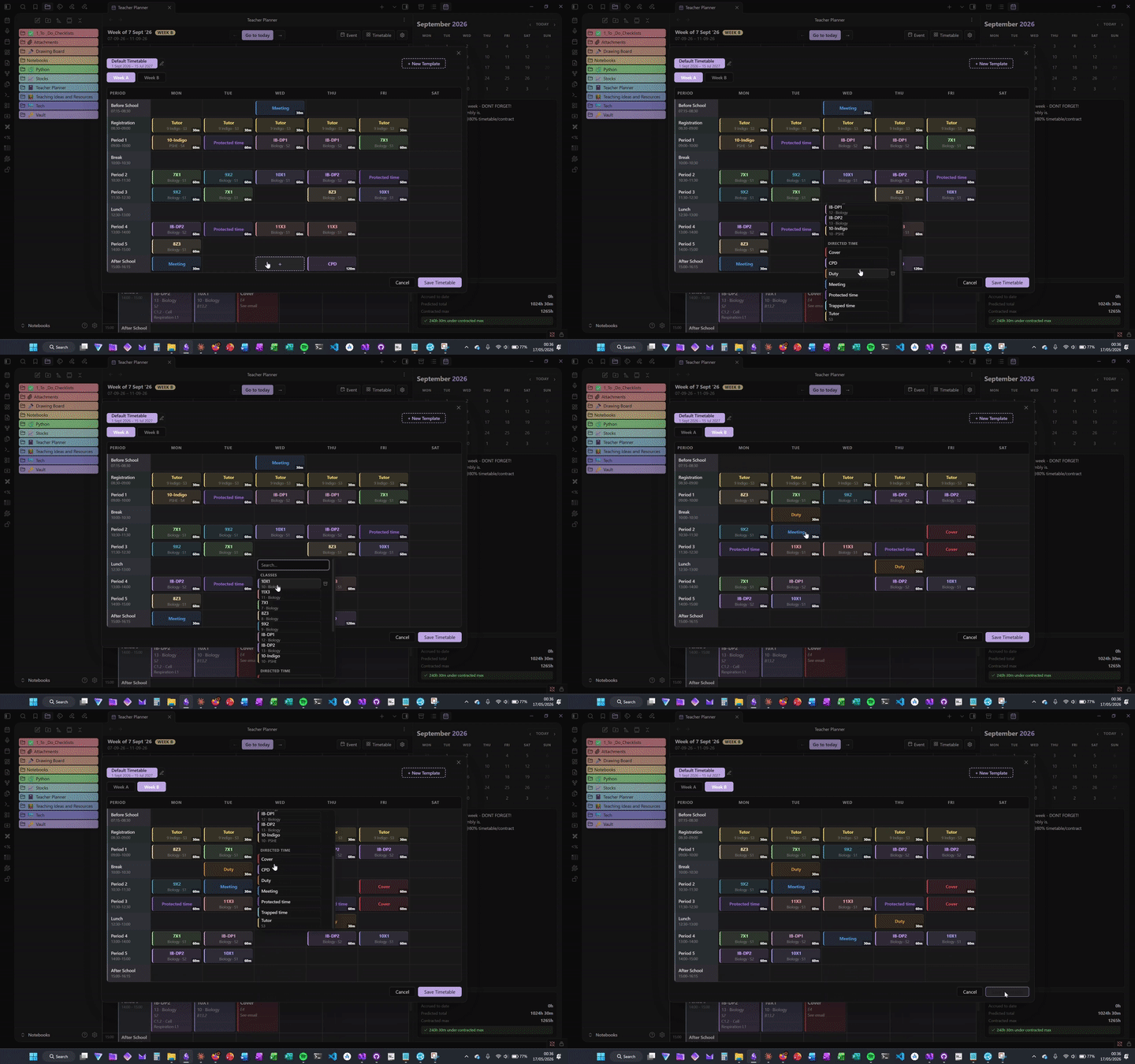
Lay out your week visually in the timetable editor. Define your periods and the blocks that make up a school day, whether that is a lesson, a break, registration, or anything you name yourself, then drop classes and activities into place. Each class carries its own colour, year group, code, and default room. Drag a class to a different cell to move it, drag it onto another to swap the two, or hold Ctrl or Cmd to drop a copy, so fixing or filling out a timetable is quick.
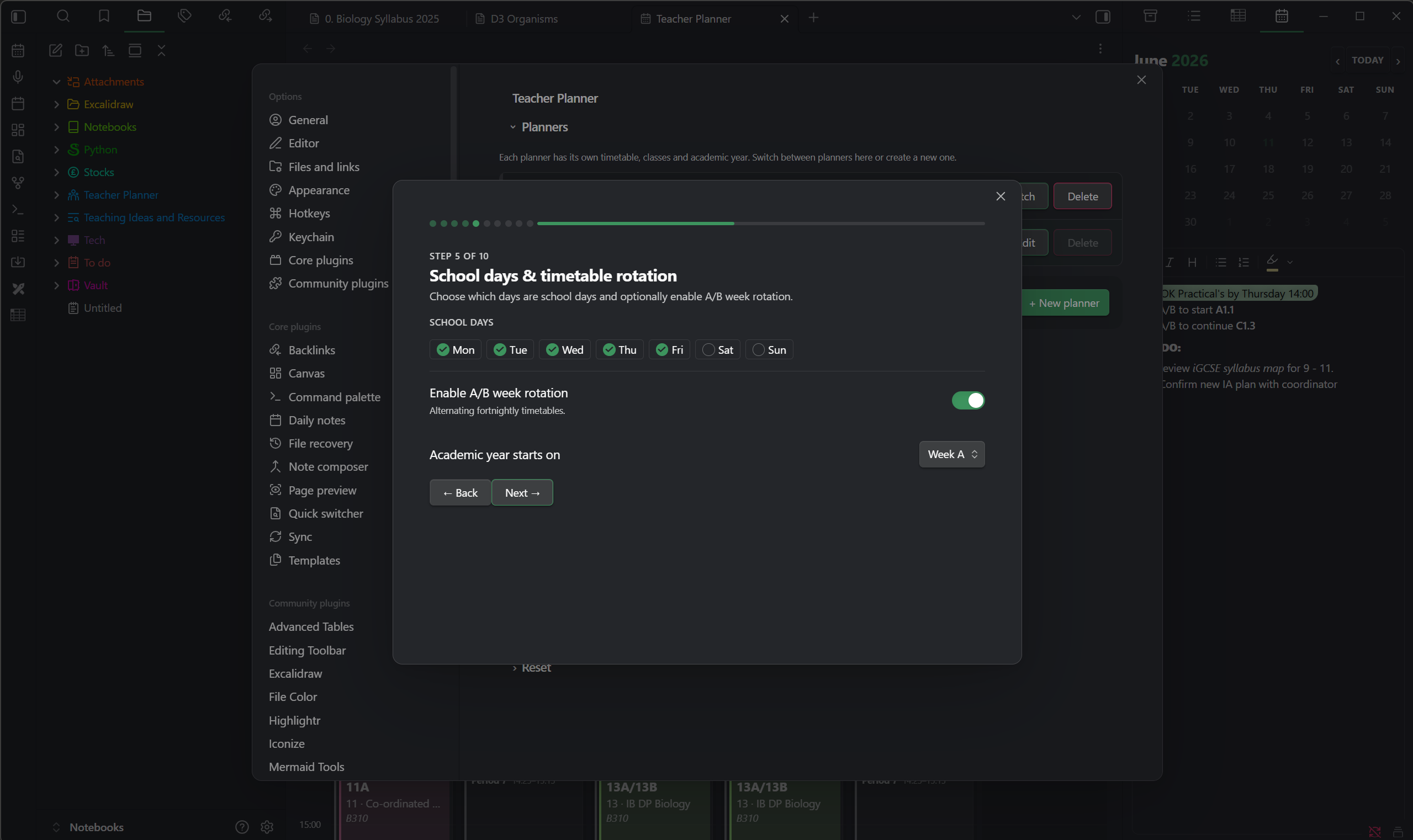
If your school runs a two-week timetable, turn on A and B week rotation and the planner tracks which week you are on automatically. It counts teaching weeks and skips full holiday weeks, so it never drifts out of step across a half term, and a single click on the week badge sets a one-off swap when a term starts on the opposite week.
See your week the way you think about it
The week view is a colour-coded grid of your real teaching day. Lessons, duties, and events sit in their periods, and a single click takes you straight into a lesson note. Clear previous and next arrows move you a week at a time, and the centre button opens a date picker so you can jump to any week, or back to today, in a moment. A grid-zoom setting lets you make periods taller or more compact, and because it is kept per device your laptop and your phone can each look right.
On a phone the same planner offers a Day view for one readable day at a time, an Agenda list for the whole week, or the full grid, and it remembers which you prefer.
Add one-off events without breaking your timetable
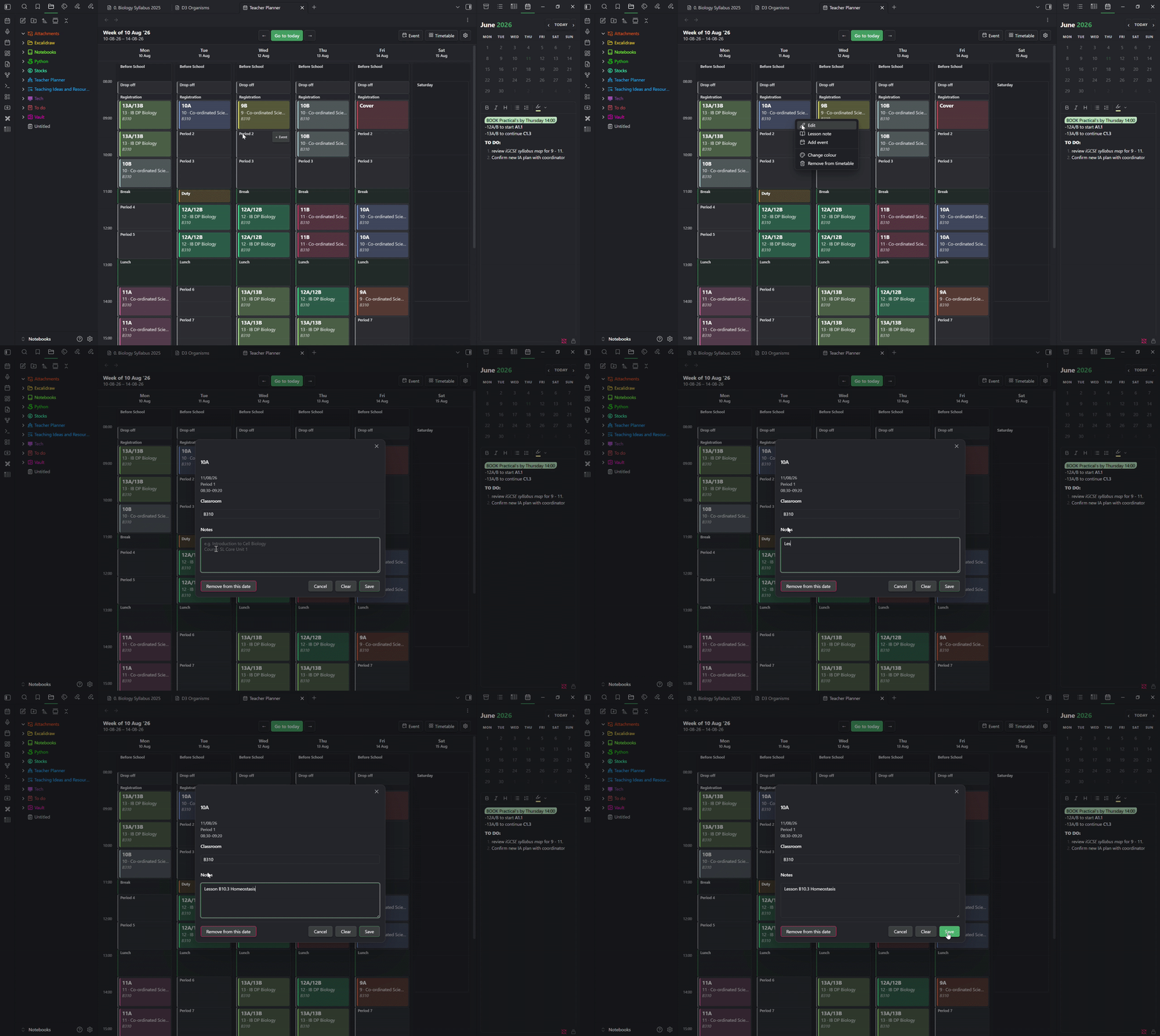
Real weeks are full of things that are not on the timetable: a meeting, a cover lesson, a trip, a parents' evening, a duty. Drop one onto any day and period, give it a name, a colour, a room, and a note, and you are done. An event can span several periods at once, and when it sits over free time those blocks join into one clean block so it reads as a single thing.
If you ever put two items in the same slot, the planner notices. The clash is marked on the grid, shown in red when it would affect your directed-time total, and when you add an event onto a slot that is already in use you get a clear prompt: keep both, add it without counting the overlap, or remove what was already there.
Keep your lesson notes in your vault
Every lesson in the week view has its own note, built from a template you control and named with a filename pattern you set, using the date, period, class, subject, and even the subject emoji. Open, create, or edit a note in one click. Because the notes are plain markdown in your planner folder, they work with everything Obsidian already does, including search, backlinks, and graph view.
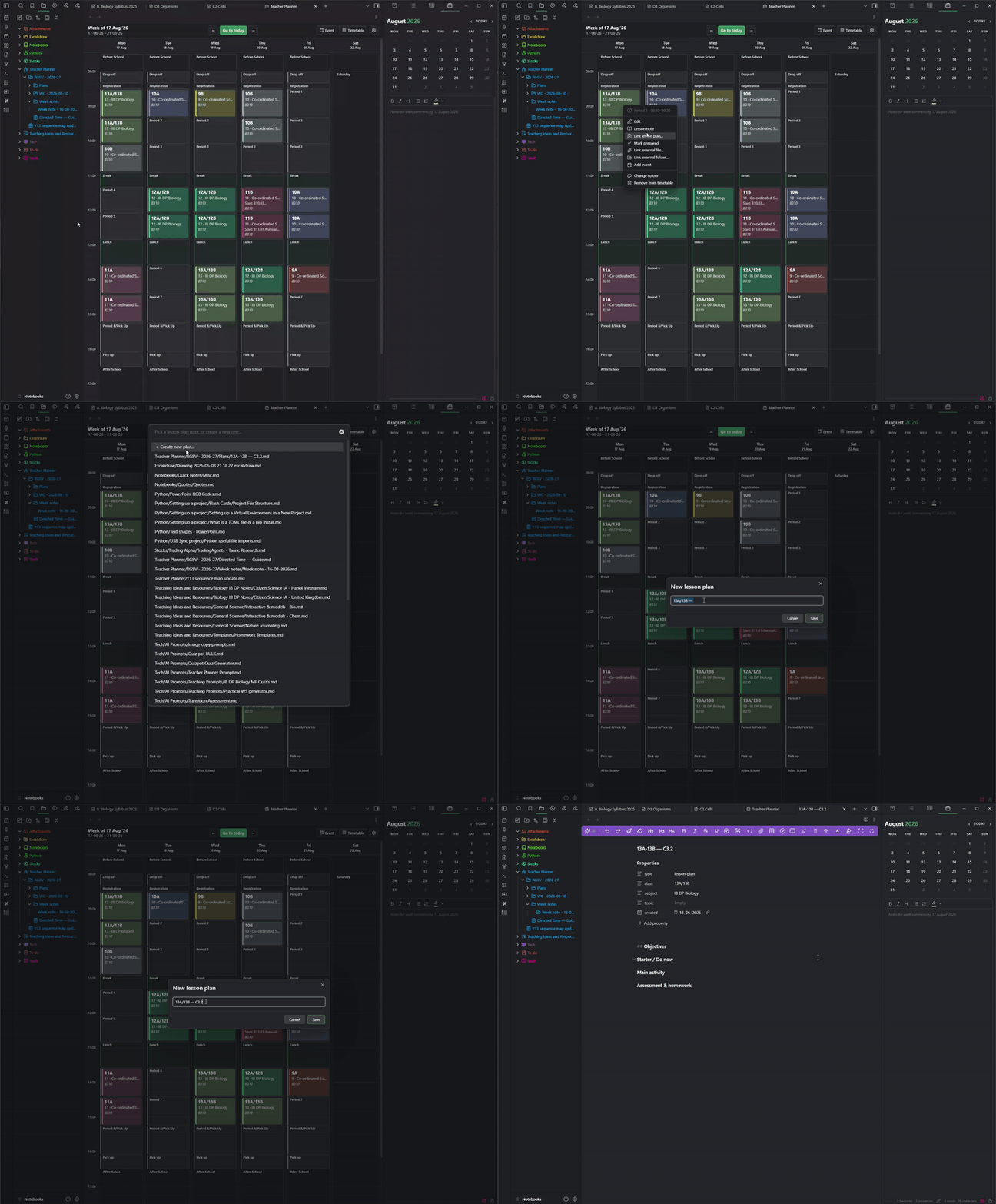
Link a reusable lesson-plan note to any lesson and open it straight from the chip, or attach a file or folder from anywhere on your computer. A small icon on each lesson shows what is ready at a glance, and a green tick lets you mark a lesson as prepared by hand if you would rather not link a plan note.
When you create a plan you can start it from a template. Six are built in — an everyday Essentials plan, a review-build-apply structure for teaching new material, a 5E inquiry lesson for practical science, a cover lesson, a blank one, and a revision-and-feedback plan for exam classes — and each opens with the class, subject, date, period, and room already filled in for that lesson, and your cursor where you start writing. Edit any of them with a live preview in settings, save your own as ordinary notes, and hide the ones you do not use.
Plan a class across the whole year
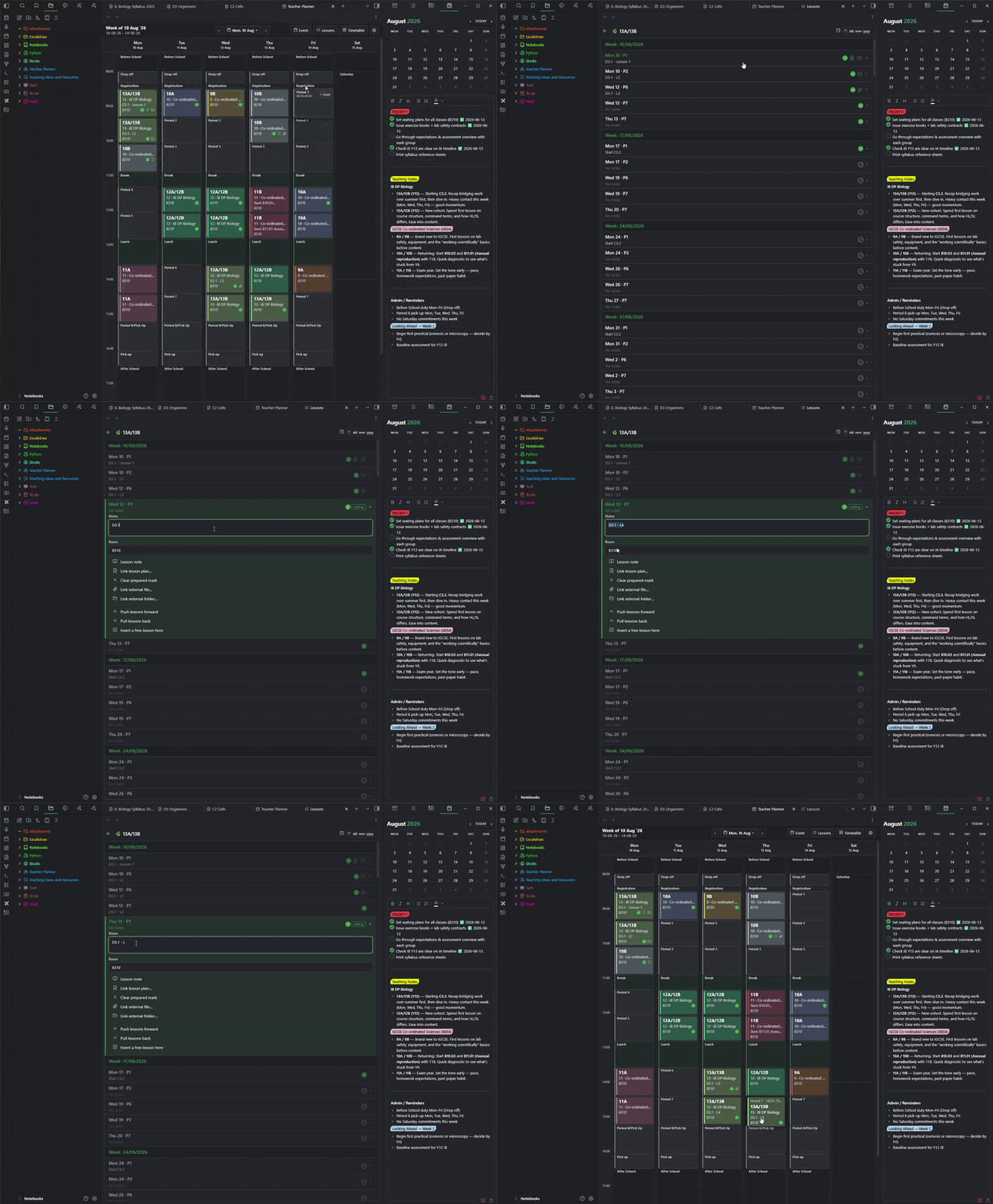
The Lessons button opens a dockable overview of a single class from the first week of the year to the last. Pick a class and every one of its lessons is laid out in order, grouped into weeks with the A or B label in the header, centred on the current week, with a date search to jump anywhere in the year. Holidays and INSET days are left out automatically, so what you see is your real teaching schedule.
Pick a class and an overview panel sits above the list, answering the questions you ask yourself in a free period. How far through the year you are, as a taught-of-total count with a progress bar that counts by the clock, so a lesson moves into "taught" the moment its period ends. What share of this week's and next week's lessons you have marked prepared, each with its week-commencing date, turning green when you reach 100%. Your next lesson, and how many lessons of this class are left before the next break. And a short "needs attention" list of the next upcoming lessons you have not prepared, which you can click to jump straight to the lesson below. Both the class tiles and the overview collapse when you want the full height for the list, each keeping its headline in the header.
Click any lesson to open it as a highlighted card and edit it in place. Type its note and room straight into the row, link or open a lesson plan, mark it prepared, attach a file or folder, or open its note, all without leaving the list. Whatever you change here shows on the week grid for that lesson too, because it is the same lesson. And when a lesson does not happen, you can shift the whole sequence along: push your lessons forward a slot, pull them back, or insert a free lesson, and anything that runs off the end is parked safely rather than lost. The note, room, plan, and prepared mark all travel with the lesson when it moves.
Track your directed time properly
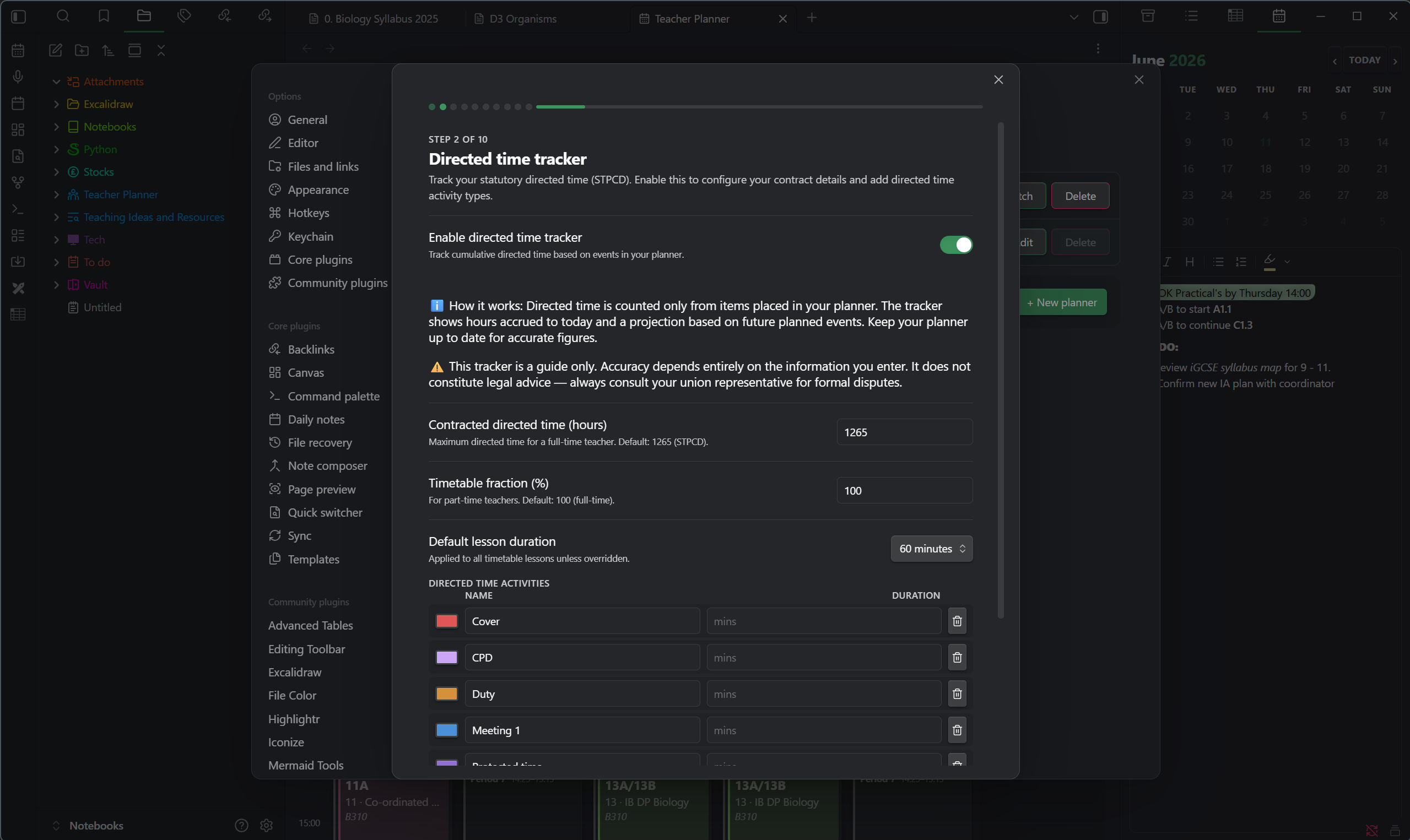
Turn on the directed-time tracker to keep a running total of your hours against the STPCD 1,265 hour limit. It counts your timetabled lessons, your directed activities, and your one-off events, each for the length of the block it sits in — so registration counts its few minutes and a full period counts the hour — with a per-placement override when something runs short or long. It projects a year-end figure and leaves out holidays and INSET days for you. Part-time fractions are supported, and a detailed Excel report is one click away for union or management use.
Run more than one planner, and keep it safe
Teaching across two schools, or want a clean record of last year? Run several planners in one vault, each with its own timetable, classes, and notes, and switch between them instantly. You can export any planner, or all of them, to a backup file — kept tidily inside the plugin's own folder by default, or sent to a vault folder or anywhere on your computer — and import one back as a new planner. Deleting a planner saves a backup first, so it is always recoverable. You can also save your school's shape as a reusable template — its periods and day structure, or its holiday and INSET dates — to share with a colleague or to start next year's planner in seconds.
Get your planner out
Export your timetable and planning to Excel or CSV for sharing and reporting, or export the whole thing as an iCal file and import it into Google, Apple, or Outlook calendars. Rooms, class codes, your A and B weeks, and your one-off changes all come across exactly as they appear in the week view.
Getting started
On first launch a short setup wizard walks you through everything: your name, the academic year, your school days, periods, block types, holidays, subjects, and classes. It comes pre-filled with sensible UK defaults, so you can be up and running in minutes, and every step can be changed later in settings.
Installation
From the Obsidian community plugins list
- Open Obsidian, then go to Settings, then Community plugins.
- Click Browse and search for Teacher Planner.
- Click Install, then Enable.
Manual install
- Go to the latest release.
- Download
main.js,manifest.json, andstyles.css. - In your vault, create the folder
.obsidian/plugins/teacher-planner/. - Copy the three files into that folder.
- Open Obsidian, then Settings, then Community plugins, and enable Teacher Planner.
Teacher Planner requires Obsidian v1.7.2 or later. Your existing planners, timetables, and notes carry over automatically when you update.
Settings and configuration
Everything is configurable from Settings, then Teacher Planner. Two of the most-used panels:
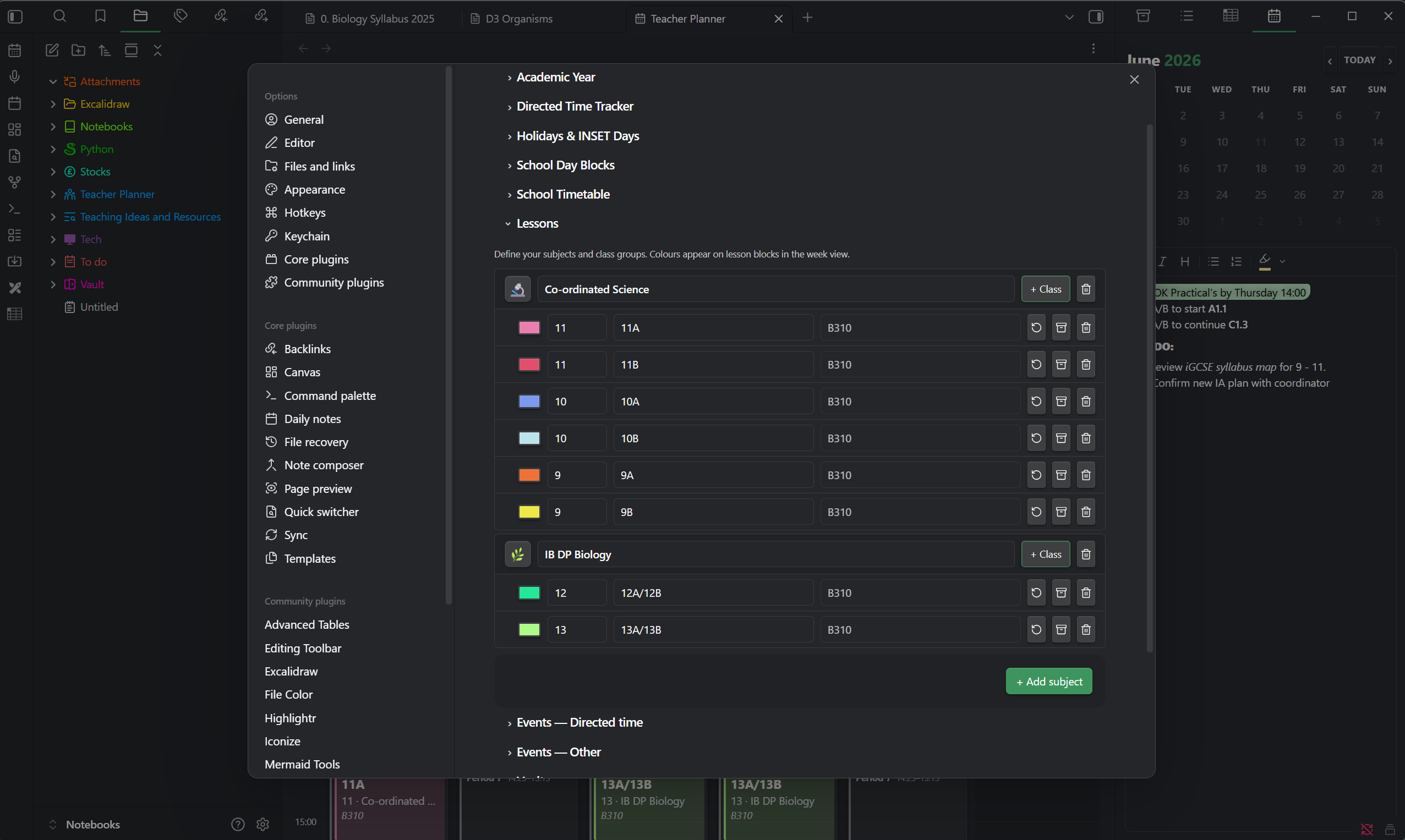
The subjects and classes panel gives each subject an emoji and nests its class groups beneath it, each with its own colour, year group, code, and default room.
On a phone the settings are built for touch: each list of periods, classes, activities, or holidays shows one tidy row per item that opens into a full editor when you tap it, so a whole term of holidays or a full set of classes is easy to scan and edit with a thumb.
Support
If Teacher Planner saves you time, you can buy me a coffee. It genuinely helps keep the project going.

Found a bug or have an idea? Open an issue.
Development
For developers who want to contribute or build locally
Prerequisites
- Node.js 18+
- npm
Setup
git clone https://github.com/NSDerred/teacher-planner-obsidian.git
cd teacher-planner-obsidian
npm install
Build
# Development (watch mode)
npm run dev

# Production build
npm run build

# Type checking
npm run typecheck
Tech stack
TypeScript, Svelte 4, esbuild, and the Obsidian plugin API.
Project structure
src/
├── main.ts          # Plugin entry point
├── types.ts         # Shared TypeScript types
├── settings.ts      # Default settings
├── views/           # Main views (WeekView, CalendarSidebar)
├── modals/          # All modal dialogs
├── settings/        # Settings tab
└── utils/           # Utility functions
Security
Excel exports are generated with write-excel-file, a write-only library. The plugin never reads or parses user-supplied Excel files, and it uses no dependency with a known security advisory.
Licence
Teacher Planner is dual-licensed. Pick whichever option suits you:
-
GPL-3.0, Copyright 2026 Nick Smith. Free to use, fork, and modify. If you distribute a modified version, the source for your version must remain available under GPL-3.0 too. This is the right choice for individuals, schools, and contributors.
-
Commercial Licence, for incorporating Teacher Planner into a commercial product without GPL's copyleft requirements. Contact nicholas.f.smith@pm.me for terms.
Both options grant the right to use the plugin. The difference is in how you can distribute modifications.
For plugin developers
Search results and similarity scores are powered by semantic analysis of your plugin's README. If your plugin isn't appearing for searches you'd expect, try updating your README to clearly describe your plugin's purpose, features, and use cases.