Terminal Tabs
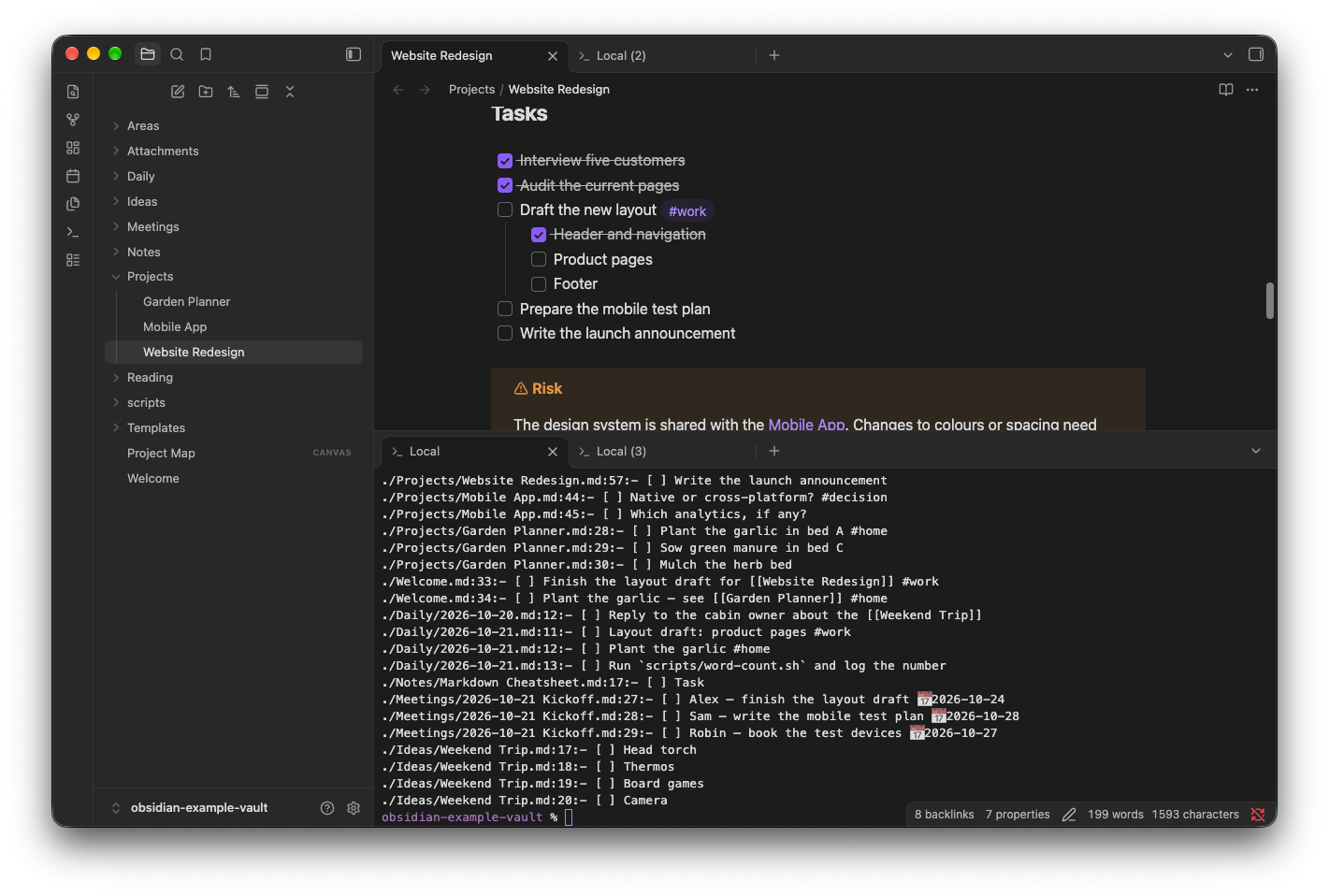
A terminal built into Obsidian, started in your vault folder, with many tabs at once. Run your shell — or a tool such as Claude Code — right next to your notes.
Desktop only (macOS, Linux, Windows).
Private by design. Terminal Tabs has no network access, no telemetry, no accounts and no ads. It collects nothing and sends nothing anywhere; everything runs locally on your computer. Details: Privacy and system access.
Features
- Every terminal is a regular Obsidian tab, titled
Local,Local (2)… Open a new tab (+or ⌘T / Ctrl+T) and choose Open terminal, then drag it anywhere: next to a note, into a split or a sidebar. Tabs can be split and pinned like any other. - Toggle terminal opens the first terminal at the bottom, below the editor; further ones open as tabs next to it.
- Shell profiles — zsh, bash, fish, PowerShell, Git Bash, WSL… are detected automatically; add your own for any command, e.g. Claude Code.
- Starts in the vault folder, the active file's folder or a custom one. In the file explorer: right-click → Open in Terminal.
- A real PTY:
vim,htop,less,git log, 24-bit colour, resizing, Ctrl+C. - Clickable note paths — in the output of
ls,grep -n,git status…, Cmd/Ctrl+click opens the file in Obsidian. Web links too. - Search the buffer, copy on select, drag files from the file explorer or Finder to paste their paths.
- Run selected text in terminal sends the selection (or the current line) from a note to the shell.
- Rename, duplicate, restart and clear tabs from the tab's context menu. Tabs with their names and folders come back after restarting Obsidian.
- Colours follow the Obsidian theme (or a fixed Dark / Light).
- UI in English, Chinese (Simplified and Traditional), French, German, Italian, Japanese, Korean, Polish, Portuguese (Brazil), Russian, Spanish, Turkish and Ukrainian, following Obsidian's language. Translation fixes are welcome: each language is one file in
src/locales/.
Requirements
Terminal Tabs uses Python 3 to create the pseudo-terminal (see How it works):
- macOS / Linux – the system
python3is enough (on macOS:xcode-select --installor Homebrew). - Windows – Python 3 and
python -m pip install pywinpty.
If Python is not on your PATH, set it in the plugin settings; the Check button shows what was found.
Installation
From Obsidian: Settings → Community plugins → Browse, search for Terminal Tabs, install and enable it.
Manually: download main.js, manifest.json and styles.css from the latest release into <vault>/.obsidian/plugins/terminal-tabs/, then enable Terminal Tabs in Settings → Community plugins.
Shell profiles
Settings → Terminal Tabs → Shell profiles lists the shells found on your system. Each profile is a command with arguments, so it can start any program, not only a shell. The default profile is used by Toggle terminal and Open terminal; the others are available from the tab menu, the empty New tab page and New terminal tab with profile….
Example: Claude Code
To open Claude Code in your vault with one click, add a profile:
| Name | Command | Arguments |
|---|---|---|
| Claude | /bin/zsh | -l -c claude |
The login shell (-l) loads your PATH, so claude is found; if it isn't, use -l -i -c claude to load ~/.zshrc too. To get back to a shell after Claude exits, use -l -c "claude; exec zsh -l". On Windows: command powershell.exe, arguments -NoLogo -NoExit -Command claude.
Make it the default profile and the terminal opens straight into Claude Code. The same works for any other CLI tool.
Settings
| Group | What you can change |
|---|---|
| Shell | Default profile, shell profiles, Python executable, extra environment variables |
| Behaviour | Where the first terminal opens (bottom, right sidebar, new tab), start folder (vault root, active file's folder, custom), close the tab when the shell exits, copy on select, terminal takes over Obsidian hotkeys, clickable vault file paths, Option as Meta (macOS) |
| Appearance | Colour scheme (follow Obsidian, Dark, Light), font family and size, line height, cursor style and blinking, view header, scrollback lines |
Hotkeys
The plugin sets no Obsidian hotkeys. Assign one to Terminal Tabs: Toggle terminal in Settings → Hotkeys, e.g. Alt+F12. Without a hotkey, open a new tab and choose Open terminal, or use the command palette.
Inside the terminal:
| Action | macOS | Windows / Linux |
|---|---|---|
| Back to the editor | ⌥F12 | Alt+F12 |
| New terminal tab (next to the current one) | ⌘T | Ctrl+Shift+T |
| Close tab | ⌘W | Ctrl+Shift+W, Ctrl+F4 |
| Next / previous tab | ⌘⇧] / ⌘⇧[, Ctrl+Tab | Ctrl+Tab / Ctrl+Shift+Tab, Ctrl+PgDn / PgUp |
| Tab 1–9 | ⌘1…⌘9 | – |
| Rename tab | ⇧F6 | Shift+F6 |
| Copy / paste | ⌘C / ⌘V | Ctrl+Shift+C / Ctrl+Shift+V (Ctrl+C copies when there is a selection) |
| Find | ⌘F | Ctrl+Shift+F |
| Clear | ⌘K | Clear terminal command |
While the terminal is focused, Obsidian hotkeys are disabled so they don't take keys from the shell (Ctrl+P, Ctrl+W, Esc…). On macOS ⌘P, ⌘O and ⌘, still work. This can be turned off in the settings.
Privacy and system access
- No network, no telemetry, no accounts. The plugin never connects anywhere and installs or downloads nothing. Tools you run in the terminal (e.g. Claude Code) have their own network access and accounts.
- Files outside the vault. The terminal runs your own shell with your user's permissions, so it can read and change any file you can, not only the vault. That is the purpose of a terminal.
- Programs it starts: Python 3 (the PTY bridge), the shell or command from your profile, and
pgreppluslsof(macOS) to read the shell's current folder. - Files it writes: its settings (
data.json) and the bridge scriptpty_helper.py, both in its own plugin folder. Open tabs are saved in Obsidian's workspace like any other tab. - Environment: shells get Obsidian's environment plus
TERM,COLORTERM,TERM_PROGRAM=terminal-tabs,OBSIDIAN_VAULT(the vault path) and the variables you add in the settings.
How it works
Obsidian's native node-pty module would have to be compiled for the Electron version of every Obsidian release. Instead, the plugin runs a small Python bridge (src/pty_helper.py, standard library only; pywinpty on Windows) that creates a pseudo-terminal and passes bytes between the shell and xterm.js. The bridge is embedded in main.js, so installing needs only the standard three files.
On macOS and Linux shells start as a login shell (-l), so PATH from ~/.zprofile works even when Obsidian was launched from the Dock.
Known limitations
- Obsidian popout windows have not been tested.
- Clickable paths work for files inside the vault and paths without spaces.
- On Windows the shell's current folder is not tracked (unless the shell sends OSC 7), so Duplicate tab and restoring use the start folder.
Development
npm install
npm run build                                  # typecheck + main.js + styles.css
npm run install-plugin -- "/path/to/vault"     # copies into .obsidian/plugins/terminal-tabs
OUT_DIR="/path/to/vault/.obsidian/plugins/terminal-tabs" npm run dev   # watch mode
npm test                                       # PTY bridge + translations
npm run test:e2e                               # main.js in Electron with a mocked Obsidian API
License
MIT
For plugin developers
Search results and similarity scores are powered by semantic analysis of your plugin's README. If your plugin isn't appearing for searches you'd expect, try updating your README to clearly describe your plugin's purpose, features, and use cases.