by Jonah
Add editable comment threads to text and images in your notes, with optional AI replies. Comments live beside your notes, never inside them.
Threadglyph


Comment threads for Obsidian, anchored to the text and images in your notes, with optional AI replies that can run entirely on your own computer.
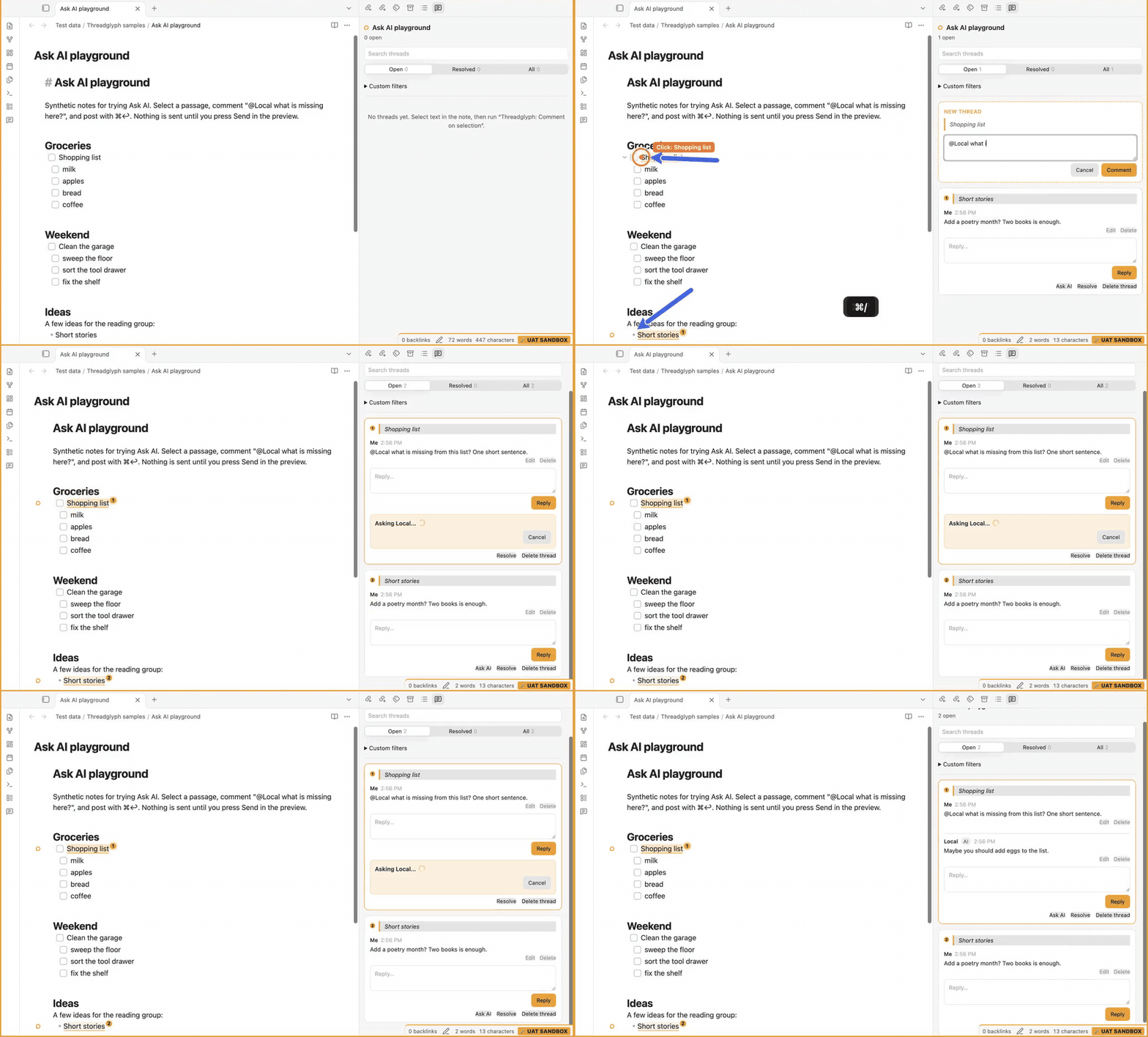
The demo (32 s, recorded in the plugin's synthetic sandbox): comment on a passage, then ask a local model with @Local; the request is previewed before it goes anywhere, and the answer lands in the thread. MP4 version.
Now in Obsidian's community plugin directory. In Obsidian, open Settings → Community plugins → Browse and search for Threadglyph.
Status: alpha (0.3.1), desktop only. It is used daily by its author, on macOS, but expect rough edges. Bug reports are welcome.
Windows and Linux: the core plugin and the Ollama assistant are covered by automated tests on all three systems. The Gemini and Claude assistants have only been used on macOS; on Windows, command-line tools installed through npm (
.cmdlaunchers) are not supported yet (#23).
What it does
- Comment on any passage. Select text and run Threadglyph: Comment on selection (command palette or right-click). The passage is highlighted, numbered to match its card, and marked in the margin.
- Threads in a side panel. Reply, edit any message (the earlier text is kept), resolve or reopen, delete with undo, and search with ⌘F. Open, Resolved and All tabs, plus filters by author, age and date.
- Comment on images. Every PNG, JPEG or WebP embed gets a title pill with a Comment button.
- Your notes are never changed. Threads are stored in separate JSON files beside your notes; Threadglyph does not write to note files.
- Anchors that survive edits. Edits around a passage don't break its thread. If the passage is deleted, or repeated so the original copy can't be told apart, the thread says so instead of guessing, and offers Reattach to selection.
- Optional AI replies (off by default). Mention
@Local,@Geminior@Claudein a comment, or press Ask AI. Before anything is sent you see a preview of exactly what goes, and where ("Stays on this computer", "Sent to Google", "Sent to Anthropic", or the host of an Ollama server on another machine). The answer is added to the thread, labelled as AI, and stays editable. - Threads outlive a missing note. If a note is deleted or renamed outside Obsidian, its threads are kept. Show threads on missing notes lists them, to move one to the open note or delete it.
- Import inline comments. Turns
{==…==}{>>…<<}comments written inside a note into threads, without changing the note.
How it was built
Threadglyph was written by AI coding agents (OpenAI Codex and Anthropic Claude Code), one pull request at a time, with the maintainer setting direction, reviewing and merging. Every feature pull request was reviewed by Gitar and analysed by SonarQube Cloud before it merged. The agents' rule: reproduce a finding with a test that fails before fixing it, and answer in writing any finding they disagree with. The record includes the misses too: an early dependency update (#2) merged with failing CI and broke main until #9, and a later whole-project review found problems the per-PR reviews had not (now fixed).
- 63 distinct Gitar findings on merged code, all resolved: 19 bugs, 2 security issues, 23 edge cases, 18 test, documentation or code-quality problems, 1 performance issue. (Two comments repeated on stacked PRs are counted once.)
- Examples: two quick clicks could silently lose a reply; an AI rewrite containing a code block could leak quoted note text into a thread file; and several tests could not actually fail.
- Sonar's coverage gate was met with tests, never by excluding code: line coverage went from 72.8% to 99.8% on the first PR, and is about 99.8% today.
The full story, with links to the reviews, is in How Gitar and SonarQube reviewed Threadglyph.
Install
From Obsidian (recommended): open Settings → Community plugins → Browse, search for Threadglyph, then choose Install and Enable. It is listed in the community plugin directory; a new release can take a while to show there.
With BRAT: install the BRAT plugin, choose Add beta plugin, and enter jmbost20/threadglyph. BRAT installs a release as soon as it is published.
Manually: download main.js, manifest.json and styles.css from the latest release into <your vault>/.obsidian/plugins/threadglyph/. Then reload Obsidian and enable Threadglyph under Settings → Community plugins.
If your vault is in Git, add .threadglyph/ to its .gitignore first (see Where data lives).
Quick start
- Select a sentence and run Threadglyph: Comment on selection. Bind it to a hotkey under Settings → Hotkeys; the plugin ships with none, so it never clashes with your setup.
- Write a comment and press ⌘↩ to post. Enter makes a new line.
- Run Threadglyph: Open thread panel to see every thread in the note.
Keyboard
| Where | Key | Does |
|---|---|---|
| Any comment box | ⌘↩ | Post |
| Panel | Tab | Move comment by comment, then to the reply box |
| Focused comment | E | Edit it |
| Panel | ⌘D | Delete the focused comment (or the latest one, from the reply box) |
| Panel | ⌘⇧D | Delete the whole thread (restorable from Deleted comments) |
| Panel | ⌘⇧→ / ⌘⇧← | Next / previous thread |
| Ask AI preview | Enter or ⌘↩ | Send. Esc cancels the request and removes the comment that asked (restorable) |
AI assistants (optional)
Turn on Settings → Threadglyph → Enable Ask AI. Each assistant is a program you install yourself; Threadglyph never reads or stores API keys.
| Assistant | You need | Where your text goes |
|---|---|---|
| Local (preferred) | Ollama running, with a model pulled (default qwen3:8b; a vision model such as qwen2.5vl:7b for images) | Nowhere, with the default localhost:11434. An Ollama server on another machine, and Ollama :cloud models, are labelled as leaving the computer. |
| Gemini | Gemini CLI and an API key in ~/.threadglyph/gemini/.gemini/.env as GEMINI_API_KEY=… | |
| Claude | Claude Code installed and signed in | Anthropic |
By default a request holds the selected passage, the thread and the section around it. Open Exact text in the preview to see every character that will be sent, or narrow the scope. If the note or image changes after the preview is drawn, Send sends nothing and shows the updated preview instead. For daily notes and other personal text, prefer Local.
Disclosures
As Obsidian's developer policies require:
- Network use: none unless you turn on Ask AI. Then requests go only to the assistant you pick: Ollama at the address you set (
localhostby default; any other address is shown as leaving the computer), or Google or Anthropic through their own command-line tools. - Runs external programs: the Gemini and Claude assistants start the
geminiandclaudecommand-line tools you installed, without a shell, with the request on standard input. This is why the plugin is desktop only.- Your own setup for these tools is not used, so a request carries only what the preview shows and goes only where it says. Claude Code runs without its built-in tools, MCP servers, settings files (and so your hooks and plugins),
CLAUDE.mdfiles, auto memory or telemetry. Gemini CLI runs read-only, in a home folder made for the request, so your~/.geminisettings, hooks,GEMINI.md, extensions and MCP servers are not used; its tools, skills, context files and telemetry are off. - Custom endpoints are ignored: a Bedrock, Vertex or
ANTHROPIC_BASE_URLsetup for Claude Code, or aGOOGLE_GEMINI_BASE_URLgateway for Gemini, is not used, so requests go to Anthropic or Google as labelled. A proxy set in your environment still applies, and so do settings an administrator enforces for the whole machine. node scripts/check-cli-isolation.mjsproves all of this against your installed versions (last checked on 2026-10-27 with Gemini CLI 0.60.0 and Claude Code 2.1.311).
- Your own setup for these tools is not used, so a request carries only what the preview shows and goes only where it says. Claude Code runs without its built-in tools, MCP servers, settings files (and so your hooks and plugins),
- Files outside your vault: your Gemini key stays in
~/.threadglyph/gemini/.gemini/.env(or a folder you choose); Threadglyph only creates that.geminifolder in its own folder and never writes to a folder you choose. Each Gemini request runs in a new private folder in your system's temp folder, holding Threadglyph's settings and a link to the key file (a copy on Windows), deleted with Gemini's logs of the request when it ends. An image you ask about is copied to the temp folder for the request and deleted afterwards. - No telemetry, no ads, no account. Threadglyph itself sends nothing anywhere.
Where data lives
| Folder (inside the vault) | Contents | Commit to a vault's Git? |
|---|---|---|
threadglyph/threads/<id>.json | Thread ids, authors, timestamps, messages, edit history, resolved state. The quoted passage is kept out of these files, but comments and AI replies are free text and can quote or summarise your note. | If you're comfortable publishing your comments |
.threadglyph/anchors/<id>.json | The quoted passage and its surrounding context, used to find the passage again. | No. Add .threadglyph/ to .gitignore |
.threadglyph/exports/*.json | Backups from Back up all threads (threads and anchors). | No (same folder) |
If an anchor file is missing (for example, on a fresh clone), the thread still shows with all its messages and offers Reattach to selection. Back up all threads and Restore threads from a backup are in the command palette; a restore only adds threads that are missing and never overwrites. If a note is deleted or renamed outside Obsidian, its threads are kept: Show threads on missing notes lists them, to move one to the open note (and reattach it there) or delete it.
Anchors sit in a dot-folder. Git (with the suggested .gitignore) and some sync tools skip it, so another device may show threads that need a reattach; check how your sync tool treats hidden folders. The plugin does not run on mobile. See docs/compatibility.md for measured performance on large notes and other limits.
Development
npm ci
npm run check      # typecheck, lint, tests with coverage, production build
npm run dev        # rebuild on change
npm run sandbox    # make a disposable test vault at ~/Developer/threadglyph-sandbox-vault and link the build
Open the sandbox folder in Obsidian as a vault and enable community plugins; sample notes are in Test data/Threadglyph samples/. The sandbox scripts refuse any existing vault, and any vault Obsidian knows about, unless it is a sandbox they made.
Optional: THREADGLYPH_SOURCE_VAULT=<your vault> npm run sandbox:pull copies your plugins, hotkeys, templates and today's daily note into the sandbox. It only reads your vault, and turns off Sync and Publish in the copies. THREADGLYPH_GEMINI_FOLDER=<folder> lets a new sandbox borrow an existing Gemini folder.
No local setup? The repository has a dev container, so Code → Codespaces gives you a ready environment for the checks (trying the plugin in Obsidian still needs a desktop vault).
See CONTRIBUTING.md before opening a pull request, docs/architecture.md for how the parts fit together, and the decision records for why. What's planned is in the roadmap. The agents' working logs are in docs/dev/.
Community
Questions and ideas go to Discussions; see SUPPORT.md for where everything else goes. Everyone taking part follows the Code of Conduct. How decisions are made is in GOVERNANCE.md.
Contributors
Every kind of contribution counts: code, docs, testing, bug reports, ideas and reviews (emoji key).
 Jonah Bostrom 💻 📖 🎨 🚧 ⚠️ 🤔 |
Coexistence
Threadglyph uses its own plugin id, view type, tg- CSS namespace and storage folders, and registers no default hotkeys, so it runs beside other comment plugins without touching their data.
License
MIT © 2026 Jonah Bostrom
For plugin developers
Search results and similarity scores are powered by semantic analysis of your plugin's README. If your plugin isn't appearing for searches you'd expect, try updating your README to clearly describe your plugin's purpose, features, and use cases.