by CocaPls
Use hierarchical tags as the source of truth for structured filenames, with safe bulk updates and link-aware renames.
Trellis
English | 한국어
Trellis uses hierarchical tags to organize note names in two ways:
- Change actual filenames: build parts of a filename from tags. Renames go through Obsidian so internal links can update with the file.
- Change display names only: keep a file such as
Note.mdunchanged and showPRJ01-Notein selected Obsidian views using a display-onlyprojects/PRJ/01tag slot. Enable the views you want under Display names in Obsidian; all six switches start off. No other display-name plugin is required.
Tags supply the structured parts of either name. Actual-filename and display-only slots can also be combined. The following example changes an actual filename:
tag   #projects/PRJ/01/DOC/01
file  PRJ01DOC01-meeting-notes.md

tag   #projects/PRJ/01/DOC/02
file  PRJ01DOC02-meeting-notes.md
Trellis does not require every note to use managed tags. Notes outside the registered namespaces keep their existing tags and filenames.
Why use Trellis?
A filename prefix can make a large vault easier to scan, but maintaining the same structure by hand across many notes is slow and error-prone. Trellis lets you describe that structure once and project it from frontmatter tags.
frontmatter tags → filename structure → Obsidian rename → internal links updated
This keeps the structured part of a filename consistent while leaving an optional human-readable title under direct user control.
Core model
- Managed tag — a registered hierarchical tag namespace, such as
#projects/...or#areas/.... - Tag slot — a filename part projected from one managed tag.
- Free title — the optional filename part kept under direct user control. A structure can contain at most one free title.
- Boundary — the symbol, one space, or direct join between populated slots.
- Filename structure — the ordered list of slots and boundaries applied across managed notes.
Managed tag registration and filename projection are separate. A managed tag can appear in the Trellis sidebar without appearing in a filename, and each definition can be shown, hidden, or archived independently.
For a tag slot included in the structure, Slot placement chooses whether its value changes the actual filename or appears Display only. Sidebar visibility controls which tag branches you browse; slot placement controls the name shown for a note.
Filename structures
The initial settings register the trel tag namespace and use one tag slot
followed by one free title:
structure  [trel tag] - [free title]
filename   PRJ01DOC01-meeting-notes.md
The projects examples elsewhere in this guide use a namespace you register in
settings; projects is not preconfigured.
You can also combine several optional tag slots:
#projects/PRJ/01 + #areas/ENG/02
→ PRJ01-project-overview-ENG02
Each note only needs the managed tags that apply to it. Empty slots and their unused boundaries collapse automatically.
Per tag slot, you can configure:
- the managed tag definition used as its source;
- whether it contributes to the actual filename or only the Trellis display;
- how hierarchy is displayed: hidden, a preset, or safe custom punctuation, with spacing around the hierarchy symbol;
- no wrapper, round parentheses, or a safe custom wrapper;
- whether underscores stay unchanged or appear as spaces in the filename.
The underscore option changes only the projected filename text:
stored tag      #topics/design_system
filename text   design system
Per boundary, you can choose:
- a symbol with optional spacing on either side;
- one plain space;
- no separator.
Trellis rejects structures that cannot be parsed safely, would create duplicate filenames, or use characters that are unsafe across supported platforms.
Actual filenames and display names
With a structure of [projects] - [free title] - [areas], set projects to
Actual filename and areas to Display only:
frontmatter tags   projects/PRJ/01, areas/ENG/02
actual file        PRJ01-meeting-notes.md
Trellis display    PRJ01-meeting-notes-ENG02
Changing areas/ENG/02 changes the name shown in the Trellis tree without
renaming the file. Changing projects/PRJ/01 changes the actual file when
filename sync is enabled. Obsidian's ordinary file explorer and links still
refer to the actual file. Changing a slot's placement can rename existing files;
review the preview before applying the structure.
Display names in native Obsidian views
Under Settings → Trellis → Filename & tags → Display names in Obsidian, opt in separately for the file explorer, tabs, note header/inline title, search results, backlinks and Quick Switcher. All switches default to off. FMT is not required. Switching these displays never renames a file or changes a link target. While a structure has unapplied edits, the editor previews the current file, calculated filename and display name. Applying or reverting those edits hides the preview.
For example, keep the actual file as Note.md and use a display-only
projects/PRJ/01 tag slot to show PRJ01-Note on enabled surfaces.
Quick Switcher also matches display names and shows file paths for duplicate labels. Exact display-name matches appear first. Native search queries and sorting are unchanged. Editing a title exposes the real filename. Removing the relevant tags or an unavailable projection falls back to the real name; disabling the feature restores native labels. Link text, custom aliases, bookmarks, Graph and Canvas are outside this feature.
The adapter feature-detects native view internals, which require compatibility checks across Obsidian versions, themes and other display plugins.
Optional free titles and tag removal
A structure can omit the free title entirely. With only a projects tag slot,
projects/PRJ/01 gives PRJ01.md; Trellis does not insert a hidden title slot
when settings reload.
In a structure that includes a free title, removing the final physical managed
tag while Trellis is tracking the note preserves that title: for example,
PRJ01-meeting-notes.md becomes meeting-notes.md. The normal collision and
filename checks still apply. Removing a display-only tag removes its displayed
part and unused separator without changing the physical filename.
Settings saved by 0.5.2 are normalized when 0.7.0 loads them; tag slots with no placement value keep the actual-filename behavior. A pre-existing title slot is retained.
Main features
- One-way filename sync — frontmatter managed tags update filename slots; editing a projected filename part does not rewrite the tag.
- Pause and review — pause filename sync while editing tags, then review the exact drift and collisions before applying the filenames.
- Tag tree sidebar — browse managed hierarchies, open notes, create notes, find the current note, sort, and expand or collapse branches.
- Independent sidebar visibility — show several managed tag definitions, hide individual definitions, or hide selected branches.
- Subtree changes — preview and move a managed tag with all descendants, including reviewed transfers between definitions.
- Import existing filenames — derive managed tag candidates from compatible filenames through a dry run before writing.
- Duplicate cleanup — review notes carrying more than one value for a filename-bearing managed definition and keep the intended value.
- Value suggestions — optionally suggest sequences, dates, timestamps, or alternating alphabet and number segments when creating notes.
- Properties labels — shorten managed tag labels in Obsidian Properties without changing the stored tags.
- Filename slot inspector — run Inspect filename slots to compare actual filenames, physical targets, and Trellis-only names, including drift and blocking tag issues. Opening it does not change tags or filenames.
Safe writes and completion
Trellis treats filename and tag changes as managed write operations.
- Live sync, automation, and bulk work share one write owner.
- Repeated metadata events for the same note are coalesced before filename sync.
- Bulk changes show the affected notes before apply and retain supported undo records.
- Renames share the same portability, collision, re-entry, and link-safe guard.
- A failed or cancelled batch either rolls back the completed prefix or retains an exact undo record, depending on the command, and reports anything that still needs review.
- A recorded bulk or automation write that was running when Obsidian stopped is reported as interrupted on the next load instead of being treated as complete.
Renames use Obsidian's file manager and follow Obsidian's Automatically update internal links setting.
Import undo removes the tags added by the import. With filename sync enabled,
removing the final physical tag can also remove its filename prefix: importing
PRJ04-Imported.md and then undoing the tag import can leave Imported.md.
The original manually typed prefix is not restored by this undo operation.
Quick start
- Install and enable Trellis.
- Open Settings → Trellis → Filename & tags.
- Register a managed tag namespace, for example
projects. - Add that managed tag to a tag slot in the filename structure.
- Add a frontmatter tag such as
projects/PRJ/01/DOC/01to a note. - Review any bulk preview before applying a vault-wide change.
Example frontmatter:
---
tags:
  - projects/PRJ/01/DOC/01
---
Frontmatter tags are the management source. Inline tags are not rewritten and are reported separately when they overlap a managed namespace.
Screenshots
These screenshots show the public 0.7.0 plugin installed from Obsidian's community browser on macOS, using test notes and a custom naming structure.
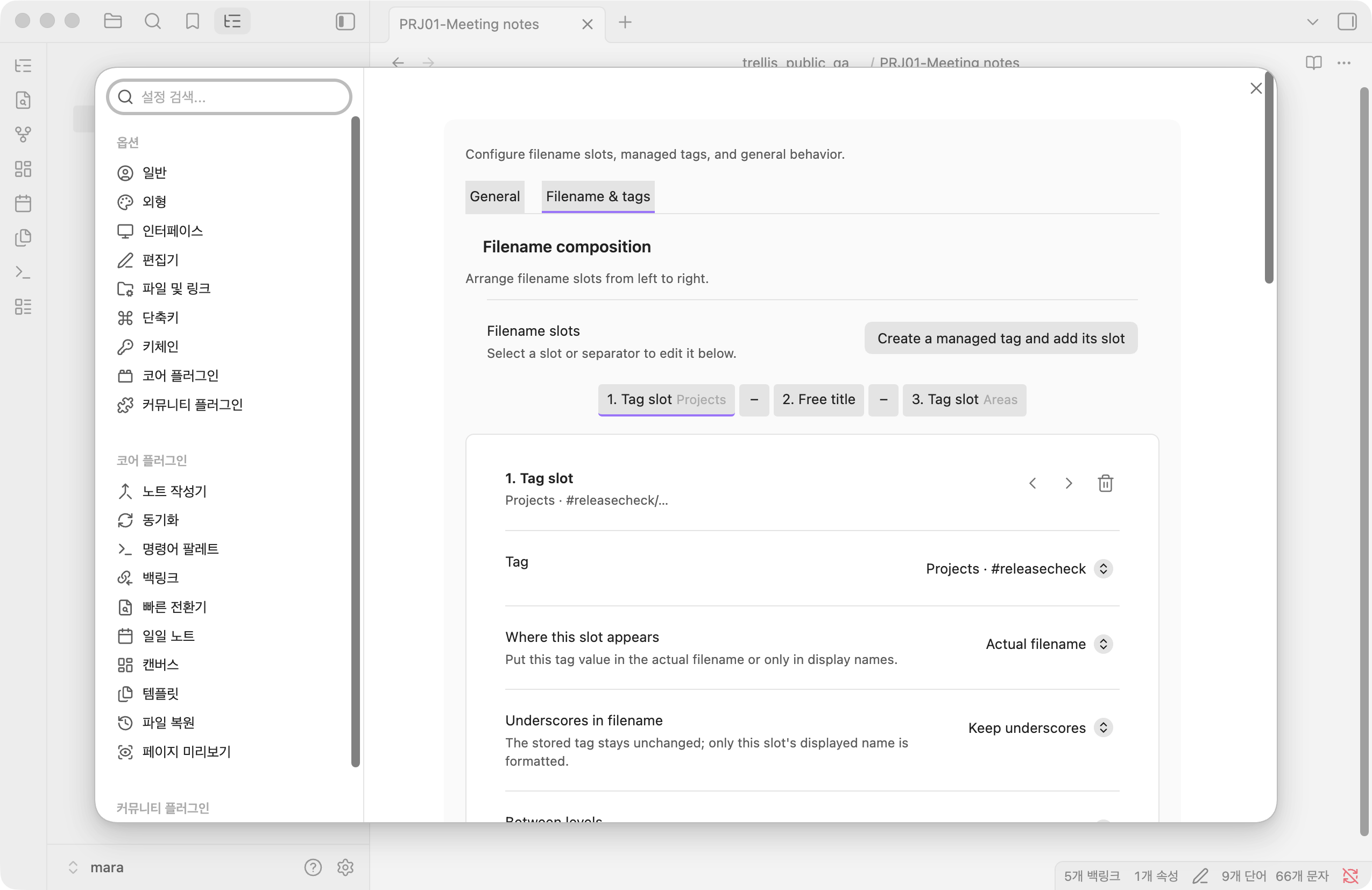
The structure combines an actual-filename Projects slot, a free title, and a
display-only Areas slot. This example uses test namespaces releasecheck and
areascheck; new installations start with trel.
| Native display options off | Native display options on |
|---|---|
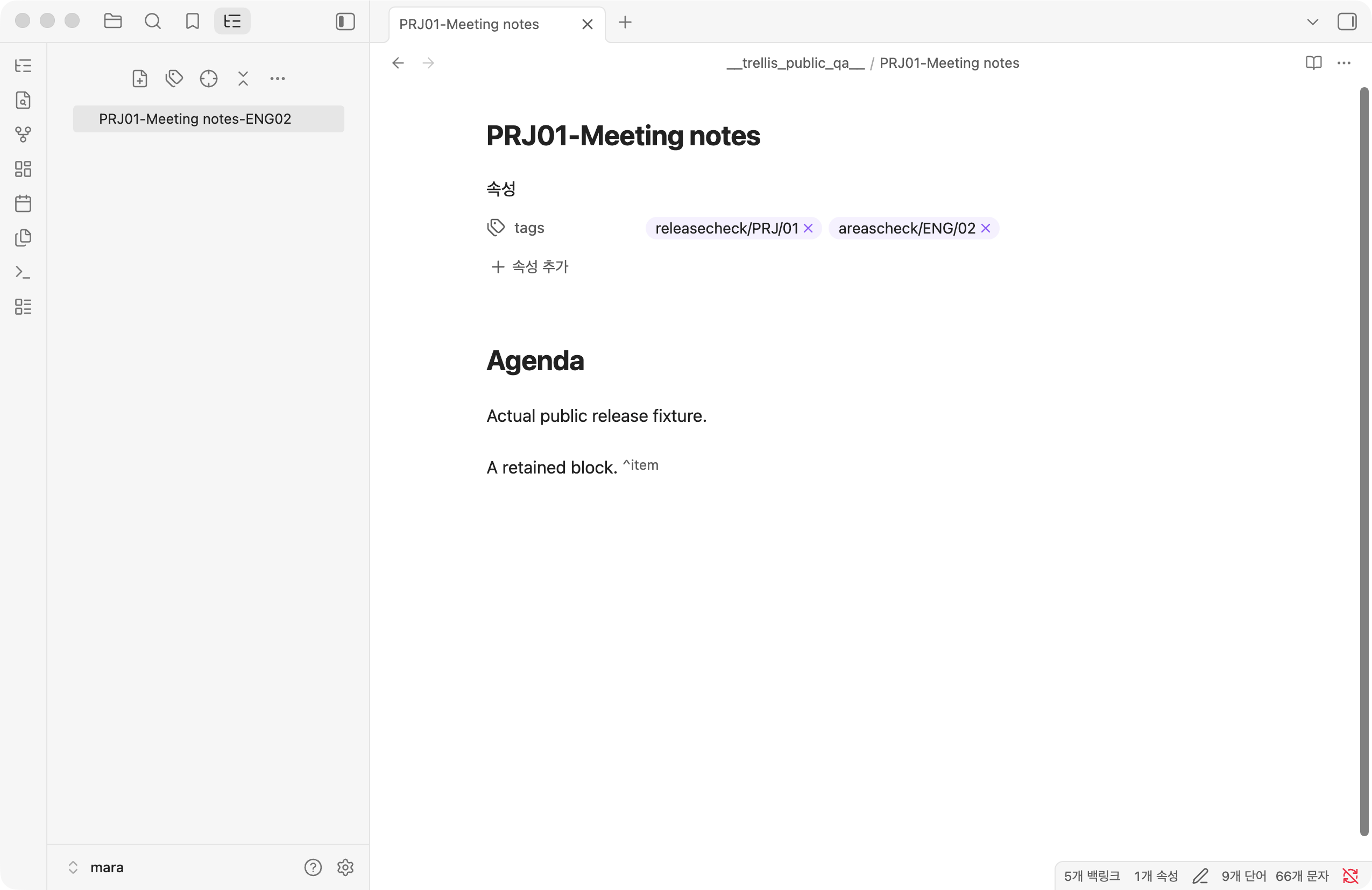 | 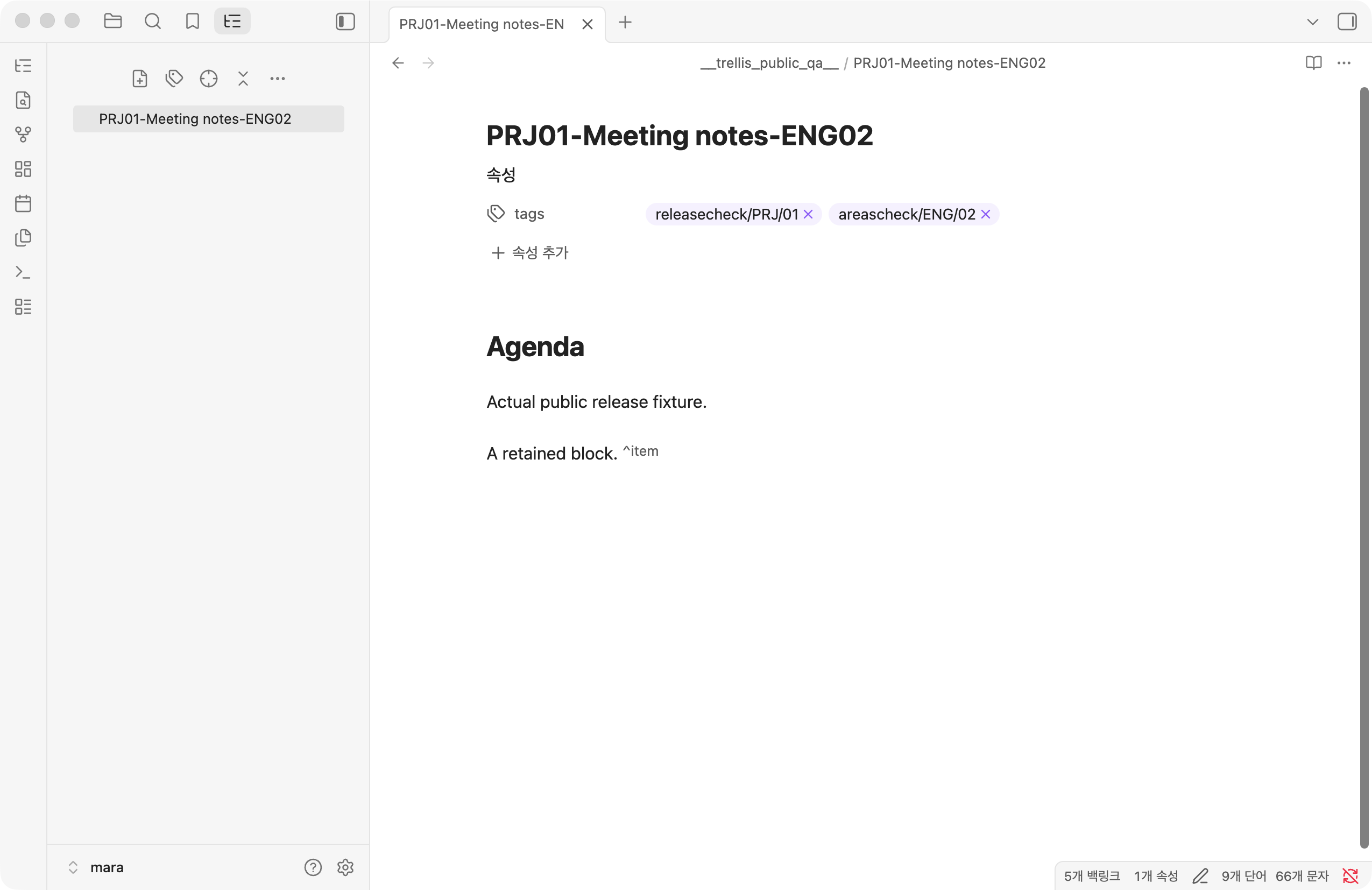 |
The actual file remains PRJ01-Meeting notes.md in both screenshots. Enabling
native display names adds ENG02 to the tab, note header, and inline title.
The Trellis sidebar shows its calculated name in both cases.
Automation for tools and AI
Trellis exposes a guarded in-process surface for tools that already run inside Obsidian:
describe / inspectNote → planChange → applyChange → awaitIdle
Plans are rejected if the note, tags, filename structure, or target path changed after inspection. Callers can query operation status and must treat an attention report as unfinished review even when Trellis is otherwise idle.
Trellis opens no network, REST, URI, or MCP endpoint. See Guarded automation for the request and result contracts.
Current boundaries
- Trellis manages frontmatter
tags; other properties are not filename sources. - Each managed definition is single-valued per note for filename projection.
- A filename structure supports multiple tag slots and at most one free title.
- Trellis renames note files, not matching folders or Folder Note pairs.
- Multi-value classification, note semantics, folder organization, Git history, and rules for assigning identifiers remain the user's responsibility.
These boundaries keep Trellis useful in different vaults without imposing one knowledge-management system.
Installation
Community plugins
In Obsidian, open Settings → Community plugins → Browse, search for Trellis, then install and enable it.
Manual installation
Download main.js, manifest.json, and styles.css from a matching
GitHub release, then place
them in:
your-vault/.obsidian/plugins/trellis/
Enable Trellis from Obsidian's Community plugins settings.
Compatibility, privacy, and safety
- Requires Obsidian 1.8.7 or newer.
- Supports desktop and mobile.
- Runs locally inside Obsidian. Native display names also use internal view structures.
- Makes no network requests and collects no telemetry.
- Does not access files outside the current vault.
For 0.7.0, core filename and display-only flows were tested on macOS with Obsidian 1.8.7 and 1.13.7. Windows Obsidian UI and execution on physical Android/iOS devices have not been tested for this version. See the release notes for the compatibility and recovery details.
Filename and tag migrations can affect many notes. Review the preview and keep a normal vault backup before large changes.
Development
npm ci
npm run lint
npm run build
npm test
npm audit --audit-level=high
npm run verify:release -- 0.7.0
Pure filename-structure logic lives in src/tagkey.ts. Persisted settings and
operation tracking live in src/settings-model.ts and
src/operation-state.ts. Filename projections and their incremental index live
in src/filename-projection.ts and src/projection-index.ts; title preservation
lives in src/physical-title-memory.ts. Obsidian integration lives in src/main.ts.
See CONTRIBUTING.md for the development and release workflow.
License
For plugin developers
Search results and similarity scores are powered by semantic analysis of your plugin's README. If your plugin isn't appearing for searches you'd expect, try updating your README to clearly describe your plugin's purpose, features, and use cases.