by LekoArts
Travel planner for your vault. Create trips, day plans, stops and activities from templates, with dates and links filled in. Rearrange your itinerary by day in a trip tab.
Trips




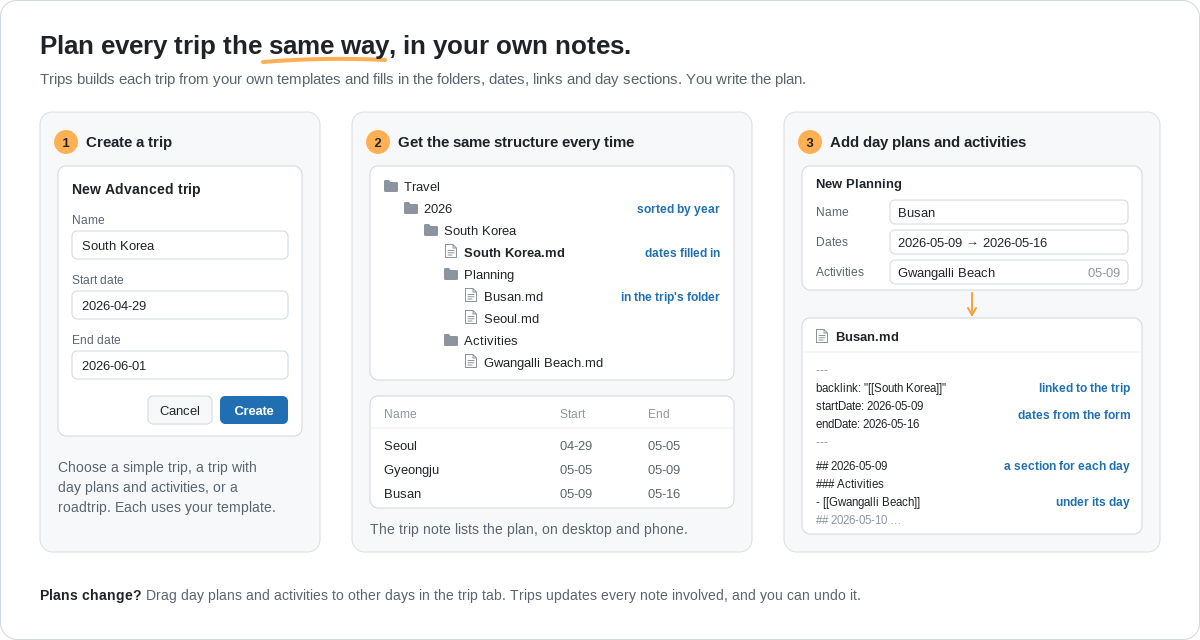
Trips helps you plan trips in Obsidian. It creates trip notes from your templates, saves them in the right folder and fills in their dates and links. Each trip gets a tab where you move its days and activities around.
Your notes stay ordinary Markdown. They work the same when the plugin is turned off.
Words used here
- Trip: one note for the whole trip, with a start and an end date.
- Day plan and stop: notes for part of a trip, such as three nights in one city. Each has its own dates inside the trip.
- Activity: a note for something to do, such as a museum. You can put it on one or more days.
- Kind: a type of note, with its own template, folder and form fields. You can use the kinds from the travel setup, change them or add your own. See Change the kinds.
Use it
All actions are commands. Open the command palette with Cmd+P (macOS) or Ctrl+P (Windows, Linux) and type "Trips".
Set up Trips
- Open Settings → Trips.
- Choose one way to start:
- Use the travel setup to start with ready-made kinds. Trips adds their templates to
_templates/and their Bases to_templates/Bases/. You see the list of files first. Files already in your vault are never changed. - Use my own templates to start with one trip kind based on a note you pick, or on a starter note that Trips creates. Put
{{start_date}}and{{end_date}}in the properties that hold the dates, for examplestartDate: "{{start_date}}".
- Use the travel setup to start with ready-made kinds. Trips adds their templates to
- Optional: under Travel folder, choose where trips are saved. Trips also looks for existing trips there.
The travel setup has these kinds:
| Kind | What it is |
|---|---|
| Simple | A trip in a single note |
| Advanced | A trip that holds day plans (Planning) and activities (Activity) |
| Roadtrip | A trip that holds a stop (Stop) for each place you stay |
| Planning | Part of a trip, such as three nights in Busan, with a section for each day and its activities |
| Stop | One place on a road trip, with its dates |
| Activity | Something to do, which you can put on a day of a day plan |
Whichever way you start, you can change every kind later.
Change the kinds
Open Settings → Trips. Your kinds are listed under Trip kinds and Inside a trip. Select a kind to change it, or use Add trip kind and Add note kind to add one.
For each kind you can set:
- Name: how it appears in menus and buttons.
- Template: the note that new notes of this kind copy.
- Save new notes to: the path, built from
{{trip_name}},{{entry_name}}and{{trip_start_year}}, for exampleTravel/{{trip_start_year}}/{{trip_name}}.md. - Contains (trip kinds only): which kinds you can add to the trip.
- One section per day: whether new notes get a heading for each date, and its format under Day-heading format.
- Form fields: the fields you fill in when you create a note. Use Add a field for more.
- Recognition and property names: how Trips tells the kinds apart and which properties hold the dates and links.
Template, path, field and day-section changes apply to notes you create afterwards; existing notes aren't rewritten. Renaming a property doesn't rename it in existing notes.
You can also edit your templates like any note. Change headings, callouts and text freely. Keep their properties and {{…}} placeholders, because Trips uses them to recognise and fill in notes.
Create a trip
- Run Trips: Create trip….
- If you have more than one trip kind, choose one.
- Enter a name, a start date and an end date. The end date can't be before the start date.
- Fill in any other fields from your template and select Create.
Trips saves the note in the folder shown under the name, for example Travel/2026/South Korea/South Korea.md, and opens it.
Add a day plan, stop or activity
- Open the trip note.
- Run Trips: Add to trip… and choose what to add.
- Enter a name and dates. Dates must be inside the trip's dates.
- For a day plan, you can select Add activity… to link activities and choose a day for each.
- Select Create.
The new note links back to the trip and gets a section for each of its days. If you run the command without a trip open, Trips asks which trip to use.
Edit a trip's properties
Open a trip note, run Trips: Edit trip properties…, change the fields and select Save. If the note changed since you opened the form, nothing is saved. Reload the form and try again.
Plan the days
Open a trip note and run Trips: Edit trip itinerary. A tab opens with every day of the trip and the day plans, stops and activities on each day.
In this tab you can:
- Change the trip's dates: select the dates under the trip name, or use Trip actions → Change trip dates.
- Move a day plan or stop: drag it to another day, or use its ⋯ menu: One day earlier or One day later.
- Make a stay longer or shorter: use One night longer or One night shorter in its menu. To set exact dates, use Change dates….
- Put an activity on a day: drag it from Not on a day, or select + on a day and choose or create an activity.
- Move an activity: drag it to another day or another place in the list, or use Move to day… in its menu.
- Take an activity off a day: select × next to it. The activity note stays.
- Detach or delete a note: use Detach from trip or Delete… in its menu. Detached notes stay in your vault but no longer belong to the trip.
- Open a note: select its name. Cmd-click (macOS) or Ctrl-click opens it in a new tab.
Each change is saved to your notes at once. To reverse the last change, select Undo in the bar at the bottom. Undo only works while the changed notes are as Trips left them.
Moving a day plan or stop changes only its date properties. Check dates and day headings you wrote in the note text yourself.
Keyboard
| Keys | Focused item | Action |
|---|---|---|
| Alt+↑ / Alt+↓ | Day plan or stop | Move one day earlier or later |
| Alt+Shift+↑ / Alt+Shift+↓ | Day plan or stop | One night shorter or longer |
| Alt+↑ / Alt+↓ | Activity on a day | Move up or down, onto the next day at the ends |
| Delete or Backspace | Activity on a day | Take it off that day |
| Escape | Date editor | Close without saving |
Fix notes Trips can't read
Run Trips: Review notes that need attention. It lists notes that Trips can't match to one kind or one trip. Pick a note, then choose its kind or trip. Trips remembers your choice and doesn't change the note.
Use Trips from a script or agent
Trips adds commands to the Obsidian CLI. Obsidian must be running with the vault open, and Trips must be set up in it. Notes come out exactly as the creation form and the trip tab write them.
| Command | Does | Example |
|---|---|---|
trips:status | Whether Trips is set up, and notes that need attention | obsidian vault=Travel trips:status |
trips:kinds | Kinds, what a trip contains, and each kind's fields | obsidian trips:kinds |
trips:list | Trips with their day plans, stops, activities and days | obsidian trips:list |
trips:create | Create a trip, day plan, stop or activity. Flags: kind, name, start, end, trip, or json | obsidian trips:create kind=activity name="Tram 28" trip=Lisbon |
trips:assign | Put an activity on a day, move or reorder it, or take it off. Flags: trip, activity, action (add, move, remove), entry, day, from-entry, from-day, position, or json | obsidian trips:assign trip=Lisbon action=add activity="Tram 28" entry=Alfama day=2026-09-11 |
trips:reschedule | New dates for a day plan or stop (extend also grows the trip), or wider trip dates. Flags: trip, entry, start, end, extend, or json | obsidian trips:reschedule trip=Lisbon entry=Alfama start=2026-09-12 end=2026-09-13 |
Fields and activities go in json, for example json='{"kind":"planning","name":"Alfama","trip":"Lisbon","start":"2026-09-11","end":"2026-09-12","activities":[{"name":"Tram 28","day":"2026-09-11"}]}'. Dates are YYYY-MM-DD; position counts from 1.
Every command answers in JSON. The CLI always exits with 0, so check the ok field: when it's false, error.code and error.message say what went wrong and what to do. When an edit to several notes fails partway, error.report lists the notes that were written. There is no Undo from the CLI.
Editing properties, attaching and detaching notes, deleting, Undo and fixing notes that need attention stay in Obsidian.
To let an AI agent plan trips this way, install the trips skill with skills:
npx skills add LekoArts/obsidian-trips --skill trips
It asks which agents to install it for. Add -g to install it for all your projects instead of the current one. You can also copy the skills/trips folder into the agent's skills folder by hand, for example .claude/skills/trips.
Requirements
Obsidian 1.13.1 or later. Works on desktop and mobile. Planning days works best on a larger screen; on a phone, the trip note's Base shows the plan.
Privacy
Trips works offline. It makes no network requests, collects no telemetry and needs no account. It only reads and writes notes inside your vault.
Contributing
See CONTRIBUTING.md.
License
For plugin developers
Search results and similarity scores are powered by semantic analysis of your plugin's README. If your plugin isn't appearing for searches you'd expect, try updating your README to clearly describe your plugin's purpose, features, and use cases.