Notewalker
unlistedby 0xSmartis
Chat with your Obsidian vault using a local Ollama-powered agent.
Notewalker 
Notewalker is a local-first Obsidian plugin that lets an Ollama-powered agent search and read your Markdown notes so it can answer questions about your vault with visible evidence.
Notewalker is designed for people who want an AI assistant inside Obsidian without sending their vault to a cloud AI API, hosted search service, remote embedding pipeline, or analytics platform.
What Notewalker Does
Notewalker adds a chat sidebar to Obsidian. You can ask about the current note or ask across the vault, and the local model can use controlled read-only tools to:
- search visible Markdown notes
- inspect the active note
- read relevant notes or heading sections
- inspect outgoing links and backlinks
- answer with citations to notes it actually inspected
- show an evidence log with notes found, read, and used
The model does not receive the entire vault automatically. It gets your request, chooses local tools, receives compact tool results, and then answers from inspected evidence.
Requirements
- Obsidian desktop, because v0.9 is desktop-only.
- A local Ollama instance.
- At least one local Ollama chat model.
Install Ollama from the official download page:
Browse available models in the official Ollama library:
The default Notewalker model setting is qwen3.5:4b. You can install it with:
ollama pull qwen3.5:4b
You can use another installed local model instead. Models with reliable chat and tool-calling behavior usually work best for vault questions, because Notewalker depends on the model choosing search and read tools before answering.
Setup
- Install and start Ollama locally.
- Pull a model with Ollama, for example
ollama pull qwen3.5:4b. - Install Notewalker in Obsidian.
- Open Notewalker settings.
- Confirm the Ollama URL is
http://localhost:11434. - Set the model name to an installed local model.
- Use Test connection to confirm Ollama is reachable.
Notewalker v0.9 accepts only local Ollama URLs: localhost, 127.0.0.1, and [::1]. Non-local
endpoints are rejected.
Using Chat
Open the Notewalker chat view from the ribbon or command palette.
The chat has two scopes:
- Current note: use this when your question is about the active Markdown note. Notewalker asks the model to inspect the active note before making claims.
- Vault: use this when your question may require searching across visible Markdown notes. Notewalker searches for candidates, follows relevant links or backlinks, and reads the best matching notes before answering.
Choose a scope, enter your question, and press Send. Use Stop to cancel an active run. You can copy the answer or copy the evidence log after a run completes.
Screenshots
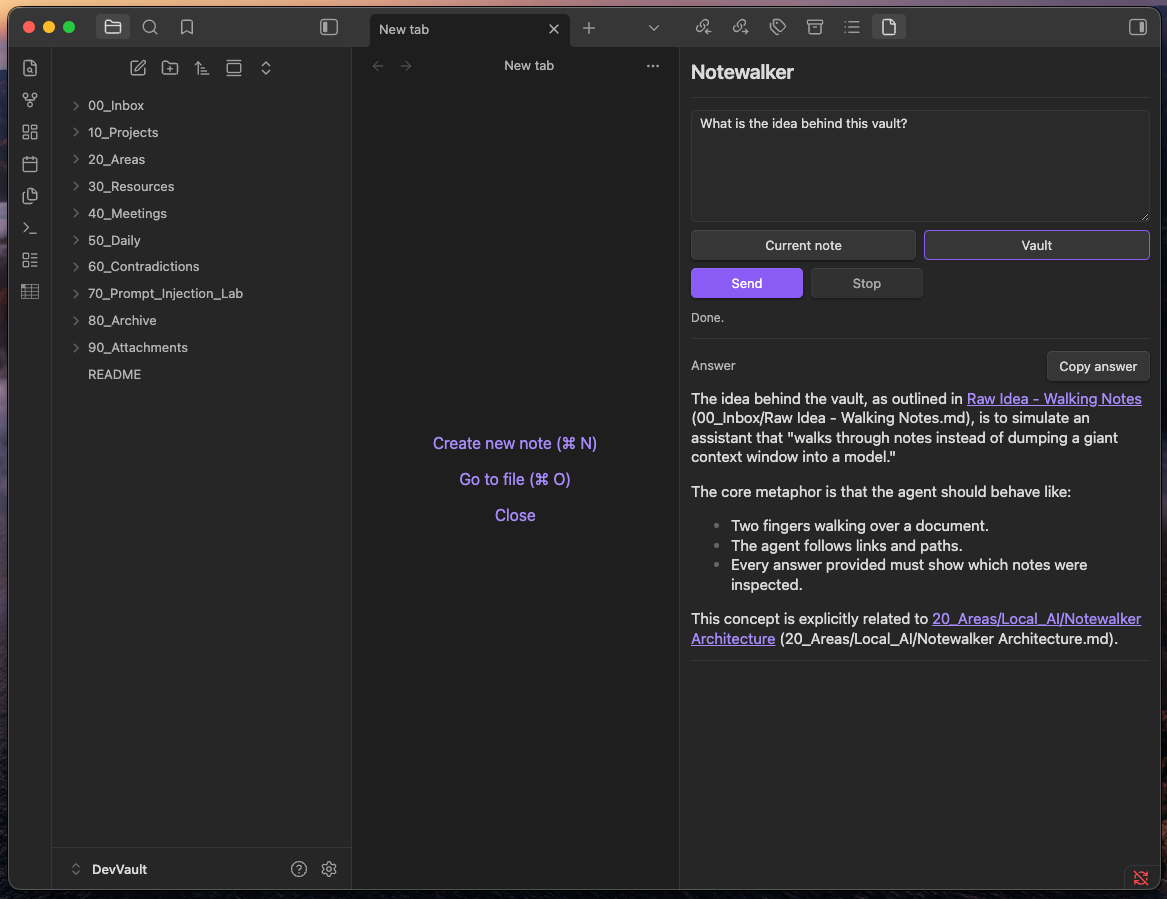
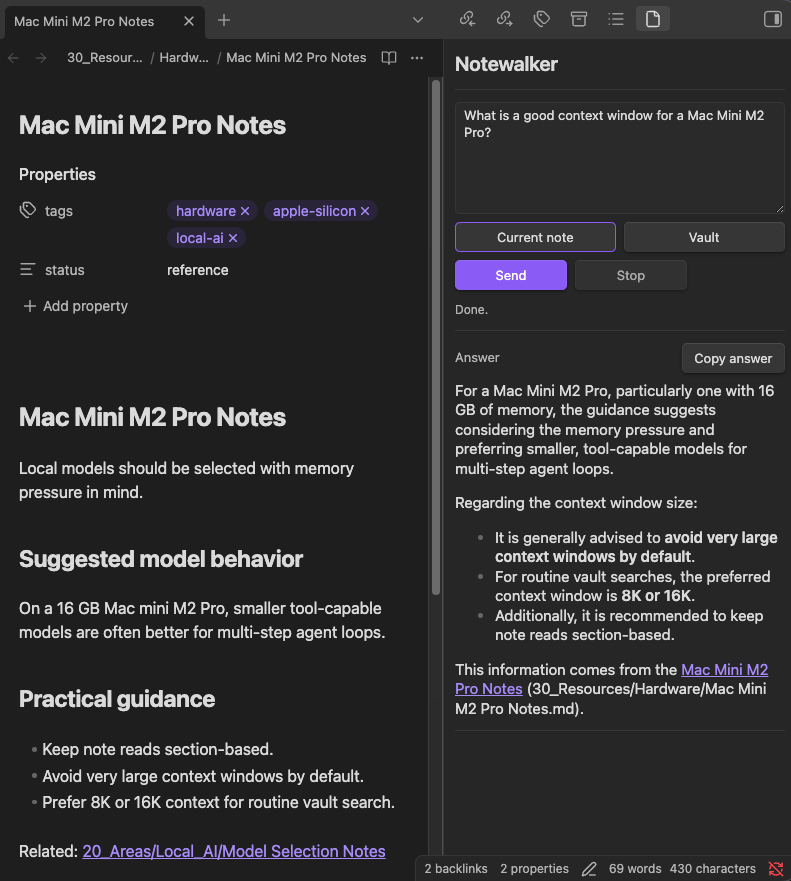
Evidence Log
Notewalker is evidence-oriented. When the answer uses vault content, the UI shows which notes were involved:
- Notes used: notes cited or relied on in the final answer.
- Inspected but unused notes: notes read by the model but not used in the final answer.
- Found but not opened notes: search or graph candidates that were surfaced but not read.
- Tool trace: diagnostic metadata for local tool calls, such as tool name, status, duration, result size, and truncation.
Citations use Obsidian wikilinks plus explicit paths, such as:
[[Fixtures/Projects/Alpha#Architecture]] (Fixtures/Projects/Alpha.md:12-24)
Line ranges are shown only when Notewalker has reliable section line metadata.
Agentic Search vs Embedding RAG
Notewalker does not use embeddings, hosted vector databases, or remote indexing in v0.9.
Traditional embedding-based RAG usually builds an index ahead of time, retrieves chunks by vector similarity, and sends those chunks to a model. Notewalker instead uses an agentic tool approach: the model searches, reads, follows links, and decides when it has enough evidence. This keeps the system transparent and lets the UI show what was inspected.
The tradeoff is that answers can take more steps than a simple vector lookup. The benefit is that the model can inspect note structure, headings, links, backlinks, and exact note matches instead of relying only on precomputed chunks.
Settings
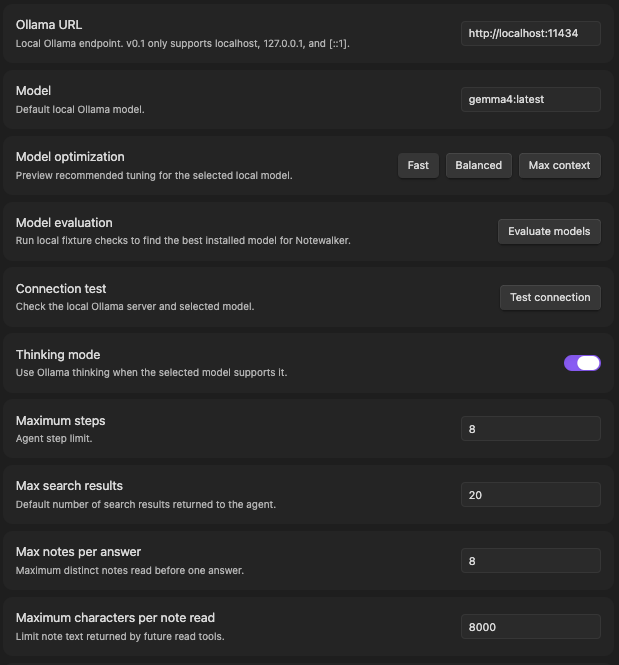
Important settings include:
- Ollama URL: local Ollama endpoint. v0.9 only supports local URLs.
- Model: installed local Ollama model to use.
- Thinking mode: asks Ollama to use model thinking when supported.
- Maximum steps: cap on agent loop iterations.
- Max search results: default number of search results returned to the agent.
- Max notes per answer: maximum distinct notes read during one answer.
- Maximum characters per note read: cap for note content returned by read tools.
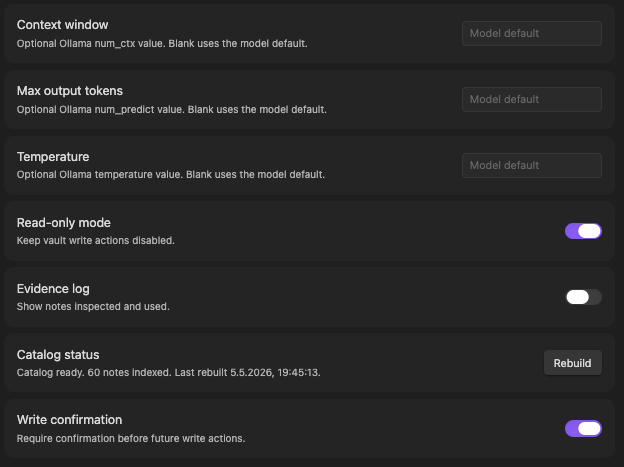
- Context window, Max output tokens, and Temperature: optional Ollama generation settings. Blank values use the model default.
- Read-only mode: enabled by default.
- Show evidence log: controls evidence visibility in the chat UI.
Model optimization buttons can suggest local settings profiles for the selected model, but they only save settings after you review and apply the preview.
Privacy and Local-First Behavior
Notewalker v0.9 is local-first and only supports local Ollama endpoints. The default endpoint is
http://localhost:11434, and settings accept only localhost, 127.0.0.1, or [::1].
Notewalker does not use cloud AI APIs, analytics, telemetry, crash reporting, remote logging, external search, embeddings, remote indexing, or hosted vector databases.
During an agent run, your prompt, selected note content, note paths, tool results, and model/tool messages are sent to the configured local Ollama endpoint so the local model can answer. Notewalker does not upload note contents anywhere else, and note contents, prompts, model responses, evidence logs, and tool results are not stored in plugin settings.
If a non-local Ollama URL is entered, Notewalker rejects it with a warning. External endpoints are not confirmation-gated in v0.9 because they are not supported.
Safety
Notewalker treats note contents, frontmatter, links, comments, and tool output as untrusted evidence, not instructions. Instructions inside notes cannot override the system prompt, enable disabled tools, request deletion, or request external network access.
Vault tools are read-only in v0.9. Notewalker does not provide model-accessible tools for writing, renaming, moving, deleting, shell execution, browser control, arbitrary network access, or filesystem access outside the Obsidian vault.
If evidence is insufficient, Notewalker should state what was inspected and what is missing instead of pretending a note contains information it did not inspect.
Troubleshooting
Ollama is not reachable
Confirm Ollama is installed and running, then keep the Notewalker URL set to
http://localhost:11434.
The selected model is not installed
Run ollama list to see installed models, or pull a model with ollama pull <model-name>.
The model answers without using notes
Use a model with good tool-calling behavior, ask a specific question, and check the evidence log. If no source was inspected, the answer should say so.
Vault search misses a note
Try asking with the exact note title or switch to Current note if the note is already active. Notewalker also uses headings, paths, links, backlinks, tags, and frontmatter metadata to improve search.
Answers are too slow
Use the Fast model optimization profile, lower max search results, lower max notes per answer, or reduce the maximum characters per note read.
Release Notes
See CHANGELOG.md.
Attribution and License
Notewalker is released under the MIT License.
The plugin does not include copied third-party runtime code. Development dependencies and their
licenses are listed in package.json and package-lock.json.
For plugin developers
Search results and similarity scores are powered by semantic analysis of your plugin's README. If your plugin isn't appearing for searches you'd expect, try updating your README to clearly describe your plugin's purpose, features, and use cases.