Tab Tint
unlistedby CypherPoet
Tint tab headers with custom colors to tell open notes apart at a glance
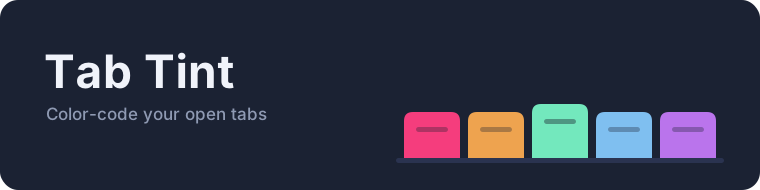





An Obsidian plugin that tints tab headers with custom colors, so you can tell open notes apart at a glance.
Why
When you work across several notes at once — researching, cross-referencing, writing — finding the right tab by its title alone is slow. Tab Tint gives each tab a color you assign, so your eyes jump straight to it. What each color means is up to you: you might reserve one for the note you're actively drafting and another for reference material you keep returning to.
A tint means something: each tab remembers which palette slot you gave it. Recolor the slot in settings and every tab wearing it updates — your "reference material" color stays your reference-material color, whatever hex it points at today.
Install
Manually (until the plugin is listed in the community directory):
- Download
main.js,manifest.json, andstyles.cssfrom the latest release. - Copy them into
<your-vault>/.obsidian/plugins/tab-tint/. - Reload Obsidian, then enable Tab Tint under Settings → Community plugins.
Use
Tint a tab — right-click any tab header and pick a color from the bottom of the menu. Each entry shows a swatch of the color it applies.
Clear a tint — right-click a tinted tab and choose Clear tint.
Commands (assignable to hotkeys under Settings → Hotkeys):
| Command | What it does |
|---|---|
| Apply tint 1–N | Tint the current tab with that palette slot (one command per color) |
| Clear tint | Remove the current tab's tint |
| Clear all tints | Remove every tint in the vault |
| Merge duplicate tabs | Close extra tabs showing the same file, keeping the active one |
Merging never happens automatically — it only runs when you invoke the command, so split panes and deliberate duplicates are safe.
Behavior notes:
- Tints follow a file through renames and moves.
- Tinted tabs are pinned automatically (and unpinned when cleared) — toggle Auto-pin tinted tabs off in settings if you'd rather manage pins yourself.
- Tab text switches between dark and light ink based on the tint, so labels stay readable on any color — or override it with Tab text color in settings (always dark, always light, or a custom color).
- Works in popout windows; sidebar panels are deliberately left untouched.
- Renaming a palette color updates its command name immediately.
- Add and remove palette colors in settings (the palette keeps at least one). Removing a color clears — and, with auto-pin on, unpins — any tabs using it; every other tab keeps its color.
- Hotkeys stay bound to their slot number: a hotkey for Apply tint 2 keeps working as colors are added or removed, and goes dormant if slot 2 itself is removed.
Default palette
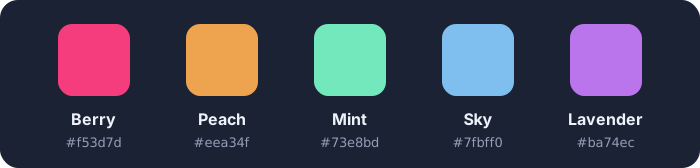
| Slot | Name | Hex |
|---|---|---|
| 1 | Berry | #f53d7d |
| 2 | Peach | #eea34f |
| 3 | Mint | #73e8bd |
| 4 | Sky | #7fbff0 |
| 5 | Lavender | #ba74ec |
Every slot's name and color is editable under Settings → Tab Tint, and colors can be added or removed there; Reset palette restores the defaults above.
A note on Obsidian internals
Obsidian has no public API for styling tab headers, so Tab Tint (like every tab-styling plugin) reads two undocumented internals. These reads are quarantined in tabColors.ts behind null-safe accessors: if a future Obsidian update renames them, tints silently stop applying rather than anything crashing. If that happens, update the plugin — or open an issue and it'll be a small fix.
License
For plugin developers
Search results and similarity scores are powered by semantic analysis of your plugin's README. If your plugin isn't appearing for searches you'd expect, try updating your README to clearly describe your plugin's purpose, features, and use cases.