Projects Sidebar
unlistedby Ibraheem Amin
A filterable project sidebar with a focused file tree and nested project boundaries.
Projects Sidebar
One vault. A little more focus.
A lightweight project navigator for Obsidian.
Choose a folder, pin your favorites, and settle into a file tree built around your work.



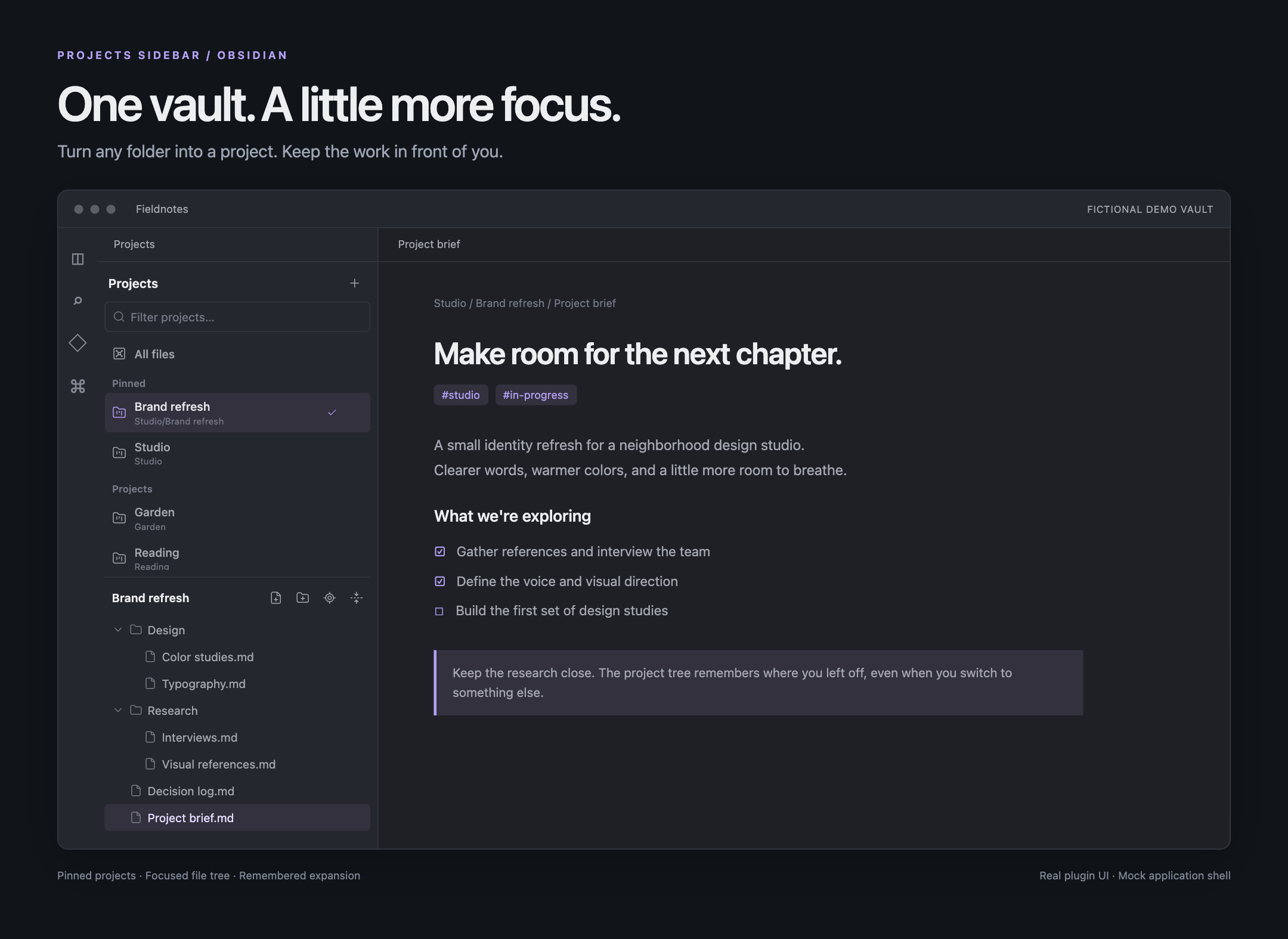
Images render the actual plugin UI inside a mock application shell. All notes and folders belong to a fictional “Fieldnotes” vault.
Your folders, with a sense of place
| Focus on a project | Make any vault folder a project. Its files stay right where they are. |
| Find it quickly | Filter by name or folder path; pin the projects you return to most. |
| Go one level deeper | Nested projects own their descendants and appear as shortcuts in their parent. |
| Pick up where you left off | Folder expansion is remembered independently for every project. |
| Keep moving | Navigate by keyboard, create notes and folders, or reveal the active file in its project. |
| Keep the tree light | Only visible tree rows and a small buffer are mounted. Editing a note does not rebuild the tree. |
Install
Requires Obsidian 1.8.7 or newer. Install from GitHub; this plugin is not currently listed in Obsidian's community plugin directory.
With BRAT
If you use BRAT, choose Add a beta plugin and enter:
https://github.com/DIodide/obsidian-projects-sidebar
Manually
- Download
projects-sidebar-1.1.0.zipfrom the latest release. - Extract the
projects-sidebarfolder into<vault>/.obsidian/plugins/. - Reload Obsidian and enable Projects Sidebar under Settings → Community plugins.
The resulting folder should contain main.js, manifest.json, and styles.css directly inside .obsidian/plugins/projects-sidebar/. Use the release ZIP, rather than GitHub's auto-generated source archive, for installation.
How it works
- Open Projects using the ribbon icon or Projects Sidebar: Open Projects in the command palette. It also opens automatically on startup by default.
- Click + to choose a folder, or right-click a folder and select Open as project.
- Select a project to focus its tree. Use … to pin it, change its display label, or remove it from the list.
All files brings back the full vault tree. Removing a project only removes its configuration; your files stay untouched.
Nested projects feel natural
A project includes every descendant until another project begins. Register Studio and Studio/Brand refresh, and the parent tree shows a Brand refresh · Project ↗ shortcut. Open it to switch to that project's tree.
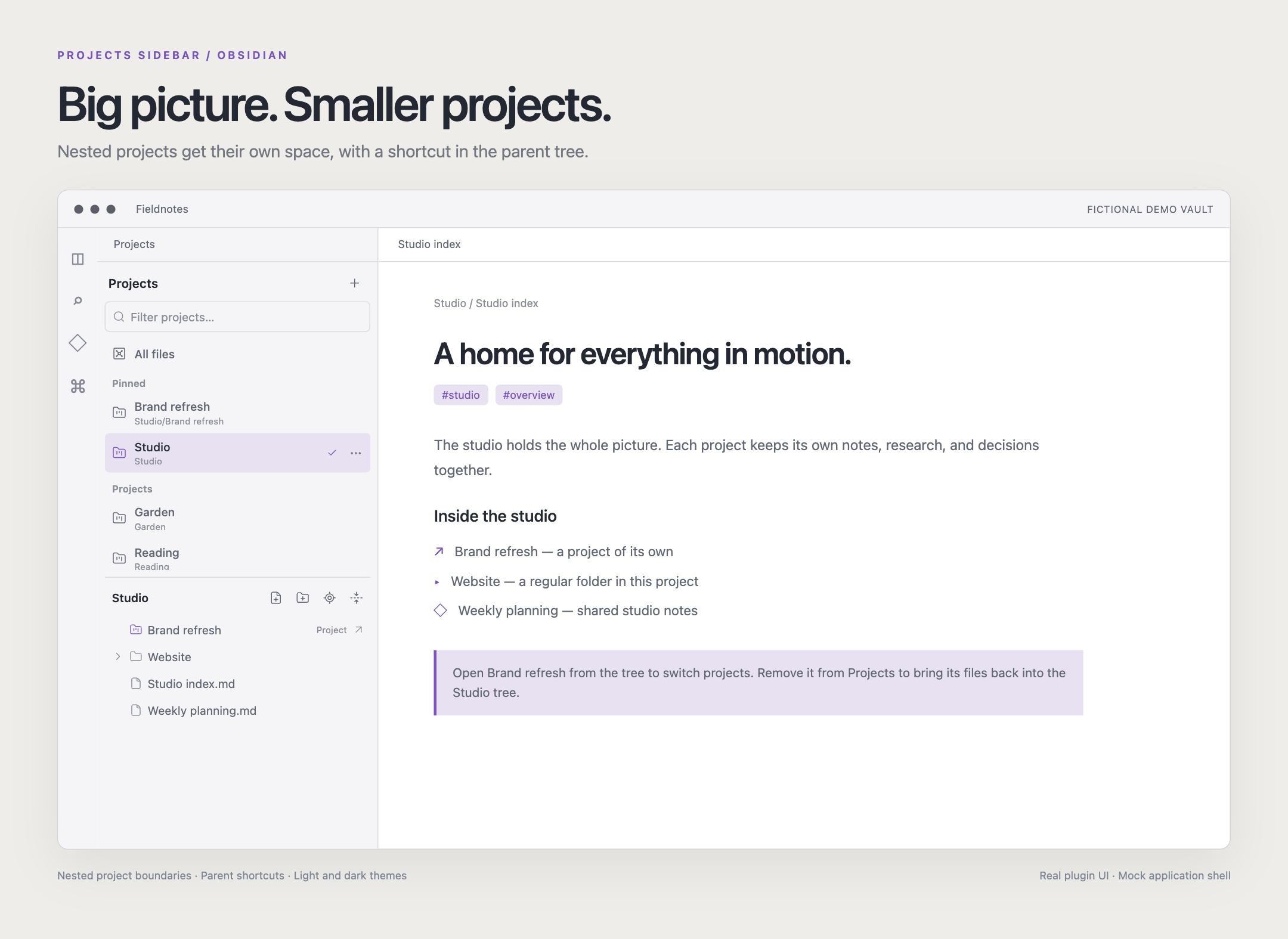
Remove the nested project from the list and its subtree becomes part of the parent again. Reveal active file in its project chooses the deepest matching project and expands the folders leading to that file. Folder renames and moves update saved paths and expansion state.
Keyboard and everyday actions
| Action | Shortcut or control |
|---|---|
| Move through the file tree | ↑ / ↓ |
| Expand or enter a folder | → |
| Collapse or move to its parent | ← |
| Open a file or nested project | Enter / Space |
| Jump to the first or last row | Home / End |
| Open a file in a new tab | Cmd / Ctrl + click |
| Move from the filter to the project list | ↓ |
| Clear the project filter | Esc |
| Create a note or folder | Tree toolbar, or right-click a folder |
| Reveal the active file / collapse folders | Tree toolbar |
The command palette also offers Switch project, Add folder as project, Show all vault files, and Reveal active file in its project. Automatic opening can be turned off in the plugin's settings.
Move, copy, and delete
- Drag a note or folder onto another folder, a nested-project shortcut, or a project in the list to move it there. Drop on the tree heading or blank tree space to move it to the current project's root. Moves use Obsidian's link-aware file manager.
- Ctrl+C / Ctrl+V (also Cmd+C / Cmd+V on macOS) copy and paste the focused tree item. Select a destination folder to paste inside it; select a note to paste beside it. Click blank tree space to target the project root. Copy/paste without changing the selection duplicates the item beside itself, including a folder's descendants.
- Ctrl+D (also Cmd+D or Delete) deletes the focused tree item using Obsidian's existing confirmation and deletion settings.
- Right-click a tree item for Copy, Paste, and Delete. Copy/paste is supported between Projects views in the same open vault; clipboard text copied elsewhere replaces the copied file reference for keyboard paste.
Copies use an available name such as Note 1.md. Moves never replace an existing item, and a folder cannot be moved or copied inside itself. Dragging a registered project folder also updates its saved path. Copying a project folder copies its contents without registering another project.
Shortcuts apply while the sidebar tree is focused. Clicking a note keeps keyboard focus in the tree; click the editor to resume editing. Editing text in the project filter uses ordinary text shortcuts.
Small by design
- Uses Obsidian's existing in-memory file objects; navigation never reads note contents. Explicit copy operations use Obsidian’s native file/folder copy API.
- Traverses expanded folders only and stops at nested project boundaries.
- Windows the file-tree DOM to the viewport plus a small buffer. The automated suite checks that a 10,000-file tree mounts fewer than 40 rows with a simulated 400px viewport.
- Debounces create, delete, and rename events. No polling or refreshes on note edits and metadata changes.
- No network requests, telemetry, or bundled runtime dependencies. Settings stay in
.obsidian/plugins/projects-sidebar/data.json.
Scope: This plugin focuses navigation. It does not change global search, backlinks, or Obsidian's indexing, and it does not replace the original Files tab. The performance check above tests DOM windowing, not overall vault speed.
Development
Use Node.js 22+ and keep the checkout outside your vault.
npm ci
npm test
npm run build
npm run package creates the installable ZIP. npm run screenshots regenerates the images from fictional data using the actual sidebar source and CSS.
Tests cover project ownership, path boundaries, persisted state, renames, filtering, keyboard navigation, file opening, expansion restoration, empty folders, large-tree windowing, clipboard handling, drag-and-drop moves, collision protection, and deletion cancellation. Integration tests use jsdom and a small Obsidian API mock. The documentation renderer also checks switching, filtering, clipboard shortcuts, dragging, and deletion in Chromium with a mock vault. Live Obsidian and mobile testing remain unverified for these interactions.
See Contributing for setup and release instructions, and the Changelog for version history.
Credits & license
Inspired by T3 Code's project navigation. This is an independent implementation using Obsidian's native theme tokens and Lucide icons; it does not bundle T3 Code or connect to it. Source references →
MIT © Ibraheem Amin
For plugin developers
Search results and similarity scores are powered by semantic analysis of your plugin's README. If your plugin isn't appearing for searches you'd expect, try updating your README to clearly describe your plugin's purpose, features, and use cases.