Floating Note
unlistedby elkraps
Open your notes in always-on-top floating windows, perfect for taking notes while watching videos, reading, or working with multiple monitors.
Floating Note for Obsidian
Open Markdown notes in native floating windows with optional always-on-top behavior, opacity, and saved size and position.
Availability
Floating Note is not available in the Obsidian Community Plugins catalog. The submission pull request remained pending for roughly six months and was closed. There is currently no ready-to-download release; installation requires cloning this repository and building the plugin locally.
Build and install
Requirements: desktop Obsidian, Node.js 22 or later, and npm. Mobile is not supported. Version 1.0.1 was smoke-tested on macOS with Obsidian 1.13.7; the declared minimum Obsidian version has not been retested.
git clone https://github.com/elkraps/obsidian-floating-note.git
cd obsidian-floating-note
npm ci
npm run build
The build runs type checking, lint, and automated tests, then produces main.js.
- Create
<vault>/.obsidian/plugins/floating-note/. - Copy
main.jsandmanifest.jsoninto that directory. - Restart Obsidian and enable Floating Note in Settings → Community plugins. Community plugins must be allowed in that vault.
To update, pull the latest source, run npm ci and npm run build, copy both files again, and reload the plugin.
Usage
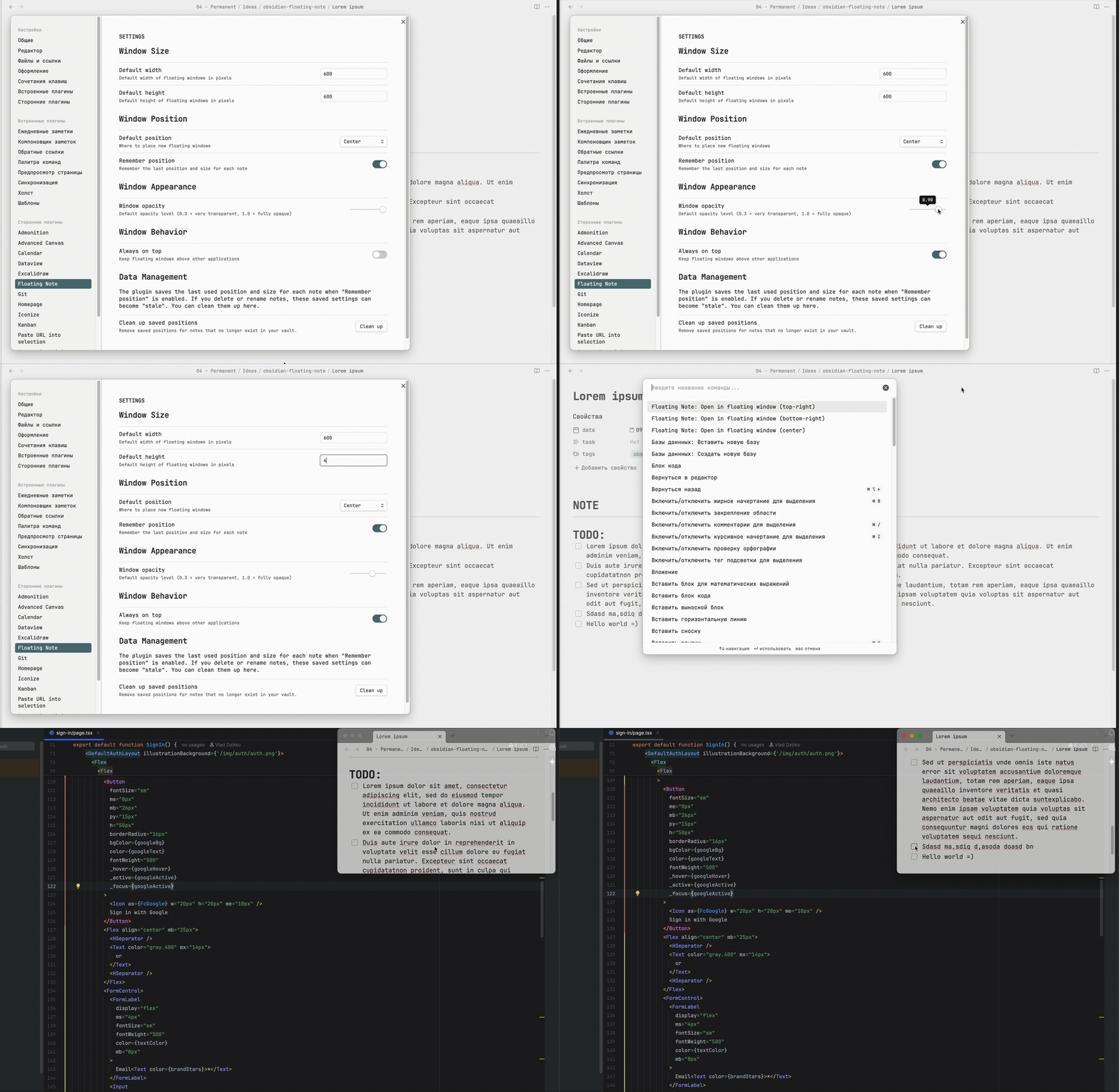
- Command palette: search for “Open in floating window” and choose a position. An explicit position overrides the note's saved coordinates, while retaining its saved size.
- File menu: right-click a Markdown file and choose “Open in floating window”.
- Ribbon: click “Open floating note” to open the active Markdown note.
The file menu and ribbon restore saved geometry when “Remember position” is enabled. New windows otherwise use the default position on the source window's monitor. Saved geometry is fitted to an available display if the original monitor is disconnected.
Settings
- Default width / height: 400 × 600 pixels; each must be greater than 200. Windows are fitted to the available work area.
- Default position: center or any corner; defaults to top right.
- Remember position: save size and position per note when opening, moving, resizing, and closing windows. Enabled by default.
- Window opacity: 0.3–1.0; defaults to 1.0.
- Always on top: enabled by default.
- Clean up saved positions: remove entries for notes that no longer exist. File renames and deletions are also handled automatically.
Appearance settings apply to newly opened windows. Disabling the plugin closes the windows it opened.
Development
npm run check   # Type checking, lint, and automated tests
npm run dev     # One development build with inline source maps
npm run build   # Checks and production build
After rebuilding, copy the output to a test vault and reload the plugin. The development command currently builds once; it does not watch files.
Window controls use Obsidian's runtime Electron integration, which is outside its public API and may change between application versions. If opening fails, the plugin shows a notice and logs details in the developer console (Ctrl/Cmd + Shift + I). Always-on-top and opacity behavior can vary by operating system and window manager.
License and feedback
MIT. Report problems or suggest improvements in GitHub Issues.
For plugin developers
Search results and similarity scores are powered by semantic analysis of your plugin's README. If your plugin isn't appearing for searches you'd expect, try updating your README to clearly describe your plugin's purpose, features, and use cases.