Veneer
unlistedby Fariz
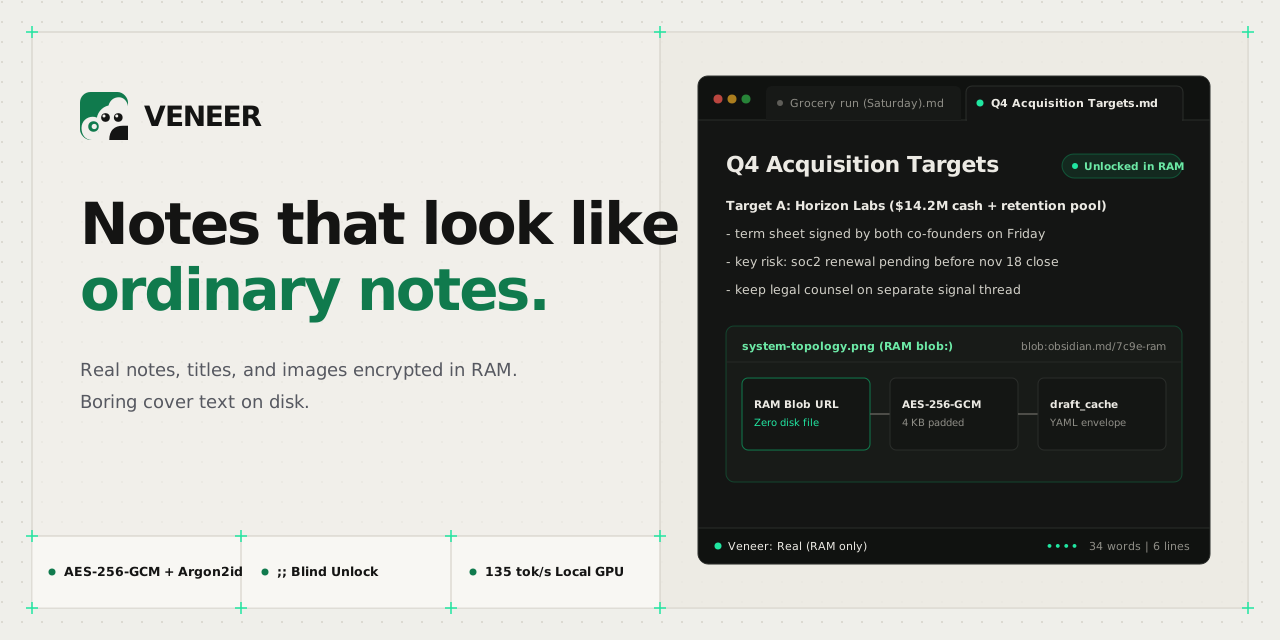
Notes that look like ordinary notes. Meaningful decoy text on the surface; your real text encrypted beneath — revealed by an inline password, hidden again on inactivity.

|
Veneer: Notes that look like ordinary notes. "Someone looks over your shoulder? They see a boring grocery list. Type ;; and your password on any line? Your real note, real title, and hidden images appear in RAM. Switch tabs or walk away, and the cover comes right back."
|
Hands-On Tutorial · Architecture & Threat Model · QA Checklist
Why Lock Screens Fail (And How Veneer Fixes It)
Traditional encryption plugins put a giant padlock on your file. That protects the ciphertext, but it announces to anyone looking at your screen, your sidebar, or your attachment folder that you are hiding something important. Veneer removes the tells.
| The Tell | Standard Encrypted Note Plugins | Veneer |
|---|---|---|
| 1. The "Locked File" Tell | Clicking the note pops up an obvious password modal or displays a block of raw base64 ciphertext. | Opens directly as an ordinary, readable note (a grocery list, meeting notes, or a debug log). No modal, no lock icon, and no error shake on a wrong password. |
| 2. The Filename Leak | The body is encrypted, but Seed Term Sheet.md sits in plain sight in your sidebar and OS file explorer. | Renames the file on disk to match the cover title (e.g., Weekend Errands.md). Your real title is encrypted inside the payload and restored in RAM only while unlocked. |
| 3. The Pasted Screenshot Leak | Text is encrypted, but Pasted image 20260415.png stays unencrypted right inside your vault folder. | Absorbs local ![[image.png]] files into the AES-256-GCM payload, deletes the unencrypted copies from disk, and renders them inline via in-memory blob: URLs while unlocked. |
| 4. The Auto-Save & Search Leak | Decrypting a note in place lets Obsidian's auto-save, global search index, or File Recovery snapshot plaintext to disk. | Intercepts MarkdownView save paths so disk writes always serialize the decoy body + encrypted draft_cache YAML frontmatter. Global search, graph view, and backlinks only ever index the cover. |
How It Works in 4 Steps
01. Pick or generate a cover
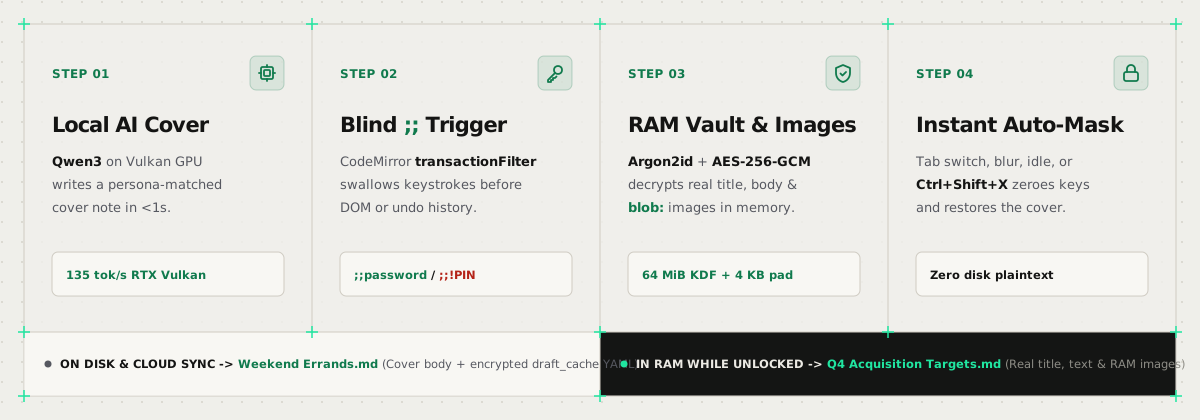
Run Veneer: Protect this note from the Command Palette or right-click menu. Choose one of 12 instant templates (grocery list, sprint retro, debug log, workout log, and more) or generate a custom, persona-aware cover on-device (Auto, Short ~50w, Medium ~200w, Long ~500w). On Windows with a compatible GPU, Veneer uses a local llama-server Vulkan runtime (~135 tokens/sec on an RTX 4050, generating a 500-word multi-section cover in ~4 seconds) and falls back automatically to single-threaded wllama WebAssembly when needed. Every generated cover is scored for burstiness, human shorthand, and zero n-gram overlap with your real note.
02. Type ;; + password on any line
To unlock a protected note, click at the start of any line and type ;; followed by your password and Enter (or Space). A CodeMirror 6 transactionFilter intercepts and swallows every character before it can enter the editor document state, DOM, or Ctrl+Z undo history. Subtle •••• dots in the bottom-right status bar confirm capture is active. If you prefer a dialog, Veneer: Unlock this note opens a password prompt with a Show / Hide toggle.
03. Edit normally in RAM
Once Argon2id derives your key (~300 ms), your real text, original note title, and embedded images appear in the editor. Edit, type, and paste new screenshots naturally. Every debounced auto-save re-encrypts the RAM buffer with a fresh 96-bit AES-256-GCM nonce, pads the payload to 4 KB blocks, absorbs any newly pasted vault images into the encrypted bundle, and writes only the cover note and draft_cache frontmatter to disk.
04. Walk away, it masks itself
Stop typing for 60 seconds, switch tabs, Alt+Tab to another window, lock your OS screen, or hit the Ctrl+Shift+X panic chord: Veneer immediately flushes pending edits to the encrypted payload, revokes active blob: image URLs, wipes the CodeMirror undo history so Ctrl+Z cannot resurrect your real text, clears tracked clipboard text, and swaps the cover title and decoy body back in. In an emergency, typing ;;! + your Destruction PIN at any line start crypto-shreds all protected payloads across your vault in one pass.
60-Second Install & Quickstart
Build & Install from Source
git clone https://github.com/farizanjum/veener.git
cd veener
npm install
npm run build

# Copy the built plugin into your Obsidian vault:
# Copy main.js, manifest.json, styles.css, and assets/ into:
# <your-vault>/.obsidian/plugins/deocy/
3-Step First-Run Checklist
- Disable Core File Recovery (Required): Open Settings -> Core plugins in Obsidian and turn off File Recovery. File Recovery snapshots in-memory editor buffers to disk; Veneer enforces this check and blocks unlocking until File Recovery is disabled.
- Set Your Cover Persona & Interests: Open Settings -> Veneer and add a one-line Cover persona (for example,
"backend developer who plays cricket and cooks on weekends") plus a few comma-separated Cover interests. On-device generation uses these to make decoys match your everyday life without ever reading your other vault notes. - Protect Your First Note: Open any note, press
Ctrl+P, and run Veneer: Protect this note. Pick an instant template or click Generate with your preferred cover length (Auto,Short,Medium, orLong), set a password, and watch your note transform into an ordinary cover file.
For a complete walkthrough of every feature, read the Hands-On User Tutorial.
Architecture & Project Structure
See docs/ARCHITECTURE.md for the deep-dive technical specification, cryptographic envelope format, session state machine, and edge-case catalog, and docs/QA.md for the live-vault verification checklist.
veener/
├── src/
│   ├── main.ts                  # Plugin entry, command registration, event wiring
│   ├── settings.ts              # Settings schema, model catalog, active model resolver
│   ├── registry.ts              # Protected-note registry and file-rename tracking
│   │
│   ├── crypto/
│   │   ├── cipher.ts            # AES-256-GCM DEK/KEK wrapping and 4 KB block padding
│   │   ├── kdf.ts               # Argon2id key derivation (64 MiB, 3 iterations, p=4)
│   │   ├── payload.ts           # YAML frontmatter (draft_cache) parser & serializer
│   │   ├── images.ts            # Vault image absorption and permanent restoration
│   │   └── random.ts            # CSPRNG salt and 96-bit nonce generation
│   │
│   ├── view/
│   │   ├── session.ts           # Per-view locked/unlocked RAM session & title swap
│   │   ├── patch.ts             # MarkdownView save interception & undo history wipe
│   │   ├── saveDecision.ts      # Save-path routing (locked cover vs. unlocked RAM)
│   │   └── imageWidget.ts       # CodeMirror 6 widget for in-memory blob: images
│   │
│   ├── capture/
│   │   ├── UnlockCapture.ts     # CodeMirror 6 transactionFilter for ;; & ;;! capture
│   │   └── buffer.ts            # Blind inline password/PIN state machine
│   │
│   ├── lock/
│   │   ├── LockEngine.ts        # Idle timer, blur, tab-switch, & Ctrl+Shift+X panic
│   │   ├── backoff.ts           # Silent exponential backoff on failed ;; unlocks
│   │   ├── clipboard.ts         # SHA-256 clipboard tracking and auto-wipe on mask
│   │   └── power.ts             # OS lock/suspend listeners & Electron screen shield
│   │
│   ├── decoy/
│   │   ├── wizard.ts            # Protect-this-note modal wizard & cover length picker
│   │   ├── templates.ts         # 12 built-in parameterized cover templates
│   │   ├── title.ts             # Cover H1 title extraction and safe file renaming
│   │   ├── strength.ts          # Password entropy and crack-time estimator
│   │   └── rng.ts               # Seeded PRNG for deterministic template fills
│   │
│   ├── llm/
│   │   ├── preferredRuntime.ts  # Automatic Vulkan GPU-to-WASM runtime selector
│   │   ├── nativeRuntime.ts     # Local llama-server Vulkan GPU lifecycle manager
│   │   ├── nativeRuntimeNode.ts # Node process spawner & loopback HTTP client
│   │   ├── runtime.ts           # Single-thread wllama WebAssembly fallback runtime
│   │   ├── generator.ts         # Decoy generation pipeline and retry loop
│   │   ├── prompt.ts            # Persona-aware prompts & Auto/Short/Med/Long targets
│   │   ├── validate.ts          # Burstiness, AI cliche, PII, & n-gram overlap checks
│   │   └── download.ts          # Resumable GGUF model downloader with SHA-256 verify
│   │
│   ├── shred/
│   │   ├── duress.ts            # RAM-first emergency ;;!PIN crypto-shredding engine
│   │   ├── pin.ts               # Argon2id Destruction PIN hashing and verification
│   │   └── hygiene.ts           # Core File Recovery & OS security hygiene checks
│   │
│   └── ui/
│       ├── settingsTab.ts       # Plugin settings, model manager, & VeraCrypt guide
│       ├── modals.ts            # Password unlock/change & PIN modals (Show/Hide)
│       ├── downloadModal.ts     # Pause/resume GGUF model download progress modal
│       └── statusBar.ts         # Stealth ;; capture dots & plain word/line counts
│
├── site/                        # Swiss/Greptile marketing website & interactive demo
└── docs/                        # Architecture spec, user tutorial, & QA checklist
Development Commands
npm install        # Install dependencies
npm run build      # Build production bundle + copy WASM assets
npm test           # Run Vitest suite
npm run typecheck  # Strict TypeScript check
npm run dev        # Watch mode for local development
Honest Threat Model
Does Veneer provide disk-forensic immunity on its own? No. Veneer is built for screen-level and application-level plausible deniability: it defeats people looking at your screen, browsing your open laptop, or casually inspecting your cloud-synced vault. It does not defeat a forensic examiner imaging your raw SSD.
What Veneer Defeats
- Shoulder-surfers and coworkers glancing at your monitor in an office, cafe, or flight.
- Friends, family, or roommates borrowing your unlocked laptop or clicking around your Obsidian sidebar.
- Opportunistic device theft when your laptop is snatched while open (window blur and lock triggers mask open notes immediately).
- Casual corporate IT or cloud sync inspection (OneDrive, Google Drive, iCloud, and git only receive the cover filename, decoy body, and AES-256-GCM ciphertext inside
draft_cache). - Compelled quick unlocks where you need to either keep sensitive notes looking mundane or trigger
;;!PINto shred all encrypted payloads into plain cover files.
What Requires VeraCrypt & OS-Level Hygiene
- Raw disk imaging and forensic carving: The presence of
.obsidian/plugins/deocy/on disk proves Veneer is installed. Furthermore, Windows pagefiles (pagefile.sys), hibernation files (hiberfil.sys), NTFS USN journals, and Electron crash dumps exist outside any plugin's control. - Cloud version history of previously plaintext notes: If a note was synced to the cloud before you protected it with Veneer, old plaintext revisions remain in your cloud provider's version history. Always create sensitive notes fresh inside a local folder or purge cloud version history after protecting.
- Other untrusted Obsidian community plugins: All plugins share the same Electron renderer process and can inspect active editor buffers while a note is unlocked. Keep your installed plugin list minimal and trusted.
For high-risk scenarios requiring disk-level plausible deniability, store your entire vault and portable Obsidian installation inside a VeraCrypt hidden volume (full step-by-step instructions are built directly into Settings -> Veneer -> VeraCrypt guide).
License
MIT.
For plugin developers
Search results and similarity scores are powered by semantic analysis of your plugin's README. If your plugin isn't appearing for searches you'd expect, try updating your README to clearly describe your plugin's purpose, features, and use cases.