HTML Renderer
unlistedby Obsidian
Renders HTML code blocks (including CSS and JS) inside an isolated iframe.
Obsidian HTML Renderer Plugin
Obsidian HTML Renderer is a plugin for Obsidian that allows you to easily and safely render interactive HTML code (along with CSS styles and JavaScript elements) directly inside your notes.
🎯 Why this plugin?
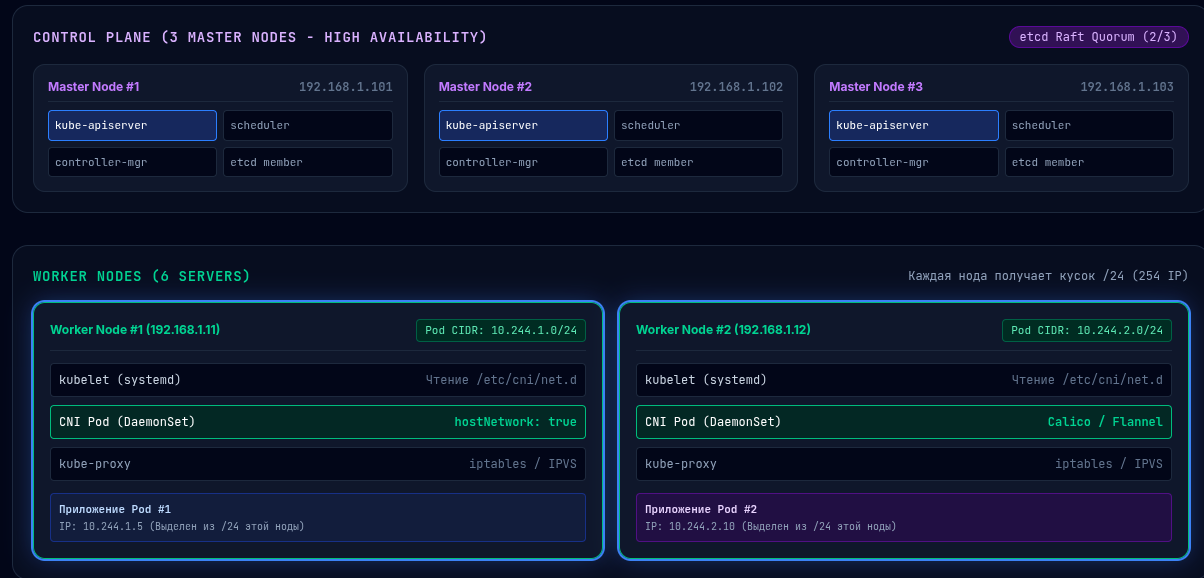
When taking notes in Obsidian, you often need more than static images or basic Markdown formatting — you need full-fledged interactive elements: interactive architecture diagrams (such as Kubernetes cluster layouts, microservice maps), custom widgets, calculators, or interactive documentation.
This plugin was built to solve this exact problem: it allows you to embed and run HTML/CSS/JS code inside your note, completely isolated from Obsidian's main user interface.
🚀 Features
- ⚡ Inline HTML Rendering: Insert HTML/CSS/JS code directly into a ```html-renderer block.
- 📁 Load Vault HTML Files: Embed HTML files directly from your Vault using
file: "path/to/schema.html". - 🔒 Isolated Sandbox (iFrame): Code executes in an isolated
<iframe>context, ensuring external scripts and CSS styles do not leak into or affect Obsidian's UI. - 📐 Smart Auto Height: Automatically adjusts container height based on content size without infinite expansion loops or unnecessary scrollbars.
- 🔄 Quick Refresh: A Reload button in the header of each block to instantly re-execute scripts.
- 🎨 Obsidian Theme Matching: Automatically inherits default font family and background color from your active Obsidian theme.
- ⚙️ Configurable Security: Toggle JavaScript execution, forms, popups, and modal dialogs in the plugin settings.
📖 Usage
1. Inline HTML / CSS / JS
Create a code block with html-renderer and insert your code:
```html-renderer
<style>
  .k8s-node {
    background: #1e1e2e;
    color: #cdd6f4;
    padding: 16px;
    border-radius: 8px;
    border: 1px solid #89b4fa;
    font-family: sans-serif;
  }
  .btn {
    background: #89b4fa;
    color: #11111b;
    border: none;
    padding: 6px 12px;
    border-radius: 4px;
    cursor: pointer;
  }
</style>

<div class="k8s-node">
  <h3>Control Plane (Master Node)</h3>
  <p id="status">Status: etcd Quorum (OK)</p>
  <button class="btn" id="checkBtn">Check Node</button>
</div>

<script>
  document.getElementById('checkBtn').addEventListener('click', () => {
    document.getElementById('status').textContent = 'Status: All 3 Master Nodes are active!';
  });
</script>
```
2. Loading HTML Files from Vault
If you have an HTML file with an interactive diagram (such as Kubernetes documentation) stored inside your Obsidian Vault:
```html-renderer
file: "diagrams/k8s-architecture.html"
```
⚙️ Plugin Settings
Under Settings → HTML Renderer, you can configure:
- Auto adjust height: Automatically resize the container to fit content.
- Default iframe height (px): Base height for the render container (default:
300px). - Inherit Obsidian theme background: Inject default font and background colors matching your Obsidian theme.
- Sandbox security:
Allow JavaScript execution: Enable<script>execution.Allow forms: Permit form submissions.Allow popups: Allow popups generated by JavaScript.Allow modals: Permitalert,confirm, andpromptdialogs.
🛠️ Installation
Manual Installation:
- Download
main.js,styles.css, andmanifest.jsonfrom the latest release. - Copy them into your vault folder:
<Vault>/.obsidian/plugins/html-renderer/. - Reload Obsidian and enable HTML Renderer under Settings → Community plugins.
🏗️ Development & Building
# Install dependencies
pnpm install

# Watch mode for development
pnpm run dev

# Production build
pnpm run build

# Lint code
pnpm run lint
📄 License
MIT
For plugin developers
Search results and similarity scores are powered by semantic analysis of your plugin's README. If your plugin isn't appearing for searches you'd expect, try updating your README to clearly describe your plugin's purpose, features, and use cases.