Script Editor
unlistedby ideo2004-afk
Standard Fountain-compatible screenplay editor with CJK support.
Script Editor v1.9
Script Editor is an AI Powered Fountain-compatible screenplay editor with CJK support (Chinese, Japanese, Korean), intelligent formatting detection, integrated Story Board/Outline tools, AI aid summary, and DOCX export.
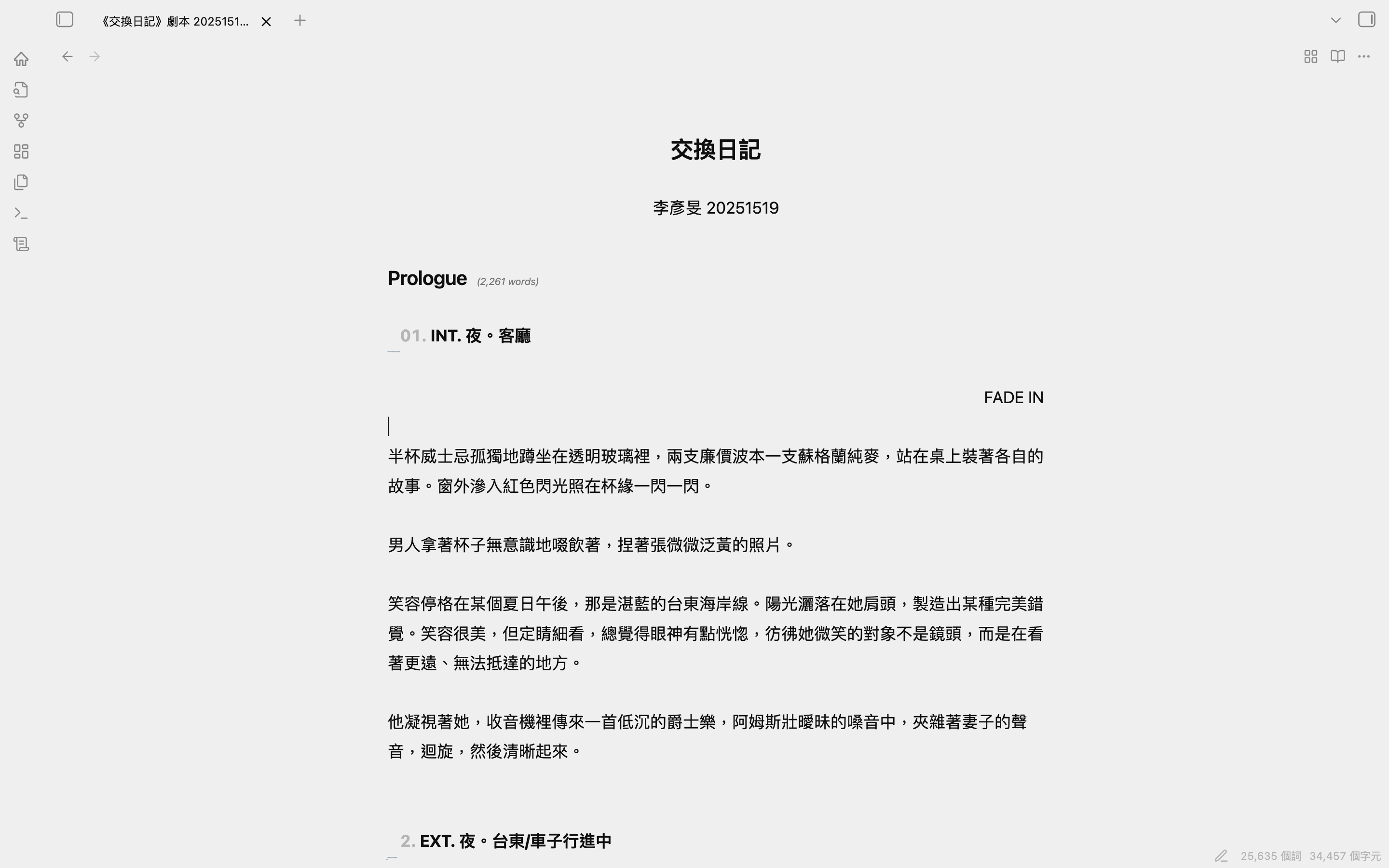 Editor Mode |
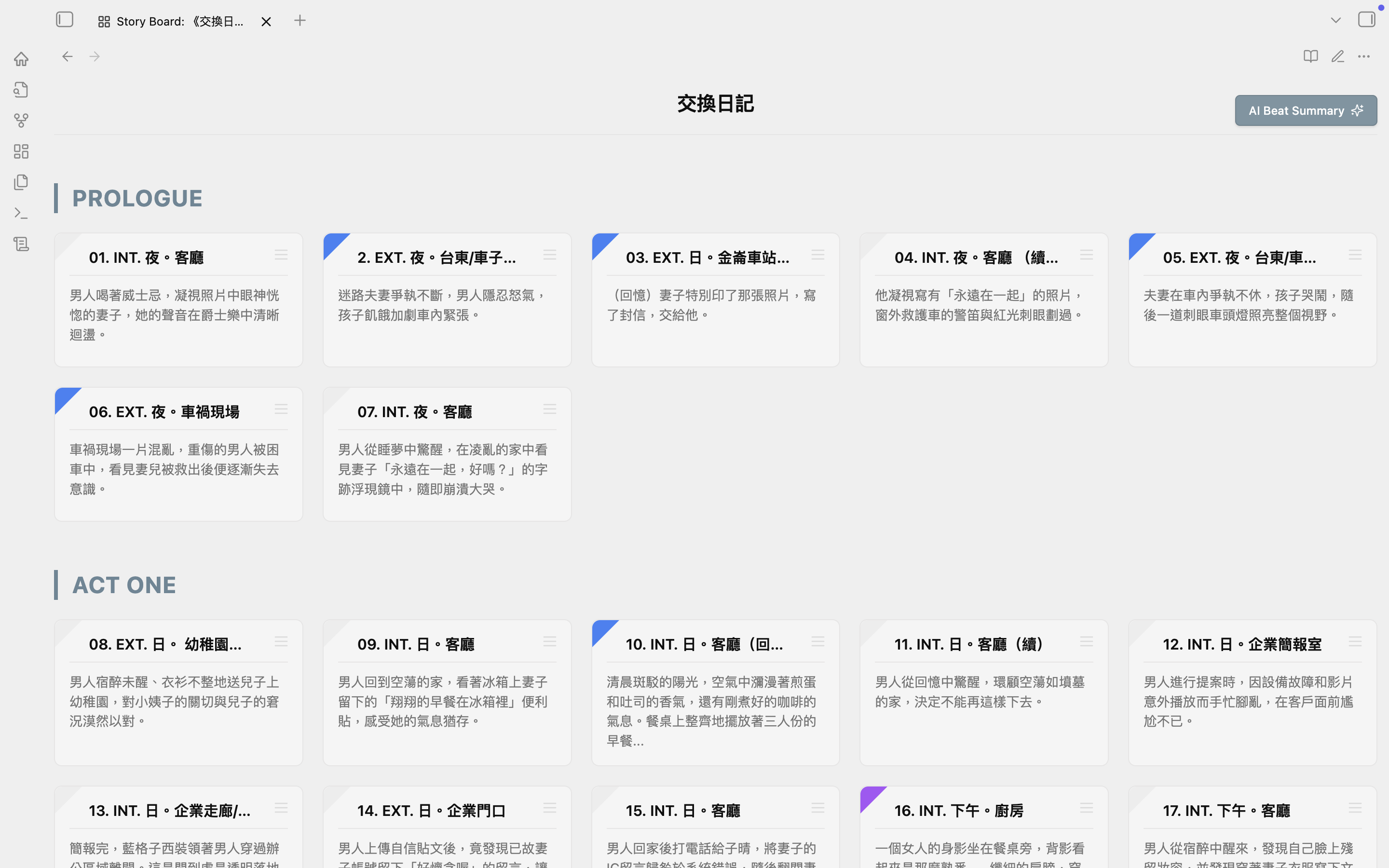 Story Board Mode |
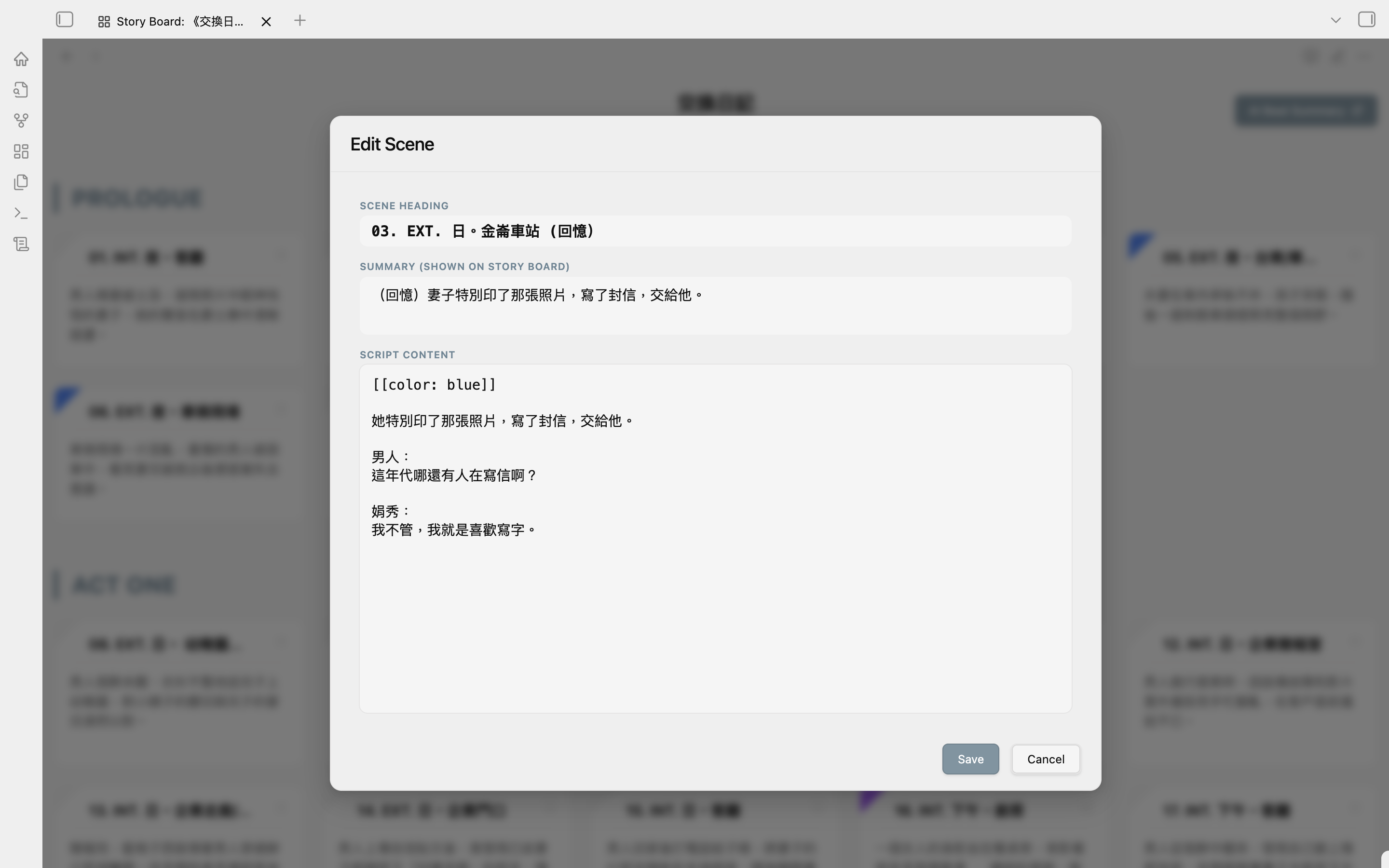 Card Editor |
📝 Syntax Guide
Use standard Fountain Syntax.
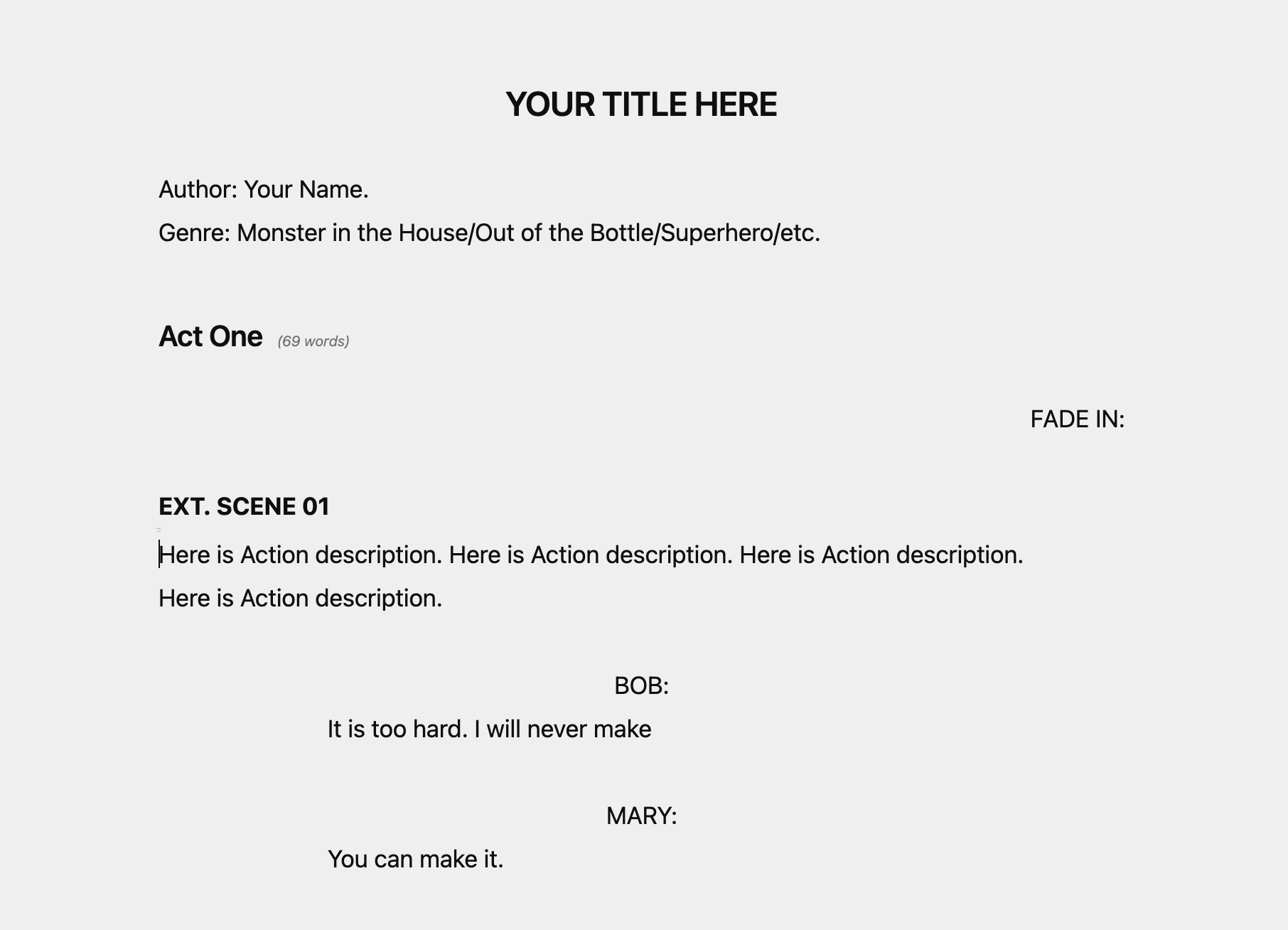
- Scene Heading: 'INT. / EXT.' will automatically be bolded and uppercased.
- Character: '@NAME', 'NAME', or 'NAME:' will be centered. The "@" is hidden in preview.
- Dialogue: Text below a Character will be automatically indented.
- Parenthetical: '(emotion)', 'OS:', or 'VO:' will be automatically centered and italicized.
- Transition: 'CUT TO:' or 'FADE IN' will be right-aligned.
🛠️ Features
Fast Script Creation
This plugin does not affect other .md files. You can create new .md files pre-configured with the correct metadata (cssclasses: fountain).
- Context Menu: Right-click on any folder and select New script.
- Command Palette: Search for
Create new script.
Story Board Mode
A visual grid view of your screenplay's scenes with full drag-and-drop support.
- Access: Click the "Grid" icon (⊞) in the view header.
- Drag & Drop Reordering: Rearrange scenes by dragging cards between positions. A blue insertion line guides you for precise placement.
- Quick Navigation: Click any card to instantly jump to that scene in the editor.
- Color Tag: Click the top-left corner to set card color markers.
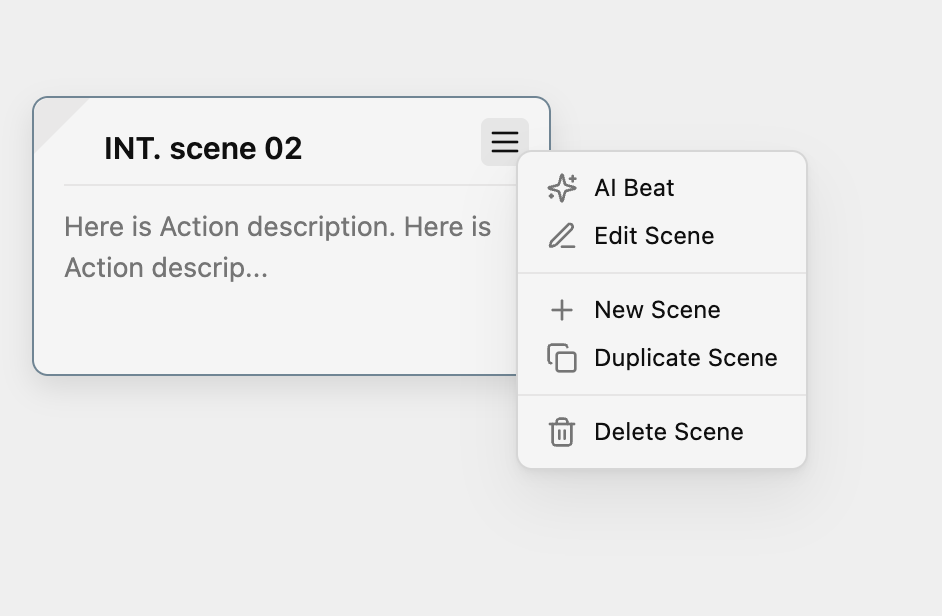
- Card Function: Click the top-right icon to add, clone, delete cards, or generate scene summaries with AI.
- Act Grouping: Scenes are automatically grouped under
##(H2) headings (Acts).
AI Powered Features
- In Story Board Mode, you can use AI aid for summaries. You need to enter your Gemini API Key in the settings page first.
- AI Beat Summary: Integrates Gemini 2.5 Flash to instantly generate scene summaries or new scenes based on context.
- Bulk AI Processing: One-click to analyze and summarize your entire screenplay.
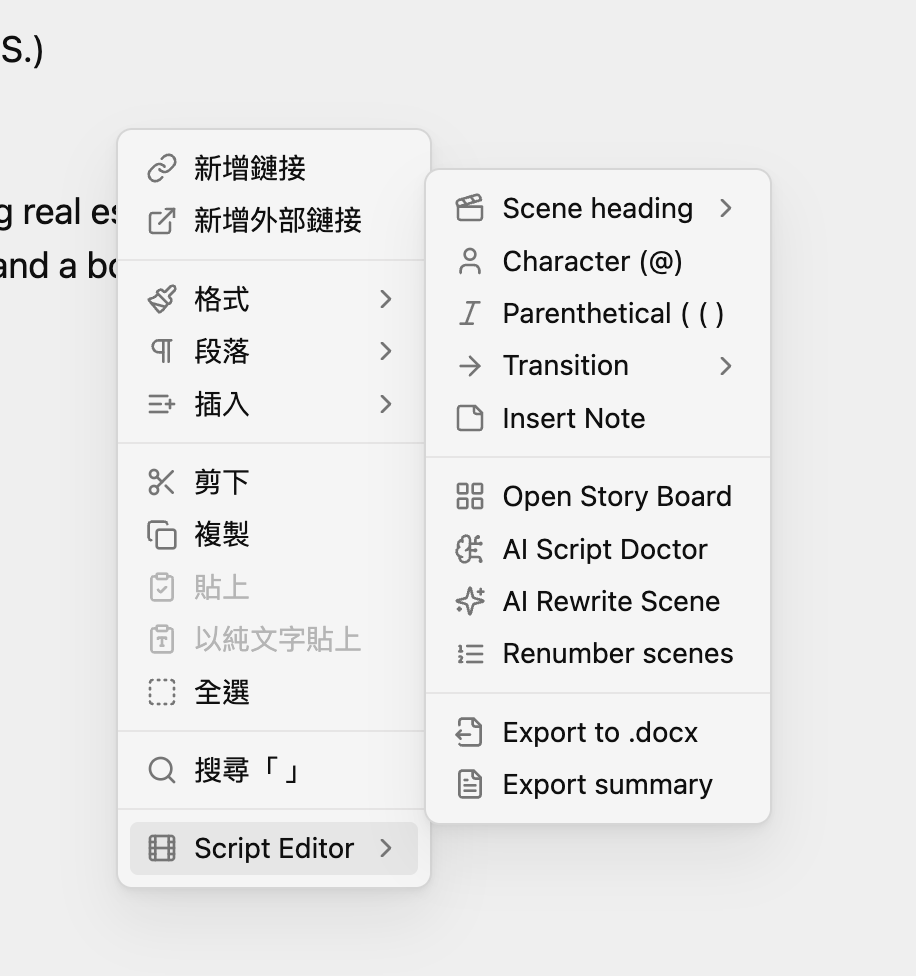
- AI Rewrite Scene: Right-click anywhere in the editor to rewrite your rough notes into a professional screenplay scene based on surrounding context.
DOCX Export
Industry-standard screenplay documents.
- Editor/File Explorer: Right-click -> Export to .docx.
Scene Renumbering
- Command Palette:
Scripter: Renumber Scenes - Automatically updates sequential numbers for all Scene Headings (e.g.,
01. INT. ...).
Character Suggestion Menu
Quickly insert character names with frequency-based autocomplete.
- Trigger: Type
@anywhere in your script. - Smart Ranking: Characters are ranked by how often they appear in your script.
- Automatic Detection: Works with
@NAME,NAME:, and ALL-CAPS formats.
Export Summary
Export your script's structure to a separate Markdown file.
- Editor/File Explorer: Right-click -> Export summary.
- Outputs all H1, H2 headings and scene summaries to a new
.mdfile.
Right-click Function
- In editing mode, the right-click menu provides common Syntax options and other functions.
Markdown-Native
A hybrid design that respects standard Markdown (Headings, Lists, Bold) while delivering professional screenplay formatting.
📦 Installation
We recommend using BRAT or manual installation.
Manual Installation
- Download
main.js,manifest.json, andstyles.cssfrom the Latest Release. - Create a folder named
script-editorin your vault's.obsidian/plugins/directory. - Copy the downloaded files into that folder.
- Reload Obsidian.
Support
Created by Yan Min Lee ( ideo2004@gmail.com ). I am a movie director and scriptwriter in Taiwan. If you find this plugin useful and would like to support its development, please consider buying me a coffee:

License
MIT
For plugin developers
Search results and similarity scores are powered by semantic analysis of your plugin's README. If your plugin isn't appearing for searches you'd expect, try updating your README to clearly describe your plugin's purpose, features, and use cases.