Inline Code CSS classes
unlistedby myaxislost
Simple styling of inline code block via css snippets
Updated 9mo ago
Obsidian Inline code css
Installation
- Download the latest release from Releases
- Unpack it into your vault .obsidian/plugin folder
- Enable it in the
Community Pluginsettings
Settings
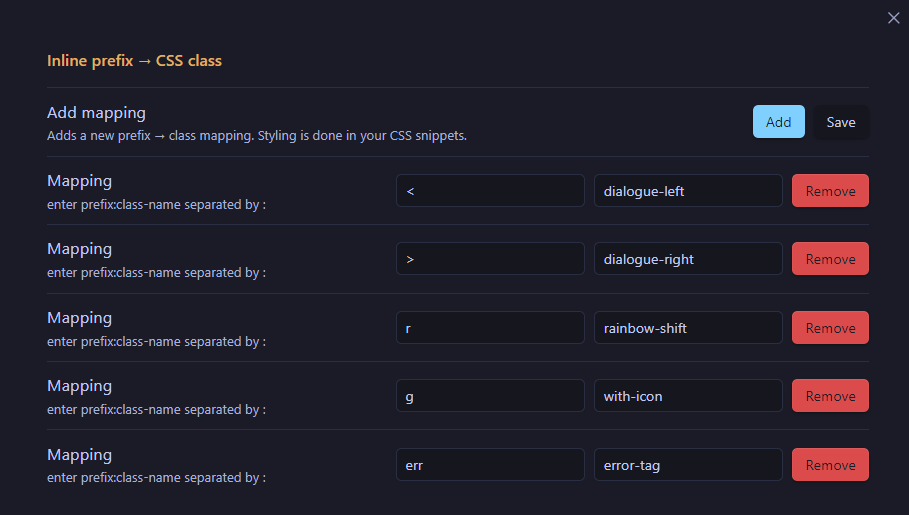
- Add prefix and css class name you wish to use for this prefix
- Click save
- Done!
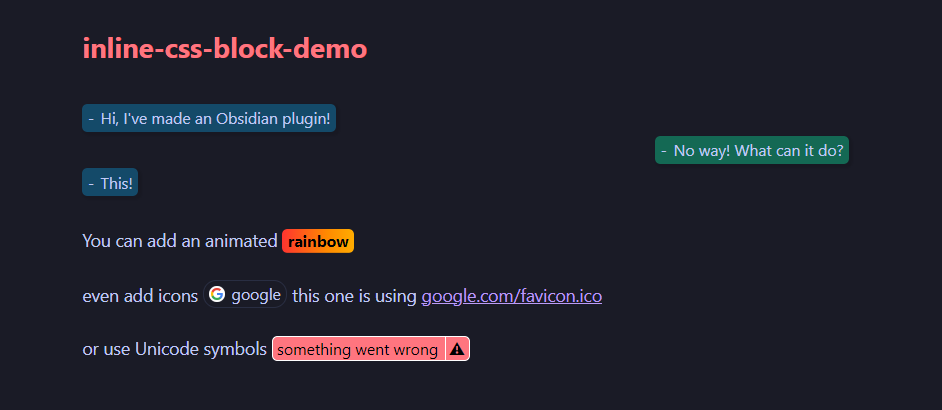
Now once you type `<:Some text here` it would automatically use the corresponding css class from your css snippets
Explanation
On rendering the plugin replaces you `<:Example` with
<span>
  <span class="inline-widget ...">
    Example
  </span>
</span>
So you can do pretty much anything with css these days, here's the dialogue example from the demo:
.dialogue-left,
.dialogue-right {
  color: var(--text-normal);
  font-weight: 400;
  max-width: 50%;
  padding: 2px 5px;
  box-shadow: rgba(0, 0, 0, 0.1) 2px 2px 2px 2px;
}
.dialogue-right::before,
.dialogue-left::before {
  content: "-";
  font-weight: 400;
}

.dialogue-left {
  background-color: #144a69;
}

.dialogue-right {
  align-items: end;
  background-color: #146954;
}

span:has(.dialogue-left),
span:has(.dialogue-right) {
  display: inline-flex;
  width: 100%;
  margin-bottom: 4px;
}

span:has(.dialogue-right) {
  justify-content: end;
}
More examples here
For plugin developers
Search results and similarity scores are powered by semantic analysis of your plugin's README. If your plugin isn't appearing for searches you'd expect, try updating your README to clearly describe your plugin's purpose, features, and use cases.