Kosmos-Oden
unlistedby OdenKnight
Explore your notes in 3D and search your vault. On desktop, share selected folders with AI assistants through a read-only MCP connection.
Kosmos-Oden
Kosmos-Oden helps you find your way back to what you wrote in Obsidian. Open your vault as a sky of connected notes, follow a link, or ask the Librarian a question such as “Which seeds did I plan to plant?” It points you to passages you can open and check. Your notes stay ordinary Markdown.
An AI assistant can use the same library. For example, you can share a garden project with an assistant so it can find last spring’s planting list, while keeping your journal outside its reach. You choose the folders. Sharing starts off, and the assistant’s tools are read-only.
Quick installation
- Use Obsidian 1.13.0 or newer. Close Obsidian and download the 0.9.6 plugin ZIP. A SHA-256 checksum is available.
- Extract the ZIP. Copy the files inside its
kosmos-odenfolder directly into<your vault>/.obsidian/plugins/kosmos-oden/. Create that folder if needed. On upgrade, keep your existingdata.json. - Reopen Obsidian. Under Settings → Community plugins, enable Kosmos-Oden. Click E-Z setup in Settings → Kosmos-Oden to ask about your notes. To see the sky, run Open Kosmos-Oden from the command palette.
For a manual install, the three base files are main.js, manifest.json and styles.css. Clients using the local stdio bridge also need kosmos-mcp-stdio.mjs in that folder. The 0.9.6 plugin ships with standalone viewer 0.9.5, the same viewer bundled with the pinned GKOS-Engine. To explore a folder without installing the plugin, open the offline HTML viewer and select Open Knowledge Folder.
Find your way around
Start with E-Z setup. Open Settings → Kosmos-Oden → E-Z setup, or select the open-book ribbon icon. Ask the Librarian a question using words you remember, then open a matching passage. It reads Markdown notes in this vault on your device. Once the plugin is installed, this takes no further download, account, or AI connection. The same tab explains assistant connections, three levels of optional tagging, and sync. Getting started
Open the command palette for everyday actions. Open Settings → Kosmos-Oden to configure Agent API (HTTP + MCP), GKOS Note Formatting, Quick Connect MCP, or Connectivity to Sync Vault.
Explore the sky
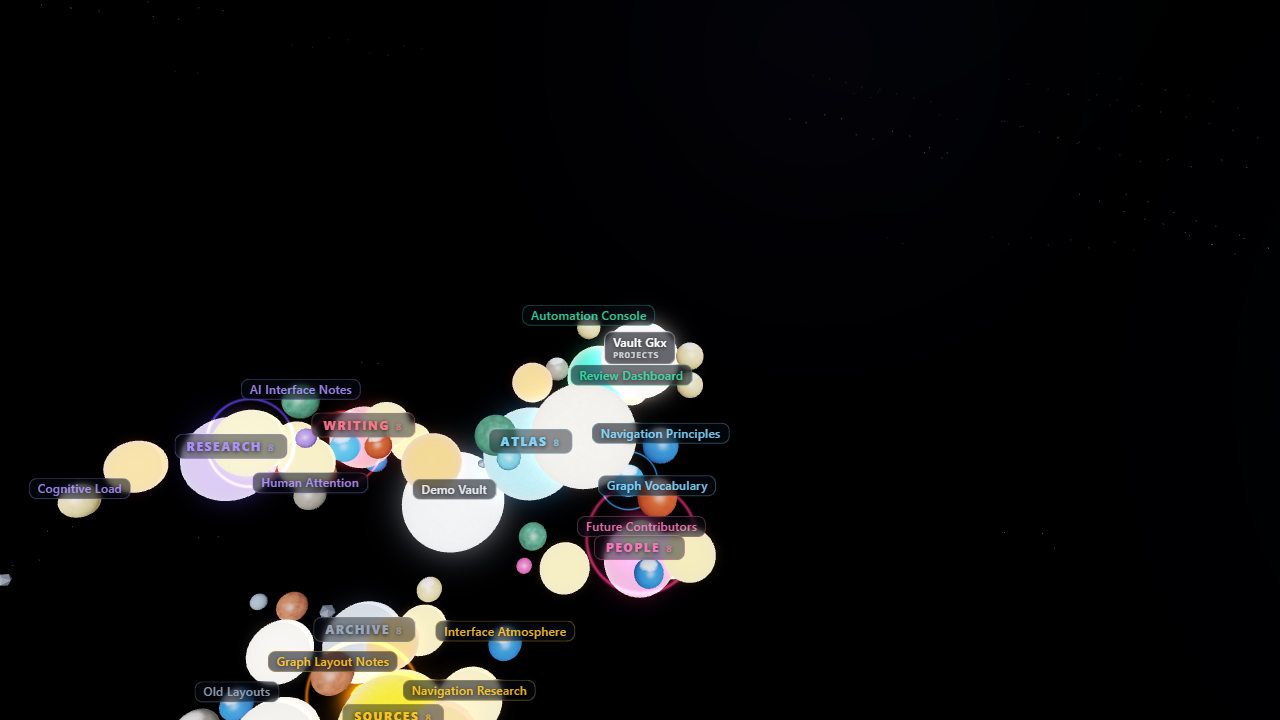
Run Open Kosmos-Oden and select a star to focus on a note and its connections. Follow a link to see the surrounding notes. Where notes record that one version replaces another, the lineage view lets you trace that history. For a written index, open a note and run Update this folder’s map of content (deterministic). It maintains a list of links in that folder’s index. Viewer controls and folder workflows
Find a passage by words or meaning
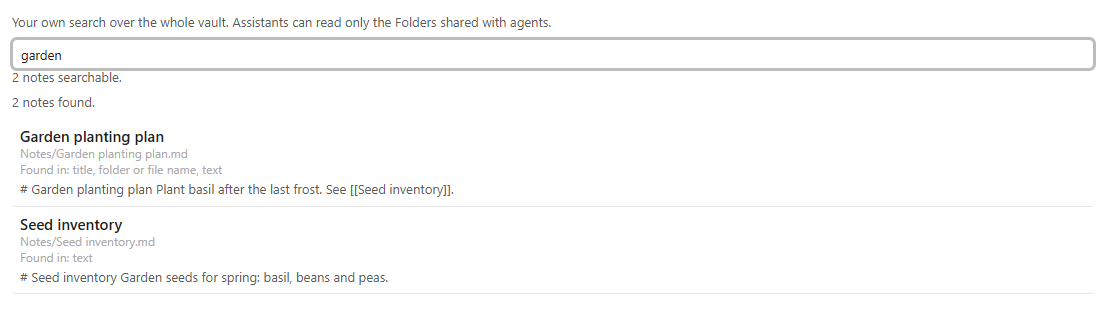
Use Search my notes for exact words or a quoted phrase across your own vault.
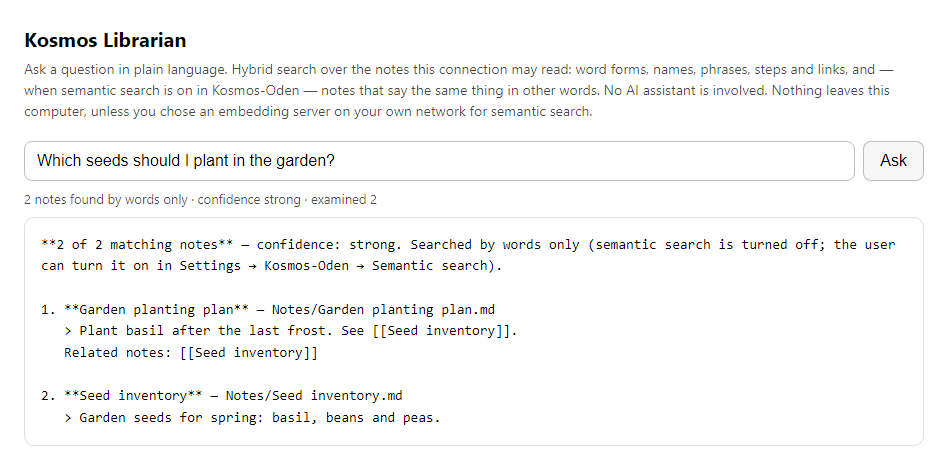
An assistant can ask the Librarian a whole question and receive ranked notes, excerpts and links. Check the source passage, especially when several notes look plausible. To bring in an old notebook first, Add notes from another app guides you through Obsidian Importer for Google Keep or OneNote. Personal Notes guide · Search limits in 0.9.6
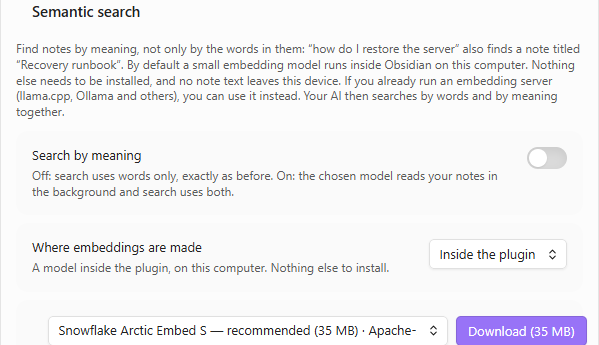
For a question like “How do I get my server back?” when the note is titled “Recovery runbook,” open Agent API (HTTP + MCP) → Semantic search. Choose a model, press Download, and enable Search by meaning. The built-in option downloads model files from Hugging Face on request and indexes notes on this device. If you choose your own local or LAN embedding server, it receives passages and questions. The Librarian can use meaning alongside words as the index fills. Sharing rules still apply. Models, indexing and server setup
Choose what an assistant may read
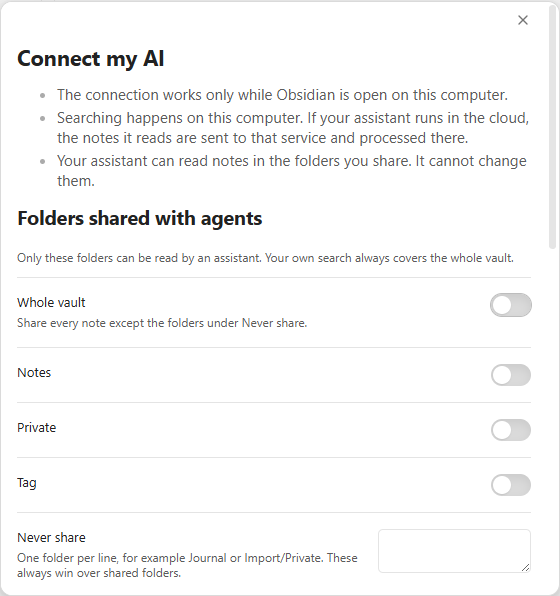
Personal Notes is the profile for everyday Markdown. On a fresh install the connection is off and the folder list is empty. In Connect my AI, select only folders the assistant needs and put exceptions such as Journal in Never share. Existing (governed Agent API) is the other profile, for vaults that use GKX properties and policy. Profile and folder rules
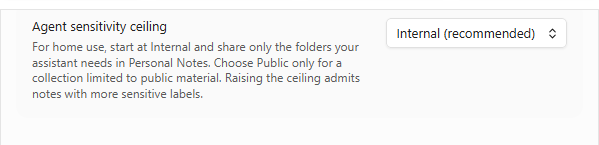
Personal names a profile. Public through Secret are the sensitivity levels. The Agent sensitivity ceiling is the highest level an assistant may read. For example, an Internal ceiling admits Public and Internal notes. The examples are suggestions for labeling your own notes.
| Level | Example or practical use |
|---|---|
| Public | Published instructions you would give anyone. |
| Internal | Ordinary household or team notes. Start here for home use. |
| Restricted | A project shared with a smaller group. |
| Confidential | Private agreements or sensitive business information. |
| Regulated | Records subject to special handling rules. |
| PHI | Protected health information. |
| Secret | Your most sensitive material. This ceiling admits every recognized level within the applicable scope. |
In Personal Notes, an unlabeled note in a shared folder is readable even at Public. Use folder exclusions for anything that must stay private. In the governed profile, Default sensitivity classifies unlabeled notes and defaults to Secret. Leave that default in place if you want unlabeled governed notes withheld at the normal Internal ceiling. Technical access rules
Connect an assistant through MCP
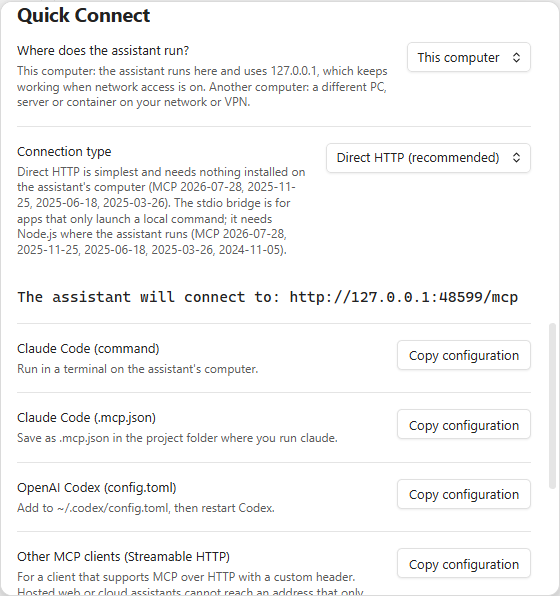
MCP is the protocol an assistant uses to ask Kosmos for notes. On desktop, open Connect my AI, choose the folders, leave Localhost only selected for a client on this computer, and press Connect. In Quick Connect, select your client, copy its configuration and use Test connection. Keep the bearer token private. A cloud assistant receives any note content its client reads. LAN makes the listener reachable on your network over plain HTTP. The listener runs while Obsidian is open. MCP clients, tools and troubleshooting
Add tags by rule or review an AI suggestion
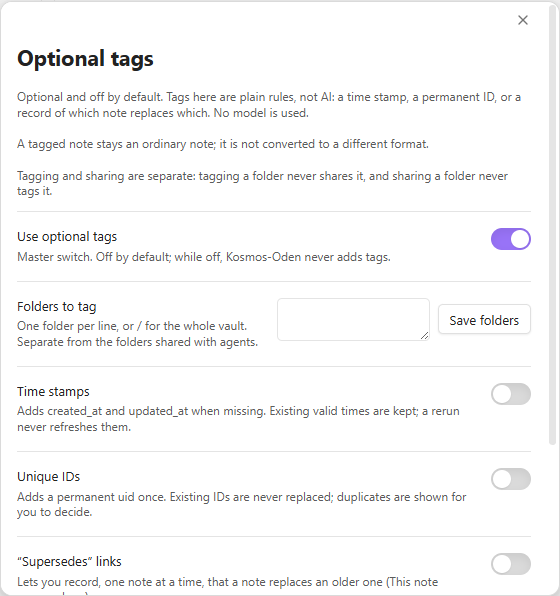
Optional tags is the simple, deterministic route. Choose a folder and preview missing timestamps or permanent IDs. You can also explicitly record that one note supersedes another. Select the changes to apply. Kosmos backs up affected notes and skips notes that changed after preview. Tagging a folder does not share it. Optional tagging
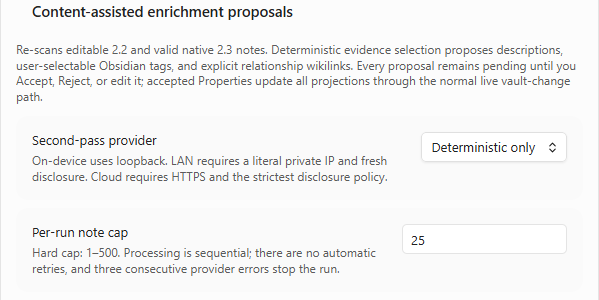
For governed GKX notes, open GKOS Note Formatting → Content-assisted enrichment proposals. Start with Deterministic only, or select an on-device, LAN or cloud model for a second pass. It proposes descriptions, topic tags and relationship links from excerpts. You review the proposals before applying changes. LAN and cloud runs disclose their destination and require confirmation. The cloud ceiling defaults to Public. Proposal review and data limits
Sync with Nextcloud
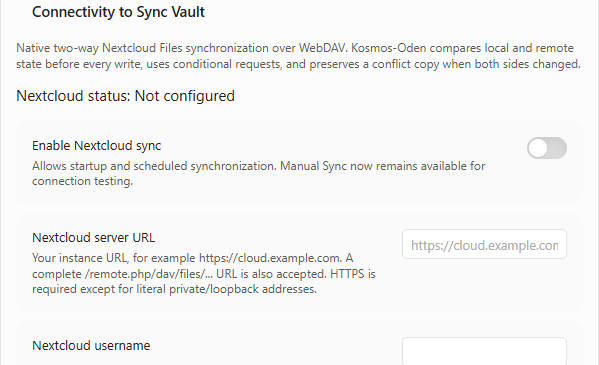
Open Connectivity to Sync Vault, enter your Nextcloud URL, username, app password and remote vault folder, then test the connection before choosing Sync now, startup sync or a schedule. The app password goes into Obsidian SecretStorage. By default, a file missing on one side is restored from the other. Propagate deletions changes that behavior. Keep a separate backup. Additional providers are planned, starting with S3-compatible storage, followed by candidates including Dropbox, OneDrive and Google Drive. Nextcloud is included in 0.9.6. Sync behavior and conflict handling
Full technical guide
Open the numbered guide to all capabilities and features for the renderer, profiles, search, MCP and REST tools, data flows, maintenance commands, exports, sync, experimental features and release evidence. For hands-on instructions, use the user guide.
Origin, source and licensing
GKOS-Engine and Kosmos-Oden’s Engine integration are original work by Shaun Marshall. The 3D renderer began from H4R7W16’s vault-kosmos, which originated the star-field rendering and concept, and was later rebuilt: celestial bodies match real astronomical objects and scale with the relative weight of notes. Derived portions remain under vault-kosmos’s MIT license. Kosmos-Oden carries that idea into note history, local search and read-only access for assistants. Original vault-kosmos project · Upstream credits and notices · Acknowledgments
Local viewing and word search work offline. Optional services use the endpoints you choose above. The standalone viewer reads a folder you select, and the plugin can import model files you choose from disk. The public release includes a compiled private GKOS-Engine dependency. The 0.9.5 tagged build and its private reviewer source package were independently reproduced on Linux x64 with Node 22.23.5. Source build and directory review · Contributor setup · Release and checksums
Project-authored software uses Apache-2.0. Project-authored documentation and original graphics use CC BY 4.0. Third-party materials retain their own terms. Licensing · Third-party notices
For plugin developers
Search results and similarity scores are powered by semantic analysis of your plugin's README. If your plugin isn't appearing for searches you'd expect, try updating your README to clearly describe your plugin's purpose, features, and use cases.